
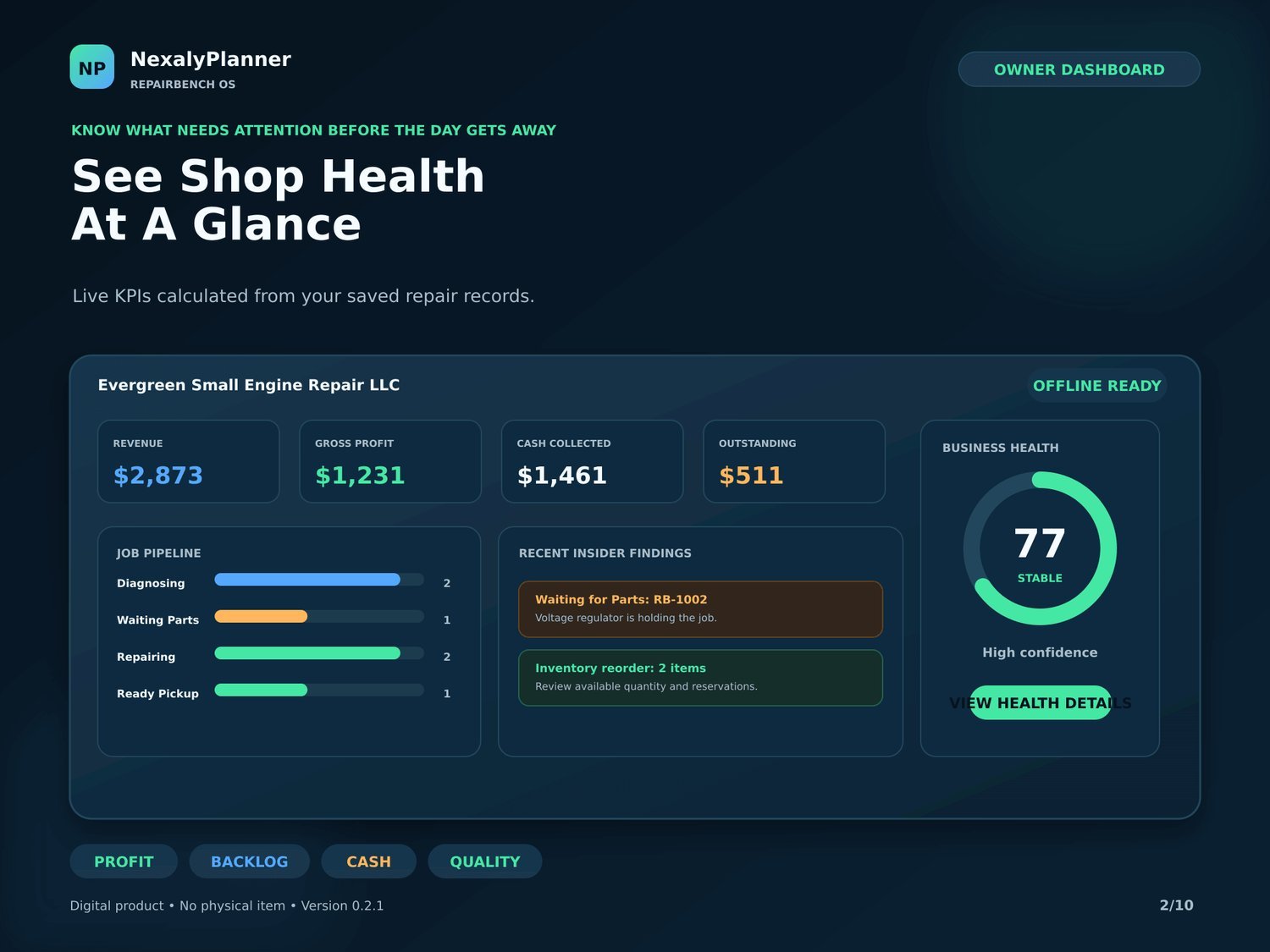
Offline small business software lets you complete supported tasks without an active internet connection. It may be an installed desktop program, a local browser app or an offline-capable app that synchronizes later. For many independent owners, a one-time-purchase, offline app is simpler and cheaper over time than yet another monthly subscription. This guide explains how offline business software works, what “no subscription” really means, and how to choose a tool you can rely on.
All examples below are general guidance for evaluating software, not a promise about any specific product's results.
Why offline software still makes sense in 2026
Cloud tools are convenient, but they come with trade-offs: a recurring bill, a dependency on someone else's servers, and your data living on a platform you do not control. A local HTML business app is one option: it opens from a downloaded file and keeps records on your device. Other offline tools use an installed application and a local database. Offline-first services may still require an account or a connection for synchronization.
For a repair shop, a rental business, a boutique or a small distributor, that means the day-to-day workspace — a business operating system — is always available and always yours. There is no login screen between you and your numbers.
What “no subscription” really means
A subscription charges you every month or year to keep using the software. A one-time purchase charges you once; the version you buy is yours to keep and use for as long as it runs. There is no auto-renewal and no account that can be suspended for non-payment.
The honest trade-off is updates. Subscriptions usually bundle ongoing updates into the fee. With a one-time purchase, you keep the version you bought; new features may come as a future release. For a focused tool that does one job well, that is often exactly what a small business wants.
What to check before you buy offline software
Before buying any offline app, confirm a few practical points so it fits how you actually work:
- Browser support — which desktop browsers it opens in.
- Where data is stored — local storage or a downloadable file, and how to move it.
- Backup and restore — can you export a dated backup and restore it later?
- Exports — can you get reports out as PDF, CSV, Word or Excel?
- License — personal or single-business use, and what you receive in the download.
Read the product page's compatibility notes and preview before you buy, and match them to your own devices and workflow.
Compare offline software formats before choosing
| Format | How records are kept | Main check |
|---|---|---|
| Installed desktop software | Local files or database | Operating-system support and backup portability |
| Downloaded HTML app | Product-specific browser storage or files | Persistence in your browser and restore instructions |
| Offline-first cloud service | Local copy plus later synchronization | Which tasks work offline and how conflicts are resolved |
This is a buying guide with examples from NexalyPlanner, not an independent ranking of every vendor. Our apps focus on local operating records. Do not assume that they replace accounting software, submit tax returns, process payments or import live marketplace orders.
Test one complete workflow before moving real records
- Use fictional records to enter an item, an order and its payment reference. Check which fields and relationships the app actually supports.
- Disconnect from the internet and reopen the downloaded full app on the intended device. Verify that its core screens and saved test records still work.
- Export a backup using the product instructions. Restore it in a separate test workspace and compare record counts and a few amounts. Confirm whether restore replaces or merges data before trying it.
- Test the reports you need. Check separately for printable summaries, structured data exports and full backups.
- Agree on one working copy and a backup owner. A manual file transfer is not live multi-user synchronization.
Use the OwnerOS Core user guide or the Inventory & Procurement setup guide for product-specific instructions. Browser demos use temporary sample data and may disable exports; a demo cannot verify full-version persistence or backup behavior by itself.
Offline tools by business type
Different businesses need different records. Here are common offline workspaces and the job each one does:
| Business type | What it tracks | Example tool |
|---|---|---|
| Repair shop | Work orders, parts inventory, invoices, profit | RepairBench OS |
| Equipment / party rental | Bookings, availability, deposits, returns | RentFlow OS |
| Product seller / boutique | Orders, inventory, sales and profit | Sales Management System |
| Buyer / distributor | Suppliers, purchase orders, landed cost | Inventory & Procurement |
| Content-led brand | Content calendar, campaigns, analytics | Content Marketing Planner |
Browse the full range on the Business Operating Systems page.
Keeping your data safe when everything is local
Local storage can reduce reliance on a cloud service, but it still needs protection and recovery planning: if you clear your browser data or switch computers, local records can be lost. The fix is a simple habit — export a dated backup after any important change and store a copy somewhere safe, such as an external drive or your own cloud folder.
Good offline tools make this easy with one-click JSON or file backups and a restore option. Treat backups the way you treat a spare key: you rarely need it, but you are glad it exists.
Is offline software right for your business?
Offline, one-time software is a strong fit when a single owner or a small team runs the workspace, you value privacy and predictable cost, and you do not need live multi-user syncing across locations. If you need several people editing the same records in real time across cities, a cloud tool may suit you better.
A local one-time-purchase workspace can suit a solo owner who accepts manual entry and backup responsibility. Offline availability and subscription pricing are separate features: verify both.
Frequently asked questions
Is offline small business software safe?
Offline use alone does not guarantee security. Check network features, device access, backup protection and recovery options. A local-only app avoids cloud synchronization, but device loss or cleared browser storage can still remove records.
What happens if I change computers?
Export a backup from the old computer, move the file, and restore it on the new one. Because the app is a file you keep, you can open it on any supported desktop browser.
Can offline software still export reports?
Some offline tools export reports or data, but supported formats vary. Check whether the exact product provides PDF printing, CSV exports or a restorable backup. A printed report is not necessarily a backup you can restore.
One practical check for your next review
A renewal tool should let the team identify the controlling agreement, notice deadline, decision owner and evidence of an action; see the contract renewal workflow for a fictional review. A repair tool should let staff distinguish shelf stock from parts held for a job; use the repair-shop inventory example as a test case. Verify both workflows in the current product demos before relying on them.