
Direct answer: Nexaly Planner’s Offline Inventory and Procurement Planner is a browser-local control system for recording products and SKUs, monitoring stock, documenting movements and adjustments, creating purchase requests and purchase orders, receiving quantities through a GRN, and reviewing low-stock, reorder, forecast, supplier, warehouse, report, and alert views. It is a good fit for an inventory-led US business that wants a focused operating record without requiring a cloud connection. It is not a cloud ERP, accounting system, live supplier connector, or automatic purchasing agent. Recommendations are calculated from the records saved in this browser; the owner still decides what to buy and what to do outside the workspace.
At a glance
The planner answers three practical questions: What do we have? What will we need next? What purchasing decision should we review? The Dashboard brings those questions together with inventory value, working-capital exposure, reorder signals, savings opportunities, alerts, and a local control assistant. The Inventory area provides the underlying records, while Procurement closes the loop from request to order to receiving.
This guide uses the product’s actual labels and audited behavior. The baseline workspace shows a local edition marked “Private by default” and “Data stays in this browser.” The default demonstration can show PKR values, even though the product includes USD as a currency choice. Set USD before entering US records so new views and printed outputs use dollars consistently.
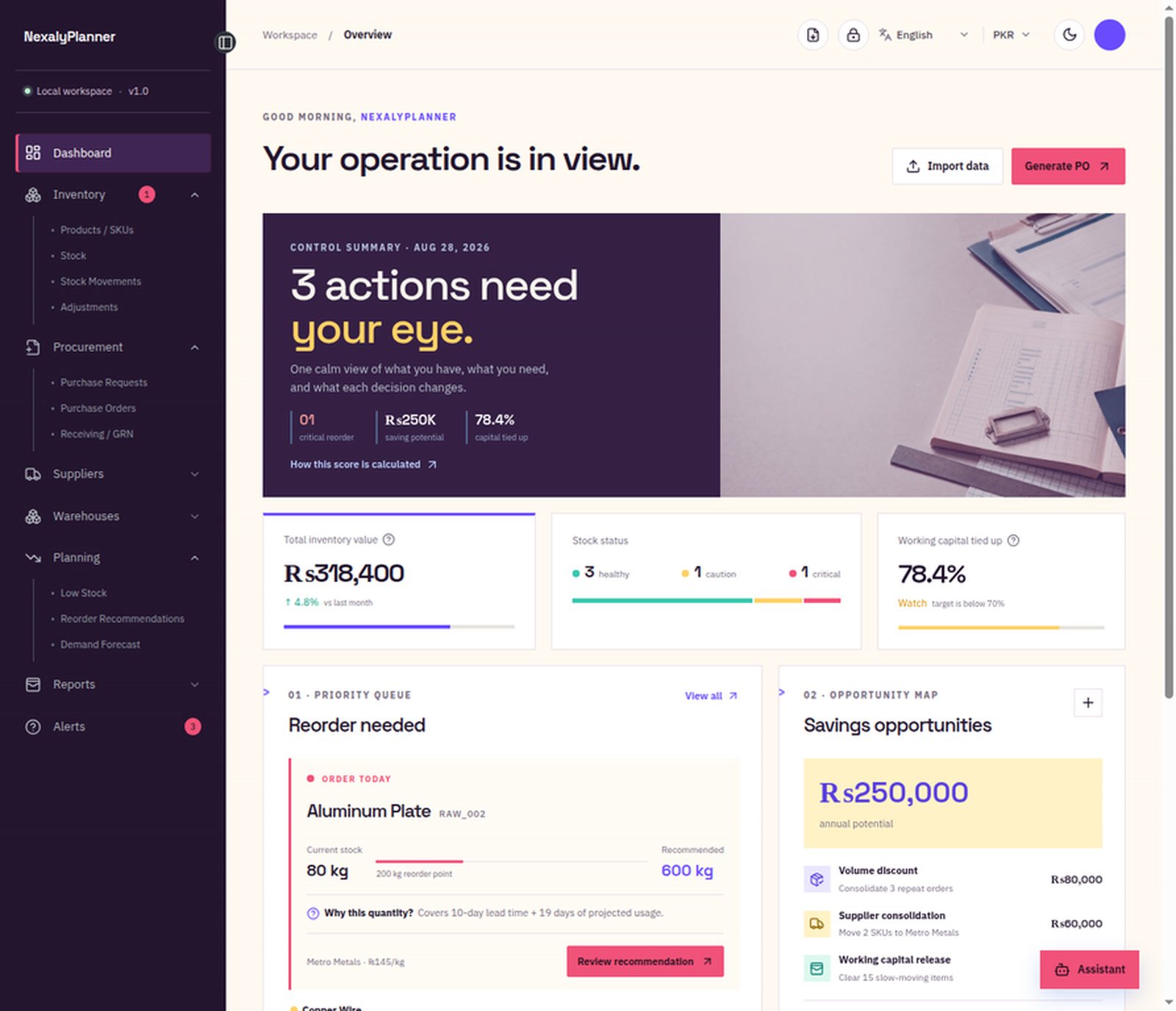
Figure 1. Baseline Dashboard for the Offline Inventory and Procurement Planner. The screen is an orientation view of the local control room; visible figures in a demo workspace are sample records, not a business’s actual inventory position.
Quick start: first session
Use this sequence before relying on a recommendation or placing an order.
- Open the local workspace and identify its state. The first view may show the product’s local-edition introduction, including “Save & open workspace,” “Open quick guide,” and “Skip for now.” If a local passcode has already been configured, the workspace may instead show “Unlock your records,” “Local passcode,” and “Unlock workspace.” Enter the passcode only in the product’s local unlock screen. Do not assume that a blank or locked state means records are missing.
- Open Branding & Security. Set the customer or business name, business details, and optional logo. The product calls this area “Customer branding” and saves the branding locally. These fields appear in browser printouts and can be saved as PDF.
- Choose US settings. Select English from the language list and USD from the currency list. The audited product offers English, Arabic, Spanish, Italian, Portuguese, French, and Dutch, plus PKR, USD, EUR, GBP, and AED.
- Decide whether to use the starter demo. Demo records are useful for learning the flow, but they must not be treated as your business results. Use “Restore demo data” only when you intend to replace the current operational records with the starter demo. Start a clean workspace before entering real data.
- Create the master records. In Products / SKUs, add each item, its SKU or item code, unit cost, supplier name, current stock, reorder point, lead time, and other values the form presents. Add the corresponding supplier in Suppliers and storage location in Warehouses.
- Make stock traceable. Use Stock Movements for inbound and outbound changes. Use Adjustments for corrections that should be visible as adjustments rather than ordinary receipts or issues. The product states that each change is saved locally and updates the selected stock balance.
- Run the first planning review. Open Low Stock, Reorder Recommendations, and Demand Forecast. Check that the recommended quantity makes sense against your real lead time, safety stock policy, expected usage, and open orders.
- Close one purchasing cycle. Create a Purchase Request, convert the approved request into a Purchase Order, and use Receiving / GRN to record a complete or partial receipt. A partial receipt leaves a backorder indication rather than silently marking the PO complete.
- Create a backup before wider use. Use Backup workspace or the local JSON/CSV download options in Branding & Security. Keep the backup outside the browser profile and record the passcode separately; the product states that a local passcode is never included in backups.
Menu and screen map
The left rail is organized around the operating sequence below. Names in bold are the verified menu labels.
| Area | Screen | What it is for | Main result |
|---|---|---|---|
| Control | Dashboard | See inventory value, reorder signals, capital tied up, savings opportunities, alerts, and the local assistant | A prioritized review list |
| Inventory | Products / SKUs | Maintain the master item records that drive stock control | A searchable SKU register |
| Inventory | Stock | Review current stock and the next threshold for each item | A current local stock view |
| Inventory | Stock Movements | Record inbound and outbound quantities | A traceable movement history and updated balance |
| Inventory | Adjustments | Correct a balance when the reason is an adjustment | A locally saved adjustment |
| Procurement | Purchase Requests | Capture what needs to be bought before it becomes an order | An open request ready for review |
| Procurement | Purchase Orders | Turn an approved request into a supplier commitment | A PO with supplier terms and status |
| Procurement | Receiving / GRN | Record received quantities against an order | A Goods Received Note and stock update |
| Network | Suppliers | Maintain local supplier records and linked SKUs | A supplier directory for purchasing decisions |
| Network | Warehouses | Record local storage locations and warehouse readiness | A warehouse register |
| Planning | Low Stock | See items below a minimum or reorder threshold | A low-stock work queue |
| Planning | Reorder Recommendations | Review calculated quantities and reasons | A prioritized recommendation list |
| Planning | Demand Forecast | Review forward-looking usage and lead-time coverage | A planning view based on local records |
| Analysis | Reports | Inspect purchases, stock aging, and local operating metrics | Printable reports and summaries |
| Control | Alerts | See current signals such as below-minimum and slow-moving stock | Exceptions requiring attention |
| Administration | Branding & Security | Manage identity, language, currency, appearance, local password, backups, and data-reset actions | A configured and recoverable local workspace |
The Dashboard also includes direct actions such as Import data, Generate PO, View all, Review recommendation, Open savings report, and Open assistant. These shortcuts do not replace the underlying records. They take you to the same local workflow.
Set up the workspace correctly
1. Set identity, branding, language, and currency
Open Branding & Security before loading inventory. Enter the customer name and business details, upload an optional logo if desired, and select Save branding. The product describes these values as customer branding and uses them in browser printouts. If you serve multiple businesses from one browser profile, keep one workspace per business and label the backup files clearly.
Select English and USD for a typical US operation. Currency selection changes how local values are displayed; it does not convert historical costs or validate exchange rates. Use one currency consistently for a purchasing dataset. The product includes a small fixed currency list in this edition rather than a live exchange-rate service.
If a local password is needed, use the Local password control in Branding & Security. The passcode protects access in this browser, but it is not included in the backup file. A forgotten passcode therefore cannot be recovered from the exported JSON. Keep it in your organization’s approved password manager.
2. Choose clean data or demo data
The audited workspace can restore starter demo records and can also clear inventory, supplier, warehouse, and procurement records. The clear action warns that it cannot be undone without a backup. Treat Restore demo data and data clearing as replacement operations, not harmless previews. Make a backup first, verify the downloaded file exists, and use demo data only in a disposable learning workspace.
3. Import and backup boundaries
The Dashboard exposes Import data, while Branding & Security provides local backup and download controls. The product identifies JSON backups and CSV outputs for records such as inventory, suppliers, warehouses, and purchase orders. Before importing, confirm that the file came from this product and that its structure matches the current edition. An invalid file produces an “invalid backup” or “That backup file is invalid or could not be read” result rather than a successful restore.
Stock-control workflow
Products / SKUs: build the source of truth
Products / SKUs stores the master records that other screens read. Use Add SKU, then enter the product or SKU information shown by the form. The audited interface presents a searchable product register with columns such as SKU / product, Unit cost, and Supplier. It also uses Reorder point in stock and recommendation logic.
Use stable item codes. For example, use AL-PLATE-6061 for a 6061 aluminum plate rather than changing the code when the supplier changes. Record the unit used for purchasing, such as kg, ft, case, or each. Set unit cost to the current planning cost, and review it when a supplier quote changes. A reorder recommendation can be mathematically correct but operationally poor if the item’s unit, cost, or lead time is wrong.
Stock: inspect current balance and thresholds
Open Stock to search by SKU, name, or category and review the current local balance. The product describes this as a searchable view of every stock item and its next threshold. Compare current quantity with the reorder point before approving a purchase. Do not count an unreceived PO as on-hand stock; use Receiving / GRN to post quantities into stock.
Stock Movements: record inbound and outbound activity
Use Stock Movements to maintain the traceable balance. Record inbound quantities when goods arrive, and outbound quantities when stock is issued, sold, consumed, or otherwise leaves the tracked balance. The product’s quick guide specifically instructs users to use inbound, outbound, and adjustment movements. Select the SKU, enter the quantity and any local note requested by the form, then choose Save movement.
After saving, verify that the selected stock balance changed as expected. If the quantity is rejected, check that a quantity was entered; the product returns “Enter a quantity first” when that requirement is not met. Keep receiving against a PO in the GRN workflow when you need a purchase receipt reference.
Adjustments: correct the record without hiding the reason
Use Adjustments for a count correction, damage write-off, found stock, or another controlled correction. Do not use an adjustment to make an ordinary supplier receipt disappear from the purchasing trail. Write a short local reason, such as “Cycle count—aisle B, September 12,” and then confirm the resulting balance in Stock.
Procurement workflow
Suppliers and Warehouses
In Suppliers, choose Add supplier and create a local record with the supplier name and contact information presented by the form. The directory supports purchasing decisions and links suppliers to SKUs. Keep supplier names consistent so the Dashboard can identify repeat orders and consolidation opportunities.
In Warehouses, choose Add warehouse and record the warehouse name and the information requested by the form. The product describes this area as tracking local storage capacity and warehouse movement readiness. Use names such as “Main Warehouse” or “Phoenix Overflow,” rather than informal abbreviations that staff may interpret differently.
These records are local directories. They do not send an inquiry, check supplier availability, reserve capacity, or connect to an external warehouse system.
Purchase Requests: capture the need first
Open Purchase Requests and choose Create request. A request is the intake record for what needs to be purchased before it becomes a supplier commitment. Use it for a recommendation that has passed an internal review, a planned replenishment, or a manually identified need.
Include the SKU, quantity, supplier or sourcing context, and terms or notes requested by the form. Review the requested quantity against current stock, open requests, open POs, lead time, and demand. A request is not proof that anything has been ordered. Keep it open until the next approved step.
Purchase Orders: convert an approved request
Open Purchase Orders and use the available order action or the Dashboard’s Generate PO shortcut. The product states that orders are created from approved local requests. The PO area includes Warehouse or receiving address and Supplier terms, and the register shows an ID, supplier, SKU code, quantity, and status.
Before saving, check the supplier, quantity, unit cost, warehouse or receiving address, terms, and requested delivery timing. The planner stores a local commercial record; it does not email the supplier, submit an electronic order, or guarantee a delivery date. Use your normal external purchasing process after reviewing the PO.
Receiving / GRN: post the receipt
When goods arrive, open Receiving / GRN. Select the relevant purchase order and enter Received qty. The product posts received quantities into local stock with a traceable GRN reference. The Goods Received Note Register shows the GRN or receipt reference alongside the PO, SKU code, and quantity received.
For a complete receipt, enter the full quantity and confirm that the PO is fully received. For a partial receipt, enter only the quantity physically received. The product records the receipt and indicates that a backorder remains when received quantity is less than ordered quantity. Do not close a partial delivery by entering the ordered quantity unless the missing units actually arrived.
Planning, forecasting, savings, and assistant views
Low Stock and Reorder Recommendations
Open Low Stock for items below a minimum or reorder point. The audited alert text describes signals such as “below reorder point” and “No critical stock alerts in the current local dataset.” Open Reorder Recommendations to see the prioritized signal and the reason behind a recommended quantity.
The Dashboard’s audited example shows Aluminum Plate RAW_002 at 80 kg on hand against a 200 kg reorder point. The local engine recommends 600 kg because the quantity covers a 10-day lead time, safety stock, and the next usage cycle. The visible recommendation also shows a supplier rate of ₨145/kg, producing a draft value of ₨87,000 in the demo currency. In a US workspace, select USD and verify the unit cost before treating the dollar value as meaningful.
A recommendation is not an automatic order. Review whether the assumed lead time is still realistic, whether a PO is already open, whether usage is seasonal, and whether the suggested quantity exceeds storage or cash limits. Then create a Purchase Request only after an owner approves the decision.
Demand Forecast
Use Demand Forecast to review projected usage and lead-time coverage from the local dataset. The product’s explanation references projected usage, safety stock, and the next usage cycle. Forecast output is therefore only as reliable as the recorded movements and the assumptions represented in each SKU record.
Treat the forecast as an operating estimate, not a sales commitment or a promise of future demand. Add recent inbound and outbound activity, correct count errors through Adjustments, and revisit the view after a major customer change, promotion, shutdown, or supplier delay.
Reports
Open Reports for local analysis. The audited product names report areas including Purchases and Stock Aging and includes a Print report action. The report summary can show SKUs tracked, open requests, received GRNs, and a review-reorder status. Use print-to-PDF from the browser when a dated review packet is needed.
Stock Aging is especially useful for identifying slow-moving items before ordering more. The Dashboard’s savings panel describes Working capital release as clearing slow-moving items. Review the operational reason for the slow movement first; disposal, discounting, or transfer decisions require your own commercial and accounting review.
Alerts and the savings map
Alerts surfaces exceptions requiring attention. Audited examples include “3 SKUs below minimum,” “15 SKUs are slow-moving,” and “Consolidate 3 suppliers.” The Dashboard can also show a potential interruption window and the amount of capital tied up for more than 60 days.
The Savings opportunities panel can include Volume discount, Supplier consolidation, and Working capital release. The demo shows “Consolidate 3 repeat orders,” “Move 2 SKUs to Metro Metals,” and “Clear 15 slow-moving items.” These are opportunity signals calculated from local records and price history. They are not guaranteed savings, supplier quotes, or recommendations to discard inventory without review.
Local assistant
Choose Open assistant or Assistant from the Dashboard. The product calls this the Control assistant and says it can explain reorder gaps, supplier comparisons, working-capital impact, and the reason behind a recommended action without sending data anywhere. Suggested actions include Show working capital impact, Compare supplier options, and Compare suppliers.
Ask a narrowly scoped question, such as “Why is AL-PLATE-6061 below reorder point?” or “Show the working-capital impact of ordering the recommended quantity.” Verify the underlying SKU, quantity, cost, lead time, and supplier records before acting. The assistant is explanatory and local. It cannot contact a supplier, place a PO with an outside system, change a bank record, or make an external purchase on your behalf.
Worked US example: a small fabrication shop
Assume Harbor Ridge Fabrication, a two-warehouse shop in Ohio, uses USD and tracks aluminum plate by kilogram. On September 2, 2026, the owner creates supplier Metro Metals, warehouse Main Warehouse, and SKU AL-PLATE-6061. The unit cost is $12.50/kg, current stock is 80 kg, reorder point is 200 kg, and the expected lead time is 10 days. The owner also records recent outbound usage through Stock Movements so the Demand Forecast has local evidence.
On September 3, the Dashboard flags the item as Reorder needed. The owner opens Reorder Recommendations and sees a suggested 600 kg. The quantity is reviewed rather than accepted automatically: it covers the 10-day lead time, safety stock, and the next usage cycle, but the owner checks that the Main Warehouse can hold it and that no other open PO covers the same SKU.
On September 3, the owner creates a Purchase Request for 600 kg from Metro Metals. The request is reviewed internally because the estimated purchase value is $7,500 (600 × $12.50). After approval, the owner converts the request to a Purchase Order, confirms the receiving address as Main Warehouse, and records the supplier terms requested by the form. The planner now shows a local commitment, but the owner still sends or otherwise submits the order through the shop’s normal external purchasing process.
On September 12, the supplier delivers 400 kg, not the full 600 kg. The receiving coordinator opens Receiving / GRN, selects the PO, and enters 400 kg as Received qty. The product posts the received quantity into stock and leaves a backorder indication for the remaining 200 kg. The coordinator checks the Goods Received Note Register, confirms that the PO is not fully received, and checks Stock to verify the updated balance.
On September 18, the remaining 200 kg arrives. The coordinator records the second receipt against the same PO. After the full ordered quantity has been received, the PO can be treated as fully received in the local register. The owner then reviews Stock Aging, Alerts, and the Dashboard. If the stock value or recommendation looks wrong, the first checks are unit of measure, duplicate movement, wrong warehouse, stale unit cost, and an unrecorded outbound issue.
This example illustrates the intended loop: master record → stock evidence → recommendation → request → PO → partial or complete GRN → review. It does not turn the planner into a purchasing network, accounting ledger, or supplier portal.
Daily and weekly operating rhythm
Daily: protect the stock truth
Start at Dashboard and inspect the priority queue, alerts, and any reorder recommendation. Open Stock for items that are below threshold. Record inbound and outbound activity in Stock Movements before making a purchasing decision. Use Adjustments for count or condition corrections, with a concise reason.
When goods arrive, process the GRN the same day. Compare received quantity with the packing slip and PO. For partial receipts, leave the balance as a backorder and make the next action visible to the purchasing owner. Avoid using the dashboard’s Generate PO shortcut as a substitute for reviewing existing open requests.
Weekly: review demand, suppliers, and cash tied up
Once a week, open Demand Forecast, Reorder Recommendations, and Low Stock together. Compare the suggested quantities with actual usage, open requests, POs, supplier lead times, and available storage. Then inspect Reports, including Purchases and Stock Aging.
Review the Savings opportunities panel and ask whether consolidation is realistic. Check whether the same SKU is being purchased from multiple suppliers, whether a volume discount is supported by an actual quote, and whether slow-moving inventory should be transferred, sold, returned, or retained for a known job. Treat capital tied up as an operational warning, not as an accounting or tax result.
Create a fresh backup after a meaningful data-entry session or at least weekly. Store it in a controlled location with a date in the filename, such as harbor-ridge-inventory-2026-09-18.json. Test a copy of the restore process in a disposable browser profile before depending on it for recovery.
Offline storage, security, and backup limits
The product is offline by default. Inventory, procurement, supplier records, reports, backups, and customer branding remain in the browser’s local workspace. This is useful when internet access is not dependable and when a business does not want ordinary records sent to a hosted service. It also creates responsibilities that a cloud system might otherwise handle.
There is no verified cloud sync, multi-device synchronization, live supplier connection, live warehouse integration, payment connection, or automatic external action in this edition. A record saved on one browser profile is not automatically available on another laptop, another browser, or a coworker’s computer. Browser deletion, profile reset, device loss, or storage failure can remove access to records if no current backup exists.
Use the local Backup workspace and JSON/CSV download controls. The product states “Complete workspace backup downloaded” after a successful backup and “Complete workspace restored locally; passcode unchanged” after a successful restore. Keep backups outside the browser and protect them according to your business policy. Because the passcode is not included in a backup, maintain it separately. A backup is not a cloud copy, a validated accounting archive, or a guarantee that every future product version will import every old field without review.
Do not use the planner as the sole record for tax, financial reporting, regulated inventory, legal retention, hazardous-material compliance, or other obligations that require a specialist system or professional review. The product can support an operational conversation, but it does not claim accounting compliance or legal advice.
Advantages and disadvantages
Advantages
The planner keeps the operational path compact. Products / SKUs, Stock Movements, Purchase Requests, Purchase Orders, Receiving / GRN, Reports, and Alerts are connected around a clear local workflow. The Dashboard makes reorder, lead-time coverage, capital tied up, slow-moving stock, supplier consolidation, and potential savings visible without requiring a network connection.
The request-to-PO-to-GRN sequence also reduces a common control problem: confusing a recommended purchase with an actual order or confusing an order with received stock. Partial receiving and backorder behavior provide a useful distinction for small teams that need to know what has physically arrived.
Disadvantages and trade-offs
Local storage is not the same as automatic backup or synchronization. The owner must export backups, move them safely, protect the passcode separately, and plan for device or browser changes. The local assistant and recommendations are only as useful as the accuracy and completeness of the saved records.
The product does not verify supplier availability, create an outside purchase, send email, calculate live exchange rates, or replace accounting and compliance controls. Forecasts and savings signals are decision support. They require review of real supplier quotes, usage changes, storage constraints, cash limits, and business policy.
Troubleshooting and common mistakes
The first screen looks locked. A local passcode may be enabled. Use Unlock workspace with the passcode configured in Branding & Security. If this is a new workspace, follow the local-edition setup controls rather than assuming the records are gone.
The dashboard still shows PKR. Open Branding & Security and select USD. Currency selection changes display settings; review existing unit costs rather than assuming they were converted.
A reorder recommendation seems too large. Check the SKU’s unit, current stock, reorder point, lead time, recent movements, open requests, and open POs. The audited explanation combines lead time, safety stock, and projected usage, so a stale usage record can distort the result.
The stock balance is wrong after receiving. Check whether the receipt was posted through Receiving / GRN and whether the same quantity was also entered as an inbound Stock Movement. Avoid recording one receipt twice.
A PO is still open after a delivery. Confirm the Received qty. If the delivery was partial, the product intentionally leaves a backorder indication. Enter only quantities physically received.
A restore fails. Confirm that the selected file is a valid backup from this workspace and that it has not been truncated or renamed with a misleading extension. The product reports an invalid-backup error when the file cannot be read.
Records disappeared after changing devices or browsers. Local records do not automatically sync. Restore the latest valid backup into the intended browser workspace. If no backup exists, contact your internal data owner; do not promise that the local passcode can recover deleted browser data.
The assistant proposes an action I do not understand. Ask it to explain the reorder gap or show the working-capital impact, then inspect the source SKU and movement records yourself. Do not treat a local explanation as an approval or an external action.
Frequently asked questions
Is this a cloud inventory system?
No. The audited edition is a browser-local, offline workspace. It does not verify cloud sync or live external integrations.
Can I use US dollars?
Yes. USD is one of the verified currency choices. Select it before entering or reviewing US costs, then validate existing unit-cost records rather than assuming currency conversion occurred.
Does it automatically place a purchase order?
No. The Dashboard can offer Generate PO, and an approved local request can be converted into a local Purchase Order. The product does not send the order to a supplier or perform an external purchase.
What does GRN mean here?
GRN means Goods Received Note. Receiving / GRN records received quantity against a PO and posts the quantity into local stock with a traceable receipt reference.
Can I receive part of a PO?
Yes. Enter the quantity physically received. The product records the receipt and indicates that a backorder remains when the received quantity is below the ordered quantity.
Does the forecast know my market or supplier’s live availability?
No verified live connection is present. Demand Forecast and reorder logic use local records and the assumptions represented in them. Review external demand and supplier information yourself.
Does a backup include the local passcode?
No. The product explicitly states that the local passcode is never included in backups. Store it separately.
Can I use the planner for accounting or tax compliance?
It should not be treated as a replacement for accounting, tax, legal, or regulated inventory systems. Reports are local operational views and should be reviewed against your organization’s required records.
Are demo figures my business results?
No. The product warns that starter records are demo data. Restore or clear the demo workspace before entering real records, and back up before any replacement action.
Recommended next steps and internal links
If you need a connected operational overview beyond stock and procurement, compare this guide with the OwnerOS Core command center and the small-business sales and profit dashboard. If your purchasing work is centered on vendor quotes, delivery exceptions, quality issues, and supplier scorecards, review the VendorPulse supplier-management workflow. For businesses that rent physical equipment rather than stock materials, the equipment rental booking process is a more appropriate sibling workflow.
For the commercial product overview, visit the Offline Inventory and Procurement Planner product page. The Nexaly Planner guides hub provides the wider documentation set, and the Nexaly Planner journal is the right place to add a future article about reorder-point discipline, local backup routines, or stock-aging reviews.
CTA: Start with a clean local workspace, set USD and your business identity, add the SKUs that matter most, and complete one request-to-PO-to-GRN cycle. Download a backup before expanding the dataset. If local control and deliberate purchasing review fit your operation, choose the offline inventory and procurement workflow as your next step.
Explore Inventory & Procurement Planner
Review product screenshots, included features, download details and current purchase terms.
View Inventory & Procurement Planner