


To keep track of orders for a small business, give each order a unique ID and record three things separately: what the customer requested, what they have paid, and what you have fulfilled. A message thread can hold the conversation, but a consistent order log should hold the operational record.
This is especially useful when orders arrive through your website, email and social messages. You need a way to answer “What still needs action?” without searching every channel again.
Download the free order tracker Excel template or CSV
Download the order tracker with formulas (.xlsx)
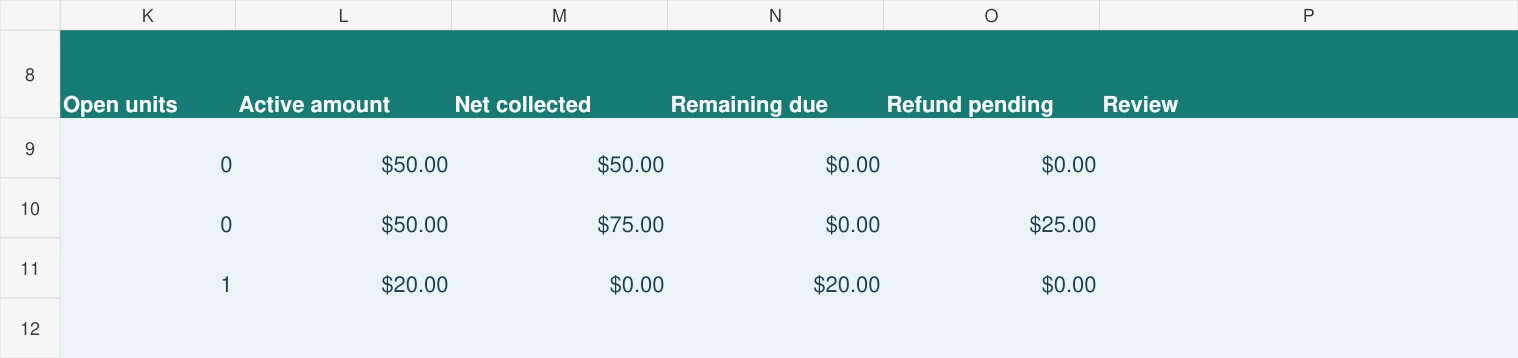
The Excel workbook has 50 entry rows. Yellow cells hold one order line, ordered units, price, discount, allocated payment, shipped/cancelled units, settled refund and next action. Blue cells calculate open units, active merchandise amount, net collected, remaining due and refund pending. Keep all amounts in one currency; the fictional examples use USD and exclude tax/shipping.
- Save your own copy and replace the three fictional rows. Enter 0 for numeric inputs that do not apply; do not leave a started row partly filled.
- Keep columns K:P as formulas. Original ordered units stay unchanged; enter cancellations separately. Shipped plus cancelled units must not exceed ordered units.
- Enter a settled refund only after it has been processed. Review remaining due and refund pending separately.
- Resolve any Review warning before relying on the row. Copy a complete row with its formulas to expand beyond 50 entries.
Read the cancellation and refund example
SAMPLE1002 starts with 3 tees at $25, $75 paid, 2 shipped and 1 cancelled. Open units are 0; active merchandise is $50; refund pending is $25. Once the $25 refund settles, enter 25 in Refund settled: net collected becomes $50 and refund pending becomes $0. A cancelled unit does not count as an unshipped unit.
Line discounts are allocated proportionally across retained and cancelled units. Check this against your own cancellation agreement; the sheet does not process payments, refunds or carrier tracking.
Prefer a plain manual-entry CSV?
Download the starter order-tracking sheet (.csv)
Open the file in Excel or import it into Google Sheets. It contains three fictional order lines and 20 blank rows. Replace the examples and use one row per order ID plus line ID. The CSV provides fields, not formulas, automatic status updates or carrier tracking; use the Excel version above if you want the included calculations.
Keep payment_allocated as the amount assigned to that line, rather than repeating the whole order payment on each line. Keep refund_due separate until the refund settles. Tax and shipping are excluded from the examples. Check ordered, shipped and cancelled quantities before deciding what remains open.
If you prefer an app, try the Sales Management System preview; the complete offline product is paid. A free CSV is not an import file for the paid app.
Open, edit and save your own tracker
On a computer: download the .xlsx file, open it in Excel and save a named working copy. For Google Sheets, upload the workbook to Drive and open it with Sheets, or use File > Import > Upload in Sheets. If this page offers a Google Sheets copy button, use that instead and make your own copy before editing.
On Android: tap the Excel download above. Find small-business-order-tracker.xlsx in Chrome Downloads or your Files app, then open it in Excel or the Google Sheets app. If it opens in a preview, choose a spreadsheet app to edit it. Save or make a named working copy in that app; menu labels vary by app and version.
Keep columns K:P as formulas. Edit one input on a trial order line and check open units, remaining due and refund pending before entering real orders. After editing, finish the cell entry, save the working file and reopen that same named copy to confirm the change is still there. In Google Sheets, tap outside the cell to finish the entry; keep an exported .xlsx copy when you need a separate device backup. Re-downloading this website's template starts a fresh copy and does not recover your edits.
Use .xlsx for the working file: CSV does not preserve the workbook's formatting, validation or full formula structure. A PDF is a reading or printing copy. See Google Sheets on Android and Google's save, copy and download instructions.
Choose one order number that follows the purchase
Use a unique order ID such as ORD-1001. If your store already generates reliable order numbers, preserve those numbers. If you also accept manual orders, use a separate prefix so two systems cannot accidentally create the same identifier.
Put the same ID on the order record, payment reference, packing note and return record. A customer reference can help you find the buyer, but a name alone is a poor identifier because different people may share it.
Keep payment credentials out of the planning sheet. An order or transaction reference is enough for routine follow-up; card details belong with your payment provider.
Copy these starter order-log columns
For a manual order log, start with: order ID, line ID, received date, customer reference, SKU, ordered quantity, unit price, discount, allocated payment, shipped quantity, cancelled quantity, ship-by date, owner and next action. Keep payment and shipment references beside the original record. The starter CSV above supplies these manual entry fields. It does not connect to a marketplace, payment processor or carrier.
Start with one confirmed order, then test a partial shipment and a cancellation before entering your full queue. Preserve the original order ID when a customer changes a delivery date. Record the old promise, the new agreed date and who confirmed the change; an edited date alone does not explain the delay.
Record line items clearly
A line item is one product variant within an order. A customer buying a medium black tee and a sage dress needs two lines under the same order ID. That makes each SKU and quantity visible.
Useful fields include the received date, buyer reference, SKU, quantity, unit price, line discount, line amount, payment allocated to that line, outstanding balance, shipped units, workflow status and next action.
For your own spreadsheet, calculate each merchandise line as follows:
Line amount = quantity × unit price − line discount
Unadjusted line balance = line amount − allocated payment
That simple balance applies before cancellations or refunds. In the Excel download, active amount adjusts for cancelled units, net collected subtracts settled refunds, remaining due is the positive active-amount shortfall, and refund pending is the positive excess collection. Review both money columns instead of reading a negative balance as unpaid money.
These are merchandise-line figures. Shipping charges, sales tax, refunds and payment fees need their own records if they are part of the transaction. Do not treat this simplified line log as a complete accounting ledger.
Separate payment from fulfillment
“Paid” does not mean “shipped.” “Packed” does not mean “paid.” If one status tries to represent both, you can miss a payment or send the wrong update.
Consider this sample order queue:
| Order | Merchandise amount | Allocated payment | Shipped units | Next action |
|---|---|---|---|---|
| ORD-1001: two tees | $70 | $70 | 2 | Keep dispatch reference |
| ORD-1002: one dress | $60 | $30 | 0 | Request remaining payment |
| ORD-1003: one scarf | $20 | $20 | 0 | Pack for dispatch |
The second and third orders both have zero shipped units, but they need different actions. A next-action column makes that distinction practical.
For larger orders with several lines, allocate payment consistently across those lines. Entering the entire order payment on every line would overstate collections. If allocation becomes difficult, maintain separate order-level payment and item tables linked by order ID.
Use statuses with clear definitions
A workable starting set is:
- Awaiting payment: an amount still needs to be collected under your payment policy.
- Ready to pack: the order is cleared for fulfillment and stock is available.
- Partially shipped: some units have shipped; others remain open.
- Shipped: all required units have been dispatched.
- Cancelled: the order will not proceed; review any payment and stock reservation separately.
Define the rule for changing each status. If your business allows payment after delivery, adapt the payment policy instead of forcing the example workflow onto it.
Keep separate status and shipped-quantity fields in your own log. Use the quantity to show a partial shipment accurately. Do not mark a three-unit order fully shipped after dispatching only one unit.
Give each open order one owner and one next action
“Follow up” is too vague. Write an action that someone can complete: confirm the shipping address, request the remaining $30, check the missing size, or send the dispatch reference.
When more than one person works on orders, assign an owner in your expanded log. Agree on who can change payment amounts, release reservations and mark an order fulfilled. Keeping one working copy helps prevent two people from acting on different versions.
Avoid treating an unconfirmed customer message as a completed order. Record the inquiry separately until the product, quantity, price and fulfillment details are agreed.
Review the queue at two useful moments
Before packing, filter for orders that are ready to fulfill. Confirm the SKU, size, color, quantity and delivery details against the order record. Check available inventory before promising an unavailable variant.
At the end of the working day, review outstanding payments, paid orders with no shipment, partial shipments and unresolved returns. Compare the payment records with your provider or bank records using references. Investigate differences instead of relying on the status label alone.
The boutique inventory spreadsheet guide explains how reservations and physical stock differ. The sales-and-inventory walkthrough shows how one fulfilled sale affects several records.
Check stock commitments before packing
Use the free Reserved vs Available Stock Planner to review a manual SKU snapshot after reservations, blocked units and a separate buffer. It does not track individual customer orders or synchronize a store. Keep your order log as the source of each commitment, then use the stock result before confirming what can be packed.
What changes when you use an order-management app?
The same principles still apply: stable IDs, accurate quantities and clear next actions. An app is useful when it reduces repeated entry and helps you inspect the related records together.
The NexalyPlanner Sales Management System is described as an offline workspace for orders, sales and inventory. Review its actual screens and purchase terms before deciding whether it fits your shop. An internal order tracker should not be assumed to provide live carrier tracking or automatic marketplace synchronization.
Handle partial shipments, cancellations and returns
Fictional example: ORD-1040 contains three items at $25 each, with no discounts, tax or shipping in this simplified record. The customer has paid $75. Two items ship, so fulfillment remains partial even though payment is complete. Keep the unshipped item visible with an owner and next action.
If the customer cancels the third item before dispatch, record the agreed cancellation and a $25 refund due. The remaining merchandise amount is $50. Until the refund settles, the original $75 collection and the $25 refund obligation are separate facts. After settlement, net collected is $50. Preserve the original order and payment references rather than deleting the row or treating the full payment as new revenue.
If an already shipped item comes back, inspect it before increasing sellable stock. A damaged return, a received return and a refunded payment are different events. Your tracker should record each event without assuming that one automatically completes the others.
For a multi-parcel commitment, use the worked partial-shipment and backorder ledger. When unshipped units are cancelled, follow the reserved-stock release check so a cancellation does not incorrectly increase physical stock.
Choose a tracking method for your workflow
| Method | Useful when | Check before relying on it |
|---|---|---|
| Spreadsheet | One owner needs flexible manual records | Formula accuracy, one working copy and backups |
| Offline order app | You want local order, sales and stock records | Actual record relationships, exports and restore options |
| Connected order platform | You need live channel imports or customer status pages | Supported integrations, sync failures and recurring costs |
There is no universal order-count threshold for switching. Switch when your current process repeatedly misses due dates, duplicates entry or obscures payment balances. Review the actual order, payment and stock screens in the Sales Management System live preview, then check its setup and user guide. The preview is temporary; it is not a place to keep real customer records.
When an order has an unpaid balance, record the invoice reference and expected payment date in the free Invoice Collection Schedule. Keep its collection status separate from packing and shipment status; this worksheet does not import your order log or contact customers.
Frequently asked questions
What is the simplest way to track customer orders?
Use one shared operational record with a unique order ID, line items, payment amounts, fulfillment quantities and a next action. Start with a manageable process and keep it updated consistently.
Can I use this for orders received on Instagram?
Yes, you can manually enter confirmed orders from social messages. Keep the original conversation reference so you can check agreed details. This manual order log does not read or import messages automatically.
How should I record a cancelled order?
Retain the order ID and cancellation note. Check whether money must be refunded and whether reserved stock should be released. Record cancelled quantities separately from shipped quantities. Preserve the original merchandise amount and document any agreed adjustment or refund; payment adjustments need deliberate review.
Is an order tracker the same as parcel tracking?
No. An order tracker organizes your business workflow. Parcel tracking follows a shipment through a carrier. You can store a carrier reference in your order notes without creating a live tracking integration.
One practical check for your next review
For a repair request, use one work-order ID throughout intake, approval, repair and invoice. WO-201 may move from received to estimate approved, then waiting for part, repair complete and invoice sent. Record the person responsible for each next action. A status change does not prove that a part physically left the shelf; record that movement in a separate repair-shop parts inventory ledger.