
Published: September 19, 2026
What OwnerOS Core does
OwnerOS Core is a private, browser-local operating desk for an ecommerce brand. It brings products, orders, contribution profit, cash planning, stock risks, campaigns, launches, customer notes, supplier commitments, decisions, reports, and a local evidence-based agent into one workspace. It is designed for owners who need a weekly view without giving an external service authority.
Use OwnerOS Core to review your store’s operating facts, then decide what to do next. It is not a bank connection, accounting system, ad-platform connector, storefront automation layer, or cloud AI service. The audited edition stores data in the current browser, calculates from local records, and keeps external actions under owner control.
The first screen is an onboarding-only state: a 1 / 7 guided setup dialog with no close button. Complete it before opening the Command Center. Export a JSON backup because the workspace is saved on the device, not in the cloud.
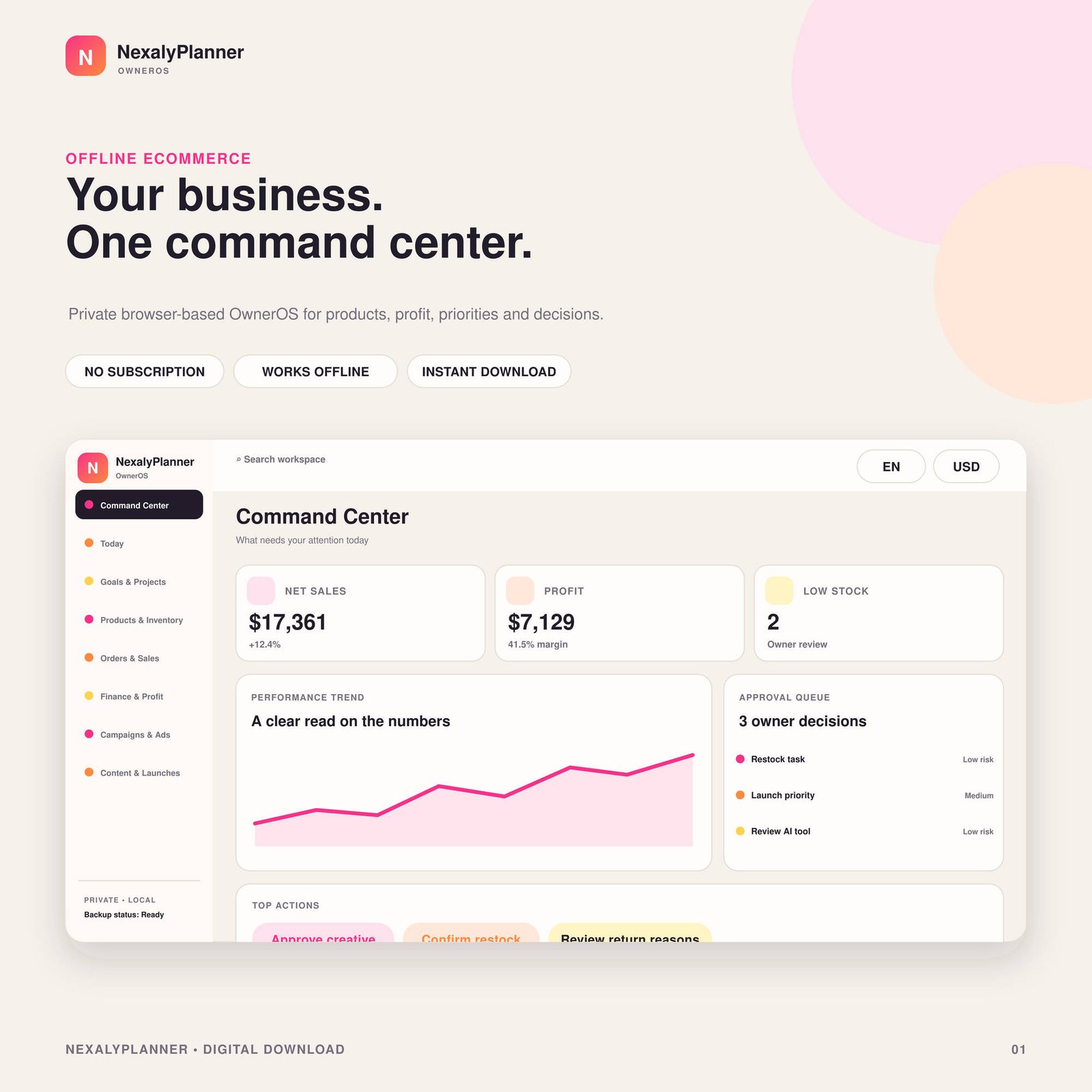
Baseline screenshot: OwnerOS Core’s Command Center. The screen is an orientation view of the local operating desk, including the seven-day “Sales & contribution” panel, risk radar, owner actions, approvals, and the Offline Agent explanation.
Quick start: your first session
- Complete Guided setup. Select Next through all seven steps. The wizard’s finish action is Open Command Center.
- Name the workspace. In Business Profile, enter the business name. The profile is local; it is not an online account.
- Choose your starting data. Select Use sample workspace for a walkthrough or Start clean to begin with your own records. A clean workspace resets the financial and operational sample values and starts with empty products, tasks, approvals, and records.
- Set English and USD if you operate in the United States. The preference controls include Language and Currency. OwnerOS also exposes other supported languages and currencies, but this guide uses US dollars and US English.
- Open Products & Inventory. Record your catalog and stock events before relying on low-stock signals. Inventory is intended to be traceable through ledger events rather than overwritten directly.
- Enter orders and cost inputs. Use Orders & Sales for manual or imported order information, then use Finance & Profit to review the costs that determine contribution profit.
- Record cash manually. Treat Planner cash as an owner-entered planning view. It is not connected to a bank.
- Review the Command Center. Read data quality, net sales, contribution profit, planner cash, low stock, task completion, and pending approvals together.
- Inspect evidence before acting. Use View evidence on a priority. The evidence dialog identifies the reason, evidence, data quality, confidence, authority, and risk class.
- Approve or reject proposals deliberately. The approval queue provides Approve and Reject actions. Approval changes the local workspace; it does not contact an external customer, supplier, advertising account, or financial system.
- Export a backup. Use Data & Settings and Download JSON backup before browser cleanup, device migration, or a major data change.
Complete menu and screen map
OwnerOS Core’s verified navigation is divided into Operate and Control. The sidebar also shows backup status, such as No backup yet and Export recommended, and the top bar provides Toggle Sidebar, the keyboard hint ⌘ K, language, currency, and Add record.
| Menu | What it is for | Operating result to review |
|---|---|---|
| Command Center | Owner-level snapshot of sales, contribution profit, cash, stock, tasks, approvals, risk radar, and momentum. | Decide what deserves attention today and this week. |
| Today | Tasks, time blocks, routines, and next smallest actions. | Turn a risk or decision into a bounded owner action. |
| Goals & Projects | Annual direction, measurable projects, and weekly owner capacity. | Compare projects with available time and identify work at risk. |
| Products & Inventory | Products, stock events, reorder points, and contribution snapshots. | See low-stock items and trace the events behind current stock. |
| Orders & Sales | Manual or imported orders, fees, returns, and channel performance. | Review net sales and order quality rather than headline sales alone. |
| Finance & Profit | Planner cash, profit-and-loss planning, and product contribution. | See which costs are included and where data is incomplete. |
| Campaigns & Ads | Manual campaign metrics, spend controls, attribution, and return on ad spend. | Identify campaigns with spend but missing revenue or ROI method. |
| Content & Launches | Content planning, launches, shoots, and user-generated-content approval status. | Measure launch readiness and resolve owner approval blockers. |
| Customers & CRM | Privacy-classified customer notes, segments, and next actions. | Keep local follow-up context without email automation. |
| Suppliers & Purchasing | Supplier lead times, purchase orders, pricing, and delivery risks. | Convert a stock risk into a verified supplier commitment. |
| AI Stack & Agent Center | Offline Agent controls, deterministic rules, proposals, and audit trail. | Review why a proposal appeared and approve, reject, or pause the agent. |
| Decisions & SOPs | Decisions, standard operating procedures, and approved prompt templates. | Preserve the reasoning and repeatable method behind an operating choice. |
| Reports | Local printable summaries with formulas and data-quality context. | Create a reviewable snapshot without treating partial data as certainty. |
| Data & Settings | Workspace, data, locale, thresholds, and local privacy controls. | Manage language, currency, settings, backup, and restore. |
| Help | Guided setup, module knowledge, privacy truth, and troubleshooting. | Learn how a module behaves without leaving the local workspace. |
The sample Command Center includes Weekly review, Run owner brief, Review data controls, Sales & contribution, What changed, Do these next, a 3 decisions waiting queue, and a Momentum map. Sample figures are not your results.
Guided seven-step setup
The setup wizard is the correct place to establish the workspace’s operating assumptions. Move forward with Next and backward with Back. The final step presents Open Command Center. You can revisit setup later through Settings.
Step 1: Start with clarity
The first panel says Welcome to OwnerOS and describes the product as “One private command center for products, profit, priorities and owner-controlled AI.” It also states that the workspace is stored locally in this browser and recommends regular backup export. Read this as a storage warning, not as a promise of cloud synchronization.
Step 2: Business Profile
Enter Business name. The product class is presented as Ecommerce / Product Brand, with products, orders, stock, suppliers, campaigns, and launches available. This is a local business profile and not an online account. Use a stable name such as “Lakeview Home Goods” so reports and local records remain understandable.
Step 3: Goals & Guardrails
OwnerOS shows owner-defined reference assumptions: Target margin 40%, Target ROAS 3.0×, and a Backup reminder of 7 days in the audited setup. OwnerOS states that it will not label the business healthy without needed data. Treat these as review thresholds, not accounting or advertising compliance conclusions.
Step 4: Modules
The wizard lists the available operating areas: Products, Orders, Finance, Campaigns, Content, CRM, Suppliers, and Agent Control. It also states that V1 modules stay available and that nothing connects to an external account. This step confirms the product’s breadth; it does not authorize a marketplace, bank, ad, email, or supplier connection.
Step 5: Data Start
Choose Use sample workspace to explore every screen. The option is marked as recommended for the first walkthrough. Choose Start clean to add data manually or import CSV later. A clean workspace is safer for production records; a sample workspace is safer for learning the navigation. Do not mix sample numbers with live decisions.
Step 6: AI Authority
The wizard describes the Offline Agent’s authority as READ → DRAFT → PROPOSE → YOU APPROVE. It reads local records, calculates, and drafts. Medium-risk local changes wait for your decision. The setup also says that online AI remains disconnected in V1.
Step 7: Preferences
Use Language and Currency to make the workspace yours. For a US ecommerce operation, choose English and USD. These choices affect display and local calculations; they do not convert or reconcile external financial records for you.
Core implementation workflows
1. Build a traceable product and stock view
Start in Products & Inventory. Add products and establish each item’s stock position and reorder point. OwnerOS’s Help explanation says it does not edit stock directly. Instead, opening, received, sold, returned, damaged, and adjusted quantities become ledger events. This makes current stock explainable.
For a new SKU, select Products & Inventory, record the identity and reorder point, add an opening quantity as an event, then record receipts, sales, returns, damages, and adjustments as separate events. Confirm current stock and open View evidence before creating a restock task.
The audited Command Center example flags Rose Linen with 8 units remaining against a reorder point of 12 and about 10 days of cover at the current pace. That is a planning signal, not an automatic purchase order. The related proposal is Create urgent restock task with “Contact supplier and confirm 30 units.”
2. Record orders and review net sales
Use Orders & Sales for manual or imported order records. The module description specifically covers orders, fees, returns, and channel performance. Enter enough source detail to distinguish gross order value from the net sales that remain after discounts, refunds, and returns.
A practical sequence is:
- Add or import the order records for the review period.
- Confirm the order channel and status represented by each record.
- Record marketplace and payment fees and any seller-shipping cost that belongs to the order or period.
- Record returns and refund-related costs instead of burying them in a general adjustment.
- Review the Command Center’s Net sales and the seven-day Sales & contribution panel.
- If a number looks incomplete, use Reports to inspect the formula and data-quality context.
The audited sample displays Net sales $17,360, a +12.4% change, and a seven-day panel with daily net sales and contribution values. Those figures are sample data and should be replaced by your own records.
3. Understand contribution profit
OwnerOS defines contribution profit as net sales minus historical COGS, marketplace and payment fees, seller shipping, ad spend, and return costs. Missing costs are clearly marked instead of guessed. This makes contribution profit useful for operational decisions, but it does not make the product a tax filing system, audited accounting ledger, or substitute for professional financial review.
Use the formula as a completeness checklist:
- Begin with net sales from Orders & Sales.
- Add historical cost of goods sold for the items sold.
- Include marketplace and payment fees.
- Include seller shipping where the business bears that cost.
- Include campaign or ad spend from Campaigns & Ads.
- Include return costs.
- Open Finance & Profit and check the contribution result and margin.
- Treat a partial result as partial. Do not infer a missing cost from a generic industry percentage.
In the sample Command Center, Contribution profit is $6,400 with 63.7% gross margin. The exact label is contribution profit, while the displayed percentage is labeled gross margin in that card. Use the product’s displayed terminology in internal reviews and verify the included costs in Reports.
4. Maintain the planner cash view
Finance & Profit includes Planner cash, described in the audited interface as a manual planner view. It is not connected to a bank. Enter or update the cash figure from the records and process you trust, then date your review in your own operating notes.
A safe procedure is:
- Reconcile the amount outside OwnerOS using your bank or bookkeeping process.
- Enter the verified planning figure in the local workspace.
- Label the review period in a decision or SOP record if the number will drive a purchase or campaign choice.
- Review planner cash next to upcoming supplier commitments, ad spend, and launch inventory.
- Do not present the value as a live bank balance.
The sample shows Planner cash $12,750 and the note Manual planner view. It is a decision-support number, not a statement of available cleared funds.
5. Review campaigns and advertising economics
Campaigns & Ads supports manual campaign metrics, spend controls, attribution, and ROAS. The interface uses Blended ROAS, calculated as attributed revenue divided by spend, and flags campaigns where spend is recorded but revenue is missing. It also supports an owner-selected ROI method rather than silently choosing one.
To implement a campaign review:
- Add the campaign name and channel as a local record.
- Record spend for the same date range as the attributed revenue.
- Record attributed revenue only when you have a source or stated attribution rule.
- Select or document the ROI method used for the review.
- Check ROAS, ROI, and missing-data warnings in the module and Reports.
- If a campaign has spend but no attributed revenue, treat it as a data-quality or measurement problem before calling it unprofitable.
The audited sample lists Active campaigns 3, Blended ROAS 3.64×, and Needs review 1 because spend is recorded while revenue is missing. It also shows a risk named Review Design AI renewal because the tool renews in six days but has no recorded value method or owner. OwnerOS does not cancel that subscription or contact the provider; it stages a review task.
6. Prepare content and launch readiness
Use Content & Launches for content planning, launches, shoots, and user-generated-content approval status. The Command Center’s launch-readiness signal can surface unresolved creative approval and inventory confirmation.
For a launch:
- Create the launch record with its target date.
- Add the content, shoot, or campaign work that must be ready before launch.
- Record inventory confirmation as a separate readiness condition.
- Record creative approval and UGC usage notes where applicable.
- Review Launch readiness and the blockers shown in What changed.
- Convert each blocker into a task or decision with an owner and due date.
- Return to the Command Center before publishing or spending to confirm that the blockers are resolved.
The audited example says the autumn launch is in three days and that creative approval and inventory confirmation remain open. The sample launch-readiness metric is 74%, with two owner approvals required. That percentage is a local planning signal; it is not a promise that a launch will succeed.
7. Keep customer context local and actionable
Customers & CRM covers privacy-classified customer notes, segments, and next actions. The interface reports local customer segments and due actions and explicitly notes No email automation in V1. Use it as a context and follow-up register, not as an outbound messaging system.
Add the customer record, classify only necessary notes, add a useful segment, record a due next action, review it in Today, and draft any external message yourself.
OwnerOS’s local agent may prepare an explanation or draft, but it cannot contact the customer. Follow your privacy policy and applicable US requirements when handling customer information; OwnerOS does not provide legal or compliance advice.
8. Manage suppliers and purchasing risks
Suppliers & Purchasing covers supplier lead times, purchase orders, pricing, and delivery risks. Combine the module with Products & Inventory so a stock signal is checked against a real supplier commitment.
- Record the supplier and the relevant product or purchase context.
- Add lead time and pricing information from the supplier material you have reviewed.
- Create or record the purchase-order commitment locally.
- Track delivery timing and any confirmation blocker.
- Link the supplier risk to a Today task or an approval proposal.
- Confirm the quantity, date, and price yourself before placing an external order.
The sample approval queue proposes a task to contact a supplier and confirm 30 units of Rose Linen. The proposal does not buy inventory. OwnerOS cannot send the purchase order or change a supplier account.
9. Convert signals into tasks, approvals, and decisions
Do these next presents evidence-backed priorities. View evidence and Review proposal expose Why this appeared, Evidence, Data quality, Confidence, Authority, and Risk class.
The sample queue has three decisions waiting:
- Create urgent restock task: low-stock risk; add a task to contact the supplier and confirm 30 units.
- Move launch review to critical: launch-readiness risk; raise task priority from high to critical.
- Add AI subscription review: negative or unknown ROI risk; add a task to review Design AI value and renewal.
Select Approve only after checking the evidence. Select Reject when the rule does not apply or the source data is wrong. The interface also provides Undo for local changes where available. Approval is an owner decision inside the browser, not automatic external action.
10. Use the Offline Agent and OwnerOS Expert
AI Stack & Agent Center controls the local agent, deterministic rules, proposals, and audit trail. The product calls the assistant OwnerOS Expert and describes it as Offline product help · no data leaves this device and Deterministic local rules — not a cloud LLM. It can explain how inventory works, how profit is calculated, what the Offline Agent can do, and how backup and restore works.
Use the agent responsibly:
- Open AI Stack & Agent Center or select Run owner brief from the Command Center.
- Review the local facts behind a priority.
- Ask the OwnerOS Expert about the relevant module or formula when you need orientation.
- Inspect the evidence and data quality before relying on a proposal.
- Approve, reject, or leave the proposal pending.
- Pause the agent with Pause Agent when you do not want new local proposals, and use Resume Agent when ready.
The authority boundary is explicit. The agent reads, explains, drafts, and stages proposals. It does not send messages, post content, buy inventory, delete records, or change external accounts. Do not use its output as tax, legal, accounting, or investment advice.
11. Preserve decisions and SOPs
Use Decisions & SOPs to keep decisions, standard operating procedures, and approved prompt templates versioned. A useful record states the date, the operating question, the evidence reviewed, the choice made, the owner, and the next review date. Store the repeatable method for tasks such as weekly contribution review, reorder confirmation, launch approval, and campaign attribution. This preserves continuity without giving the agent independent authority.
12. Produce transparent reports
Reports creates local printable summaries and supplies formula and data-quality context. Use it for a weekly owner meeting or to document why a proposal was approved. Reports support decisions and may be partial when source fields are missing. Before sharing a report, check whether it contains customer or supplier details that should remain private.
Worked US example: an autumn product launch
Assume Lakeview Home Goods operates in the United States and uses USD. On August 31, 2026, the owner completes setup with English, USD, a 40% target margin, a 3.0× target ROAS, and a seven-day backup reminder. The owner chooses Start clean rather than sample data.
The catalog includes Rose Linen. On August 31, the owner records an opening event of 20 units and sets a reorder point of 12. On September 1, a sale record reduces stock by 4 units, leaving 16. On September 2, another sale reduces it by 8 units, leaving 8. The Command Center now identifies low stock because 8 is below the reorder point of 12. At the current pace, the interface estimates about 10 days of cover.
The owner opens View evidence and checks the source events. In Suppliers & Purchasing, the owner records a potential purchase of 30 units from the supplier, with a September 4 confirmation date. OwnerOS stages Create urgent restock task, but the owner must verify price, lead time, and cash before approving. The owner approves the local task Contact supplier and confirm 30 units; no order is sent automatically.
At the same time, the autumn collection launch is scheduled for September 4, 2026. In Content & Launches, the owner records the launch, the required creative approval, the shoot deliverable, and inventory confirmation. On August 31, both creative approval and inventory confirmation are open. OwnerOS therefore presents Resolve two launch blockers and marks launch readiness as incomplete. The owner creates a Today task for creative approval on September 1 and a supplier confirmation task for September 2.
During the week, the owner records orders and costs. Net sales for the review period are $17,360. Product cost, marketplace and payment fees, seller shipping, advertising spend, and return costs are entered where applicable. Finance & Profit calculates contribution profit from the available fields. If ad attribution is missing, the owner does not guess; the Campaigns & Ads view and report keep the gap visible.
On September 2, planner cash is updated manually to $12,750 after the owner verifies the source balance outside OwnerOS. The owner reviews the amount alongside the planned 30-unit purchase, campaign spend, and launch commitments. Because Planner cash is not a bank connection, the owner does not treat the card as live cleared funds.
At the weekly review on September 4, the owner checks that the supplier confirmation task is complete, the creative approval is recorded, the launch blockers are closed, the product stock event is recorded when goods are received, and the contribution result includes all known costs. The owner exports a JSON backup after the review and stores it in a controlled location. This connects evidence to decisions while keeping purchases, publication, and customer communications under human control.
Daily and weekly operating rhythm
Daily: the 15-minute owner scan
Open Command Center and read the greeting, data quality, net sales, contribution profit, planner cash, low stock, task completion, and pending approvals. Open Today and complete the smallest action that removes a meaningful risk. Review the What changed panel for stock, campaign, renewal, and supplier signals. For every high-impact signal, open evidence before acting. Record a customer or supplier follow-up locally, then perform any external contact yourself. Do not leave the browser without saving material changes.
Weekly: the owner review
Run Weekly review and inspect the seven-day Sales & contribution view. Compare net sales with contribution profit, then identify missing COGS, fee, shipping, ad, or return fields. Review low-stock products against supplier lead times and open purchase commitments. Check campaign spend against attributed revenue and confirm the ROI method. Review upcoming launches, creative and UGC approvals, inventory confirmation, customer next actions, supplier delivery risks, and the approval queue. Use Reports to create a printable local summary and Decisions & SOPs to preserve the decision and its reasoning. Export a JSON backup at least weekly, matching the setup reminder, and before browser or device maintenance.
Offline storage, backup, and restore limitations
OwnerOS Core is offline-first and browser-local. The workspace is saved in the current browser on the current device. The interface says Private · saved on this device, Online AI disconnected, and Export recommended when no backup exists. There is no verified cloud sync in the audited edition, and external platforms are not connected.
Use Data & Settings to choose Download JSON backup. The product’s Help explanation says a JSON backup contains the schema version, workspace records, settings, and optional audit history. Restore validates the format before replacing local data. Use Restore backup only after confirming that the file is the correct workspace and that current data is backed up if needed.
For migration, open Data & Settings, choose Download JSON backup, store the dated file safely, open the target browser, choose Restore backup, verify records and settings, and export a fresh backup after the check.
Private browsing may not preserve data, and browser cleanup can remove local storage. Browser profiles, storage permissions, device loss, and an accidental restore can all affect availability. OwnerOS does not create an automatic export. A JSON backup is not a cloud backup, and it does not automatically reconcile records with a store, bank, marketplace, advertising platform, CRM, or accounting package. Keep an independent copy and verify restorability periodically.
Advantages and disadvantages
Advantages
OwnerOS Core brings ecommerce facts into one Command Center. It encourages complete contribution-profit inputs, makes stock changes traceable, connects launch readiness with inventory and approvals, and stages local proposals without external actions. Local storage suits owners who prefer privacy and do not need live integrations.
Disadvantages and limits
The local-first model requires disciplined backups. There is no verified cloud sync, bank, marketplace, email, or ad-platform connection, and no automatic purchasing or posting. Cash is manual; incomplete records reduce confidence. The Offline Agent is deterministic local help, not a cloud LLM or general adviser. Reports are decision support, not accounting, tax, legal, or audit statements.
Troubleshooting and common mistakes
The app opens to a setup dialog and I cannot close it. This is expected. The audited initial state is a required seven-step onboarding dialog at 1 / 7 with no close button. Complete it and select Open Command Center.
I see figures that are not mine. You are likely using Use sample workspace. Start a clean workspace before entering production data, and do not use sample metrics for a business decision.
The Command Center says data quality is partial or not enough data. Add the missing source records and cost fields. OwnerOS intentionally avoids calling the business healthy when needed data is absent.
Stock does not change after I edit a product. Use inventory events. OwnerOS’s documented behavior is to calculate stock from opening, received, sold, returned, damaged, and adjusted ledger events rather than edit stock directly.
Planner cash does not match my bank. Planner cash is a manual planner view and is not connected to a bank. Verify the amount externally, then update the local value and date your review.
ROAS or ROI looks wrong. Confirm that spend and attributed revenue use the same period and attribution rule. Select or document the ROI method. Missing revenue is shown as missing data rather than guessed.
The agent proposed a task but did not contact anyone. That is correct. The Offline Agent can read, explain, draft, and propose. It cannot send, post, buy, delete, or change external accounts.
I cannot find a cloud backup. The audited edition provides Download JSON backup and Restore backup. It stores the workspace locally and does not verify cloud synchronization.
My local data disappeared after changing browsers. Restore the latest JSON backup. Private browsing and browser cleanup may not preserve local data. If no backup exists, the product cannot guarantee recovery.
Separate a recorded event from a dashboard signal
At the end of a review, write down which figures came from your business records and which still belong to the sample workspace. A module name, sample stock card or proposed restock action does not prove that your new record changed the underlying quantity. Inspect the entry and the displayed result before relying on it.
Use a fictional item with ten opening units and a two-unit sale as a small evidence check. The expected physical balance is eight before other movements. Establish which supported record or import represents each event in your edition, then compare the view with that known balance. If a general workspace activity record appears but the stock summary does not change, retain that distinction in your notes rather than calling it a completed stock transaction. Do not add the same event through two routes just to force a desired total.
Keep a review note with the item reference, source event, expected result, observed result and any unresolved difference. Use View evidence where available to inspect a proposal; approving a local proposal does not purchase goods or contact a supplier. The inventory software evidence checklist helps classify verified, untested and unsupported requirements. Confirm the full-version backup instructions before moving the authoritative workspace; preview restrictions do not establish successful recovery.
Frequently asked questions
Is OwnerOS Core an ecommerce platform?
No. It is an offline operating desk for recording and reviewing ecommerce information. The audited edition does not connect to external accounts or perform store actions.
Can it calculate contribution profit?
Yes. Its documented contribution formula uses net sales minus historical COGS, marketplace and payment fees, seller shipping, ad spend, and return costs. Missing costs remain visible rather than being guessed.
Does it provide live bank cash?
No. Planner cash is a manual planner view and is explicitly not connected to a bank.
Can the Offline Agent send a supplier order or customer message?
No. It cannot send, post, buy, delete, or change external accounts. Owner approval controls local proposals, and the owner performs outside actions.
Can I use my own data instead of sample data?
Yes. Choose Start clean in setup, then add records manually or import CSV later where supported by the interface. Keep sample and production workspaces separate.
What does Restore backup replace?
The documented restore process validates the JSON format before replacing local data. Back up the current workspace first if you may need to preserve it.
Is OwnerOS Core accounting or tax software?
No. It is a planning and decision-support workspace. Review financial, tax, and compliance matters with your qualified professional and your authoritative financial records.
Does it provide legal, privacy, or advertising compliance advice?
No. Customer notes, UGC rights, attribution, and supplier records still require your own policies and professional review where applicable.
Next step and contextual internal links
For the product overview and commercial next step, see the OwnerOS Core product page. Readers who are comparing systems can also review the Nexaly Planner product index and the Nexaly Planner guides hub.
Recommended links include the offline inventory and procurement workflow, small-business sales and profit dashboard, offline AI business operating desk, and supplier purchasing and quote comparison workflow. Journal links can cover ecommerce contribution-profit review, weekly inventory planning, and offline business backup.
Ready to work from one owner-controlled local desk? Open the OwnerOS Core product page, start with the guided seven-step setup, choose a clean workspace for real records, and make your first JSON backup before the first weekly review.
Explore OwnerOS Core
Review product screenshots, included features, download details and current purchase terms.
View OwnerOS Core