
What this product does
NexalyPlanner Sales Management System is an offline, browser-local business workspace for product sellers and small retail businesses. It brings sales orders, customers, leads, products, stock, packing supplies, purchases, supplier balances, returns, bank and cash records, expenses, invoices, staff pay, marketing measurements, and Profit & Loss reporting into one file on one device. It does not require a server, sign-in, monthly fee, or internet connection for the recorded workflows.
Use it when you need a practical operating record for a boutique, gift shop, maker business, small wholesale operation, or home-based ecommerce business. It is not a replacement for a bank, payroll provider, tax professional, certified accounting system, ecommerce platform, or legal adviser. Its reports are useful management records, but you remain responsible for checking them against source documents and obtaining professional advice for tax, payroll, sales-tax, employment, and financial-compliance decisions.
Direct answer: Start with Start fresh for your own business, or choose Explore with a sample business first to learn the workflow without mixing demonstration records with your data. Then set your branding and USD currency, add products and opening stock, create customers and suppliers, and enter transactions in the order they occur. The system links many records locally: purchases add FIFO stock and supplier balances; orders consume FIFO stock and update customer balances; payments post to Bank & Cash; expenses affect P&L; and staff records feed attendance, commission, tasks, and salary.
Baseline first-run view: the onboarding modal makes the distinction between a blank workspace and a separate sample business explicit.
Quick start: your first 30 minutes
- Choose the workspace deliberately. At the welcome modal, select Start fresh — set up my own business for production data. Select Explore with a sample business first when you want to inspect the screens and seeded records. The sample workspace is separate from the normal workspace; do not treat its totals as your results.
- Open Settings. Upload a square logo if you have one, enter your business name, tagline, email, phone, and address, select $ US Dollar, choose English, and press Save changes. Your business details appear in the sidebar and later on invoices and printed reports.
- Create a cash and bank foundation. In Bank & Cash, add the accounts you actually use, such as Cash Drawer and Chase Business Checking, with their opening balances. This gives customer payments, supplier payments, expenses, loans, and salary a destination or source.
- Add the catalog. In Products, create each sellable item with its name, code, category, unit, sale price, low-stock threshold, and opening quantity. Add Packing materials separately, such as 10×13 poly mailers, boxes, tape, or inserts.
- Add business relationships. Create suppliers in Suppliers, customers in Customers, and prospective buyers in Leads / CRM. Record opening balances only when you can support them with an existing ledger or statement.
- Record the first real transaction. Use Purchases for stock bought from a supplier and Orders for sales. Avoid using a stock adjustment to disguise a purchase or sale; the linked records are what make balances meaningful.
- Protect and back up the workspace. Set the optional Privacy lock in Settings, then go to Backup & Restore and download a JSON backup. Keep a copy outside the browser and repeat the backup at least weekly.
Screen map: every verified menu item
The left navigation is grouped by the work it supports. Labels below use the product’s actual v1.9 menu names.
| Group | Screens | Main purpose |
|---|---|---|
| Overview | Dashboard, Planner | Business overview and dated plans for photoshoots, restocks, launches, payroll, deliveries, meetings, and other events. |
| Orders & Sales | Orders, Leads / CRM, Customers, Search | Sell to customers, manage prospective buyers, review customer balances, and find products, customers, suppliers, orders, and purchases. |
| Inventory | Products, Stock, Packing, Purchases, Suppliers, Returns | Maintain the catalog, FIFO stock, packing materials, incoming stock, supplier payables, and sales or purchase returns. |
| Accounts | Bank & Cash, Expenses, Invoicing | Record cash and bank accounts, operating outflows, branded invoices, payments, and outstanding amounts. |
| HR & Team | Employees, Attendance, Commission Slabs, Salary, Creative Tasks, Team Performance | Maintain employee pay setup, daily attendance, sales commissions, task pay, monthly payslips, loans, and a monthly scorecard. |
| Marketing | Ads Tracking, Employee Loans | Score campaigns using spend, attributed revenue, ROAS, and orders; track employee advances and repayments. |
| Reports | Reports / P&L | Review revenue, returns, cost of goods sold, gross profit, operating expenses, and net profit for a selected period. |
| System | Settings, Backup & Restore, About | Configure branding, currency, language, theme, privacy lock, exports, restores, and product status information. |
The menu is broad, but not every screen needs daily attention. Most sellers will spend their day in Orders, Stock, Customers, Bank & Cash, and Planner, then use Purchases, Expenses, Invoicing, and Reports / P&L for weekly or monthly close work.
Dashboard and About
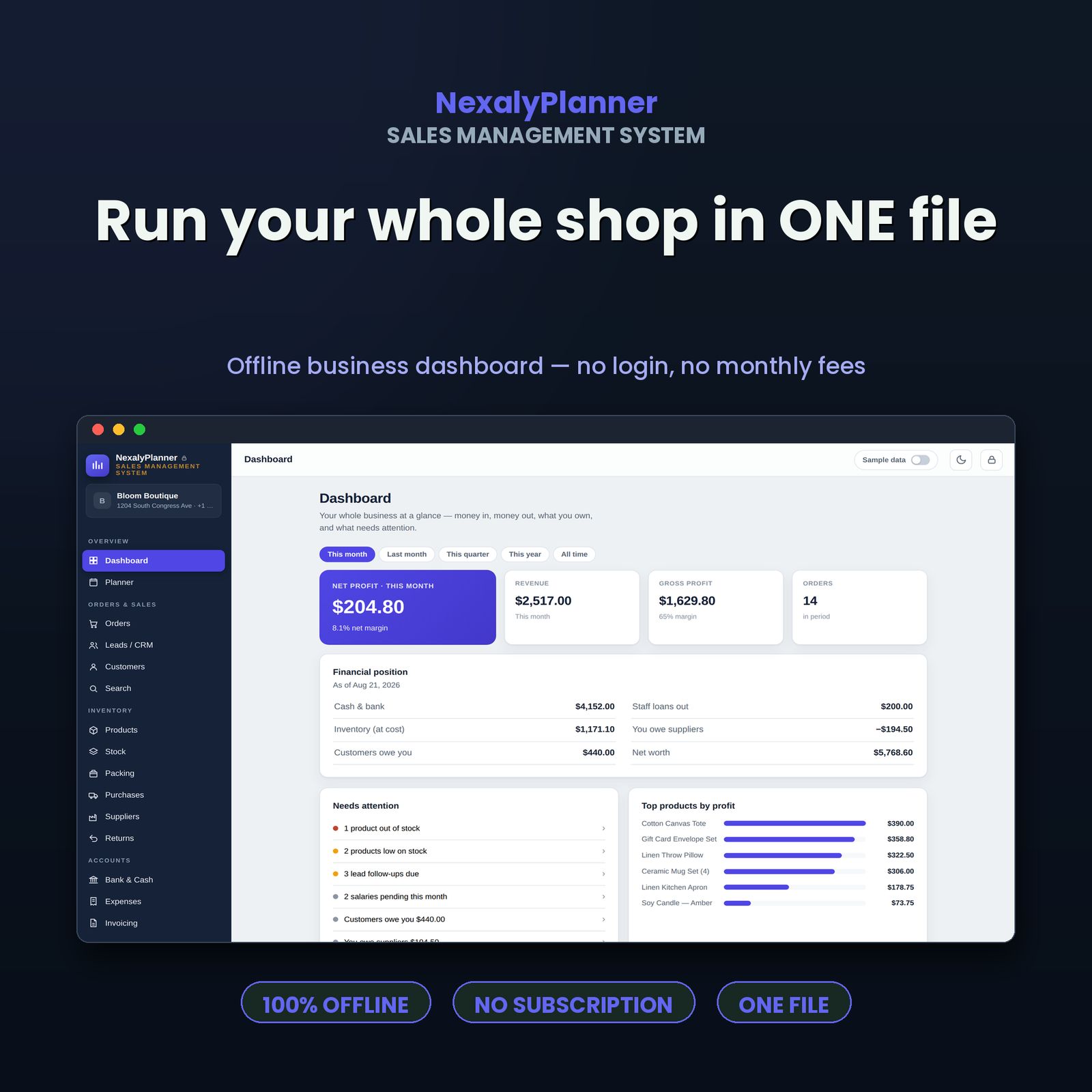
Open Dashboard for the business-at-a-glance view of money in, money out, what you own, and what needs attention. Use its alerts to decide which linked record to review; it does not create transactions for you. About confirms the offline, on-device mode, currency, and Foundation build, and identifies which capabilities are ready or planned.
Setup and privacy
Choose sample data or your own data
The first-run dialog says, “Run your whole business from one file — offline, on your device.” Start fresh marks the workspace as ready for your setup and takes you to Settings. Explore with a sample business first loads a demonstration business and seeds example catalog, stock batches, purchases, orders, customers, invoices, employees, tasks, loans, and planner events. The sample data is held in a separate browser database name, which helps prevent accidental mixing, but it is still local browser data rather than a disposable cloud demo.
When you are ready to move from demonstration to production, return to the workspace choice or use the product’s local-data controls carefully. Do not simply edit the sample business name and assume every historical record is yours. For a clean start, confirm that you have a recent backup of anything you intend to keep, then clear or replace the workspace only after reading the confirmation message.
Brand the workspace
Go to Settings and complete the Brand & contact card. Upload a logo using Upload logo; the source recommends a square image and keeps it small so the file stays light. Enter Business name, optional Tagline, Email, Phone, and Address. Select Currency and Language, then press Save changes. The business name and logo appear in the sidebar and are intended to appear on invoices and printed reports. The locked NexalyPlanner mark remains part of the interface.
The product supports a light/dark theme switch. Theme is presentation only; it does not change the underlying records or make the data more secure.
Enable the privacy lock
In Settings, the Privacy lock section explains that the password protects the app on your device. Choose Set a password, enter and confirm it, and use the lock control when you leave the workspace. The password is stored only on the device and is not included in a backup file. If you forget it, the recovery path is device-local and may require clearing the local workspace, so test your access before relying on the lock for business continuity. The lock is a convenience screen, not a replacement for operating-system access controls, disk encryption, or a separate user-permission system.
Core selling workflow
1. Products and opening stock
Open Products and choose the add-product action. Enter the product name, SKU or product code, category, unit, sale price, low-stock threshold, and any notes exposed by the form. An opening quantity starts stock tracking immediately. Use stable codes such as TOTE-01 and keep one product record per sellable variation when price or inventory differs.
Open Stock to see live quantities and value. Stock supports adjustments for damage, corrections, or physical counts. An adjustment creates a stock movement, so write a specific reason such as “Damaged in storage — 2026-09-04” rather than “correction.” Stock is consumed using FIFO, meaning the oldest available cost layer is used first when an order is saved. This helps the local COGS calculation, but it is still your responsibility to verify that the chosen method fits your records and tax/accounting policy.
2. Packing materials
In Packing, add each consumable with Material name, Cost per unit, Low-stock alert at, and, for a new item, Opening quantity. Examples include 10×13 poly mailers at $0.42 each, kraft boxes at $1.15, or thank-you cards at $0.08. The screen states that per-order packing cost connects when Orders arrive. Treat this as an operational stock record and review whether every order actually used the same quantity before relying on the resulting cost.
3. Suppliers and purchases
In Suppliers, add Supplier name, Contact person, Phone, Email, Address, and, if applicable, Opening balance you owe. Open a supplier’s ledger to record a payment. The payment form includes the date, amount, method, note, and an optional Paid from bank or cash account. A payment reduces the supplier balance and posts an outflow to the selected account.
In Purchases, choose Record purchase, select the supplier, enter the date and Invoice / PO #, add one or more products with quantity and unit cost, then enter Amount paid now, Paid from, and an optional note. Press Save purchase. Each line becomes a FIFO stock batch, increases inventory, and increases what you owe the supplier by the unpaid amount. If you delete a purchase, the system warns that it removes the purchase and its stock and updates the supplier balance; deletion is only possible when none of that stock has been used.
For a realistic example, suppose Riverbend Textiles invoices your Austin shop on September 3, 2026 for 100 cotton totes at $6.40 each. Record a $640.00 purchase, pay $200.00 from Chase Business Checking, and leave $440.00 payable. Your stock rises by 100 units, the FIFO layer is costed at $6.40, the bank account falls by $200.00, and the supplier balance reflects the unpaid amount.
4. Customers and orders
In Customers, create the buyer with Customer name, Company / contact, Phone, Email, Address, and, where supported, an Opening balance they owe. A customer record has a ledger. Orders, receipts, and credit returns change its receivable balance.
In Orders, choose New order. Select a customer, enter the date and optional order number, add products and quantities, check the unit prices, apply a discount if needed, and enter Amount received now. Choose Received into when the payment belongs in a bank or cash account. You may use Mark paid in full for a fully collected order, then add an optional note and press Save order.
The system checks stock before consuming anything. On save, the order takes products out of stock using FIFO, records revenue and COGS information, and updates what the customer owes. If the amount received is less than the order total, the balance remains outstanding. If there is not enough stock, the order is rejected rather than creating negative inventory. Review the order detail to see subtotal, discount, total, paid amount, balance, and returned quantities.
Example: on September 5, 2026, Lena Fields buys 20 totes at $18.00 each for $360.00 and pays $180.00 into Cash Drawer. Save the order as SO-1042. The product quantity falls by 20, revenue is $360.00, the customer receivable is $180.00, and Cash Drawer increases by $180.00. When Lena later pays the balance, record the receipt in her customer ledger so the order and cash trail agree.
5. Returns
Open Returns to handle both directions. New sales return records items a customer sends back. It takes the returned quantity out of sale stock and supports a refund or customer credit; the order detail shows returned quantities. New purchase return records stock sent back to a supplier. It reduces stock and the supplier bill. The purchase-return form uses a purchase, return date, item quantities, and a reason or note such as “Damaged on arrival.” Delete returns only after checking the reversal effect: the product source explains that deleting a sales return reverses the refund or credit, while deleting a purchase return adds stock back and restores the supplier balance.
CRM, planning, and finding records
Leads / CRM
Use Leads / CRM for people who might buy before they become customers. Add lead includes Lead name, Company / contact, Phone, Email, Source, Estimated value, Stage, Follow-up date, and Notes. The visible pipeline supports stage changes such as new, contacted, qualified, proposal, won, or lost where configured in the source. Open a lead to move it between stages, review its buying chance and estimated value, and choose Convert to customer when appropriate. Conversion lets you create an order for the new customer; it does not automatically contact them.
Planner
Use Planner to put operating commitments on a calendar. Add a Plan, Date, Type, and optional Note. Verified plan types are Photoshoot, Restock, Sale / Launch, Payroll, Delivery, Meeting, and Other. A useful US retail week might include a photoshoot on September 8, a restock on September 10, a wholesale delivery on September 12, and payroll on September 15. The calendar also shows an upcoming-plans list, which makes it a coordination aid rather than an automated reminder service.
Search
Search finds records across Products, Customers, Suppliers, Orders, and Purchases. Search by a product name, SKU, customer, supplier, order number, or invoice reference. Search is local to the current workspace; it is not a web search and does not query an external store, bank, marketplace, or CRM.
Money records, invoices, and P&L
Bank & Cash
In Bank & Cash, add accounts as Cash or Bank, enter an opening balance, and optionally add notes. Each account has a register. When at least two active accounts exist, use Transfer to move money between them. Customer receipts, supplier payments, expenses, and some staff transactions can post automatically when you select an account. The screen states that every entry can be reversed. Reconcile the local register to your bank statement or cash count; the product does not connect to a financial institution or verify a transaction externally.
Expenses
In Expenses, record operating outflows with Category, Amount, Paid to (payee), Date, an optional account, and a note. Categories include common business costs such as rent, advertising, supplies, and other operating expenses as configured in the screen. Link the expense to an account when you want it to deduct from local cash. For example, record a September 6, 2026 Meta Ads payment of $125.00 under Marketing & Ads, paid from Chase Business Checking. Keep the payment here even if you also log the campaign in Ads Tracking; Ads Tracking is the campaign scorecard, while Expenses is the P&L outflow.
Invoicing
In Invoicing, choose New invoice and select an existing order. Enter Invoice #, Issue date, Due date, Status (Draft or Sent), Payment terms, and Notes on invoice. Save the invoice, then use Print / Save PDF when you need a printable document. A typical wholesale invoice might be INV-1042, issued September 5, 2026 and due September 20, 2026 with terms “Net 15 — due within 15 days.” The screen tracks outstanding amounts, but saving or printing an invoice does not send it to the customer or collect payment automatically.
Reports / P&L
Open Reports / P&L and select a period or custom From and To dates. The report presents Sales revenue, Less: sales returns, Net revenue, Cost of goods sold, Gross profit, Operating expenses with category detail, and Net profit. Use a consistent close period, such as September 1–30, 2026. Compare the report to orders, returns, supplier documents, expense receipts, and bank statements before making decisions. The report is an accounting-style management view, not a claim of tax compliance or a certified financial statement.
Staff, pay, and marketing
Employees and attendance
In Employees, add a team member with name, role, contact details, joined date, basic salary, allowances, and an optional commission slab. The screen calculates monthly base payroll as basic pay plus allowances. Mark daily status in Attendance using Mark for date. The visible status choices are Present, Absent, Half day, and Leave. Set Summary month to review the monthly counts. Absences and half-days flow into monthly salary calculations.
Commission Slabs and Salary
Create a Commission Slab with tiered sales rates and, where used, a low-return threshold and bonus. Assign the slab to an employee. In Salary, choose a Payroll month and open an employee’s pay action. The payslip can combine basic pay, attendance, commission, creative-task pay, and loan deductions. Where a commission slab is assigned, enter Sales this month and Return rate (%) so the calculation can be reviewed. Choose Pay date and Pay from account when actually recording payment.
This is a calculation and record-keeping feature. It does not determine withholding, overtime, benefits, minimum-wage compliance, state payroll taxes, or worker classification. Review every payslip with a qualified US payroll professional when those obligations apply.
Creative Tasks and Team Performance
In Creative Tasks, assign a task with Task, Assignee, Task pay, Due date, and Status (Pending or Done). Completed tasks add to that person’s salary and feed on-time delivery. In Team Performance, select a month to see attendance, tasks done, on-time percentage, net pay, and a score. The source defines the score as 60% attendance and 40% on-time task delivery. Use it as a coaching signal, not as an automatic disciplinary or employment decision.
Ads Tracking
In Ads Tracking, add a campaign with Platform, Campaign name, Spend, Date, Revenue attributed, Orders driven, and an optional note. Verified platform choices include Instagram, Facebook, Meta Ads, Google Ads, TikTok, Pinterest, Etsy Ads, Email, and Other. The screen calculates ROAS as revenue divided by spend and flags values below 1.00× as losing money in the displayed guidance. It does not import campaign data or verify attribution. Record the actual ad payment separately in Expenses so it enters P&L.
Employee Loans
In Employee Loans, use Give advance for an employee advance or Record repayment when money comes back. The form includes employee, amount, date, account, and note. Balances are tracked per person and a deduction can be applied during salary. Record an advance as a receivable from the employee, not as ordinary payroll expense, and review the arrangement against your payroll and employment policies.
A realistic US operating example
Consider Bloom & Thread Goods, a small Austin, Texas seller using USD. On September 1, 2026, the owner starts fresh, enters the business address, uploads a logo, and sets the currency to USD. In Bank & Cash, the owner adds Cash Drawer with $300.00 and Chase Business Checking with $4,500.00.
On September 3, the owner creates the Cotton Canvas Tote product at a $18.00 sale price with a low-stock alert at 15 units. A purchase from Riverbend Textiles adds 100 units at $6.40; $200.00 is paid from checking and $440.00 remains payable. Ten poly mailers are also added to Packing at $0.42 each. On September 5, Lena Fields buys 20 totes and pays half. The order consumes 20 FIFO units and posts $180.00 to Cash Drawer. On September 6, the owner logs a $125.00 Meta Ads campaign and separately records the payment as a Marketing & Ads expense. On September 7, a wholesale customer is converted from Leads / CRM, invoiced with Net 15 terms, and tracked in Customers until payment arrives.
At week’s end, the owner checks Stock for low quantities, Suppliers for the $440.00 payable, Customers for Lena’s $180.00 balance, Bank & Cash for local balances, and Reports / P&L for net revenue, COGS, gross profit, and expenses. The owner exports a backup before changing devices or clearing browser data. This sequence keeps the operational facts connected without claiming that the system has contacted a customer, bank, ad platform, or tax authority.
Daily and weekly workflow
Daily close
Start on Dashboard and review money in, money out, what you own, and what needs attention. Check Planner for today’s delivery, restock, launch, or payroll commitments. Enter every order before dispatch, then verify stock and packing supplies. Record customer payments in the order or customer ledger, supplier payments in the supplier ledger, and expenses in Expenses. Mark attendance and update task status for staff who worked. End by checking Bank & Cash against the cash drawer and any same-day bank activity.
Weekly review
Each week, review low-stock items and open purchase needs in Stock, upcoming commitments in Planner, open receivables in Customers, supplier payables in Suppliers, and campaign performance in Ads Tracking. Review Returns for patterns in damaged, wrong, or returned items. Check Employees, Attendance, Creative Tasks, and Team Performance for the current month. Export a JSON backup to a separate location. The product itself recommends weekly backups because browser data can disappear after clearing site data, switching devices, or a browser reset.
Monthly close
Choose the completed month in Reports / P&L. Verify orders, sales returns, COGS, expenses, and cash movements against source records. Run Salary after attendance, commissions, task completion, loan deductions, and pay dates have been reviewed. Print or save invoices as needed. Keep the final backup with the month’s supporting receipts and statements. Do not use the P&L as a tax return without professional review.
Advantages and disadvantages
Advantages
The strongest advantage is local linkage. A purchase can add stock and a payable; an order can consume FIFO stock and create a customer balance; payments and expenses can affect bank or cash records; and staff inputs flow into salary and team views. The menu also covers more of a product seller’s day than a simple sales tracker. Branding, invoice output, CRM, packing, supplier returns, ads, loans, and backup are present in the same workspace. It is private by design in the sense that the audited product uses browser-local storage and no server connection.
The sample-data option is useful for learning because it demonstrates a populated business without requiring a cloud account. The explicit Start fresh choice reduces the risk of assuming that demonstration totals are real. Local JSON export and restore also provide a practical portability path when used consistently.
Disadvantages and limitations
The product is device- and browser-local, so it does not provide cloud synchronization, shared live workspaces, server-side access control, or automatic multi-device conflict resolution. A password lock protects the local app screen, but the password is not included in backups and the product does not provide enterprise user roles. All data entry, reconciliation, attribution, and backup discipline remain with the owner.
Some screens are management records rather than external integrations. Ads Tracking does not import ad-platform data. Invoicing prints or saves a PDF but does not email or collect payment. Bank & Cash does not connect to a bank. Reports / P&L is not a certified accounting system. Salary does not calculate every US payroll obligation. The About screen describes the build as a Foundation release and lists areas by phase, so confirm the exact v1.9 behavior in your copy before relying on a workflow that is important to your business.
Offline storage and backup/restore limitations
The product source identifies an IndexedDB document store and a browser-local workspace. It also uses local browser settings to distinguish the sample workspace. This means records can be lost when a user clears site data, resets a browser profile, changes devices, or otherwise removes the browser’s local database. Opening the same HTML file in a different browser does not automatically reveal the first browser’s data.
Use Backup & Restore to export a JSON file. The export is manual and downloads a file named from the business name and date. The product warns that current data will be replaced during restore. Select the backup file, confirm the record count and replacement warning, and proceed only when you intend to replace the current workspace. Test a restore with a copy before a crisis. Keep at least two backups in separate locations and label them by business and date.
The privacy-lock password is intentionally excluded from the backup file. A backup is therefore a data portability file, not a complete security snapshot. Protect it using your operating system, encrypted storage, or a trusted secure file process. Never assume that a downloaded JSON backup is encrypted merely because the app offers a privacy lock.
Troubleshooting
The welcome modal appears again. Confirm that you are opening the same browser profile and the same local workspace. Sample mode and the normal workspace use separate local stores. If browser data was cleared, restore your latest JSON backup.
My sample totals appear in my business. You selected the sample path or are still in the sample workspace. Do not edit sample records into production history. Start a clean workspace and re-enter verified business data.
An order will not save because of stock. Open Stock and check the available quantity, archived status, and any pending adjustments. The order screen rejects quantities greater than available stock. Record a purchase or a supported stock adjustment only when the underlying event actually occurred.
A purchase cannot be deleted. The product prevents deletion when some of its stock has already been used. Preserve the audit trail and use a purchase return or correcting transaction when appropriate.
A customer or supplier balance looks wrong. Review opening balance, orders or purchases, receipts or payments, returns, and account postings in date order. Do not fix a balance by adding an unexplained adjustment. Check for duplicate entries and confirm the selected account.
An ad campaign looks profitable but P&L is lower. Ads Tracking calculates attributed revenue and ROAS from the campaign record. P&L uses the actual expense record. Enter the ad payment in Expenses and review whether attributed revenue is being double-counted elsewhere.
A salary amount is not what you expect. Check the employee’s basic pay, allowances, attendance statuses, assigned commission slab, sales and return rate inputs, completed creative tasks, loan balance, pay date, and account. The product is not a full US payroll compliance engine.
Restore reports invalid JSON or the wrong product. Use a JSON export produced by this Sales Management System. A different product’s backup, a partial copy, or a hand-edited file may fail validation or create incomplete records.
FAQ
Does NexalyPlanner Sales Management System work offline?
Yes. The audited product describes itself as offline and stores records in the browser on the device. It does not require a server or internet connection for the local workflows documented here.
Does it sync across my laptop and phone?
No cloud sync or multi-device synchronization is verified. Export a JSON backup and restore it manually on another device, then establish a careful single-source workflow to avoid divergent copies.
Can I use the sample business as a template?
You can explore it to understand screens and relationships, but its records are demonstration data. Use Start fresh for your own books and do not publish sample totals as business results.
Does the privacy lock encrypt my data?
The source describes a local password lock and says the password is stored only on the device and omitted from backups. Do not treat that screen as a substitute for device encryption or an encrypted backup process.
Can I send invoices automatically?
The verified behavior is Print / Save PDF. The product does not verify email sending, payment collection, or external invoicing integrations.
Is the P&L suitable for taxes or formal accounting?
It is an accounting-style management report with revenue, returns, COGS, gross profit, expenses, and net profit. It is not verified as a certified statement or tax-compliance product. Reconcile it and consult a qualified US tax or accounting professional.
Does Ads Tracking prove which ad caused a sale?
No. It stores your entered spend, attributed revenue, and order count and calculates ROAS. Attribution remains your judgment and should be checked against the source platform.
Does Salary handle US payroll law?
No such compliance claim is verified. Use Salary as a local calculation and payment record, then review withholding, overtime, benefits, worker classification, and state or federal requirements with a payroll professional.
Recommended next reads and internal links
Open the Sales Management System product page to review its screens and download. For a worked stock-and-sale example, read how sales and inventory records connect; for supplier purchasing, use the VendorPulse OS guide.
Ready to put your records in order?
Start with a blank workspace, enter one product, one supplier, one customer, and one real transaction, then export a backup. Open the Sales Management System product page when you are ready to evaluate the complete offline workflow for your shop.
Explore Sales Management System
Review product screenshots, included features, download details and current purchase terms.
View Sales Management System