
A homeschool attendance tracker helps you keep a dated record for each child without reconstructing the month from memory. A practical starting format is one row per child per date, with a participation note and any time information you choose or are required to maintain.
The template in this guide is a general record-keeping aid. It does not decide what counts as an instructional day or establish a required number of hours. Check the current guidance that applies to your state and situation. The US Department of Education state resource directory is a starting point for state-specific information.
Download the free homeschool attendance sheet
Download the editable homeschool attendance sheet (.xlsx)
Download printable US Letter PDF
For paper records, print one monthly PDF per learner at actual size. Enter the month/year, mark each applicable date Yes or No and record actual minutes and notes. Leave dates outside the month unused. Add totals manually; the PDF does not calculate them.
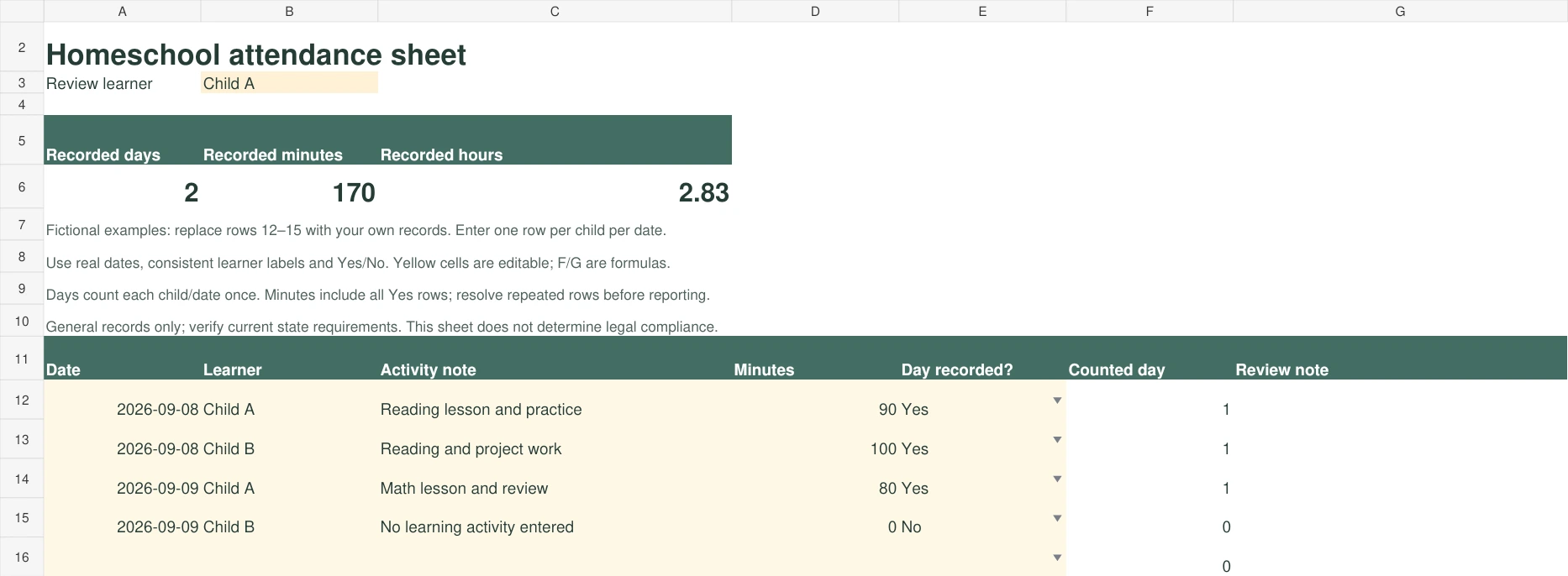
The workbook has 100 entry rows for one or several learners, four clearly labeled fictional examples and a learner-specific summary. Use one row per child per date. It counts each recorded child/date once and flags repeated rows; recorded minutes include all Yes rows, so resolve duplicates before sharing a report.
- Save your own copy in Excel. Replace the fictional rows, keeping the formulas in columns F and G.
- Enter a real date, a consistent learner label, an activity note, minutes and Yes or No. Enter 0 when no minutes were recorded; incomplete rows show a review note.
- Change Review learner in B3 to the exact label used in your entries. Compare the recorded days, minutes and hours with the underlying rows.
- Before using more than 100 rows, extend the formulas and the summary ranges. Keep a backup and review your own reporting requirements.
To open an Excel file in Google Sheets, use File > Import > Upload and choose Create new spreadsheet. Review the dates, formulas and Yes/No choices after importing. The corrected Excel download has been imported and checked in native Google Sheets: the example dates, Yes/No choices and learner totals are preserved. Child A shows 2 recorded days and 170 minutes; Child B shows 1 day and 100 minutes. Review your own import before adding records. See Google's Excel import instructions.
Prefer a browser worksheet? Open the free Homeschool Attendance Log for one learner per backup, unique instructional-date counting and optional hours. Its JSON backup and this workbook are separate formats; they do not import into each other.
Open, edit and save your own tracker
On a computer: download the .xlsx file, open it in Excel and save a named working copy. For Google Sheets, upload the workbook to Drive and open it with Sheets, or use File > Import > Upload in Sheets. If this page offers a Google Sheets copy button, use that instead and make your own copy before editing.
On Android: tap the Excel download above. Find homeschool-attendance-sheet.xlsx in Chrome Downloads or your Files app, then open it in Excel or the Google Sheets app. If it opens in a preview, choose a spreadsheet app to edit it. Save or make a named working copy in that app; menu labels vary by app and version.
Keep columns F and G as formulas. Change only a minutes input for a trial entry, then check the selected learner summary and restore your original entry. After editing, finish the cell entry, save the working file and reopen that same named copy to confirm the change is still there. In Google Sheets, tap outside the cell to finish the entry; keep an exported .xlsx copy when you need a separate device backup. Re-downloading this website's template starts a fresh copy and does not recover your edits.
Use .xlsx for the working file: CSV does not preserve the workbook's formatting, validation or full formula structure. A PDF is a reading or printing copy. See Google Sheets on Android and Google's save, copy and download instructions.
Decide what your record means before entering data
Define the period you are tracking and the child labels you will use. Keep each label consistent, whether it is a name or an internal reference such as Child A.
The copyable example below uses a Day recorded? field with Yes and No entries. “Yes” means you have chosen to record that date for that child under your applicable process. It is not an automatic judgment about legal attendance.
Use the activity note to explain what happened. If you record minutes, enter the actual time for the activities your record covers. Do not convert a short activity into a full day or assume all family members participated identically.
Use one row per child per date
A daily row keeps the record easy to inspect. In this fictional example, two learners have different entries on the second date:
| Date | Child | Activity note | Recorded minutes | Day recorded? |
|---|---|---|---|---|
| September 8, 2026 | Child A | Reading lesson and practice | 90 | Yes |
| September 8, 2026 | Child B | Reading and project work | 100 | Yes |
| September 9, 2026 | Child A | Math lesson and review | 80 | Yes |
| September 9, 2026 | Child B | No learning activity entered | 0 | No |
These entries produce two recorded days for Child A and one for Child B. Their listed minutes total 170 and 100 respectively. The times are sample data, not recommended daily schedules or statements about required instruction.
If you prefer one row per activity, use a different structure that summarizes unique child-and-date combinations. Counting every activity row as another attendance day would inflate the total.
Keep attendance, lesson completion and grades separate
An attendance entry records participation according to your chosen process. A lesson record describes the work. An assessment record describes an evaluation. The same child may participate in a day without finishing every planned lesson.
You can connect those records with a date and child label, but do not make one field stand in for all three. For example, a checkmark in an attendance column does not show which math skill was practiced.
For planning the work itself, use the multi-age homeschool schedule examples. They offer ways to arrange shared and individual lessons while keeping each learner's record distinct.
Add entries while the details are still clear
Choose a short daily check-in to record completed activities and any relevant notes. Update the entry when plans change rather than copying the original schedule as if everything happened exactly as planned.
At the end of the week, look for blank dates that need an explanation, inconsistent child labels and repeated rows. Do not fill an uncertain gap with invented detail. Use an honest note and consult whatever contemporaneous records you actually have.
In your own daily sheet, check for repeated child-and-date combinations before counting days. If two rows describe the same daily record, consolidate them or count the date only once. The free browser log uses one learner per worksheet and counts unique instructional dates; do not assume it provides this multi-child spreadsheet layout.
Make the multi-child summary understandable
For a multi-child sheet you build yourself, group the summary by the exact child label in the log. “Child A” and “A” are different labels. Test each child separately before relying on the totals.
For this daily-sheet example, count unique child/date records marked Yes after resolving duplicates. The minutes total sums the minutes entered for the child; it does not determine whether those minutes satisfy a rule.
If you add formulas to your own sheet, make their ranges cover all the intended rows. Extend the table and summary ranges together when adding records. Make a backup before changing the structure, then test with a known pair of records.
Keep records readable when you save or print them
Include the child's identifier, the record period and a clear explanation of the fields. Before sharing or printing, inspect the page breaks and confirm that the dates and labels remain visible.
Keep the working file separate from a dated archive. Use storage and sharing arrangements appropriate to the information in your records. A file saved on one device still needs a recovery plan.
If you want attendance alongside curriculum and lesson records, explore the NexalyPlanner Digital Homeschool Planner. Its product page describes multiple child profiles and attendance tools. Review the available record and export options against your needs; a planner does not replace current state guidance.
Correct a shared activity without doubling the day
Suppose Child A has one daily row for October 1 and a second row was added for a shared science activity on that same date. First determine whether your sheet is a daily record or an activity log. In the daily attendance template, consolidate the activity details into the existing Child A/date record rather than counting another day. Child B's participation needs its own accurate child-specific entry; a shared activity does not prove identical minutes or work for both children. Retain a short correction note so a later reviewer can understand the change. This is a record-cleaning example, not a state-law attendance rule. Use the multi-age schedule to plan shared time and the multi-child planner guide to keep separate records organized.
Compare the attendance sheet with app records
The on-page example's “Day recorded?” field and the paid planner's attendance categories are different structures. Decide what you want to compare before copying figures between them. The spreadsheet uses a daily child/date row; the app also stores learning-hour entries separately. Neither format determines what your state counts as instruction.
| Fictional record | Daily-sheet review | App review |
|---|---|---|
| Child A: Monday science lesson and reading | One child/date row, with both activities in the note | One accurate daily attendance entry; separate subject-linked time records as needed |
| Child A: 25 science minutes plus 20 reading minutes | 45 minutes for that child's daily record | 25 + 20 = 45 actual learning minutes, not two attendance days |
| Child B: Monday marked sick | Use the classification appropriate to your record process | The app shows sick separately from its counted learning-attendance categories |
| Month-end archive | Readable child-level rows and summary | Selected-child report for review, CSV for tabular analysis, JSON for full-workspace recovery |
The app currently counts present, learning day and field trip in its learning-attendance summary. That calculation is product behavior, not a legal classification. If your records use a different definition, retain the underlying entries and review the summary against your applicable process. Consult current state guidance for requirements; do not use the dashboard percentage as a compliance certificate.
For the actual attendance categories, child filter and export steps, follow the Digital Homeschool Planner record workflow. The free browser log and a spreadsheet you create are separate records; neither automatically imports or synchronizes with the paid HTML app. A CSV archive is not a JSON backup.
Review unconfirmed days before sharing a summary
Before you share a period summary, check the child identifier, the start and end dates, and the underlying daily rows. Keep confirmed records separate from dates still needing review. A blank cell can mean that an entry was missed; it does not establish either participation or absence.
For a fictional example, October 1 and October 2 have confirmed child-specific records, while October 3 is blank and the available notes do not establish what happened. You have two confirmed recorded days and one unresolved date. Do not turn the unresolved date into a third recorded day merely to match a planned schedule. If you later find reliable details, correct the working record, note why it changed, and regenerate any summary you intend to share.
In the paid app, inspect the selected child's entries and the report period before saving a report. Keep a dated JSON backup for recovery and a readable report for review; they serve different purposes. Follow the homeschool report review instructions for the supported workflow. This check explains record accuracy, not whether a particular record satisfies a legal requirement.
For a subject-level time record, use the free Homeschool Subject Hours Log. Keep its activity minutes separate from your attendance-day total; several subject sessions on one date do not create several attendance days. The worksheets are separate and do not synchronize.
Frequently asked questions
Can I use one attendance sheet for several children?
Yes. Give every row a consistent child identifier and summarize each child separately. Avoid copying the same participation or minutes into every child's record without checking what each actually did.
Should a field trip be recorded?
Record the actual activity and relevant details in your learning records. Determine how it should be classified using the requirements that apply to your situation; the template does not make that decision.
Is there one homeschool attendance requirement across the USA?
Use current state-specific guidance. This general template deliberately does not set a universal day or hour target.
How should I review a duplicate daily entry?
If the same child and date appear more than once in your daily sheet, review those entries. Check whether the rows describe the same daily record, then consolidate or correct them before using the total.
Is a daily attendance log the same as a transcript?
No. They organize different information. Keep attendance, coursework and any transcript-related records in formats appropriate to their purpose.