
What the AI Homeschool Learning OS does
NexalyPlanner AI Homeschool Learning OS is an offline, browser-local system for planning, teaching, tracking, assessing, and reviewing a homeschool program. It links a child to subjects, subjects to curriculum records, curriculum to lessons, and lessons to assignments, learning hours, attendance, assessments, mastery notes, portfolio evidence, analytics, and a progress report. It is designed for a parent who wants one practical record rather than a collection of disconnected spreadsheets.
Use it when you want a private local homeschool command center with connected records and reports. It is especially useful for a family teaching more than one child, because the top-bar child filter and child-linked records let you inspect one learner or the household. It is not a state-compliance service, school information system, medical tool, or substitute for your review. It does not claim cloud synchronization, external integrations, automatic submissions, or official transcript acceptance.
The audited first-use state is an onboarding screen, not a missing dashboard. It asks you to choose a language and theme, then guides you through a parent profile, first child, and empty-workspace or demo-data choice. After onboarding, a local parent sign-in screen can appear after sign-out. It asks for “Parent Name”; it is a local session gate, not a cloud account.
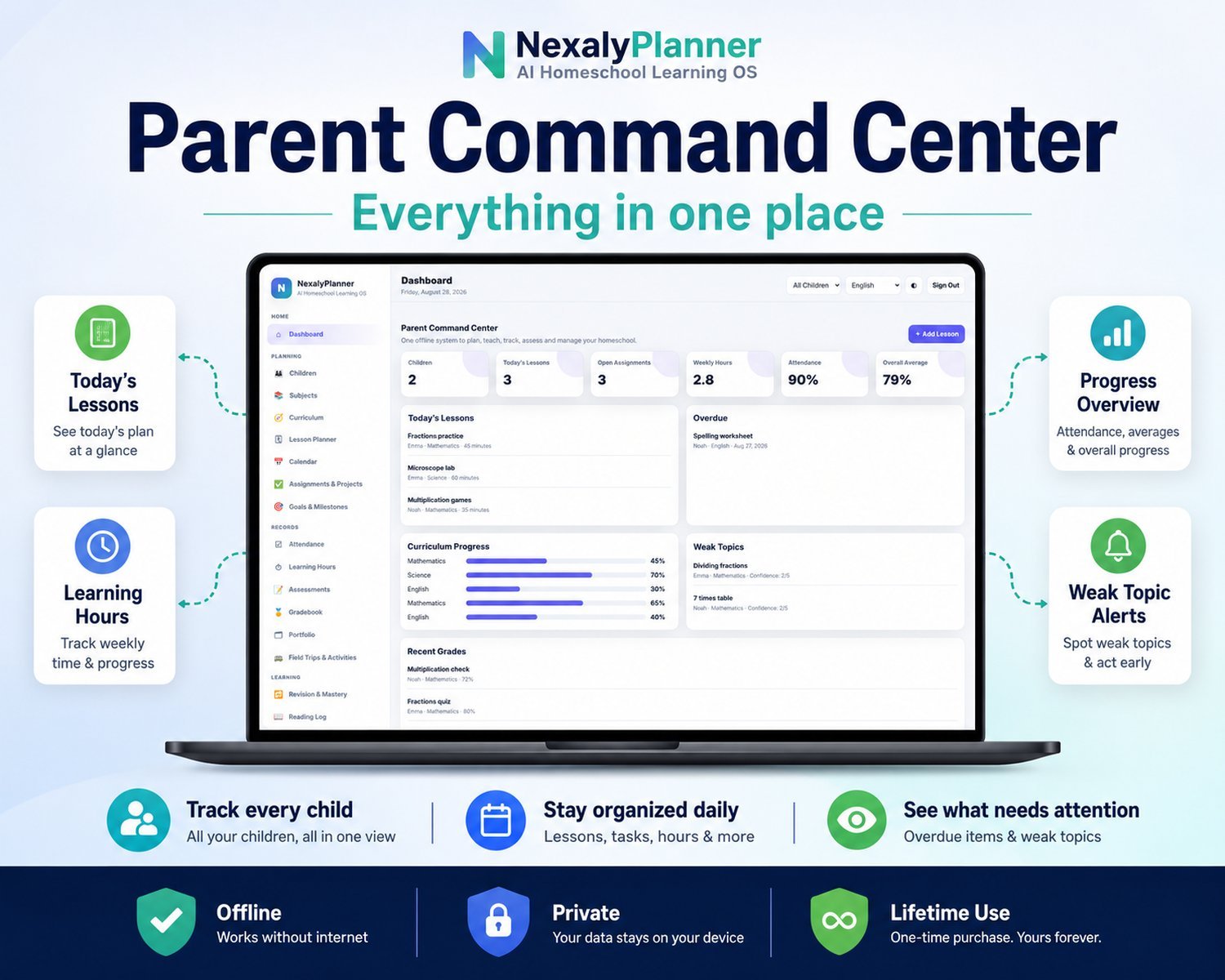
Figure 1. Product illustration of the Parent Command Center and family record overview. The first-use language/theme onboarding process is described in the setup steps below.
Quick start: your first 20–30 minutes
- Choose the household language and theme. On the first onboarding step, select English or one of the other available interface languages: العربية, Português, Español, Nederlands, Français, or Italiano. Choose Light or Dark, then select Next.
- Create the parent profile. Enter the parent name and school year. A practical US example is
Jordan Millerand2026–2027. - Add the first child. Enter the child’s name, age, grade, and learning style. The full child record also supports year, interests, strengths, and weaknesses.
- Choose your starting data state. Select Start Empty for your own records. Select Start with Demo Data when you want to inspect the modules, charts, and report with sample homeschool data first. Treat demo records as examples, not as your family’s official history.
- Create the child’s subjects. Add subjects such as Mathematics, Science, English, History, or Art and connect each subject to the appropriate child and grade level.
- Create curriculum records. Add a unit, topic, objective, status, and progress percentage for each subject area you want to track.
- Plan the next lesson. Use Lesson Planner or the dashboard’s + Add Lesson action. Select the child and subject, then enter the date, title, objective, duration, status, and notes.
- Record the learning event. After teaching, add attendance and learning hours. Mark the lesson completed when appropriate, and use Notes & Observations for a short parent observation.
- Assess and review. Add an assessment with its type, date, score, maximum score, and feedback. Check the Gradebook, Revision & Mastery, and Analytics views to decide what to practice next.
- Back up the workspace. Open Settings and use Export Backup. Store the downloaded JSON file somewhere you control before clearing browser data or moving devices.
If you begin empty, the system starts with no child, subject, or record data. Many add forms require a child first, and curriculum-linked forms require a subject. Build the relationships in order rather than creating orphan records.
Complete menu and screen map
The sidebar uses these verified groups and labels. The labels below are the product’s actual navigation scope.
| Group | Menu label | What the screen is for |
|---|---|---|
| Home | Dashboard | Parent Command Center with counts for children, today’s lessons, open assignments, weekly hours, attendance, overall average, overdue work, curriculum progress, weak topics, and recent grades. |
| Planning | Children | Child profiles and child-level counts for subjects, hours, average, and curriculum progress. |
| Planning | Subjects | Subject records linked to a child, grade level, and calculated curriculum progress. |
| Planning | Curriculum | Units, topics, objectives, status, and progress percentages. |
| Planning | Lesson Planner | Dated lessons with objectives, duration, status, and notes. |
| Planning | Calendar | Monthly view of lessons, assignment due dates, assessments, and activities. |
| Planning | Assignments & Projects | Assignments, projects, homework, or worksheets with due dates, priority, status, and description. |
| Planning | Goals & Milestones | Academic, skill, habit, or long-term goals with deadlines and progress. |
| Records | Attendance | Daily attendance status and notes, with present, learning-day, field-trip, holiday, absent, and sick categories. |
| Records | Learning Hours | Subject-linked time records by date, topic, minutes, and note. |
| Records | Assessments | Quizzes, tests, exams, oral work, practical work, or projects with scores and feedback. |
| Records | Gradebook | Subject-level assessment counts, average percentages, and progress bars by child. |
| Records | Portfolio | Dated project, certificate, achievement, or skill-work entries with descriptions. |
| Records | Field Trips & Activities | Activities with date, type, title, location, objective, and duration. |
| Learning | Revision & Mastery | Topic-level status, confidence from 1–5, review date, and notes. |
| Learning | Reading Log | Books, authors, pages, reading status, rating, and notes. |
| Learning | Focus Timer | 15-, 25-, 45-, or 50-minute focus blocks with start, pause, and reset controls. |
| Learning | Resources | Child- and optionally subject-linked resources with title, type, link, and note. |
| Learning | Notes & Observations | Dated parent observations organized by category and title. |
| Insights | Analytics | Curriculum progress, assignment completion, mastered topics, attendance, seven-day learning-hour bars, and subject progress. |
| Insights | Reports & Transcript | A child progress report with attendance, total hours, books completed, subject summary, goals, and a print/save-to-PDF action. |
| Support | Nexaly AI Assistant | A local, data-aware help and review assistant with workflow, attention, backup, and report prompts. |
| System | Settings | Parent profile, school year, language, theme, JSON backup, JSON restore, CSV export, demo data, and reset controls. |
The top bar adds a child filter, language selector, theme toggle, and Sign Out. Selecting a child changes the records shown in child-filtered views. Reports & Transcript uses the selected child when one is selected; when the filter remains on All Children, the report screen falls back to the first child, so select the intended learner before preparing a report.
Set up the local workspace
1. Configure the onboarding screen
Choose the language and theme on the first screen. Available languages are English, Arabic, Portuguese, Spanish, Dutch, French, and Italian. This changes interface labels; it does not translate or validate educational content. Use Next to move through four onboarding steps.
2. Enter parent and school-year details
The parent profile includes Parent Name and Year. Use the school year you intend to document, such as 2026–2027. This appears with child records and reports; it does not verify your state’s instructional-year rules.
3. Add a child profile
The onboarding child form asks for name, age, grade, and learning style. After onboarding, Children supports year, interests, strengths, and weaknesses. Treat “learning style” as a parent-entered planning note, not a diagnosis or validated placement decision.
4. Start empty or inspect demo data
Start Empty is the right choice for official family records. Start with Demo Data loads sample children, subjects, curriculum, lessons, assignments, assessments, attendance, hours, reading, goals, mastery, portfolio items, activities, resources, and notes so you can understand the workflow. Settings also includes Load Demo Data and Reset All Data. Reset is destructive for the local planner, so export a backup first if the data matters.
5. Use local sign-out carefully
After onboarding, selecting Sign Out removes the current browser session and can show the local parent sign-in overlay the next time the file is opened in that browser session. The sign-in screen asks for Parent Name and states that no cloud account is required. This is not a password manager or a remote identity service. Anyone who can access the browser data or the application file may still be able to reach the underlying local records.
The core workflow: child → curriculum → lesson → assessment
The strongest way to use the product is to keep each record connected to the same child and subject. The following sequence prevents the most common setup mistake: creating a lesson or assessment before the child and subject exist.
Step 1: Create children
Open Children and choose Add Child. Enter the required name, then useful age, grade, year, learning style, interests, strengths, and weaknesses. Save and repeat for each learner. Each child card displays subjects, total hours, assessment average, and curriculum progress.
Step 2: Add subjects
Open Subjects, choose Add Subject, select the child, and enter subject name and grade level. A subject parents curriculum, lessons, assignments, assessments, hours, and mastery items. If levels differ by subject, record each relevant level.
Step 3: Map curriculum objectives
Open Curriculum and choose Add Curriculum. Select child and subject, then enter Unit, Topic, Objective, Status, and Progress. Statuses include planned, in progress, and completed. Keep objectives observable, such as “Compare and add unlike fractions.” Dashboard and analytics use entered percentages; they do not validate mastery.
Step 4: Plan lessons
Open Lesson Planner and choose Add Lesson, or use + Add Lesson on the dashboard. Select child and subject, then enter date, title, objective, duration, status, and notes. Statuses are planned, in progress, and completed. Use the objective to connect to curriculum and notes for materials or follow-up.
The Calendar automatically displays lesson dates. It also displays assignment due dates, assessment dates, and field-trip or activity dates. Use Previous, Today, and Next to move through the monthly view.
Step 5: Add assignments and projects
Open Assignments & Projects and choose Add Assignment. Select the child and subject, enter the title, choose Assignment, Project, Homework, or Worksheet, then enter a due date, priority, status, and description. Priorities are high, medium, and low. Statuses are to do, in progress, and done. The dashboard’s Overdue card shows items that are not done and have a due date before the current date.
Step 6: Record attendance and learning time
Open Attendance and choose Add Attendance. Select a child, date, and status. The available statuses are present, absent, holiday, sick, field trip, and learning day. Add a note when the day needs context. The dashboard and report treat present, learning day, and field trip as counted learning attendance; they separately display holiday, absent, and sick counts.
Open Learning Hours and choose Add Hours. Select the child and subject, enter date, topic, minutes, and an optional note. The screen shows total hours, current-week hours, lesson-count records, and subject bars. Enter actual learning time consistently. A 45-minute lesson should be recorded as 45 minutes, not 0.75 unless you intentionally want the display to calculate the equivalent hour.
Step 7: Add assessments and review the gradebook
Open Assessments and choose Add Assessment. Enter child, subject, title, type, date, score, maximum score, and feedback. Types include Quiz, Test, Exam, Oral, Practical, and Project. Percentage equals score divided by maximum score; 16 out of 20 displays as 80%.
Open Gradebook to see each child’s subject, assessment count, overall average, and progress bar. The gradebook is a calculated view of the assessments you entered. It is not a standards-alignment engine and does not decide whether a score is passing, complete, or suitable for a particular state or institution.
Step 8: Track mastery and create the next review
Open Revision & Mastery and choose Add Mastery. Select child and subject, then enter topic, mastery status, confidence from 1 to 5, review date, and notes. Statuses include not started, learning, needs practice, good, and mastered. A low-confidence or needs-practice topic appears in the dashboard’s Weak Topics area. Use that signal to plan the next lesson or assignment; do not treat it as an automated instructional diagnosis.
Supporting records that make the history useful
Goals & Milestones supports academic, skill, habit, and long-term goals. Add a title, type, deadline, progress percentage, and notes. Keep goals measurable enough to review, such as “Read independently for 20 minutes daily” or “Master fraction division.”
Reading Log records title, author, pages, reading status, a 0–5 rating, and notes. Reading status can be want to read, reading, or done. Completed books contribute to the report’s books-completed count.
Portfolio stores dated evidence as a project, certificate, achievement, or skill-work item. Add a title and description. A portfolio record is a text record in this audited edition; the source does not verify file or image attachment behavior, so do not assume that a photograph, scan, or certificate upload is stored here.
Field Trips & Activities records date, activity type, title, location, objective, and duration. Use the objective to explain the educational connection, such as “Connect fossils and ecosystems to science curriculum.” Activities appear on the monthly calendar and can be counted as field-trip attendance when you enter the corresponding attendance status.
Resources records a child, optional subject, title, resource type, link, and note. A link can identify a website or a local/printed resource, but the product does not claim to download, verify, or synchronize external content. Notes & Observations records date, child, category, title, and a longer parent note. Use it for learning behavior, confidence, follow-up questions, or context that does not belong in a grade.
Analytics, reports, and transcript review
Analytics provides four high-level indicators: curriculum progress, assignment completion, mastered topics, and attendance rate. It also displays seven days of learning-hour bars and subject progress. These are calculations from your local records. A low percentage may indicate incomplete data rather than poor learning, so check whether the relevant lessons, hours, assessments, and mastery entries were recorded before drawing conclusions.
Reports & Transcript prepares a child progress report. Select the intended child in the top bar before opening the screen. The report includes the child’s name, grade and year, attendance rate, total learning hours, completed books, subject count, an academic summary, and goals. The academic summary includes each subject’s assessment count, average percentage, total hours, and curriculum progress. Use Print / Save PDF to send the report to the browser’s print workflow.
Review every report before using it for a co-op, evaluator, school, state filing, college application, or other official purpose. Confirm the child, school year, dates, attendance categories, hours, assessment scores, subject names, and goal progress. The product creates a progress report and transcript-style summary; it does not certify that the result satisfies a state homeschool statute, accreditor, school, employer, or college. Keep source work and any required external documentation according to your local rules.
AI Assistant: useful for navigation and local review
Open Nexaly AI Assistant to use the built-in offline expert. The interface is labeled Offline Expert and Local Data-Aware Support. It provides quick prompts for “How do I use this system?”, “What requires attention?”, “How do backups work?”, and “How do reports work?” You can also type a question about curriculum, grades, attendance, reports, backups, revision, the focus timer, privacy, or the recommended workflow.
The assistant can explain the workflow, identify attention areas from local records, explain backup and restore, and describe report inputs. It does not contact a school, submit externally, send messages, diagnose, or replace parent review. Treat attention suggestions as a local aid, not professional educational, medical, legal, or psychological advice.
A keyboard shortcut is also supported: Ctrl+K on Windows/Linux or Command+K on macOS opens the AI view and focuses its input. If the browser or operating system intercepts the shortcut, use the sidebar instead.
Worked US example: a September 2026 learning record
Suppose Jordan Miller is homeschooling Emma, age 11, in Grade 6 during the 2026–2027 school year. Jordan starts with an empty workspace, selects English and Light theme, and adds Emma with a “Visual + hands-on” learning-style note. Jordan then creates Mathematics, Science, and English subjects.
In Curriculum, Jordan enters Mathematics → Unit Fractions → Topic Operations with fractions → Objective Add, subtract, multiply and divide fractions, with status In Progress and progress 45%. In Science, Jordan enters Life Science → Cells and systems → Objective Explain cell structure and body systems, with progress 70%.
On September 21, 2026, Jordan adds a Mathematics lesson titled Fractions practice, objective Compare and add unlike fractions, duration 45 minutes, and status Planned. Jordan also adds an assignment called Five-paragraph essay draft under English, type Assignment, due September 24, 2026, priority High, and status In Progress. The lesson and assignment now appear in the monthly calendar on their respective dates.
After teaching the mathematics lesson, Jordan changes its status to Completed, adds Attendance for Emma on September 21 with status Learning Day, and adds Learning Hours for Mathematics on September 21 with topic Fractions and 45 minutes. The dashboard’s weekly hours increases by 0.75 hours. Jordan adds a note dated September 21 with category Learning behavior, title Math confidence, and the observation that visual fraction bars improved accuracy and confidence.
On September 25, Jordan adds an assessment titled Fractions quiz, type Quiz, score 16, maximum score 20, and feedback Strong concepts; review division. The Assessments view displays 80%, and Gradebook includes Mathematics with one assessment and an 80% average. Jordan then adds a mastery record for Dividing fractions, status Needs Practice, confidence 2, and review date September 29, 2026. The topic is now visible in Weak Topics, giving Jordan a clear reason to plan a short review lesson rather than treating the quiz score as the end of the unit.
For evidence, Jordan adds a Portfolio item dated September 30, type Project, title Solar oven project, and a description of the design and test. Jordan adds a Field Trip & Activity for October 6 titled Natural History Museum, location City museum, objective Connect fossils and ecosystems to science curriculum, and duration 180 minutes. The activity appears in the calendar. After the September records are complete, Jordan opens Analytics to check hours, assignment completion, mastery, attendance, and subject progress, then selects Emma and opens Reports & Transcript. Jordan reviews every line before using Print / Save PDF for a co-op review packet.
This example uses ordinary US dates, minutes, percentages, and a school-year label. No dollar amount is required because the audited product has no verified tuition, expense, accounting, or payment workflow. Do not use homeschool learning records as accounting or tax records.
First-week family workflow: one shared topic, separate records
This fictional setup uses two learners and a habitat study. It demonstrates the record sequence, not a prescribed curriculum or a verified legal attendance plan. Start with an empty purchased workspace, create Child A and Child B, then add a Science subject for each. Set the top-bar filter to the learner you are reviewing and check the child selected in each form.
| Record | Child A | Child B | What to verify |
|---|---|---|---|
| Curriculum objective | Identify two habitat features | Explain how two features support an animal | Each objective belongs to the intended child and Science subject |
| Lesson Planner | Habitat observation; 25 planned minutes | Habitat explanation; 35 planned minutes | Date, child, subject and planned status before teaching |
| Actual follow-up | Drawing and oral explanation finished | Written comparison needs another example | Mark only completed work complete; retain the unfinished next step |
| Learning Hours | 25 actual minutes | 30 actual minutes | Enter observed time, not the planned duration copied without checking |
| Parent observation | Named shelter and water independently | Revisit the connection between shelter and temperature | Short evidence and the next supported task |
Child A's 25 minutes plus Child B's 30 minutes gives 55 learner-minutes. It does not prove that the adult taught for 55 separate minutes: the activity may overlap. Keep learner time separate from the adult's support schedule. The multi-age homeschool schedule examples help allocate that support.
Attendance is a separate daily record. Use the category and note that accurately describe each child's day under your own process; completing one activity does not determine legal attendance. The attendance sheet and app comparison explains why daily totals and activity rows need different treatment.
Review the first week before adding the whole year
Inspect each child separately: can you trace a curriculum objective to a lesson, its actual outcome and a follow-up? Select that child before opening Reports & Transcript, because an All Children filter can fall back to the first child. Confirm identity and dates on the output before sharing it.
Export a JSON backup from Settings after the review. Record its date and location in your handoff note. If another adult assists, have them read one learner's next step in the authoritative working copy instead of creating an independent device copy assumed to synchronize. Use the multi-child planner evaluation checklist to decide whether this local workflow suits your family.
A practical daily and weekly routine
Daily routine
At the beginning of the day, use the child filter and Dashboard to review today’s lessons, open assignments, overdue work, weak topics, and recent grades. Open the calendar if you need to see the day in relation to upcoming assessments or activities.
During instruction, use Focus Timer with a 15-, 25-, 45-, or 50-minute block when a defined work period would help. The timer supports start, pause, and reset. The product describes completed focus sessions as entering analytics; use the timer as a pacing aid, not as proof that learning occurred. Record the actual lesson and learning hours separately.
At the end of instruction, mark the lesson status, enter attendance, log minutes, and add a short note only when the context is useful. Update an assignment to Done when the work is complete. If a child struggled, record the topic in Revision & Mastery with a lower confidence value and a future review date.
Weekly review
Once a week, check Analytics and Gradebook. Compare curriculum progress with assessment evidence, hours, and actual work completed. Review Weak Topics and create the next lesson or assignment from the highest-priority learning need. Update goals and reading status. Add portfolio evidence for work you want to preserve.
Before a formal review or month-end archive, open Reports & Transcript for each child, verify the child filter, and print or save a PDF only after correcting missing or inconsistent records. Export a JSON backup and, if a spreadsheet-friendly copy is helpful, export CSV as well.
Offline storage, privacy, backup, and restore limitations
The product is explicitly labeled Offline & Private and states that core data stays in the browser. The audited source uses browser-local storage for the planner state. No server account is required for the core workspace, and the AI Assistant is described as offline and local-data-aware. This is a privacy advantage for families who do not want routine homeschool records sent to a hosted service.
Local storage is also a responsibility. Browser data can be removed by clearing site data, deleting the file or profile that contains the workspace, using a different browser or device, or resetting the planner. Local data is not the same as a cloud backup. The product does not verify automatic sync between parents, devices, or browsers.
Use Settings → Export Backup to download a JSON file named in the product’s backup pattern with the current date. Use Settings → Import Backup and choose a JSON file to restore. The product rejects an invalid backup file, but you should still keep more than one dated backup and test a restore on a non-critical copy when possible. Import replaces the in-memory state with the normalized backup state, so confirm that you selected the intended file.
Use Export CSV when you need a tabular copy of children, curriculum, lessons, assignments, assessments, attendance, learning hours, reading, goals, mastery, portfolio, activities, resources, and notes. CSV is useful for review or a secondary archive, but it is not a full-fidelity application restore format. It does not replace the JSON backup.
Backups contain homeschool information. Store them in a location protected by the family’s normal device security. The local sign-in screen is not evidence of encryption, cloud identity, or a recoverable account. The audited product does not claim encrypted backups, cross-device sync, automatic backup, or password inclusion in a remote service.
Advantages and disadvantages
Advantages
The product’s main advantage is its connected record model. A child can be linked to a subject, curriculum topic, lesson, assignment, assessment, hours, mastery review, and report without separate tools. The dashboard gives a fast daily review, while the calendar and analytics make the same records easier to inspect.
The offline model can reduce exposure of routine homeschool data to third-party servers. It works without a cloud account for the core workspace. The seven-language interface, Light/Dark theme, child filter, JSON backup, CSV export, printable report, and local AI Assistant add flexibility.
The product also leaves the parent in control. Statuses, notes, objectives, scores, goals, and progress values are entered and reviewed by the family. The AI Assistant can explain local records and workflow, but it does not automatically contact outside systems or take actions on the parent’s behalf.
Disadvantages and limitations
The local browser model makes backup discipline essential. There is no verified cloud sync, shared-family account, automatic external export, or recovery after browser-data loss. A family moving between devices must move its own backup file.
The system is broad but lightweight. It calculates percentages and summaries from entered records; it does not verify attendance laws, curriculum standards, assessment validity, grade equivalence, transcript acceptance, attachments, or external-resource downloads.
The AI Assistant is a bounded offline helper, not a general research service. Do not use it for medical diagnosis, disability determination, legal compliance, official school submission, or decisions requiring a licensed professional. The printable report is transcript-style; official-use review remains the parent’s responsibility.
Troubleshooting and common mistakes
The onboarding screen is still visible. Complete the four steps with Next, then choose Start Empty or Start with Demo Data. The baseline product opens in onboarding by design.
I cannot add a lesson, assessment, or curriculum record. Add a child first. Then add at least one subject. The product intentionally blocks child-linked records when the required parent record does not exist.
My report shows the wrong child. Use the top-bar child filter and select the intended learner before opening Reports & Transcript. When the filter is All Children, the report screen uses the first child as its report subject.
My attendance percentage looks unexpected. Check the status you selected. Present, learning day, and field trip count as learning attendance. Holiday, absent, and sick are counted separately and do not increase the present rate.
My gradebook average is blank or low. Confirm that the assessment has numeric score and maximum-score values greater than zero and is linked to the same child and subject as the Gradebook row. The gradebook calculates from entered assessments only.
A topic does not appear in Weak Topics. Dashboard attention is based on a mastery status of Needs Practice or confidence of 2 or lower. Add or update a Revision & Mastery record for that topic.
The calendar does not show an item. Confirm that the date is correct and that the record type is one of the calendar’s verified sources: lesson, assignment due date, assessment, or activity.
A backup will not import. Choose a JSON backup exported by this product. An invalid file produces an error. Do not rename a CSV file to .json; CSV is for tabular review, not restore.
I cleared browser data. Local records may be gone. Restore the latest JSON backup from Settings. If no backup exists, the product does not verify a server-side recovery path.
The timer does not replace my learning record. Correct. Use Focus Timer for pacing, then record the lesson and actual minutes in Lesson Planner and Learning Hours. Review the analytics after saving those records.
Frequently asked questions
Does AI Homeschool Learning OS work without a cloud account?
Yes, the audited edition describes the core workspace as offline and browser-local, and the local sign-in says no cloud account is required. It does not provide verified cloud synchronization.
Can I manage more than one child?
Yes. Add multiple child records, link each subject and record to the correct child, and use the top-bar child filter to review one child or all children.
Can it generate a homeschool transcript?
It provides Reports & Transcript, a printable progress report with child details, attendance, hours, books completed, subject summaries, assessment averages, curriculum progress, and goals. Review the output before official use because the product does not certify state, school, college, or evaluator requirements.
Does it track attendance by status?
Yes. The verified attendance statuses are present, absent, holiday, sick, field trip, and learning day. The dashboard and report calculate a rate from the categories treated as learning attendance.
Does it calculate grades?
Yes. Assessment percentages are calculated from score and maximum score, and Gradebook summarizes averages by child and subject. It does not define grading policy or determine whether a grade satisfies an external requirement.
Can I attach photos or scanned portfolio work?
The audited source verifies portfolio text fields for date, type, title, and description. It does not verify file or image attachment behavior. Keep original files in a separate, backed-up location if you need them.
Is the AI Assistant an educational or medical professional?
No. It is an offline, local-data-aware workflow and review helper. It does not diagnose, prescribe, determine disability, or replace a qualified educator, clinician, evaluator, or legal adviser.
How should I protect backups?
Export JSON regularly, keep dated copies in a secure location, and remember that a backup contains sensitive family learning information. The audited product does not claim cloud encryption or automatic backup.
Recommended next steps and internal links
Start with the Digital Homeschool Planner product page and use this guide for setup. Families can compare the AI Student Planner study workflow and the multi-age homeschool schedule examples when planning a shared week.
If you need a private, structured way to move from child profile to curriculum objective, lesson, assessment, and report, use NexalyPlanner AI Homeschool Learning OS as your local homeschool record center. Begin with an empty workspace, create one complete child-to-assessment workflow, export a backup, and expand only after the record structure fits your family.
Explore Digital Homeschool Planner
Review product screenshots, included features, download details and current purchase terms.
View Digital Homeschool Planner