
Free printable homeschool weekly planner
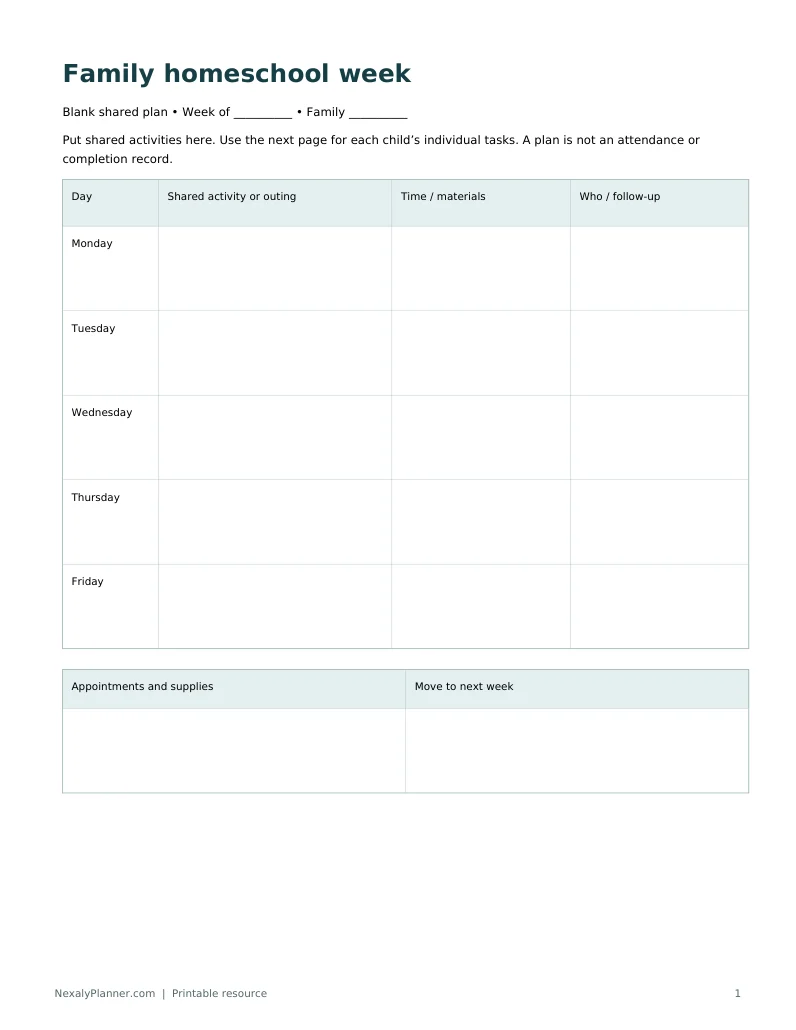
The three-page pack includes a blank family week, a blank learner week to copy for each child, and a fictional mixed-age example. Choose US Letter for common US printers or A4 for the paper size your printer uses.
Start with shared commitments on the family page. Then put age-appropriate tasks on each learner page. Print at actual size on matching paper and check the preview before printing. This weekly plan is separate from the attendance and subject-hours records linked below.
A homeschool planner for multiple children should show the family's day while preserving each child's own lessons, progress and records. Sharing a calendar is useful; accidentally copying one learner's results into another learner's record is not.
Before choosing a planner, test a small version of your real routine. Create two child profiles, schedule one shared activity, add separate follow-up work and inspect the resulting records. That practical test tells you more than a long list of modules.
Download the multi-child planner checklist and open Multi-Child Checklist. Use the notes column to record what you verified, what is missing and what still needs a demonstration.
Look for two views of the same day
The family view should help you see shared activities, individual support needs and schedule conflicts. The child view should help you see a learner's next lesson, unfinished work and relevant notes.
For example, you might start with a shared reading activity and then give Child A a guided response while Child B works on a separate written task. The family calendar can show the shared start, while each child's plan records the appropriate follow-up.
A useful planner lets you move between these views without rebuilding the same information repeatedly. Verify the behavior in the specific version you intend to use.
Separate what is shared from what belongs to one learner
| Information | Usually useful in a shared view | Keep a child-specific record |
|---|---|---|
| Family appointment | Yes | Add individual implications when needed |
| Shared read-aloud | Yes | Record each child's response if relevant |
| Individual math lesson | Show the support slot | Yes |
| Assignment completion | Optional summary | Yes |
| Assessment result | Optional overview | Yes |
| Attendance or participation | Optional overview | Yes |
These are workflow suggestions. Your curriculum and record obligations may need additional fields. A shared activity should not automatically produce identical completion, minutes or results for every child.
Run a ten-step sample before committing
Use fictional data while evaluating a new tool:
- Create two child records with distinct labels.
- Add a subject and a learning goal for each.
- Schedule one shared activity.
- Give the children different follow-up tasks.
- Mark only one child's task complete.
- Move the other task to another day.
- Enter separate participation notes.
- Inspect the family and individual views.
- Export or print a sample record.
- Test the documented backup-and-restore process safely.
After each step, check whether the result is understandable. Moving a lesson should not erase what happened previously. A shared activity should not overwrite individual notes. A report should identify the child and the period it covers.
Compare paper, spreadsheets and dedicated applications by workflow
A paper planner can provide a simple visible routine, but you will organize cross-references and archives yourself. A spreadsheet gives you editable tables and calculations, while formulas and row structures need care. A dedicated application can provide connected views if its actual design supports your workflow.
None of these formats automatically guarantees a better homeschool day. Choose the arrangement you can keep current and retrieve later. If the setup makes a routine change difficult, that friction is likely to appear repeatedly.
Use the three multi-age schedule examples to decide which views you need before selecting a format.
Check unfinished work and rescheduling
Plans change. A planner should make the next step clear when a lesson is postponed, partly completed or replaced by another activity.
Look for a way to distinguish planned, completed and rescheduled work. Add a short note when the reason will matter later. For a large project, keep a next action such as “choose two sources” rather than repeatedly moving an entire vague project to tomorrow.
If multiple adults help with learning, clarify how they read and update the records. Check whether the product supports the sharing arrangement you need and whether separate copies stay synchronized. Do not assume shared access from the presence of multiple child profiles.
Review records, exports and recovery
Choose a sample child and a short period. Inspect the exported or printed result for readable dates, subject names, notes and identifiers. Check whether the output includes what you need and whether it exposes information you did not intend to share.
For a locally stored tool, learn where the data is saved and how to recover it. Make a sample backup and verify the documented restoration process before relying on the tool for your only copy.
The homeschool attendance tracker shows one approach to child-level daily records. For requirements that apply to your family, start with current state guidance; the US Department of Education directory links to state-specific information.
Evaluate NexalyPlanner against the same checklist
The NexalyPlanner Digital Homeschool Planner is described as an offline planner with multiple child profiles, curriculum, lessons and record tools. Use the product details and preview to inspect the capabilities important to you.
The checklist here is intended to help you evaluate fit. It is not a claim that the application was tested against every step, and it does not establish compliance with any state's requirements.
Test recovery and an adult handoff with fictional records
Before entering your only copy of family records, create two fictional child profiles and a small week of sample lessons. Finish one lesson, leave another partly complete and move a third to a later day. Then test the documented export and backup process. The test should establish which records are included and how you would recover them; a download button alone does not prove restoration works.
| Test | What a useful result shows |
|---|---|
| Open Child A's week | Only the relevant learner's lesson state and notes |
| Inspect Child B's shared activity | Its own response and accurate record |
| Export or print a sample | Child identity, period and readable details |
| Make a backup | A saved file and a known backup date |
| Restore safely in a separate test workspace | The expected fictional profiles, dates and lesson states |
| Read the handoff note | Where work stopped and the next supported task |
Follow the tool's instructions for a separate test workspace so restoration does not overwrite your working data. Retain the original backup until you have checked the result. If the product uses local browser storage, clearing storage or switching profiles can affect access. Confirm its actual recovery behavior rather than assuming a cloud account exists.
For a second supporting adult, agree on the authoritative working copy and a handoff routine. A locally stored planner should not be assumed to synchronize two devices. A concise note such as “Child B completed the first two examples; revisit question 3 with support” is more useful than a broad status like “math pending.”
The multi-age schedule examples organize support time, and the homeschool attendance guide separates daily participation records. Check the individual product guide for its export formats and keep any requirements-specific record decisions grounded in the current guidance applicable to your family.
Use the preview without confusing it with a backup test
The NexalyPlanner preview allows temporary sample records so you can inspect child profiles and the planning interface. It blocks export, import and printing. You can evaluate record entry in the preview, but you cannot use that preview to prove the purchased version's recovery process. Demo entries disappear with the browser tab.
For a feature-specific setup example, follow the two-child homeschool record walkthrough. For full-version recovery, read the JSON backup and restore instructions and protect the current workspace before importing. Multiple child profiles share one local system; they do not create synchronized caregiver accounts on several devices.
Frequently asked questions
Do I need a separate planner for each child?
You need separate child records, but they can sit inside one family system. The key is being able to inspect and update one child's work without changing another's.
Can shared lessons use different assignments?
Yes. A shared introduction can lead to different responses or skill practice. Make the individual objectives and completed work visible.
What matters more than the number of features?
Whether you can plan the day, find the next lesson, update a change and retrieve a clear record. Test those actions using a sample of your routine.
Is an offline planner suitable for several caregivers?
It depends on how the product handles access and data sharing. Confirm the license, working-copy arrangement and synchronization behavior before relying on it.
What should I do before importing real records?
Check the supported format, keep the originals and test with a small sample. Verify the imported dates, child labels and subject records before adding the rest.