
FREE · NO ACCOUNT NEEDED
Homeschool Attendance Log
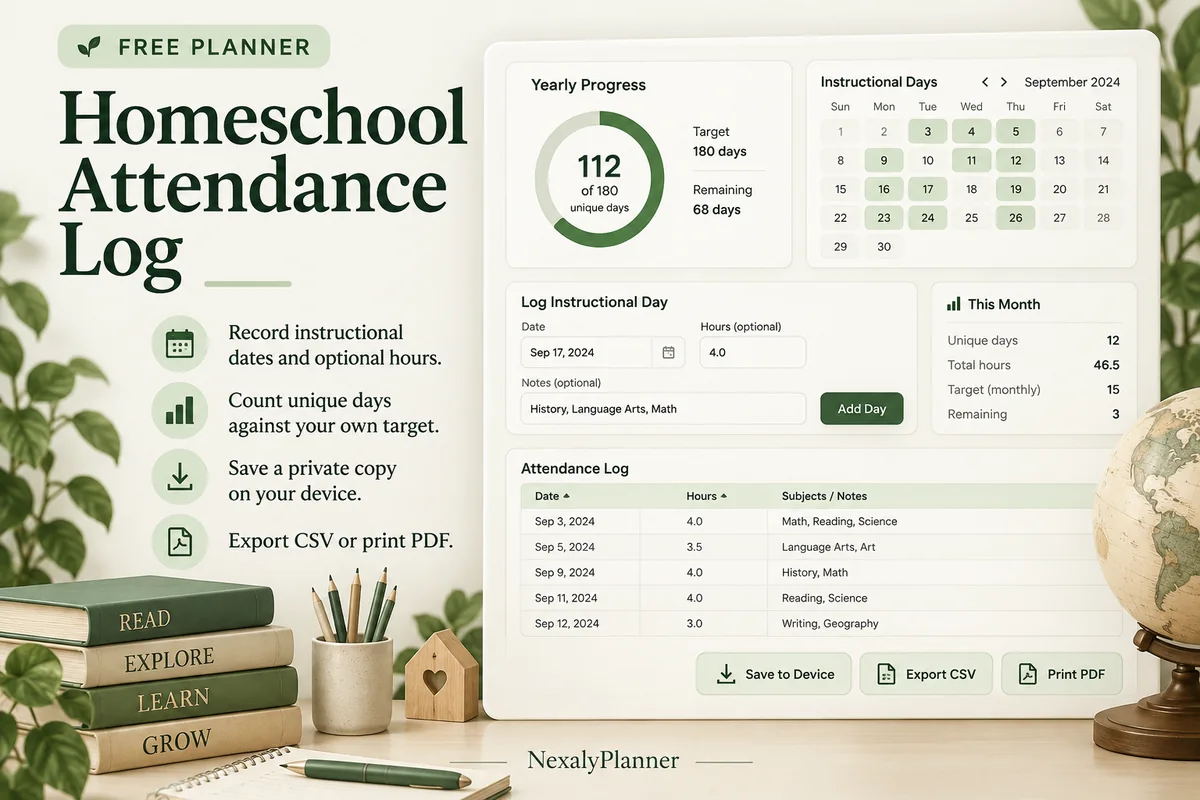
Keep a simple homeschool attendance record for one learner. Log learning dates and optional hours, then compare unique instructional days with the target you enter.
1. Enter your details. 2. Add records. 3. Calculate and save a copy.
Set up your worksheet
Your report
Enter your details and records, then calculate to review the results.
Save or download your work
Work stays in this page until you choose Save on this device. Device saves belong to this browser and can be removed by clearing browser data. JSON keeps an editable backup; CSV and PDF keep a report.
Shared device? Use nicknames and avoid a device save if other people can access this browser. Downloaded files can also contain the details you enter.
Homeschool Attendance Log: complete guide
What this free planner does
- One learner per worksheet, with a nickname option.
- Unique instructional day counting even when several subjects share a date.
- Optional hours and subject notes, plus a user-entered target.
- Up to 400 editable entries, explicit device saving, JSON backup, CSV and browser PDF printing.
How to use it
- Enter a learner name or nickname and your own instructional day target. Choose the target using the records and requirements that apply to your situation.
- Add a date and select Yes for an instructional entry or No for a non-instructional entry. Hours and subject notes are optional.
- Use separate subject entries on one date if useful. Record each learning session once so hours are not duplicated.
- Calculate to review unique instructional days and recorded hours. Export the record and check it against your source notes before relying on it.
Inputs and units
| Field | Input rule |
|---|---|
| Learner name or nickname | Required. Up to 160 characters. |
| Your instructional day target | Required. Whole numbers from 1 to 366. |
| Learning date | Required. A calendar date; date-only entries do not shift with browser timezone. |
| Instructional day? | Required. Choose Yes, No. |
| Learning hours (optional) | Optional. Numbers with up to two decimals from 0 to 24. |
| Subject / notes | Optional. Up to 400 characters. |
How the calculation works
Instructional days = the number of distinct dates with at least one Yes entry. Several Yes entries on the same date count as one day. Recorded learning hours = the sum of hours on Yes entries only. Days to target = max(0, your target − unique instructional days).
Worked example with fictional data
A fictional learner has a 1-hour math entry and a 1-hour reading entry on October 5, both marked Yes. The log counts 1 instructional day and 2 recorded hours. With a user-entered target of 180 days, 179 days remain to that target. A No entry does not add a day or learning hours.
Use the homeschool attendance tracker for a weekly record review
Keep planned activities separate from the record of completed learning. In this fictional example, one learner has two entries on Monday and one on Tuesday. Wednesday is marked No. A target of five days is only an example entered by the user.
| Learning date | Instructional entry | Recorded hours | Record note |
|---|---|---|---|
| October 5, 2026 | Yes | 0.75 | Math session |
| October 5, 2026 | Yes | 0.50 | Reading session |
| October 6, 2026 | Yes | 1.00 | Completed learning session |
| October 7, 2026 | No | Leave blank | No instructional entry recorded |
The report shows two unique instructional days, 2.25 recorded hours and three days remaining to the entered target. Monday counts once even though it has two subject rows. Do not turn three learning sessions into three attendance days.
- Review the dates and Yes/No choices against your original notes. Correct planned or duplicated records before exporting an attendance report.
- Download a dated JSON backup, such as
learner-a-week-of-october-5.json, for the editable worksheet. Keep the CSV or printed PDF separately for readable review. - Before switching learners, save the current learner's backup. Give the next worksheet the other learner's nickname and review its records independently.
Choose this free homeschool attendance log when your main question is which distinct dates you recorded. For start/end times and totals grouped by subject, use the Homeschool Subject Hours Log. Neither log reads or imports the other's records automatically. The homeschool attendance tracking guide explains how to keep a consistent record routine.
Before you save your plan
- Use one learner per worksheet and verify the dates and attendance status before saving.
- Unique instructional days and recorded hours are separate totals; check the requirements applicable to your own records.
Assumptions and common mistakes
This homeschool attendance log is an organizational record. It does not determine legal requirements, certify attendance, submit school reports or decide whether an activity qualifies as instruction. The target is your input, not a legal recommendation. Use one learner and one record period per backup so totals are easy to interpret. Future dates are allowed for planning, so check that your final attendance report contains actual completed dates.
If an instructional day already has two subject entries, do not add another row repeating the full day’s hours. When Yes and No share a date, any Yes entry makes that date count as instructional; review mixed entries if they were accidental. Store only the details you need. On a shared device, use nicknames and keep a private backup rather than leaving learner information in a browser save.
Save, restore and export
Add entry creates another record. Edit any field directly or use Remove entry to delete a row. Changing inputs clears the previous report so it cannot be mistaken for current results. Choose Calculate / review results again when your changes are ready.
Save on this device keeps an editable worksheet in this browser only. On a later visit in this browser, your saved worksheet loads automatically. Restore device save can also reload the last save after you confirm replacement. Saving drafts is allowed, but a report requires valid, complete inputs. Download backup creates a versioned JSON file for the same tool. Import backup shows the worksheet label and row count before replacing current work; it does not change the device save until you press Save.
Download CSV exports the settings, summary, row details and calculation notes. CSV is for spreadsheet review; it cannot restore this worksheet. Print / Save PDF recalculates the current entries and opens your browser’s print dialog. Choose Save as PDF where supported. The report excludes navigation, guides and product CTAs. Clear data removes the current worksheet and its device save after confirmation; keep a backup first if needed.
Frequently asked questions
Does each subject count as an attendance day?
No. Distinct dates count once, regardless of how many subjects have Yes entries on that date.
Are learning hours required?
No. Leave hours blank if you are only counting dates. The report distinguishes blank hours from an explicitly recorded zero.
Does reaching my target prove compliance?
No. The tool compares your record with the target you entered. It does not verify legal or reporting requirements.
Is this tool free, and does it sync between devices?
All worksheet, saving and export features are free without an account. There is no cloud synchronization. Transfer a JSON backup to another device and import it into this same tool.
Need a spreadsheet for several learners? The free homeschool attendance Excel sheet uses one daily child/date row and a learner-specific summary. Its workbook and this tool's JSON backup are separate formats.
Related planning resources
- Read the homeschool attendance record guide.
- Read the Digital Homeschool Planner user guide for the broader workflow.
- Organize due dates for learner assignments.
- Browse all available free planners by category.
- Choosing a Homeschool Planner for Multiple Children.
- Record learning minutes by subject in the separate hours log. This is a separate worksheet; records do not transfer automatically.
- Browse the free homeschool records planners to compare these workflows.
EXPLORE A BROADER WORKFLOW
Need more than this one worksheet?
Explore Digital Homeschool Planner and read its guide to see how the full product fits your records. This free planner remains available without a purchase. Its JSON backup is not an import file for the paid product.