
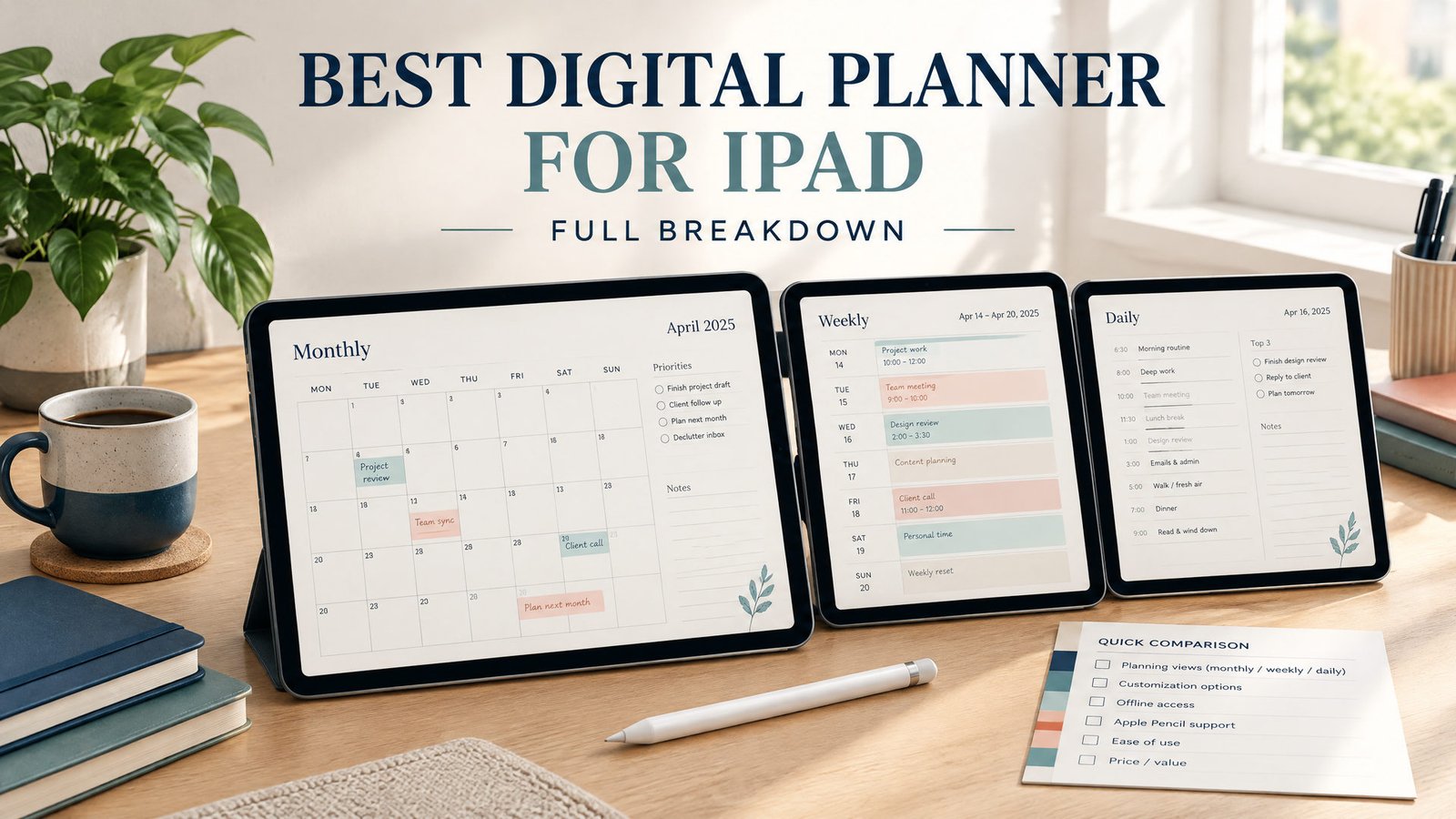
The best digital planner for iPad depends on the record you need to keep. This guide compares planner formats and page designs: a handwriting PDF, an undated printable page, a typed workspace or an interactive local file. Choose the format here, then check the exact device and purchase requirements in the buying checklist.
What makes an iPad planner a good fit?
An iPad supports several planning systems. The practical choice depends on whether you write by hand, type, tap through links, or combine those habits.
A digital planner PDF is a document with page layouts and sometimes internal links between months, weeks, and days. It is not automatically an app. You import it into a compatible annotation app, then write over the pages. Goodnotes is a popular option, but the planner creator determines the PDF’s layout and links. Compatibility can vary by app version and file design.
Apple Pencil is useful for handwriting, highlighting, and drawing, but it does not turn a PDF into a task database. Check writing space, palm rejection, pen tools, page size, and backup options. Notion is different: it is a workspace and database tool for typed pages, filters, and projects. It generally involves an account and app or browser access, so test the pages you need offline rather than assuming its behavior matches a local file.
An offline HTML planner is a local webpage or set of files whose controls and data behavior are defined by its code. It is not automatically a PDF, Goodnotes file, or Notion template. Confirm how to open it on iPad, where entries are stored, and how to back them up. For more detail, see this guide to offline digital planners.
Best digital planner formats for iPad compared
This guide compares the planner formats you can use on an iPad. For the apps and account choices behind those formats, read our 2026 iPad planner app comparison. If you already have a file and need installation steps, follow the digital planner setup guide for iPad.
Each format solves a different problem. Use the table as a shortlist, then check the exact planner’s instructions and compatibility.
| Format | Best for | Apple Pencil | Offline use | Account needed | Main limitation |
|---|---|---|---|---|---|
| Linked PDF in Goodnotes | Handwritten daily and weekly planning | Strong fit | Usually, after the file is downloaded | Usually no account for the PDF itself; the app may have its own account terms | Pages are annotations, not a live database |
| Plain PDF | Printing, simple markup, occasional planning | Works for writing or highlighting | Yes, once saved locally | No account for the file | Few or no navigation links |
| Notion template | Typed projects, databases, and filtered task views | Limited for handwriting | Partial and app-dependent | Yes | More setup and account dependence |
| Offline HTML planner | Browser-based forms and local interactive workflows | Usually limited | Often, if designed for local use | Often no service account, but verify | iPad file and browser behavior varies |
| Calendar or task app | Reminders, alerts, and recurring tasks | Usually secondary | Varies by app | Usually yes | Less room for freeform journaling |
1. Linked PDF in Goodnotes: best for handwriting
Choose this route if you think on paper and want a searchable notebook. Look for sensible tabs, dated or undated pages, monthly and weekly views, and enough writing space. Decorative layouts can be cramped, and poor links can make a large planner slow to navigate.
Check the import steps before purchasing. A PDF may be downloaded through Safari or Files and then imported into Goodnotes. That is a file workflow, not an official partnership. Confirm the download is a PDF and that the instructions mention the app versions you use.
2. Notion: best for typed systems
Notion suits people who want databases connected to projects, notes, goals, or reference material. It can work well for a student sorting tasks by class or a freelancer filtering work by client. The tradeoff is setup: you may need to customize properties, views, and templates. It is not the best fit if handwriting with Apple Pencil is your main input, and its offline behavior should be tested before you rely on it as your only record.
3. Offline HTML: best for a local interactive tool
An HTML planner can suit someone who wants forms, buttons, dashboards, or an interactive local file. Depending on its implementation, it may store information in the browser. Test the iPad path: download the files, enter a sample task, close the browser, reopen the planner, and find the task again. Keep a backup because clearing browser data or moving files can affect local storage. NexalyPlanner’s digital planners collection identifies product pages where the format and workflow should be checked.
4. Plain PDF: best for simple, portable planning
A plain PDF is easy to understand and often works across iPad apps. It can be a good one-page daily sheet or printable backup, but without linked tabs you will use thumbnails, search, or page swipes. Free PDF planners may omit dates, hyperlinks, support, or reuse rights. “Free” does not guarantee that a file is editable or designed for Goodnotes.
Choose dated, undated or one-page layouts
| Your routine | Layout to test | Check in the actual file |
|---|---|---|
| A full year with regular weekly reviews | Dated monthly and weekly PDF | The stated year, week start, complete date coverage and whether month/week links work |
| Irregular projects or weeks you often skip | Undated weekly PDF | Space to enter dates, reusable pages and an easy way to duplicate a blank week |
| A short daily list and printable backup | One-page daily PDF | Readable writing areas at your normal zoom and enough space for the next action |
| Sorting assignments by course and due date | Spreadsheet or typed workspace | Editable fields, an explicit review date and export behavior; handwriting pages do not calculate deadlines |
Try the free one-page daily PDF for page-based planning. For a course list with calculated days to due, use the free assignment tracker workbook. These solve different planning needs; neither is a native iPad reminder app.
A five-minute page-design test
- Open a working copy of the sample and find the page you need without enlarging every label.
- Write one realistic next action, such as “draft the essay introduction,” at your usual zoom.
- Try a navigation link if the file claims to include links. A static one-page PDF has no tabs to test.
- Close and reopen the working copy to find the entry again.
- Export or back up the edited working copy and verify the saved record. Keep the blank source file separate.
This is a test for you to perform on your device, not a claim that these steps were tested on a physical iPad.
A practical setup example
Suppose Maya uses an iPad Air and Apple Pencil for work, evening classes, and volunteering. She wants handwriting, not a project database, so a linked PDF in Goodnotes is a reasonable starting point.
On Sunday, she downloads the planner to Files, imports it into Goodnotes, and makes a backup copy. She enters a class presentation on October 14, a work deadline on October 18, and volunteering on October 24. On the October 12–18 weekly page, the presentation becomes three actions: outline Monday, draft and rehearse Tuesday, and check submission Wednesday before the course due time.
Her Monday page lists a 30-minute work report, five presentation sections, and printer paper. She blocks 9:00–9:30 for the report and 7:00–7:45 p.m. for the outline, with a note to email the professor if needed. The calendar remains the source for appointments; the planner holds priorities and notes.
At week’s end, Maya reviews unfinished tasks, moves relevant ones forward, and backs up the notebook. If she later needs filtered task lists, she can compare Notion rather than forcing the PDF to act like a database.
How to choose the best digital planner for iPad
Start with input. If you write with Apple Pencil, prioritize a linked PDF and handwriting app. If you use a keyboard and need sorting or filtering, compare Notion or another task app. If you need both, decide which input is primary.
Check the date model, file type, and backup path. A dated planner reduces setup but expires; an undated one takes longer to prepare but can be reused. For PDFs, test a link, write, search, and reopen. For Notion, duplicate the template and test its views. For HTML, test offline reopening and data persistence.
Finally, compare friction. A planner that takes ten minutes to open and find the right page will lose to a simpler one you use each morning. The daily digital planner guide and best 2026 planner comparison can help you compare layouts. Browse the NexalyPlanner Journal for broader planning guides.
Key takeaways
- A linked PDF in Goodnotes is usually the strongest iPad choice for Apple Pencil handwriting.
- Notion is better for typed databases, filters, and connected project information.
- Offline HTML planners are interactive files, not automatically PDFs, apps, or Notion templates.
- Check the exact file type, date coverage, iPad workflow, and backup method before buying.
- A free planner can be useful for testing, but may lack links, dates, support, or reuse rights.
- Keep appointments in a calendar when appropriate, and use the planner for priorities and notes.
- Choose the system you can open and update consistently, not the one with the most options.
FAQs
Can I use a digital planner on any iPad?
Most PDF planners can be opened on a recent iPad with a compatible PDF or handwriting app, but the experience depends on the app, iPadOS version, storage, and file design. Check requirements and test the download first.
Do I need Apple Pencil for an iPad planner?
No. You can type, tap, highlight, or use your finger in many apps. Apple Pencil is helpful when you want handwritten notes, annotations, or drawing, but it does not add database features to a PDF.
Is Goodnotes required for a digital planner PDF?
No. A PDF can be opened in other compatible annotation apps, though the navigation and writing tools may differ. Goodnotes is an app choice, not the file format itself, and a planner should not be described as an official Goodnotes product unless that relationship is explicitly documented.
Is Notion better than Goodnotes for planning on iPad?
It depends on the work. Goodnotes is a better fit for handwriting on linked PDF pages, while Notion is better for typed databases and filtered views. If you need both, test which input method you use most before building a larger system.
Can a digital planner work offline on an iPad?
A downloaded PDF normally can be annotated offline in a compatible app. Notion’s offline behavior depends on the app and content, while an offline HTML planner depends on its code, browser, file location, and storage method. Test offline access instead of assuming it.
Are free digital planners worth using?
They can be worth using as a low-risk trial or simple daily sheet. Check for missing dates, limited pages, no hyperlinks, personal-use restrictions, ads, or a lack of support. Free does not necessarily mean editable or optimized for iPad handwriting.
How do I back up a digital planner?
Use the annotation app’s export or backup options for PDFs, and keep a copy somewhere accessible. For Notion, understand workspace and export options. For HTML, back up the original files and any supported data export.
What should I check before buying an iPad planner?
Confirm the format, date range, page size, link behavior, import instructions, Apple Pencil workflow, and refund or support terms. For an HTML planner, also confirm iPad browser compatibility and how entries persist after closing the file.
Can I print an iPad digital planner?
A PDF can often be printed, although its page size, colors, and margins may not be designed for paper. Notion pages and HTML planners are not automatically print-ready. Check the format and license before printing or sharing copies.
Ready to compare formats? Start with the current digital planner collection and read each product page’s format and workflow details before choosing an iPad setup.