
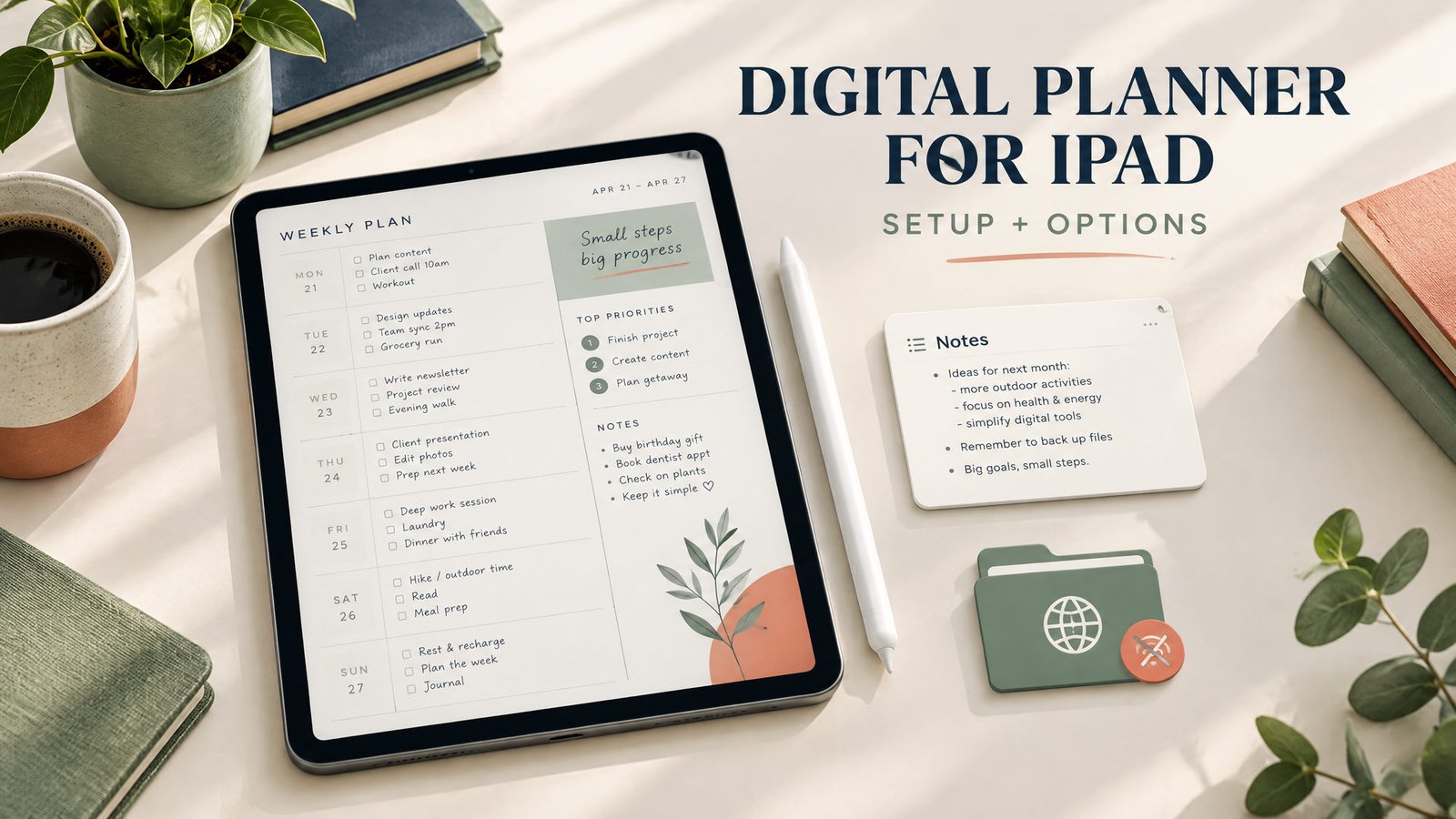
An iPad digital planner is usually a PDF, an app-based workspace, or a local HTML file. For handwriting, open a planner PDF in Goodnotes or another annotation app and use an Apple Pencil, finger, or stylus. For typed databases, use Notion. For fewer accounts and predictable offline access, keep a local PDF or HTML planner in Files and test it before relying on it.
What makes a good digital planner for iPad?
Start with the file format, not the app name. A digital planner for iPad may be a linked PDF, Notion template, or browser-based HTML planner:
- PDF: A fixed document with pages and sometimes internal links. It is easy to back up and move between apps, but writing requires a markup or handwriting app.
- Notion: An account-based workspace for typed tasks, databases, and searchable notes. It is not a ready-made handwritten PDF, and some blocks need an internet connection.
- Offline HTML: A local browser file that can handle checklists and simple navigation without a planner account. Browser behavior, storage, scripts, and file links vary, and it does not automatically provide an Apple Pencil handwriting layer.
The iPad is the hardware; the planner file or service is separate. A PDF can remain usable after moving to another compatible app. A Notion page depends on the account and app environment, while an HTML file depends on how it was built and stored.
PDF, Notion, or offline HTML: which should you choose?
Use a PDF for handwriting, fixed layouts, or an exportable marked-up copy. Use Notion for typed tasks, filters, linked pages, and changing databases. Use offline HTML for a lightweight, no-account checklist when handwriting is not important.
| Format | Best for | iPad setup | Offline reality | Main limitation |
|---|---|---|---|---|
| Linked PDF | Handwritten daily, weekly, or monthly planning | Import into a compatible annotation app | The file can be stored locally after download | Writing and link behavior depend on the app |
| Notion page or template | Typed tasks, projects, and databases | Install the app and sign in | Mark individual pages available offline first | Some embeds, forms, buttons, sharing, and permissions need a connection |
| Offline HTML | Simple checklists and navigation | Open the local file in a browser or file viewer | Usually local, if the file does not depend on remote content | No automatic handwriting layer; scripts and saved data may be limited |
| Apple Notes PDF markup | Occasional annotation and simple lists | Attach or open the PDF in Notes | A locally saved note can be viewed on the device | Less suited to a large linked planner library |
iPad digital planner setup in six steps
These steps cover PDF, Notion, and HTML workflows. If you chose a linked PDF and need more detailed import instructions, follow the iPad PDF planner setup guide. To try a free option first, read the free iPad planner options guide.
1. Choose one planning job
Decide what the planner must do this week. “Organize my life” is too broad; choose one job such as planning classes, tracking deadlines, or setting three weekday priorities. This prevents downloading several formats and abandoning them.
2. Check the iPad and Pencil combination
Confirm that your iPad supports the Apple Pencil model you own. Pencil helps with handwriting and markup, but you can type, tap, use your finger, or use another supported stylus. Do not buy one just to use a planner.
3. Save the planner where you can find it
Save the file to a named Files folder such as Planning/2026/Weekly Planner. Keep the original untouched and make a working copy for testing. Apple’s iPad tools can attach, view, edit, and annotate PDFs in Notes with Apple Pencil or a finger [1].
4. Import the file into the right app
For a PDF, use Files’ share menu to choose your annotation app. Goodnotes supports import from another app, Files, or drag and drop on iPad [2]. Test several links after import because readers can handle internal links differently.
For Notion, open the iPad app, sign in, and create or duplicate the page. Before going offline, mark the pages you need. Notion says offline access is device-specific, and embeds, forms, buttons, sharing, and permission changes may require a connection [3].
For HTML, save the file or folder locally and open it in the recommended browser or viewer. Remote fonts, images, scripts, or a login mean it is not fully self-contained. Test it in Airplane Mode.
5. Test one page before building a system
Write a task, tap a link, close and reopen the app, then repeat in Airplane Mode. Confirm that the page and changes remain. This catches broken links, uncached pages, and incomplete syncing.
6. Create a low-friction daily routine
Use one inbox page for new tasks. Each morning, move only realistic tasks to the daily layout. At day’s end, mark completed work, date unfinished work, and note the next action.
Worked example: setting up a weekly planner for a freelance designer
Suppose Maya has an iPad, compatible Apple Pencil, and four commitments for the week of June 8, 2026: a Monday 10 a.m. call, a Wednesday draft, a Thursday invoice, and two hours of portfolio work. She wants handwriting, not a database.
She chooses a linked PDF and Goodnotes. On Sunday, she saves the original in Files, imports a copy, and checks the Monday, Wednesday, and Thursday tabs. She enters fixed commitments, adds two 60-minute draft blocks on Tuesday and Wednesday, and reserves Friday morning for portfolio work.
During Monday’s call, she writes notes and adds “send revised homepage outline” to Tuesday. When the draft runs late, she moves portfolio work without rewriting the week. On Thursday, she marks the invoice complete and exports only if needed. The setup takes one file, one app, and a short review.
If Maya instead needed project status, a searchable task list, and linked client pages, Notion might fit better. If she wanted a no-account checklist for travel, an offline HTML file could be enough. The best format follows the work, not the device label.
Free digital planner options and their limits
Free does not mean identical to paid. Apple Notes can annotate a PDF, while a third-party app’s free tier may limit notebooks, imports, features, or syncing. Limits can change by version, platform, and region, so check the current App Store listing.
Notion can suit a free typed setup, but it needs an account and device-specific offline preparation. A local HTML planner can avoid an account, but check whether changes survive closing the browser. A free PDF may be undated, minimally linked, or designed for printing.
If you want a ready-to-use collection rather than assembling several files, browse NexalyPlanner’s digital planner collection. Check the listed format and compatibility details before choosing a planner. Do not assume that every digital download is a PDF, a Goodnotes document, or a Notion template.
Common setup mistakes to avoid
Keep the original file so a test annotation or accidental deletion does not remove your source. Do not choose Notion for handwriting-heavy work or a PDF for constantly changing project statuses unless you accept extra manual updates.
Test offline access: a file in Files is not the same as a page an online service must fetch. Disconnect and make a change before travel. Do not fill every box; three useful priorities beat a crowded page.
For a different layout, compare the daily digital planner guide and the offline digital planners guide. Students can also use the examples in the student planner guide. The broader NexalyPlanner journal has additional planning formats and setup ideas.
Key takeaways
- An iPad digital planner may be a PDF, Notion workspace, or offline HTML file.
- Apple Pencil is optional; the app and file format determine the writing experience.
- PDFs are portable, while Notion pages depend on an account and prepared offline access.
- Offline HTML can avoid an account but may not support handwriting or reliable local storage.
- Test one page, one link, and one offline edit before importing a full planner.
- Keep the original file and use a working copy for annotations.
- Choose the format that matches your main planning job, not the most elaborate feature list.
FAQs
Can I use a digital planner on any iPad?
You need an iPad that runs the required app or browser version, plus enough storage for the file. Apple Pencil support depends on the specific iPad and Pencil models, but a Pencil is not required for PDF planning.
Do I need an Apple Pencil for an iPad planner?
No. You can type, tap, use your finger, or use another supported stylus. Apple Pencil is helpful for handwriting and markup, but it does not turn a PDF into a planner app by itself.
Is Goodnotes required for a PDF digital planner?
No. A PDF can be opened in Apple Notes or another compatible PDF annotation app. Goodnotes is one import option, not an official requirement or partnership with NexalyPlanner.
Does a PDF digital planner work offline?
Usually, if the PDF and annotation app are downloaded to the iPad. Test it in Airplane Mode because cloud-only files, uncompleted downloads, and some app sync features may still need an internet connection.
Is Notion better than a PDF planner on iPad?
It depends on the work. Notion is a better fit for typed pages, databases, and changing project information. A linked PDF is usually a better fit for handwriting and a fixed daily or weekly layout.
Can Notion work offline on an iPad?
Yes, in the Notion mobile app, after you make the specific pages available offline. Offline access is device-specific, and connection-dependent elements such as embeds, forms, buttons, sharing, and permission changes may not work until you reconnect.
What is an offline HTML planner?
It is a local HTML file or folder that opens in a browser without a planner account. It can be useful for checklists and navigation, but it may not include PDF-style pages, Apple Pencil markup, or reliable saved data unless the creator built those functions in.
What should I do if links in my PDF planner do not work?
Reopen the original file in a standard PDF viewer and compare it with the imported copy. Confirm that the reader supports internal links, then reimport the original if needed. Keep a backup before changing or annotating the file.
Are free digital planners fully free forever?
Not necessarily. A free file may be undated, limited, or missing navigation. A free app tier may have import, notebook, storage, or sync limits, and service terms can change. Read the current download and app details before depending on it.