
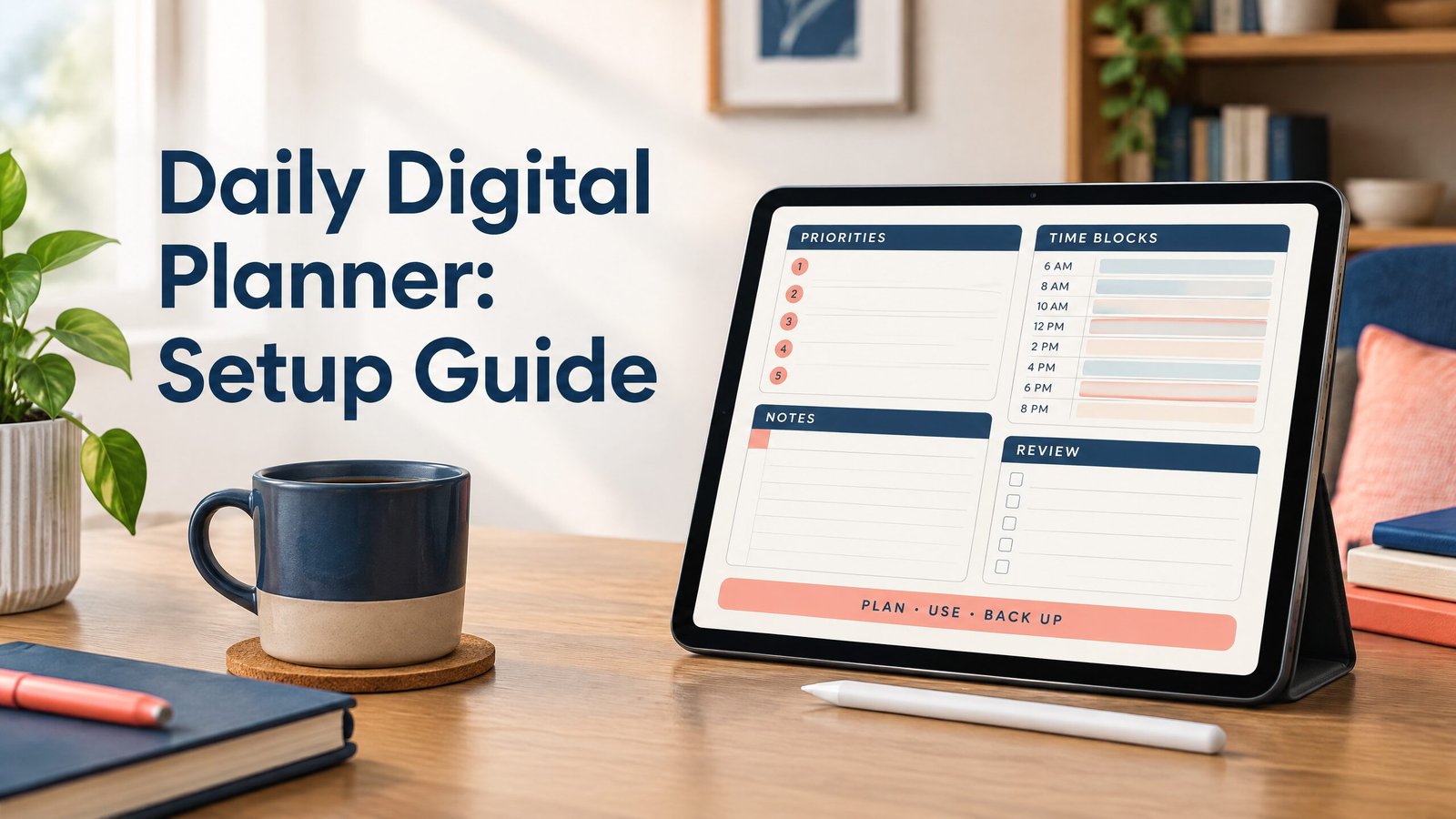
A daily digital planner is a digital page or workspace for organizing one day’s tasks, appointments, notes, and priorities. It gives you a repeatable place to plan, check progress, and review the day on a phone, tablet, or computer. The best format depends on whether you want browser access, handwriting, printing, or deeper task management.
The NexalyPlanner journal has related planning guides. This article explains the main types, setup, backups, and one worked example.
What a daily digital planner does
A daily planner turns a broad to-do list into a plan for a specific date. Most versions include a date, priorities, time blocks, tasks, notes, and a short review. It may be a file, document, or app screen.
The important distinction is how the planner stores and edits information. A paper planner stores ink on a physical page. A printable PDF becomes paper when printed, or can be marked up in a compatible app. A browser-based offline HTML planner runs locally in a browser and can often be used without an internet connection after its file or site has loaded. A cloud app saves information through an online service and usually synchronizes it across signed-in devices.
A daily planner answers three questions: What matters today? When will I work on it? What moves to another day? Keep long-term deadlines in a calendar or task list.
Daily digital planner formats compared
To compare paper and tablet-based routines, use our 2026 planner format comparison. If your work is scheduled hour by hour, the hourly planner layout guide shows how much space to leave between appointments.
Choose based on structure and portability.
| Format | How you use it | Internet need | Best fit | Main limitation |
|---|---|---|---|---|
| Paper planner | Write directly on printed pages | None | People who think best by hand and want a physical record | Changes require crossing out or rewriting |
| Printable PDF | Print it, or annotate it in a PDF app | None for a saved file | Handwriting on paper or a tablet | It is a document, not automatically a task database |
| Browser-based offline HTML | Open a local HTML planner in a browser and type into its fields | Usually none after local access is set up | Lightweight planning on a computer, including offline work | Storage and backup depend on the file and browser setup |
| Cloud app | Enter tasks in an account-based web or mobile app | Usually needed for syncing and full access | People who switch devices or need recurring tasks | Account access, sync, and service availability matter |
| GoodNotes with a PDF | Import a planner PDF and write with a stylus or keyboard | Generally not needed for editing a local file | Tablet handwriting with page-based navigation | Notes stay in the notebook unless you manage links or tasks separately |
| Notion | Build or use a daily page, database, or template | Usually needed for the current workspace | Flexible notes, linked projects, and repeatable pages | More setup can mean more maintenance |
A PDF and an offline HTML planner are different. A PDF preserves a page layout and is edited by drawing, an annotation layer, or text boxes. An HTML planner is a small web page whose fields may accept typed input directly, but whether entries persist and where they are stored depends on how that file is built.
For local files and offline access, read the offline digital planners guide. Keep an untouched original file.
Three practical use cases
A focused workday
A daily planner can hold key outcomes, meetings, project next actions, and time blocks. An end-of-day review records what was finished.
Classes and study
A student can list classes, assignments, reading, and questions. A separate calendar holds exam dates and recurring classes. See the student planner guide.
Home and personal errands
A daily page can combine appointments, errands, household tasks, and personal reminders. Keep the list realistic. For multi-step work, write the next visible action rather than the project name.
How to set up a daily digital planner
1. Choose the storage format first
Start with the device you will actually use. Choose a PDF for a fixed page and handwriting, on paper or in GoodNotes. Choose browser-based offline HTML for typing into a local page without a connection. Choose a cloud app such as Notion when linked pages, databases, and access across devices matter more than a fixed layout.
Choose the format with the fewest steps between noticing and recording a task.
2. Create a repeatable daily layout
Use a small set of sections. Start with the date, top three priorities, fixed commitments, time blocks, tasks, notes, and a shutdown question such as “What moves to tomorrow?”
In GoodNotes, duplicate a clean PDF page. In Notion, make a template after you know which sections you use. With offline HTML, separate the original from the working copy.
3. Add fixed commitments before flexible work
Enter meetings, classes, appointments, and travel first. They limit available time. Then place one or two priority tasks in the open blocks. If a task needs more time than the day contains, reduce it or move it.
4. Turn priorities into next actions
“Finish project” is difficult to schedule. “Draft the opening section” is a next action that can fit into a block. Write the smallest useful step, estimate it if helpful, and leave room for interruptions.
5. Decide how you will carry tasks forward
At the end of the day, mark each item complete, move it to a specific later date, or delete it. Avoid copying every unfinished task into tomorrow. Reconsider its priority first. A daily planner works better when it records decisions rather than an endless list.
6. Set a backup routine
For PDF or offline HTML, save original and working files in two locations, such as your device and trusted cloud storage. Use clear names and folders.
For a cloud app, confirm how export works and occasionally save an export when the information matters. Sync is not the same as backup. A sync service can copy an accidental deletion or make an unwanted change appear on several devices. Keep important reference material outside the app.
How to use it: a worked day
Suppose Tuesday includes a 9:30 a.m. meeting, a 3:30 p.m. pickup, and a report due Friday:
- Top priorities: Draft the report outline, send the supplier reply, and prepare meeting questions.
- Fixed commitments: Team meeting at 9:30, pickup at 3:30, dinner at 6:30.
- Time blocks: Report outline from 10:30 to 11:30, supplier reply from 1:00 to 1:20, research from 1:30 to 2:30.
- Notes: Ask who owns the final data check; record the supplier’s requested delivery date.
During the meeting, add the data-check question to the notes. After the meeting, write the report’s three section headings. If research takes longer than expected, move the supplier reply to the next open block instead of letting every task slide.
At the end of the day, mark the outline complete, record the supplier’s delivery date, and move only the remaining research step to Wednesday. The page records the plan and its changes.
Common mistakes to avoid
Planning the entire week on every daily page. Keep long-range dates in a calendar and bring only relevant work into the daily page.
Treating a template as a schedule. Add realistic blocks and reduce the list when the day is full.
Confusing offline access with automatic saving. Test where browser entries go before trusting them with important notes.
Assuming a PDF behaves like an app. It may not sort tasks, send reminders, or sync changes. Use another tool when needed.
Making duplicates without a master copy. Keep one clean page, file, or template and duplicate from it.
Capturing every thought in the priority area. Put quick ideas in notes or an inbox.
Frequently asked questions
Is a daily digital planner the same as a digital calendar?
No. A calendar centers on dates and events. A daily planner also holds priorities, task steps, notes, and review. Many people use both.
Can I use a daily digital planner without internet?
Yes, if the format supports local use. A saved PDF works offline. An offline HTML planner works when its files and storage are available. Cloud offline limits depend on the app and device.
Is GoodNotes a planner or a file format?
GoodNotes opens and annotates planner PDFs. The PDF remains the document, and GoodNotes does not turn every PDF into a task database.
Can Notion replace a daily planner?
Notion can serve as one through a daily page, template, or database. It suits linked project notes, but may be unnecessary for a quick list or handwriting.
Should I print a digital planner?
Print it if paper helps you focus or keep a visible page nearby. Printed pages do not reflect later digital edits, so choose one source of truth.
How often should I make a daily plan?
Make one when writing a plan will protect time or reduce decisions. A short evening or morning plan is enough.
What should I do with unfinished tasks?
Choose deliberately: complete it, schedule it, break it down, delegate it, or remove it. Do not copy it forward without a decision.
How do I back up an offline planner?
Keep original and working files in more than one location. For browser entries, identify whether data is in the file, browser storage, or an export. Test a restore before relying on it.
Key takeaways
- A daily digital planner organizes one date’s priorities, commitments, actions, notes, and review.
- PDFs preserve a page layout, while offline HTML uses a browser and a local storage workflow that must be checked.
- Cloud apps help with access across devices, but synchronization is not the same as an independent backup.
- Build the day around fixed commitments, a few next actions, and a clear carry-forward decision.
For a local-file workflow, compare the offline digital planner options. Students can preview the AI Student Planner, while people who want fewer prompts may prefer the ADHD Digital Planner. You can also browse all digital planners by use case.