
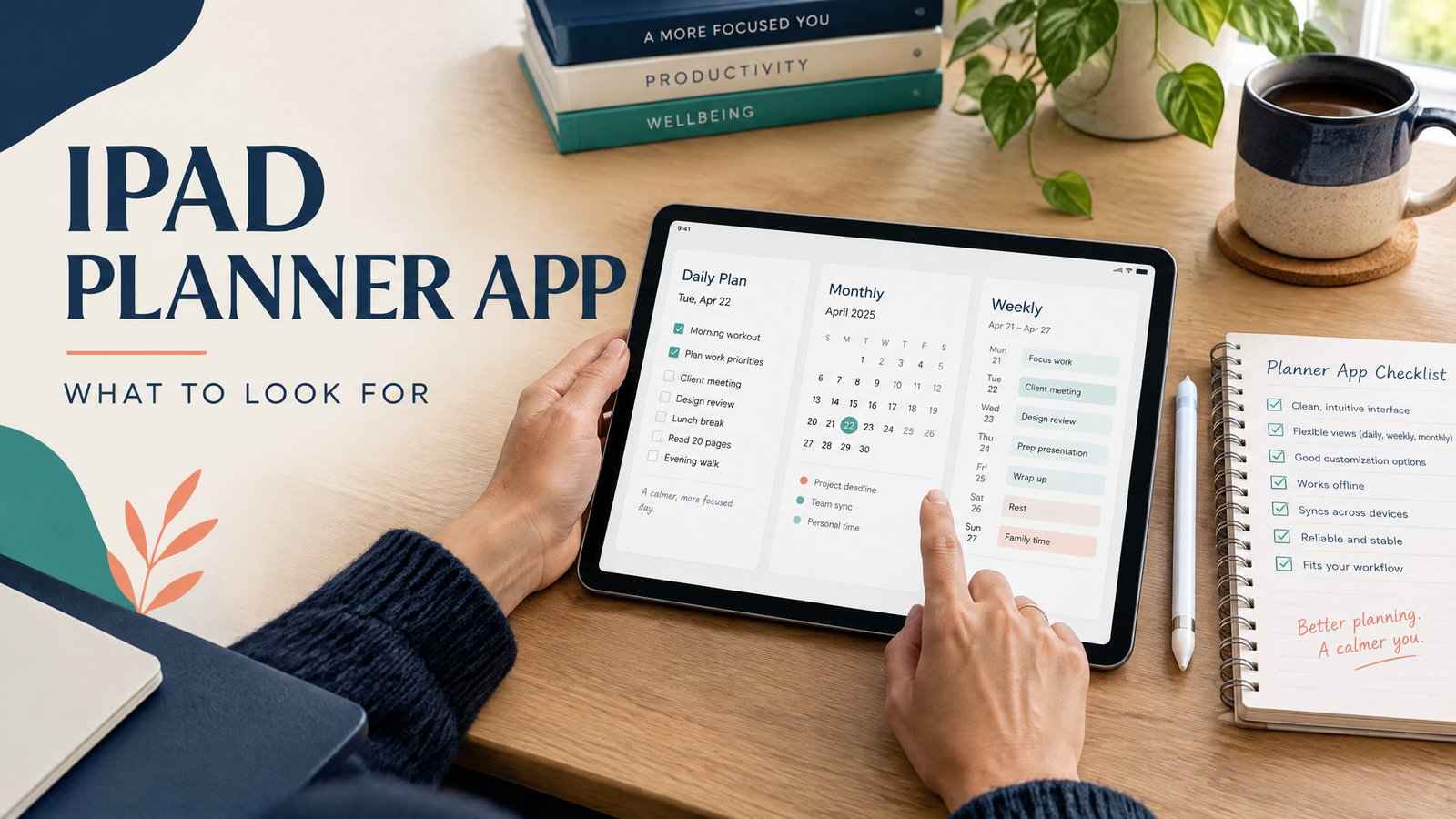
Before buying an iPad planner app or file, verify what the purchase actually delivers and how you will keep your records. This guide is a purchase checklist for compatibility, separate app charges, access and backup. If you have not chosen between handwriting pages and a typed system, start with the iPad planner format comparison, then return here to check the specific offer.
Start with the kind of planning you need
“Planner app” can mean a native iPad application, a PDF imported into a note-taking app, a web workspace, or an HTML file opened in a browser. These options can look similar in a screenshot but behave differently after purchase.
If you want dated pages and handwriting, a PDF-based planner in Goodnotes is familiar. It can be annotated, but a task on the page does not automatically become a reminder or database row. Notion is a workspace for typed pages, databases, and linked projects; its flexibility brings more setup. An offline HTML planner opens in a browser and may accept typed entries without a cloud account, but storage and backup depend on its design. A browser does not guarantee cross-device sync.
For a broader format comparison, see the daily digital planner setup guide.
Verify one offer before paying
Use the seller’s exact listing and the app provider’s current documentation. A promotional picture is not evidence that your purchase includes every file, an app subscription or working links.
| Question | Evidence to look for | If it is missing |
|---|---|---|
| What will I receive? | Named file type, page/date coverage and included files | Ask for the exact deliverable; do not infer a native app from a planner screenshot |
| Will it work on my device? | Required app, operating system and supported input method | Mark compatibility unconfirmed and test a sample on the actual device |
| What else might I pay for? | Separate annotation-app charge, subscription, renewal and optional add-ons | Compare the total setup cost before paying; a free PDF does not make every app free |
| How will I preserve edited records? | Instructions for an editable backup and readable export | Try saving and reopening a sample; an untouched download does not contain later annotations |
| What happens if the setup fails? | Seller support contact and current purchase/refund terms | Read or request the terms before buying; do not assume a refund promise |
A fictional purchase check
A listing says “undated PDF planner for a handwriting app.” Record the planner file and the required annotation app as separate items. Test a sample page, confirm any app charge and save an edited copy. If the listing does not explain hyperlinks or the backup format, keep those fields unconfirmed. This check is about evidence for that offer, not choosing an app by popularity.
For Notion-based offers, Notion’s current offline guidance explains that offline access requires the desktop or mobile app and downloaded pages on that device. Browser access is not the same offline workflow. Check the pages and database rows you actually need.
The buying checklist for an iPad planner app
Use this checklist alongside the 2026 iPad planner app comparison to decide which format meets your routine. Before paying, you can also test the limits described in our free iPad digital planner guide.
1. Check iPad and Apple Pencil compatibility
First identify your iPad model, operating system, and Pencil model. Apple Pencil support is not universal across iPad generations. Apple’s current compatibility list, for example, distinguishes Apple Pencil Pro, Apple Pencil USB-C, and first- and second-generation Apple Pencil models by iPad model and required iPadOS version.[1]
This matters if handwriting is central to your plan. An app can support handwriting while your specific Pencil cannot pair with your iPad. Verify the exact model, especially on an older or refurbished iPad, and check the required iPadOS version.
If you plan to type, test text entry too. A handwriting-first page may have small fields, while a database app may be less pleasant for freeform notes.
2. Decide whether you are buying an app, a file, or access to an account
These are three different purchases:
| Product type | What you receive | Account and internet questions | Best fit | Main limitation |
|---|---|---|---|---|
| Native iPad app | An application installed from the App Store or another stated source | Check sign-in, subscription, sync, and export rules | People who want an app-first workflow | Features and access depend on the app’s platform support |
| PDF planner | A document imported into Goodnotes or another PDF annotation app | Usually no planner-service account; the note-taking app has its own rules | Handwriting, page layouts, and printable-style planning | Notes are annotations, not automatically structured tasks |
| Notion template | A reusable workspace or page inside a Notion account | Account required; offline pages must be prepared on each device | Typed planning, linked notes, and databases | More setup and offline limits for connected features |
| Offline HTML planner | A local HTML file opened in a browser | May work without internet; storage and backup depend on the file | Local typed planning and low account dependence | No automatic cross-device sync unless specifically provided |
An app account can be separate from the planner product. Buying a PDF does not create a Goodnotes account or guarantee cloud sync, and a Notion template is not a standalone iPad app. Read the delivery instructions before checkout.
3. Look at offline behavior, not just the word “offline”
Offline can mean several things. A saved PDF can usually be opened and annotated without internet once it is on the iPad. A local HTML planner may work offline after download, but its save location and backup still matter. A cloud app may allow offline editing for selected pages while reserving some features for reconnection.
Notion says users can view, edit, and create pages offline in its desktop or mobile apps, but pages need to be made available offline on each device. It also notes that some live elements, such as embeds, forms, or buttons, are unavailable offline.[2] Goodnotes documents its own offline behavior separately, including the need to preload documents and sync before signing out. It also lists some actions that are not supported offline.[3]
Ask where entries are saved, whether you can export and restore a backup, and whether signing out removes local copies. These answers are more useful than “works offline.”
4. Check navigation and daily friction
A planner should make the next action easy to find. For a PDF planner, look for linked tabs and readable page labels. For Notion, inspect the template hierarchy and database views. For HTML, test whether fields are easy to select and the page remains usable in your preferred orientation.
Think about your first five minutes each morning. Do you open a daily page and schedule two priorities, or do you need a project board, recurring tasks, and deadline notes? Extra steps can turn a planner into storage.
A worked comparison: choosing a setup for a busy week
Imagine Maya uses a 10.9-inch iPad and an Apple Pencil. She has a Tuesday client call, a Wednesday class assignment, and a Friday personal appointment. She wants handwriting for quick notes, but she also wants a reliable weekly view and needs to work during a train ride with inconsistent service.
A PDF planner in Goodnotes is a strong fit for her daily notes. She can import it, write the appointments on a weekly page, and use Apple Pencil during the call. Goodnotes confirms that PDF files can be imported from Files or another app.[4] The assignment remains a note inside the document, so reminders require a separate calendar or task list.
Notion could give Maya an assignment database with a due date, status, and project notes. She could mark pages available offline before the train ride. This suits sorting and linked projects, but is less direct for handwriting and requires more preparation.
An offline HTML planner could keep her typed weekly plan available without a cloud login. Before relying on it, Maya should enter a test item, close and reopen the file, and follow its backup process. If the entry disappears, it does not meet her needs.
Her practical decision is not “which app is best?” It is “which compromise is acceptable?” She might use a PDF planner for handwritten capture and a separate calendar, or Notion for structured work and a PDF notebook for freeform notes. Two tools are reasonable when each has a clear job; duplicating every task creates maintenance.
Free versus paid iPad planner options
A free option can test a workflow. A free PDF may have fewer page types or no linked navigation. A free app plan may limit notebooks, storage, imports, or advanced features. A free Notion template still requires an account and customization time, while a free HTML file may have no support or backup instructions.
Treat “free” as a reason to test, not proof that the tool is a bargain. Check whether you can create a page, find it again, export it, and use it offline.
When you are ready to compare planner formats and use cases, browse NexalyPlanner’s digital planner collection. It includes planner products for daily planning, students, homeschool, business, and other specific workflows. Choose by the job the planner needs to do, not by the number of pages shown in a preview.
Backup and privacy questions to ask
A dependable iPad planner routine includes a backup habit. Keep the original PDF separate from your marked-up copy and learn how your note-taking app exports documents. For Notion, reconnect so offline changes can sync. For HTML, follow its export instructions and keep a dated copy.
For a deeper explanation of local files, browser storage, and cloud planners, read the offline digital planners guide. Students can also compare deadline and study-session needs in the student planner guide, while the NexalyPlanner Journal has more planning setup guides.
Key takeaways
- Match the format to your main input: handwriting, typing, structured tasks, or local offline access.
- Confirm your exact iPad, iPadOS version, and Apple Pencil compatibility before buying.
- A PDF in Goodnotes is a document for annotation, not automatically a task database.
- Notion offers flexible pages and databases, but offline pages and live features have limits.
- An offline HTML planner may avoid a cloud account, but storage and backup depend on its design.
- Separate the planner product from the app or account used to open it.
- Test one real week, including an offline period and a backup, before moving all planning into the system.
Frequently asked questions
Is an iPad planner app the same as a digital planner PDF?
No. An iPad planner app is software, while a digital planner PDF is a document opened in software such as Goodnotes. A PDF may have hyperlinks, but it does not automatically provide databases, reminders, or cross-device sync.
Can I use Apple Pencil with any iPad planner app?
You can use Apple Pencil when the Pencil and iPad are compatible and the app supports handwriting. Check Apple’s model-specific list before buying.
Does Goodnotes require a separate planner account?
Importing a PDF into Goodnotes is separate from buying it. Goodnotes has its own account, import, and sync rules, so read its current documentation. A planner seller cannot promise Goodnotes features unless explicitly providing them.
Is Notion a good planner app for iPad?
Notion can suit typed pages, databases, linked projects, and customizable views. Prepare important pages for offline use on each device.
Can an offline HTML planner sync between my iPad and computer?
Not automatically. A local HTML planner may save entries in the browser or device where you use it. Cross-device transfer requires an explicit sync or export/import process, so test the backup workflow before depending on it.
Do I need Wi-Fi to use a PDF planner on an iPad?
Usually not after the PDF and note-taking app are on the iPad. Internet may still be needed for downloading, sign-in, syncing, or cloud storage. Keep a local copy for offline planning.
Are free iPad planner apps really free?
Some are free with limits on imports, storage, notebooks, templates, or advanced tools. A free PDF or HTML planner may have fewer layouts or no support. Check limits and test export and backup before relying on it.
What should I do before buying an iPad planner app?
Write down your iPad and Pencil models, input method, offline needs, and backup requirement. Confirm the format, account requirement, storage behavior, and compatibility.