
An assignment tracker for college students is most useful when it turns a deadline into a next action. Recording “essay due Friday” is a start; recording the due time, first work session and next small step makes the task easier to place into your week.
Use one list across courses, then sort it into a realistic working plan. Your syllabus and course announcements remain the sources for the actual deadlines; a tracker is the place you organize them.
Open the free Assignment Deadline Planner to enter upcoming assignments and remaining work. Set an explicit reference time to review overdue work and estimated hours. You can also download the Excel workbook on this page and adapt its editable rows.
Choose Excel or a Google Sheets copy for a reusable course list. Choose the browser assignment deadline planner for a short deadline review without a spreadsheet account. Both organize entries you supply; neither imports your college learning-management system or sends deadline alerts.
Download the free assignment tracker template
Download the assignment tracker Excel template (.xlsx)
Make a free Google Sheets copy
Sign in to Google and choose Make a copy before editing. The shared template is view-only. Your copy is stored in your Google account; use the Excel download if you prefer a local file.
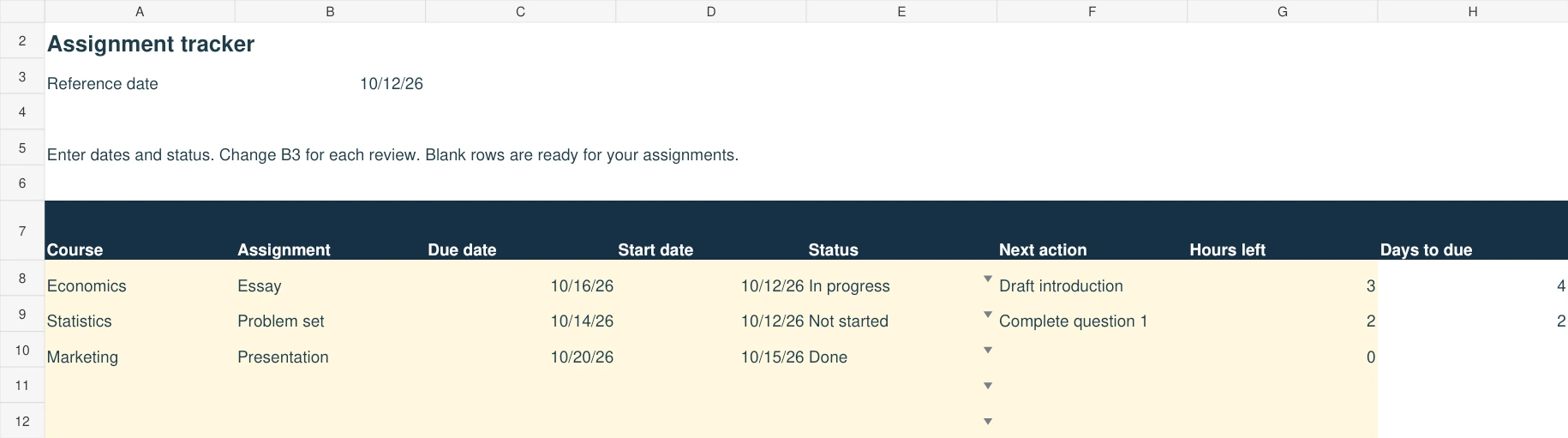
The workbook includes three fictional college assignments and 27 empty rows. Amber cells hold your course, assignment, due date, planned start, status, next action and remaining hours. The final column calculates days to the deadline.
- Open the file in Excel and save your own copy. Replace the example assignments with current course information.
- Set the reference date in B3 every time you review the list. Enter real dates in the due-date and start-date columns.
- Choose Not started, In progress or Done. Leave due dates blank when they are unconfirmed.
- Read a negative days-to-due value as overdue at the reference date. Completed tasks and undated rows show no days-to-due value.
- Keep the formulas in column H. Copy a complete existing row if you need more than 30 assignments.
Can I use this as a Google Sheets assignment tracker?
Yes. Use the Google Sheets copy button above. Example dates, status choices and the days-to-due calculation have been checked in native Google Sheets. Replace the fictional assignments and reference date before using your copy. The free browser assignment tracker is available without spreadsheet software.
Open, edit and save your own tracker
On a computer: download the .xlsx file, open it in Excel and save a named working copy. For Google Sheets, upload the workbook to Drive and open it with Sheets, or use File > Import > Upload in Sheets. If this page offers a Google Sheets copy button, use that instead and make your own copy before editing.
On Android: tap the Excel download above. Find assignment-tracker-template.xlsx in Chrome Downloads or your Files app, then open it in Excel or the Google Sheets app. If it opens in a preview, choose a spreadsheet app to edit it. Save or make a named working copy in that app; menu labels vary by app and version.
Keep column H as formulas. Set B3 to your review date, change one unfinished assignment's due date and check its days-to-due result. After editing, finish the cell entry, save the working file and reopen that same named copy to confirm the change is still there. In Google Sheets, tap outside the cell to finish the entry; keep an exported .xlsx copy when you need a separate device backup. Re-downloading this website's template starts a fresh copy and does not recover your edits.
Use .xlsx for the working file: CSV does not preserve the workbook's formatting, validation or full formula structure. A PDF is a reading or printing copy. See Google Sheets on Android and Google's save, copy and download instructions.
Walk through the actual workbook example
With B3 set to October 12, 2026, the Economics essay due October 16 shows 4 days to due and 3 hours left. The Statistics problem set due October 14 shows 2 days and 2 hours left. The Marketing presentation marked Done has no days-to-due value.
- On October 12, choose the Statistics next action: complete question 1. Place one of its two estimated hours into an available study session.
- Use a separate session to draft the Economics introduction. Spread the remaining essay work across October 13–15 around your actual timetable.
- On October 14, change B3 to October 14: the unfinished problem set shows 0 days; the essay shows 2. Confirm the course due time separately because this workbook uses dates, not timestamps.
- After submitting the problem set and checking the submission receipt, change its status to Done. Update hours left and the essay next action; estimates do not reduce themselves.
The workbook does not schedule these sessions or send alerts. Your course instructions and actual available time determine the plan.
Capture the assignment details once
Start with each course syllabus and the current assignment instructions. Record the course, task, due date, submission time or timezone where relevant, estimated work, status and next action.
If a deadline is provisional, mark it as such. If a course announcement changes it, update the tracker and keep a note of the source. Do not assume an imported or copied date remains current throughout the semester.
For assignments with several stages, record meaningful milestones separately or put them in the task notes. A proposal, draft and final submission can have different dates. Treating all of them as one final deadline hides earlier work.
Keep unconfirmed deadlines out of the dated queue
If the syllabus says “date to be confirmed,” keep the assignment in a separate needs-confirmation list with its course, source and next action. Do not invent a due date to make the tracker accept a row. Check the current course announcement or ask the instructor, then move the task into the dated queue once the date, time and relevant timezone are verified.
For example, a lab report with no confirmed deadline can still have a next action: organize the observations and check the course announcement. Recheck this undated list at weekly review so sorting dated work does not hide it.
Use a small set of fields you will keep updated
For a spreadsheet you build yourself, start with these fields:
| Field | What to enter | Example |
|---|---|---|
| Course | A consistent course label | Writing 101 |
| Assignment | A specific deliverable | Essay outline |
| Due date | The verified date | September 18, 2026 |
| Status | Your actual progress | In progress |
| Estimated minutes | A planning estimate, revised as needed | 90 |
| Planned start | The first intended work date | September 14, 2026 |
| Next action | A step you can begin | Choose a question and list three sources |
Add due times and source links in your expanded working copy or notes. A day-only spreadsheet cannot distinguish a morning deadline from an evening deadline; use the verified course time for same-day decisions.
Keep the status set simple: Not started, In progress or Submitted. Add more states only when they represent a decision you actually need to make.
Build an upcoming assignments timeline
Start with unfinished assignments that have confirmed due dates. Sort by due date, then check the exact submission time and time zone in your course system. Put an earlier start date beside each deadline; the due-date order alone does not tell you which task needs the first study session.
For example, a 30-minute quiz due Wednesday and a six-hour paper due Friday can require work on the paper first. Reserve two hours on Monday, two on Tuesday and two on Thursday if those sessions fit your timetable. Keep Wednesday's quiz session visible as a separate commitment. This is a fictional planning example, not an automatic schedule produced by the download.
Review remaining hours and the next action after each session. Move a completed assignment out of the upcoming queue only after checking the submission receipt. If the hours do not fit, use the Study Catch-Up Planner to compare remaining work with available study time, then revise scope, timing or the support you need.
Separate the deadline from the start date
The due date is when the work must be submitted. The start date is when you plan to begin. A large task can require several sessions before the deadline, so a due-date-only list may look manageable until the last day.
For a writing assignment, next actions could be selecting a question, finding suitable sources, outlining an argument, drafting and reviewing. For a problem set, the first action might be attempting the questions you can solve and marking those needing help.
Estimate effort to allocate time, not to judge yourself. Revise the estimate after the first session if the task is larger than expected. Include revision and submission checks rather than assuming the first draft is the final step.
Turn four deadlines into a weekly plan
Consider these fictional tasks:
| Task | Due date | Estimated work | First action |
|---|---|---|---|
| Math problem set | September 16, 2026 | 60 minutes | Attempt the first two problems |
| History response | September 17, 2026 | 45 minutes | Read the prompt and select evidence |
| Writing outline | September 18, 2026 | 90 minutes | Choose a question and gather sources |
| Biology lab draft | September 21, 2026 | 75 minutes | Organize observations and required sections |
Together, the estimates represent 270 minutes of work. They are a sample workload, not a recommended study quota. Place sessions around your actual classes, responsibilities, breaks and available time.
Start an earlier small step for the larger writing task even if another deadline comes first. Deadline order is useful, but it should not prevent work on a longer project that needs several sessions.
Read the tracker flags correctly
If you build a day-based spreadsheet, choose a reference date and define how many days count as approaching. The downloadable workbook uses the reference date in B3 and calculates days to the deadline. It does not automatically label an approaching deadline. The free browser planner instead uses the explicit reference time you enter.
For that day-based sheet, you can label completed work Submitted, unfinished work before the reference date Overdue, and work due on that date Today. Label later work Soon or Upcoming using your chosen window. Check these rules after adding formulas; the free browser tool has its own displayed fields and results.
These flags organize the queue; they do not decide academic importance. A large assignment due later may need attention before a short task due sooner. Use the next-action and estimated-work fields together with the date flag.
The on-page example and free browser tool do not pull changes from Canvas, Blackboard or another learning system. Update the reference date and records as part of your review routine.
Keep a short review habit
At the start of a working session, choose a concrete next action that fits the time available. At the end, record what changed and write the next step while the task is still clear.
Review the upcoming week regularly. Check new announcements, changed instructions, overlapping deadlines and tasks waiting for feedback. After submission, confirm that the correct file or response appears in the required system; a checkbox in your own tracker is not a submission receipt.
For exam preparation, use the exam study schedule template alongside your assignment list. Keep exam study sessions distinct from assignment deadlines so one type of work does not disappear behind the other.
When a student planner app may help
If you want subjects, assignments and exam planning in one offline workspace, explore the NexalyPlanner AI Student Planner. Its product page describes those planning modules. Check the preview and current device support; do not assume automatic syllabus import or learning-platform synchronization.
Frequently asked questions
Is an assignment tracker different from a calendar?
A calendar shows when something happens. A tracker can also hold status, estimated work, sources and next actions. You can use both: maintain the task details in the tracker and put selected work sessions on your calendar.
Should I track every small reading task?
Track enough to avoid missing required work without making the system harder to maintain than the work itself. Group predictable small tasks when doing so keeps the instructions clear.
What if my professor changes a deadline?
Update the date from the current official course communication and adjust the affected work sessions. Keep the relevant source or note so you can verify it later.
Can the template improve my grades automatically?
It organizes work and deadlines. Learning, completing the assignment and meeting course requirements still depend on the work you do and the support you use.
Keep a deadline change traceable and the next action small
Suppose an instructor changes a fictional essay deadline from October 9 to October 12. Update the existing assignment row rather than creating a second essay entry. Retain a short note identifying the course announcement and the date you checked it. Check whether an earlier proposal or peer-review milestone also changed; a later final deadline does not automatically move every preceding requirement.
A useful next action is smaller than “finish essay.” For a student who has not started, it could be “choose the required question and identify two course sources.” For a draft already written, it could be “check whether each paragraph supports the chosen argument.” Match the action to the actual state of the work.
| Assignment field | Fictional corrected entry |
|---|---|
| Assignment ID | HIST-ESSAY-1, unchanged |
| Current final deadline | October 12, verified course announcement |
| Previous deadline note | October 9; changed after instructor update |
| Earlier milestone | Recheck the proposal requirement separately |
| Current state | Sources selected, draft not started |
| Next action | Draft a claim and a short paragraph outline |
| Planned work block | A genuinely available slot before submission |
At weekly review, inspect overdue, upcoming and blocked work. A blocked task needs its reason and the person or resource needed to unblock it. If a group project depends on another student's contribution, record your own next action without marking the entire project complete.
Keep one deadline record and link it to the weekly student-planner routine. Use the academic term view for competing course dates. Submit through the required course system and verify its confirmation; changing a tracker status to “submitted” is not itself evidence the instructor received the work.
Move a tracker row into the offline student app
If you prefer the offline academic planner to your own spreadsheet, transfer a few verified deadlines manually before moving the whole semester. The app does not import your spreadsheet or connect to your school's learning-management system. Keep the original file and course instructions while you check the new entries.
| Tracker information | Where it belongs in the app | Check after entry |
|---|---|---|
| Course and task | Create the course in Subjects; add the deliverable in Assignments | Correct subject, title and one assignment record |
| Final due date | Assignments → Due Date | Date matches the current course source |
| Due time, time zone and changed-deadline source | Keep the details in Notes or your official course system | These are not dedicated assignment-form fields |
| Next action and estimated effort | Study Planner → Topic, Minutes and Date | Concrete work block that fits available time |
| Actual hand-in | Verify in the course system; then update the app status | The tracker itself does not submit the file |
For a fictional 150-minute essay, keep one assignment and plan a 30-minute outline, 75-minute draft and 45-minute review. The assignment-to-study-session walkthrough shows the actual fields and how to avoid recording the same study minutes twice. This is a manual organizational workflow, not an automatic scheduling feature.
Keep your spreadsheet if it better fits your needs. A paid app is useful only when its connected views reduce work you actually repeat. Test a sample assignment in the preview, then use the purchased version's documented JSON backup process before relying on it as your only planning record.
Move from an assignment list to available study time
The Excel and Google Sheets downloads above keep the assignment list in a spreadsheet. For a separate capacity check, take each unfinished assignment's remaining hours and multiply by 60 before entering the free Study Catch-Up Planner. Three hours remaining becomes 180 minutes; do not copy the original four-hour estimate if one hour is already finished.
Set a realistic daily window with breaks, then inspect unallocated minutes. Keep exact cutoffs in the Assignment Deadline Planner or official course system. These are manual handoffs, not linked files: changing a spreadsheet does not update the browser planner.