
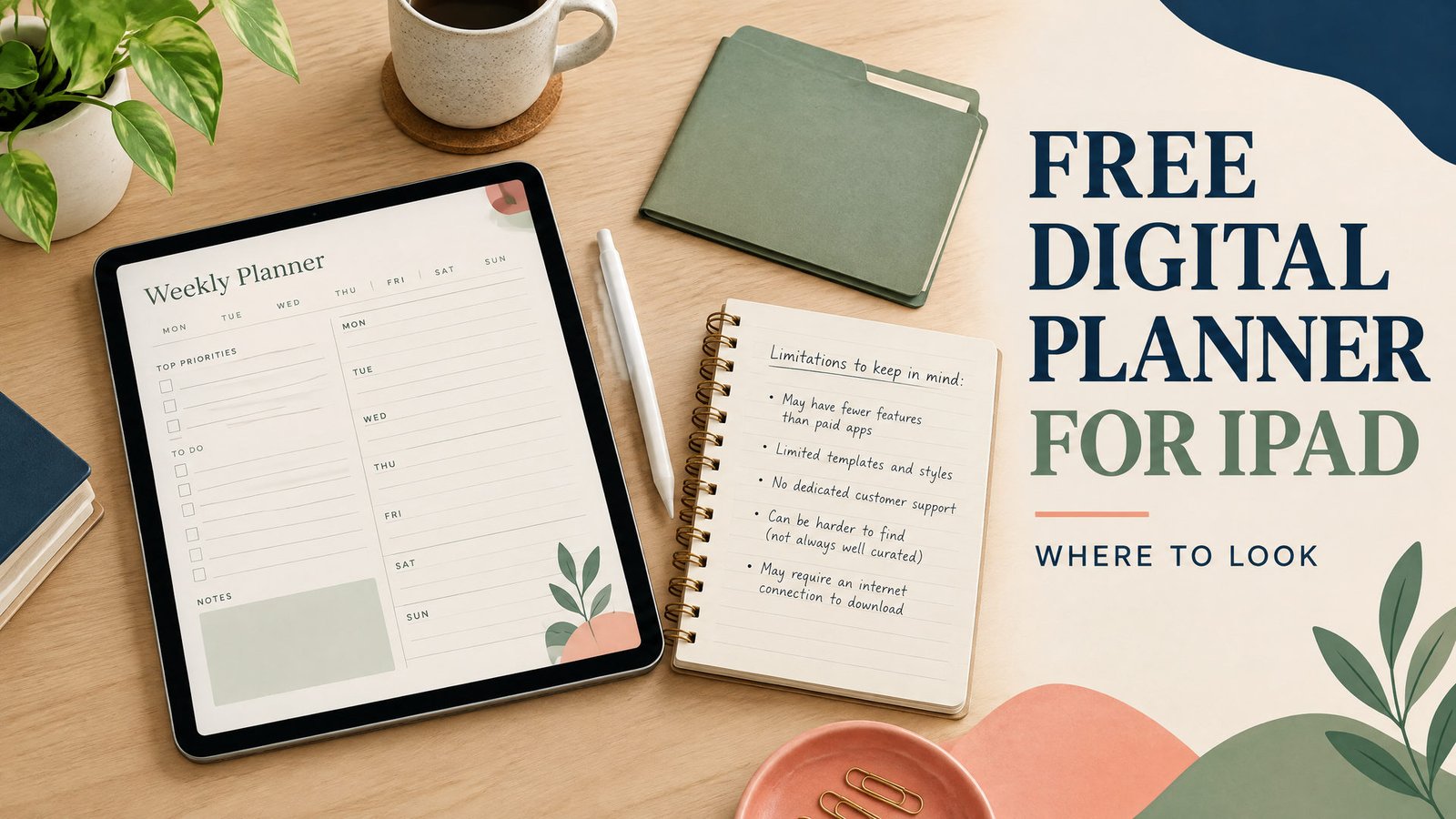
If you want a free digital planner for iPad, start with a planner in the format you will really use: a PDF for handwriting in Goodnotes, a Notion template for typed planning, or an offline HTML planner for a browser-based workflow. The iPad itself does not supply one universal planner file. You download or copy the planner from its creator, open it in a compatible app, and check whether the free version is undated, limited, ad-supported, or missing extras such as hyperlinks and stickers.
Download a free one-page planner PDF for iPad
Download the free daily planning PDF
This is a free undated worksheet with one main task, time anchors, optional tasks and a restart note. Save it in Files and import a working copy into a compatible PDF annotation app, or print it. It has no linked tabs, automatic reminders or app-style calculations. The file is free; any charges or limits of the app you choose are separate.
No purchase or email signup is required for this file. Keep a blank original and work on a copy. NexalyPlanner's paid apps are separate products.
Where to get a free iPad planner
For an existing free planning tool, try Apple Notes on iPad. For a typed planner template, browse Notion’s free personal planner templates; a Notion account is required. These are different from a linked PDF planner. NexalyPlanner’s collection is paid, so check the price on the product page rather than assuming it is a free download. For formats and setup steps, use our digital planner app explainer and iPad setup guide.
A useful starting point is NexalyPlanner’s digital planners collection. Compare the formats actually offered rather than assuming every planner is a Goodnotes file or PDF. Read the description before choosing: HTML is not PDF, and a printable file may not suit tablet handwriting.
You can also find free planners from template creators, app galleries, and designers. Look for the file type, license, date coverage, and delivery method. “Free” may mean a starter version, a template that requires an account, or a page you copy into an app. Those are different offers.
For a first attempt, an undated PDF is usually the least complicated choice. It can be stored in Files and imported into a PDF annotation app. It also lets you test daily, weekly, or monthly layouts before adopting a larger system.
Choose the format before the app
“iPad planner” describes the device, not a file standard. These formats behave differently.
| Format | How you use it on iPad | Account or app requirement | Main limitation |
|---|---|---|---|
| Import it into Goodnotes, Files, or another PDF annotation app; write on the page or type over it | A PDF app may be needed for the smoothest handwriting workflow; the file itself does not require a planner account | Links, handwriting tools, and page navigation depend on the file and app | |
| Notion template | Duplicate or copy pages into a Notion workspace, then type and edit blocks | Notion account and the Notion app or website | It is not a paper-like PDF, and some blocks need an internet connection or preparation for offline use |
| Offline HTML | Open a local HTML file in a browser; use the controls built into that page | Usually no planner account, but browser behavior and local storage vary | It may not offer handwriting, PDF export, or reliable cross-device syncing |
| Printable file | Open, print, or mark up as a document if the file supports it | A viewer or printer; handwriting depends on the app | It may be designed for paper rather than tablet navigation |
PDF and Goodnotes
A PDF is a fixed document. You can view it in Files and often mark it up with Apple’s tools, while a dedicated note-taking app may be more comfortable for repeated handwriting. Goodnotes describes handwriting, highlighting, typing, comments, search, organization, and export for annotated PDFs.[2] The planner still needs suitable page design, and app tools or plan limits can change.
To use a PDF planner, save it to Files, tap Share, choose the note-taking or PDF app, and import it. Test one page before filling in a month. Check links, Pencil strokes, and portrait or landscape comfort.
An Apple Pencil is an input accessory, not a requirement. Compatibility depends on the iPad model and Pencil generation, so check Apple’s current documentation before buying or pairing one.[1] If you do not own one, try the planner with your finger or keyboard first. The file does not become more useful simply because it is opened with a Pencil.
Notion templates
Notion is a workspace rather than a PDF notebook. A template may contain pages, checklists, tables, calendar views, or databases. You normally duplicate it into your workspace and customize the copy. This suits typed notes, searchable text, linked tasks, and planning without handwriting.
A Notion planner is tied to the app’s account and workspace model. Make your own copy and review sharing settings before entering personal information.
Notion’s current help guidance says users can make individual pages available offline in the desktop or mobile app, with changes saved locally and synced after reconnection. Some live elements, such as embeds, forms, or buttons, are unavailable offline, and preparation is device-specific.[3] “Works in Notion” and “works without internet” are separate questions. Test needed pages before traveling.
Offline HTML planners
An offline HTML planner is an .html file or small folder of web files. Open it in a browser rather than importing it into Goodnotes. It may include text fields, buttons, checkboxes, or local storage, but it does not automatically behave like an app, PDF, or cloud workspace.
The advantage is a lightweight, account-free workflow when the file is self-contained. The trade-off is fragile browser storage: clearing website data, moving the file, private browsing, or changing browsers may hide entries. It may also lack handwriting or simple export.
Before relying on one, enter a test task, close and reopen it, and look for export. Keep the original file and a backup copy. If entries live only in browser storage, copying the HTML file may not copy those entries.
A realistic iPad setup example
Suppose Maya wants to plan a part-time course and three weekly work shifts on an iPad. She has a compatible Apple Pencil but does not want a subscription. She chooses an undated PDF because she wants handwriting and local access.
She saves the original in Files under Planner / Original, imports a copy into Goodnotes, and names the notebook Spring schedule. She uses a monthly page for fixed dates, a weekly page for each week, and a daily page only on busy days. The original stays untouched as a backup.
For the week of March 9, she writes three work shifts, two class meetings, a 45-minute reading block, and a Saturday grocery trip. Three priority boxes say “submit the assignment,” “attend Tuesday’s class,” and “confirm Thursday’s shift.” She leaves two lines for changes.
On Sunday, she reviews the week, moves the assignment to Tuesday’s daily page, and keeps the original file in Files. She exports the completed week only when she needs a separate record.
If Maya preferred typed, linked notes, she could use Notion. If she wanted a no-account local page, she could try offline HTML after testing persistence and export. The right choice follows the workflow, not the word “free.”
For more planning examples, see the student planner guide and the guide to digital planners that work offline. If a page with fewer sections suits you better, compare it with this minimalist planner approach.
Free versus paid: what to check
A free planner can be adequate for a basic undated page. Limitations may appear in navigation, date coverage, support, updates, or export. Do not infer a feature from a screenshot. Confirm whether the file is editable, hyperlinked, and complete rather than a sample.
A paid planner is not automatically better. It may simply include dated pages, alternate layouts, or a different design. Compare adaptation time with the price and terms. For either choice, keep the original, read the license, and understand how a template service handles information before uploading it.
Key takeaways
- A free digital planner for iPad can be a PDF, Notion template, offline HTML file, or printable document.
- An Apple Pencil is optional; compatibility depends on the iPad and Pencil models.
- Goodnotes is suited to importing and annotating PDFs, but the planner file must still be designed for that use.
- Notion requires an account and workspace, and offline access must be prepared for the pages and device you need.
- Offline HTML may avoid an account, but test browser storage, reopening, and export before trusting it with important plans.
- Keep the original download and a backup copy separate from your working planner.
- Check file type, date coverage, license, links, app requirements, and limits before calling a planner “free.”
FAQs
Can I use a digital planner on an iPad without an Apple Pencil?
Yes. You can type with an on-screen or physical keyboard, use your finger, or use another compatible stylus. The Pencil mainly changes the input experience; it does not change the planner’s file type.
Is Goodnotes required for a free iPad planner?
No. A PDF can be viewed in Files and may be marked up with built-in iPad tools or another compatible app. Goodnotes is one option for handwriting and organizing PDFs, not an official requirement for every planner.
How do I download a PDF planner to my iPad?
Use the creator’s download link, save the file to Files, and open or share it to the PDF or note-taking app you use. Keep the original file in a separate folder before importing a working copy.
Are Notion planners free on iPad?
Some Notion templates are available without a separate template purchase, but Notion’s account, workspace, and current plan rules still apply. Check the template’s sharing page and make your own copy rather than assuming the original link is your permanent workspace.
Can an iPad digital planner work offline?
A PDF stored locally can generally be opened without an internet connection after it has been downloaded. Notion pages need offline preparation in the app, while an HTML planner depends on its local files and browser storage. Test the exact workflow before you are disconnected.
What is the difference between an iPad planner and a printable planner?
An iPad planner is intended for digital use, such as writing on a PDF or editing an app page. A printable planner is designed for paper output, so its links, navigation, and page dimensions may not suit tablet use.
How do I back up a digital planner on iPad?
Keep the original download in Files and use the app’s export or sharing option for completed pages when available. For Notion, confirm that your workspace is syncing and review its export options. For offline HTML, back up both the HTML file and any separate data or export the tool provides.
Should I choose a dated or undated free planner?
Choose dated pages when you want a ready-made calendar for a specific year. Choose undated pages when you want to reuse the file, test a layout, or avoid replacing it at year-end. Neither format is universally better.
For a wider set of planning formats and guides, visit the NexalyPlanner journal after you choose your file type.