
FREE · NO ACCOUNT NEEDED
Assignment Deadline Planner
Put assignment deadlines and remaining work in one short list. Enter an explicit reference time, then see overdue work and the estimated hours still needed.
1. Enter your details. 2. Add records. 3. Calculate and save a copy.
Set up your worksheet
Use one timezone for all entered date-times. The timezone label does not convert deadlines. Check against the reference time you enter.
Your report
Enter your details and records, then calculate to review the results.
Save or download your work
Work stays in this page until you choose Save on this device. Device saves belong to this browser and can be removed by clearing browser data. JSON keeps an editable backup; CSV and PDF keep a report.
Assignment Deadline Planner: complete guide
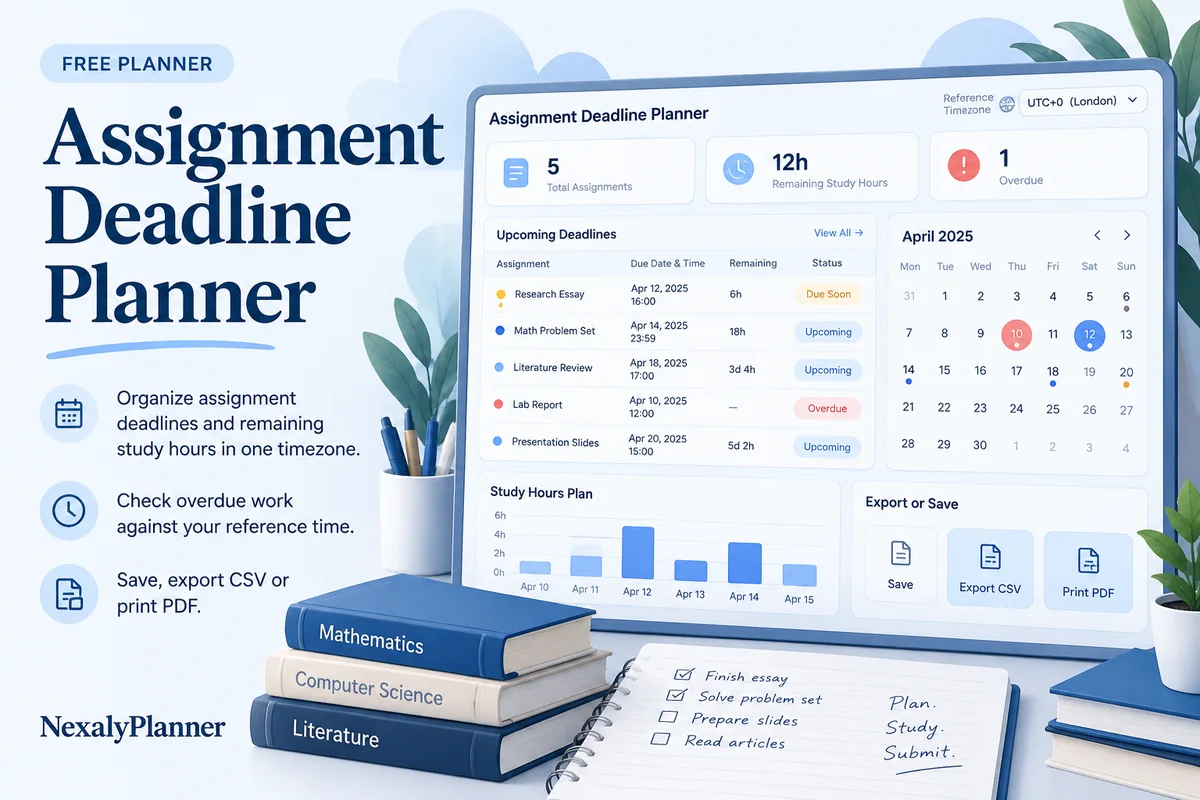
What this free planner does
- Assignment, course, exact local due time and next-step notes.
- Estimated versus worked hours without automatic completion assumptions.
- A deadline-sorted report using the reference time and timezone you enter.
- Up to 100 editable entries, explicit device saving, JSON backup, CSV and browser PDF printing.
How to use it
- Name the plan and enter the date and time you want to check against. Label the single timezone used for every deadline, such as America/New_York.
- Add each assignment and course. Copy its deadline from the official instructions and convert it to your chosen timezone yourself if necessary.
- Enter estimated total work and hours already spent. Mark Completed only when you have confirmed completion; use next-step notes for subtasks or submission details.
- Calculate, check overdue rows and review remaining effort. Update the reference time on each visit; it does not advance automatically in a saved report.
Inputs and units
| Field | Input rule |
|---|---|
| Study plan label | Required. Up to 160 characters. |
| Check deadlines as of | Required. Date and time in your plan’s single timezone. |
| Timezone used for every deadline | Required. Up to 160 characters. |
| Assignment | Required. Up to 160 characters. |
| Course | Required. Up to 160 characters. |
| Due date and time | Required. Date and time in your plan’s single timezone. |
| Estimated total hours | Required. Numbers with up to two decimals from 0 to 1000. |
| Hours already worked | Required. Numbers with up to two decimals from 0 to 1000. |
| Status | Required. Choose Not started, In progress, Completed. |
| Next steps / subtasks | Optional. Up to 400 characters. |
How the calculation works
Remaining estimated hours = max(0, estimated hours − hours already worked). A row marked Completed contributes zero remaining hours. An unfinished assignment is overdue when its due time is earlier than the entered reference time; equal times show Due now.
Worked example with fictional data
A fictional economics essay has a 3-hour estimate and 1 hour already worked, so 2 estimated hours remain. At a reference time of October 6 at 09:00, a deadline of October 9 at 17:00 is Upcoming. After the reference passes the deadline, the unfinished row is Overdue. Spending all 3 estimated hours does not automatically mark the essay Completed.
Review a college assignment list when several deadlines compete
Use one reference time for the whole list. This fictional review is October 8, 2026 at 09:00, with every deadline already expressed in America/New_York. The label does not convert times from a course portal.
| Assignment | Due time | Total / worked hours | Entered status | Report at the reference time |
|---|---|---|---|---|
| Economics essay | October 9, 17:00 | 4 / 1 | In progress | Upcoming; 3 hours remain |
| Statistics worksheet | October 8, 09:00 | 2 / 2 | In progress | Due now; estimate exhausted |
| History outline | October 7, 17:00 | 1 / 0 | Not started | Overdue; 1 hour remains |
The unfinished list has four estimated hours remaining. The statistics worksheet contributes zero estimated hours but stays unfinished: time spent does not prove that the work is complete or submitted. Review it and increase its estimate if another task remains.
- Check the overdue and due-now records against the official course instructions. The report flags dates; it does not decide course priorities or whether late work is accepted.
- Use Next steps / subtasks for a concrete action such as “check references, export the final file, confirm upload”. Keep the official submission receipt in the course system.
- Change the reference time and recalculate at your next review. Yesterday's downloaded report does not update itself.
This free assignment tracker suits a short deadline-and-effort review. It is a browser worksheet, not a Google Sheets template, course-portal connection or notification service. Read the college assignment tracking workflow for organizing the list, or the exam study schedule example when you need a separate revision plan.
Before you save your plan
- Check every due time and the selected time zone against your course instructions.
- Update logged hours and completion status separately; finishing an estimate of hours does not automatically complete an assignment.
Assumptions and common mistakes
This assignment deadline planner does not connect to a learning portal, submit work, verify grades or provide background reminders. All date-times are compared as wall-clock values in the same timezone label; no automatic timezone or daylight-saving conversion occurs. Remaining hours are an estimate, not a guarantee of finishing before the deadline.
Keep the official cutoff and submission receipt in your course system. A task can need more time than its first estimate: increase the estimate when new information appears instead of assuming zero remaining hours means finished. The notes field can hold a short sequence such as outline, draft and references; each assignment remains one editable row.
Save, restore and export
Add entry creates another record. Edit any field directly or use Remove entry to delete a row. Changing inputs clears the previous report so it cannot be mistaken for current results. Choose Calculate / review results again when your changes are ready.
Save on this device keeps an editable worksheet in this browser only. On a later visit in this browser, your saved worksheet loads automatically. Restore device save can also reload the last save after you confirm replacement. Saving drafts is allowed, but a report requires valid, complete inputs. Download backup creates a versioned JSON file for the same tool. Import backup shows the worksheet label and row count before replacing current work; it does not change the device save until you press Save.
Download CSV exports the settings, summary, row details and calculation notes. CSV is for spreadsheet review; it cannot restore this worksheet. Print / Save PDF recalculates the current entries and opens your browser’s print dialog. Choose Save as PDF where supported. The report excludes navigation, guides and product CTAs. Clear data removes the current worksheet and its device save after confirmation; keep a backup first if needed.
Frequently asked questions
Will the planner alert me when a deadline arrives?
No. It checks deadlines when you calculate against your reference time. Use a separate calendar or reminder if you need an alert.
What happens if I work more hours than estimated?
Remaining estimated hours stop at zero. The row keeps its chosen status and asks you to review an exhausted estimate if it is unfinished.
Can I mix deadlines from different timezones?
Convert them to one timezone before entering them. The timezone field labels the plan; it does not convert timestamps.
Is this tool free, and does it sync between devices?
All worksheet, saving and export features are free without an account. There is no cloud synchronization. Transfer a JSON backup to another device and import it into this same tool.
Related planning resources
- Read the college assignment tracking example.
- Read the AI Student Planner user guide for the broader workflow.
- Browse all available free planners by category.
- Exam Study Schedule Template: Plan the Weeks Before Finals.
- Continue with Leave-on-Time Routine Planner for the next part of your workflow.
- Browse the free personal & study planning planners to compare these workflows.
EXPLORE A BROADER WORKFLOW
Need more than this one worksheet?
Explore AI Student Planner and read its guide to see how the full product fits your records. This free planner remains available without a purchase. Its JSON backup is not an import file for the paid product.
For a focused next step, use the free Study Catch-Up Planner to allocate remaining study work within your daily capacity and deadlines.
Turn remaining hours into a realistic study window
After reviewing deadlines, use the Study Catch-Up Planner to check whether the remaining work fits. Copy remaining effort, not the original estimate: a four-hour assignment with one hour already worked needs 180 remaining minutes. The two worksheets do not exchange data automatically.
Keep exact submission times in this deadline worksheet. The catch-up planner uses inclusive deadline dates, so a morning cutoff can require finishing on the previous day. A zero remaining estimate on an unfinished row still needs review before you allocate time.