
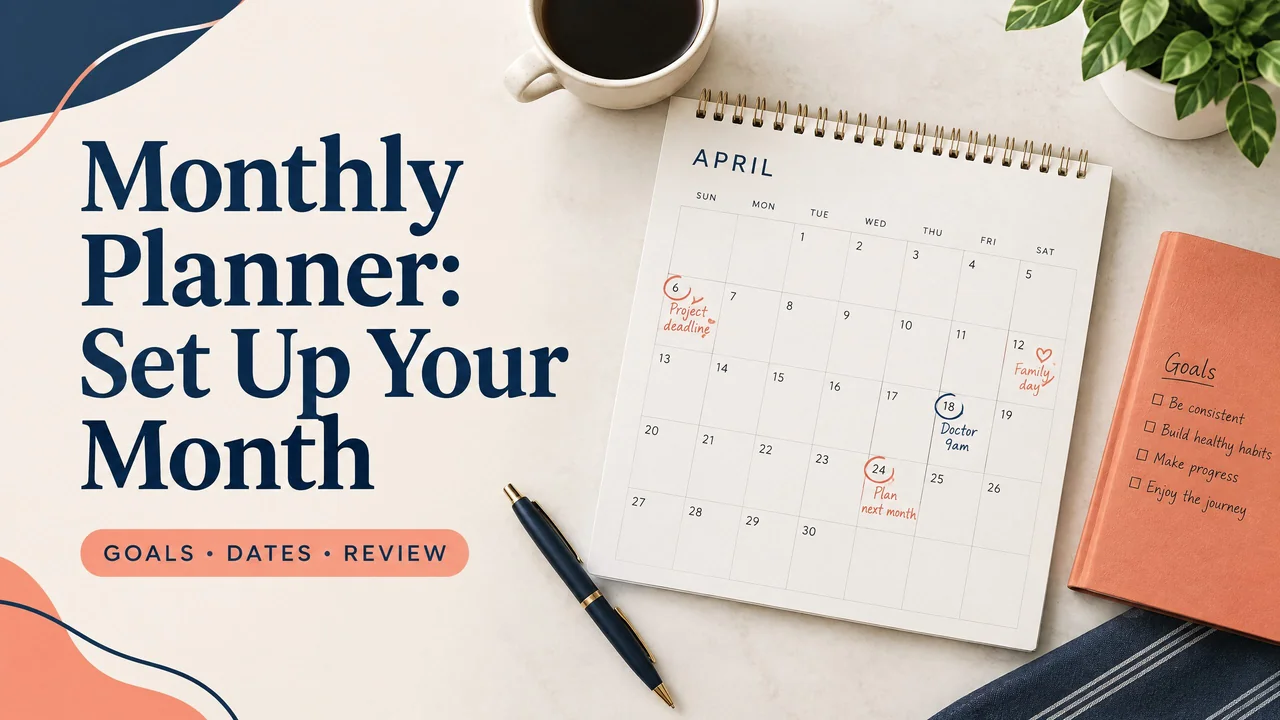
A monthly planner works best when it gives fixed commitments, important goals, active projects, and review space a clear place on one page. Set one up by marking immovable dates first, choosing a few outcomes, breaking projects into dated actions, and reviewing what changed before the next month.
Download a free undated monthly planning sheet
Download the undated monthly template (PDF)
This one-page US Letter PDF has a Sunday-first blank grid, three priorities and notes. Write the month, year and correct date positions before using it. It can be printed or annotated in a compatible PDF app; it does not calculate dates or create reminders. For prepared dates, use the dated 2026 monthly pages.
No purchase or email signup is required for this file. Keep a blank original and work on a copy. NexalyPlanner's paid apps are separate products.
A monthly view shows the shape of the month without asking you to manage every hour at once. It can be paper, a printable PDF, browser-based offline HTML, or a cloud app. The format matters less than a simple review loop.
What a monthly planner should include
A useful page answers four questions:
- What is fixed? Add work shifts, appointments, school dates, travel, bills, and deadlines. These are constraints, not intentions.
- What should be different by month-end? Choose two or three observable outcomes, such as “send the portfolio” or “finish the first draft.”
- Which projects need movement? Give each active project a next action and a date. A project name alone is too vague to plan.
- What did the month teach you? Keep a small review area for completed items, postponed items, and one adjustment for next month.
This order matters. If you add goals before checking commitments, you may plan for time you do not have.
A worked monthly planner example
Imagine a freelance designer planning April. Fixed commitments include a dentist appointment on April 4, a client call every Tuesday morning, a tax payment on April 15, and a family event on April 27. The goals are to send three proposals and complete a portfolio update. Active projects are a website redesign and a brand guide.
| Planning layer | April example | How it appears |
|---|---|---|
| Commitments | Tuesday calls, dentist, tax payment, family event | Entered first on the relevant dates |
| Goals | Send three proposals; finish portfolio update | Written in a goals panel |
| Website redesign | Gather feedback by April 8; send revised homepage by April 18 | Next actions placed on dates |
| Brand guide | Draft color section by April 11; review by April 24 | Milestones placed after commitments |
| Review | Note what shipped, moved, and why | Four lines at the page bottom |
The plan gives each project a next step and protects room for interruptions. If the first proposal takes longer, the designer can move an action rather than treating the month as overdue. A fixed delivery date differs from a preferred internal draft date, which can change.
Choose the format that fits your planning habits
For dated examples, compare the free 2026 monthly planner layouts and the monthly planner 2026 format guide. Use a weekly page when you need more room for individual tasks.
Free templates are useful when you want a consistent arrangement of calendar space, notes, and prompts. They are not automatically better than a blank page. Choose based on handwriting, local access, search, synchronization, or printing.
| Format | Works well for | Limits to consider |
|---|---|---|
| Paper planner | Fast writing, visible desk planning, no device needed | Changes can become messy; it does not sync or search |
| Printable PDF | Printing a consistent layout or annotating a digital page | It is usually fixed; fields and links depend on how it was made |
| Browser-based offline HTML | A lightweight local planner that opens without internet after saving | Offline saving and behavior depend on the browser and file |
| Goodnotes with a PDF | Handwriting on a tablet and keeping annotated pages together | It requires Goodnotes; importing a PDF does not create a full calendar system |
| Notion or another cloud app | Connected notes, flexible pages, and supported-device access | Account, app, internet, and offline behavior vary |
A printable PDF can be printed or annotated in an app that supports PDF markup. Goodnotes can import and annotate a PDF, but the PDF remains the document you imported. Notion is a cloud workspace rather than a paper-like PDF or a self-contained offline HTML file. Check access on your device before relying on any format away from a connection.
For more detail on local browser files, see this guide to offline digital planners. For broader planning topics, visit the Nexaly Planner journal.
Three practical ways to use a monthly planner
Manage a busy household
Put school dates, appointments, work shifts, travel, and bills on the calendar before adding household goals. Keep recurring chores in a short list so the calendar does not fill with repeated reminders. Add a “waiting for” area for items such as a repair appointment or a reply from school. These affect the month but are not actions you can complete today.
Plan a student month
Start with exams, assignment due dates, class meetings, and work shifts. Then place study actions before deadlines. “Study biology” is vague; “review chapters 3–4” on a specific afternoon is usable. Leave space around exams for travel and catch-up. Use the monthly view for deadlines and major preparation points, and a weekly view for smaller actions. See the student planner guide for that division.
Move a personal or work project forward
Choose one primary project and a few supporting priorities. Write the desired result at the top of the page, then add milestones that produce something visible, such as a draft, call, application, order, or review. If task switching makes planning difficult, limit the number of planned actions on any day. This adult ADHD planner guide offers related ideas for keeping actions concrete.
How to get started and use it each month
Begin with a five-minute inventory. Collect dates from work, school, family, and bills, then mark only what matters this month. Circle dates that cannot move.
Choose two or three outcomes and phrase them as results. “Writing” is a theme. “Complete and send the article draft” is a result. For every project, write the next physical action and place it on a plausible date. If it depends on another person, schedule a follow-up rather than pretending the outcome is under your control.
Use the free PDF above for a blank monthly page. If you want a separate paid app, browse NexalyPlanner’s digital planner products and check each product’s format, price and supported features.
Use the planner in three short passes:
- Start of month: add commitments, choose outcomes, and schedule project actions.
- During the month: mark completed items, move dates deliberately, and add only relevant commitments.
- End of month: note what finished, what moved, why it moved, and what to carry forward.
The review can be four precise lines. Decide whether each unfinished task is still relevant, needs a new date, belongs on a general list, or should be dropped.
Common mistakes
Planning every day in advance. A month contains interruptions and information you do not have yet. Schedule anchors and next actions, then leave working space.
Treating goals as tasks. “Launch the project” is an outcome. Break it into actions that can be dated and checked.
Ignoring time around commitments. A meeting may require travel, preparation, recovery, or follow-up. Include it when it affects capacity.
Using too many templates. Changing layouts can feel productive while making the plan harder to find. Try one format for a month before changing it.
Confusing a free template with free software. A free PDF may require a printer or annotation app. An offline HTML file may work without internet after saving, but behavior depends on the browser and file. A cloud app may still require an account or connection.
Skipping the review. Without a review, postponed work is hard to interpret. Record whether the cause was timing, a dependency, or an unrealistic plan.
Monthly planner FAQs
Is a monthly planner better than a weekly planner?
Neither is automatically better. A monthly planner shows deadlines, travel, commitments, and milestones. A weekly planner gives more room for daily actions. Many people use the monthly page for direction and the weekly page for execution.
What should go in a monthly planner first?
Enter fixed commitments first. Add appointments, deadlines, shifts, travel, school dates, and bills before optional tasks. This shows the capacity that remains.
How many goals should I put on one monthly page?
Start with two or three outcomes. More may fit in a light month, but each goal should have dated actions. If it has no next action, it is not ready for calendar space.
Can I use a printable PDF in Goodnotes?
Usually, a PDF can be imported into Goodnotes for handwriting and annotation. The experience depends on the PDF and app version. A static PDF does not automatically become a synchronized calendar, and interactive links or fields may not behave the same everywhere.
Is an offline HTML planner the same as a cloud planner?
No. An offline HTML planner is a local file that may open without internet after saving. A cloud planner stores or synchronizes information through a service. Saving and synchronization depend on the browser, app, account, and file design.
Is Notion good for monthly planning?
Notion can suit people who want a flexible cloud workspace with connected notes. It may be less suitable if you want a simple paper-like page, a self-contained file, or predictable offline use. Decide whether flexibility or a fixed monthly view matters more.
How do I plan when my schedule changes often?
Use fixed events as anchors and schedule fewer optional actions. Add a weekly checkpoint to move unfinished work. Keep a “later” list so the calendar does not fill with tasks that are not ready to date.
What should I do with unfinished tasks at month-end?
Decide whether each task is still relevant, needs a new date, belongs on a general list, or should be dropped. Carrying every item forward without a decision makes the next month harder to read.
Key takeaways
- Start with commitments, then add goals and dated project actions.
- Keep the monthly page for direction and a weekly view for detailed execution.
- Choose paper, PDF, offline HTML, Goodnotes, or a cloud app based on access and editing needs.
- Leave open space for change and review the month before carrying work forward.
Use the daily planning method to turn monthly outcomes into next actions. Business owners can keep goals, projects, and reviews together in the 2026–2028 Small Business Planner.