
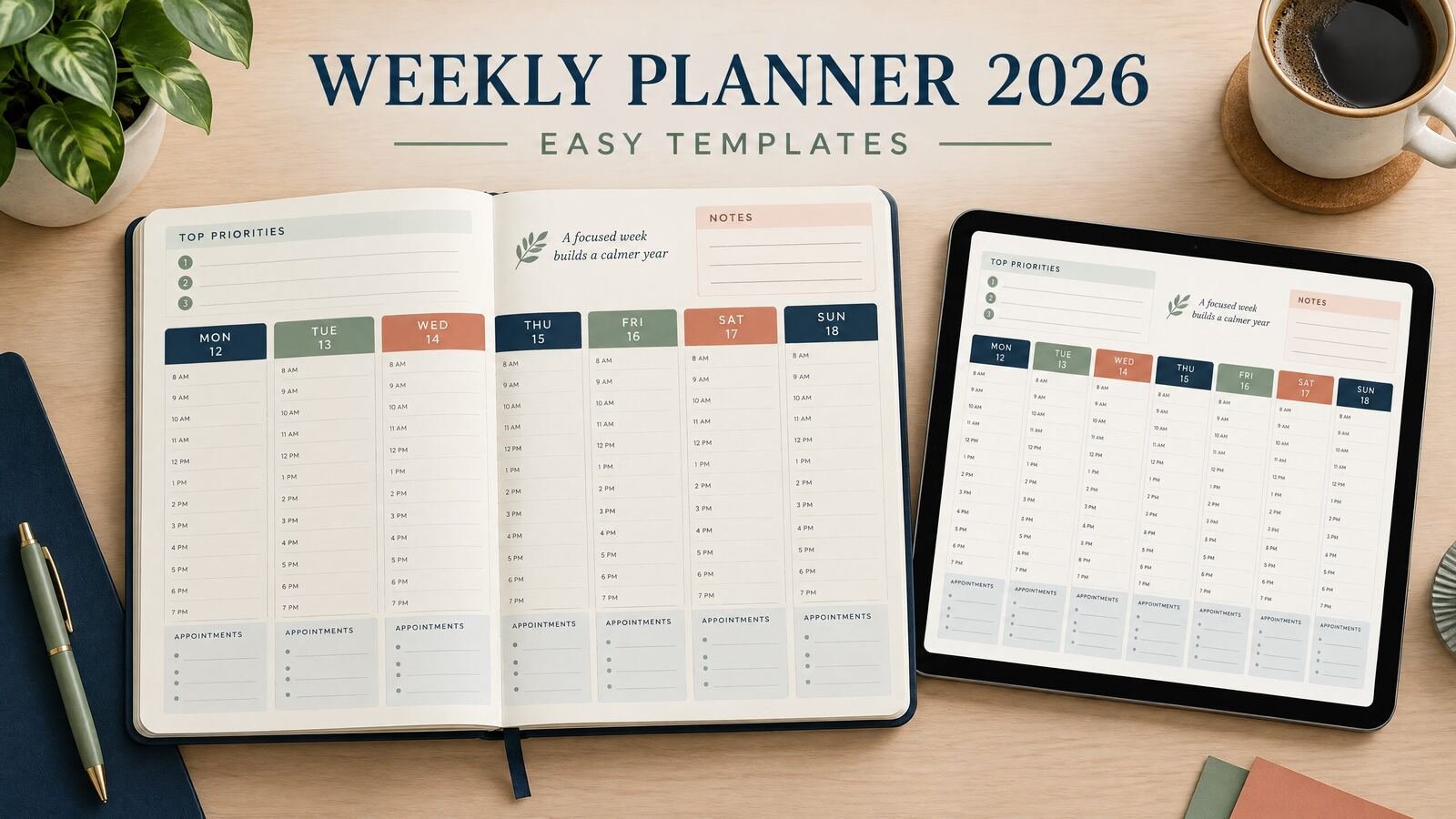
A weekly planner for 2026 gives you one place to see appointments, deadlines, priorities, errands, and open time. The easiest template is a seven-day spread with a short priority list, notes, and room to adjust. You can copy the layouts below into a document, print them, or use a digital planner. Start with fixed commitments, then assign only the work that can realistically fit around them.
Download the free weekly planning sheet
Download the weekly planner template (PDF)
The one-page US Letter landscape worksheet runs Monday through Sunday and separates fixed commitments, next actions and notes. It is undated: add the week and each date yourself, so it can be reused in 2026 or another year. Print it or annotate a copy in a PDF app. It does not create calendar alerts.
No purchase or email signup is required for this file. Keep a blank original and work on a copy. NexalyPlanner's paid apps are separate products.
Quick answer: Enter fixed events first, choose three to five outcomes for the week, and turn each outcome into dated next actions. A free template does not need elaborate decoration. A weekly grid, priorities box, and review line are enough for work, school, household planning, or personal projects.
What a weekly planner should include
A useful weekly planner answers three questions: What is happening? What matters? When can it happen? Include:
- Seven daily sections for appointments, tasks, and short notes.
- A weekly priority list with three to five outcomes.
- A deadline or events line for items that must happen on a particular day.
- A notes or waiting-for area for questions, replies, or delegated items.
- A short review prompt such as “completed,” “moved,” and “next week.”
Choose a Sunday or Monday start based on your routine, then keep it consistent.
For 2026, a dated planner is convenient if you want the dates placed for you. An undated weekly planner works better for irregular schedules, project sprints, travel, or reuse in later years. The useful choice is the page you will open before the week begins.
Free weekly planner templates you can use
These layouts are simple enough to recreate in a document, spreadsheet, notes app, or notebook. If you print one, leave white space for handwriting. If you use a digital page, test it on the device where you will plan.
Template 1: Simple weekly overview
Use this when you need a broad view without hour-by-hour scheduling.
| Section | What to write |
|---|---|
| Week of | Starting date and one sentence describing the week |
| Priorities | Three to five outcomes that would make the week worthwhile |
| Monday to Sunday | Appointments, deadlines, next actions, and brief notes |
| Waiting for | Replies, deliveries, approvals, or information from someone else |
| Review | What finished, what moved, and the first step for next week |
Keep entries specific. “Call dentist” is more useful than “health,” and “Send revised invoice” is more useful than “admin.”
Template 2: Time-blocked weekly page
Choose this when meetings, classes, shifts, or travel determine when work can happen. Give each day a timeline and a separate task area. Use broad blocks such as morning, midday, afternoon, and evening. Put fixed commitments in first, add travel or preparation, and keep a buffer for delays.
Template 3: Weekly project and home dashboard
This separates shared responsibilities from individual tasks. It works for a household, solo business, or project with several moving parts.
| Area | Prompt |
|---|---|
| Must happen | Deadlines, appointments, payments, or required deliveries |
| Move forward | One next action for each active project |
| Home and errands | Shopping, maintenance, school, and household tasks |
| Personal | Reading, appointments, or protected downtime |
| Not this week | Ideas that should not crowd the current plan |
Review the “not this week” area at week’s end instead of adding every idea to Monday.
How to fill out a weekly planner
1. Gather dates before choosing tasks
Collect commitments from your calendar, school portal, work schedule, family messages, and recurring routines. Mark items that cannot move, such as an appointment, Friday deadline, or school event. Add preparation, travel, or follow-up time when it is real.
Do not begin with a giant task list. A weekly planner is a capacity check. If Wednesday already contains a shift and two appointments, it may not be the right day for a large project task.
2. Choose outcomes for the week
Pick three to five outcomes and write them as finished results. “Marketing” is a category. “Draft next week’s email and schedule it for review” has a visible endpoint. “Clean house” is broad; “clear the kitchen counters and place a grocery order” is easier to place.
Keep a longer master list elsewhere, but show only work ready for this week.
3. Break outcomes into next actions
Write the next action for each priority. A portfolio update may begin with “choose six current projects.” A school paper may begin with “find two sources for the introduction.”
Put each action on a day with enough room. If an outcome needs four sessions, distribute four small actions instead of writing the same large task on four days.
4. Add routine work and open space
Group small items into a block such as “invoices and email” or “laundry and grocery pickup.” Leave at least one open period when possible. A plan with no margin becomes inaccurate as soon as a call runs long or a family need appears.
5. Review before the next week
Mark completed work, move only relevant unfinished items, and note why something changed. This makes the next plan more realistic.
A worked example: planning January 5 to 11, 2026
Imagine Jordan, a US-based freelance designer, planning the first full workweek of 2026. Jordan has a client call Tuesday at 10:00 a.m., a dentist appointment Thursday at 3:00 p.m., a proposal due Friday afternoon, grocery pickup Wednesday evening, and family lunch Sunday. The outcomes are to send the proposal, finish the first homepage draft, and create an invoice checklist.
Jordan enters fixed events first, then adds actions that fit around them:
| Day | Fixed commitments | Planned next actions |
|---|---|---|
| Monday, Jan. 5 | None | Review proposal requirements; outline homepage; list invoice steps |
| Tuesday, Jan. 6 | Client call, 10:00 a.m. | Capture decisions; revise homepage outline; send one question |
| Wednesday, Jan. 7 | Grocery pickup, 6:00 p.m. | Draft homepage hero; prepare proposal pricing; stop by 5:30 |
| Thursday, Jan. 8 | Dentist, 3:00 p.m. | Complete proposal draft; check copy; leave travel time |
| Friday, Jan. 9 | Proposal due, 3:00 p.m. | Proofread and send by noon; record follow-up; review week |
| Saturday, Jan. 10 | None | Optional two-hour catch-up block, only if needed |
| Sunday, Jan. 11 | Family lunch | Reset and plan January 12 to 18 |
The example protects the deadline and treats Saturday as optional. If a revision arrives Tuesday, Jordan can move the invoice checklist. For a student, replace project actions with study sessions; for a household, use errands.
Compare weekly planner formats
If your week includes detailed appointments, pair this overview with a daily planner 2026 layout. For deadlines beyond this week, the 2026 monthly planner layouts offer a wider view.
Choose a format based on how you capture information, not on how attractive a preview looks.
| Format | Best for | Strength | Limitation |
|---|---|---|---|
| Paper or printable page | Handwriting and a visible desk plan | Fast to mark up and easy to scan | Changes can become crowded; no automatic search or sync |
| Spreadsheet | Typed rows, columns, and duplicate weeks | Easy to adjust and reuse | Can become too detailed for quick planning |
| PDF in GoodNotes | Tablet handwriting and page-based planning | Feels close to paper | A PDF is not automatically a task database |
| Offline HTML file | Typed local planning | Lightweight after setup | Saving and backup depend on the file and browser |
| Notion or cloud workspace | Linked projects and flexible databases | Connects actions with larger projects | More setup; offline behavior varies |
Use a monthly view for deadlines and a weekly view for next actions. See the monthly planner guide and hourly planner layouts.
Digital setup tips for 2026 and beyond
A digital weekly planner may be a PDF, browser file, or workspace such as Notion. Confirm its saving, offline, and export behavior. Keep an original and working copy.
If you want a ready-made format rather than building a page yourself, browse NexalyPlanner’s digital planner collection and check each product page for its format and intended use. The collection is a product directory, not a promise that every item is a free download.
For local files and device access, read the daily digital planner setup guide. Find more planning topics in the NexalyPlanner Journal.
Common weekly planning mistakes
Listing tasks without dates. A weekly planner should show when the next action can happen.
Filling every day to the edge. Leave space for delays, travel, messages, and ordinary life.
Making the priority list too long. Three to five outcomes are easier to evaluate than competing “top” tasks.
Repeating a project name. Replace “website” with “send homepage draft for feedback.”
Changing templates every week. Use one layout long enough to learn whether the problem is the format or the plan.
Treating an undated template as a calendar. Add dates, fixed events, and a decision about what belongs this week.
Weekly planner FAQs
Is a weekly planner better than a daily planner?
They solve different problems. A weekly planner shows seven days; a daily planner gives more room for detailed blocks and notes.
What should I put in a weekly planner first?
Enter fixed commitments, deadlines, travel, and recurring events first. Then add outcomes and next actions. This shows how much capacity remains before you make optional promises.
How many priorities should a weekly planner have?
Start with three to five outcomes. If everything is a priority, the page is a master list instead of a weekly plan.
Should a weekly planner start on Sunday or Monday?
Use Sunday or Monday according to your routine. Consistency matters most.
Can I use a weekly planner for school?
Yes. Enter classes, due dates, tests, and shifts first, then add study actions before deadlines. See the student planner guide.
Is a free weekly planner template the same as free planner software?
No. A free template is usually a layout you can copy, print, or edit. It may still require paper, an annotation app, spreadsheet software, or a browser. Saving, synchronization, and device support are separate questions.
Can I use a weekly planner in GoodNotes?
You can import a compatible PDF into GoodNotes and annotate it. The experience depends on the file and app version. Importing a PDF does not automatically create reminders, recurring tasks, or a synchronized calendar.
How do I plan a week when my schedule changes often?
Enter firm commitments, plan fewer optional actions, and keep a buffer. Use broad blocks for flexible work. When plans change, move the next action deliberately instead of copying every unfinished item forward.
What do I do with unfinished tasks at the end of the week?
Complete, schedule, break down, delegate, or remove each task. This keeps the next planner readable.
Key takeaways
- Start with fixed commitments and deadlines.
- Choose three to five outcomes and dated next actions.
- Use a seven-day grid, priorities box, notes area, and review.
- Leave open space for delays and changes.
- Choose paper, PDF, spreadsheet, offline HTML, or cloud tools based on your workflow.
- Use monthly pages for the big picture and weekly pages for execution.
- Keep an original template and working copies for digital files.