
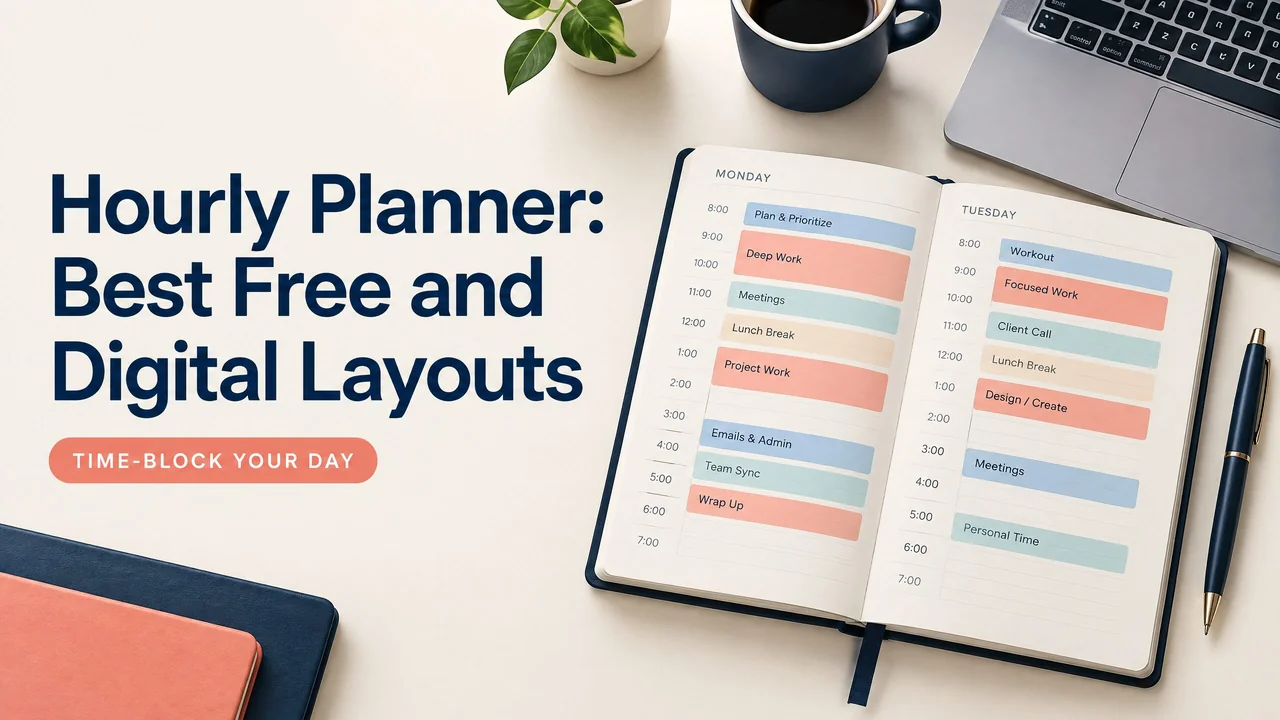
An hourly planner helps you see where your time goes and decide what deserves a place on your day. A simple page with hourly rows, a short task list, and room for notes works on paper, as a printable PDF, or as an offline digital file.
For more planning ideas, visit the Nexaly Planner journal.
Quick answer: Choose an hourly planner when your day has appointments, focused work, classes, or handoffs that need specific times. Paper is fast and distraction-free. A printable PDF works well for handwriting. An offline browser file adds digital convenience without depending on a cloud account. Keep the layout simple so planning takes minutes.
What is an hourly planner?
An hourly planner is a daily schedule divided into time blocks. You write an appointment, task, or event beside the time when you expect to do it. Unlike a task list, it shows how work fits into the available hours.
Imagine a Tuesday with a 9:00 a.m. team meeting, a report due at noon, and school pickup at 4:30 p.m. A practical plan reserves time for setup, the meeting, report work, lunch, and closing tasks. Empty spaces can hold breaks, messages, or work that takes longer than expected.
Hourly planning is not a promise that every minute will go exactly as planned. It is a visible estimate that helps you choose what fits. If an appointment moves, shift the affected block and keep the day realistic.
Paper, printable, and digital hourly planner layouts compared
If hourly blocks feel too rigid, compare the daily planner 2026 layouts for a priority-led page. Our day planner versus daily planner guide explains when a timed schedule is useful.
Each format solves a different problem. Consider how you capture information, where you work, and whether you need the same page on more than one device.
| Layout | Best for | Strengths | Limits |
|---|---|---|---|
| Paper planner | Quick writing and low-distraction planning | Immediate, portable, and easy to mark up | Changes require crossing out or rewriting |
| Printable PDF | Handwriting with a repeatable page | Can be printed again and stored as a familiar worksheet | Needs a printer, paper, and a way to organize copies |
| Browser-based offline HTML | Digital planning without relying on a live connection | Opens in a browser and can be convenient on one device | Offline behavior depends on how the file is built and saved |
| Cloud app | Plans that need access across devices | Useful for syncing, search, reminders, or shared calendars | Often depends on an account, app settings, and network access for sync |
| Goodnotes PDF layout | Handwritten planning on a compatible tablet or phone | Lets you write on an imported PDF and keep pages together in the app | Works within the app, and tools or behavior can vary by version and device |
| Notion hourly page | Flexible typed planning and linked work notes | Easy to reshape a page or combine time blocks with project information | More setup than a fixed page, and offline access and syncing depend on the platform |
A paper page is simplest if you like a pen and do not need to move information between devices. A printable PDF gives you a clean copy whenever you need a new day and can be marked up in Goodnotes when that fits your workflow.
A browser-based offline HTML planner is different from a cloud app. It may open locally without a connection, but that does not automatically mean it has offline saving, cross-device access, or sync. Check how the file stores entries before relying on it away from the internet.
Notion can work well when an hourly plan needs project context, links, or notes. You create or adapt the page, and offline and synchronization behavior can vary by device, app, and account settings. A fixed PDF or paper layout may require less preparation.
For more detail, see this practical guide to offline digital planners.
Three useful cases for an hourly planner
1. A meeting-heavy workday
Meetings create work before and after the calendar event. Reserve preparation, attendance, follow-up, and a short buffer. Put the most important independent task in a low-interruption block.
A schedule could show a 9:00 meeting, 10:00 to 11:30 for a report, 11:30 to noon for email, and 2:00 to 3:00 for a review call. The remaining blocks make room for routine work.
2. Classes, study, or appointments
Students and people with several appointments benefit from seeing fixed events first. Add class or appointment times, travel, and meals before assigning study or household tasks. A student can also use this student planner guide alongside an hourly page.
3. A day with changing energy or responsibilities
An hourly page can make a flexible day easier to adjust. Put a demanding task in one block, then leave smaller tasks for later. If responsibilities change, label blocks by outcome rather than filling every line.
Some adults prefer a planner that combines time blocks with a short priority list and room to reset. This guide to planners for adults with ADHD discusses that broader approach.
A realistic workday example
Suppose Maya works from home and has a report, two calls, and an errand. She starts with fixed commitments:
| Time | Plan |
|---|---|
| 8:30–9:00 | Review priorities and open the report |
| 9:00–10:30 | Draft the report |
| 10:30–10:45 | Break and messages |
| 10:45–11:30 | Client call |
| 11:30–12:00 | Write call notes and choose next steps |
| 12:00–1:00 | Lunch away from the desk |
| 1:00–2:00 | Finish and proof the report |
| 2:00–2:30 | Send the report and update the task list |
| 2:30–3:00 | Buffer for late work or urgent messages |
| 3:00–4:00 | Team meeting |
| 4:00–4:30 | Errand preparation and travel |
| 4:30–5:00 | Close open loops and plan tomorrow |
This example leaves room for interruptions and separates drafting from follow-up. If the client call runs long, Maya can use the buffer instead of moving every later block. The goal is to make tradeoffs visible.
How to get started with an hourly planner
Start with one day, not a complete life system. Choose a page that shows the hours you actually use. A student, shift worker, or caregiver may need a custom range.
Write fixed commitments first, including appointments, meetings, classes, pickup times, and travel. Next, choose one to three outcomes that matter. Give each outcome a large enough block, then add short blocks for messages and administration.
Leave at least one buffer when your day has uncertain tasks. It is where delayed work, setup, or a longer conversation can go without breaking the plan.
Use a short label such as “draft outline” or “send invoice” instead of “work.” If a task needs several sessions, split it across blocks. At day’s end, move unfinished work deliberately rather than copying every item into tomorrow.
For a ready-made digital starting point, browse Nexaly Planner’s digital planner layouts. Pick a format that matches the device and writing method you use.
Common hourly planning mistakes
Filling every hour. A full grid leaves no space for transition, delays, or rest. Keep open periods or add a visible buffer.
Treating estimates as deadlines. An hourly block is a plan, not proof that a task will finish on time. Revise it when new information arrives.
Writing tasks that are too broad. “Marketing” or “housework” does not tell you what to do. Name the next visible action, such as “draft email subject lines” or “load the dishwasher.”
Ignoring fixed events. A task list cannot show travel or meeting time. Add those commitments first so the remaining work has an honest place.
Choosing a format that creates friction. A complex app is not automatically better than paper. If setup takes longer than planning, use a simpler layout.
Using the page as a record only. Review it in the morning and adjust it when the day changes.
Frequently asked questions
Is an hourly planner better than a daily to-do list?
They answer different questions. A to-do list records what you want to complete. An hourly planner asks when each item can fit. Many people use a short to-do list beside the time grid rather than choosing one format exclusively.
Can I print an hourly planner at home?
Yes. A printable PDF can be printed if its page size matches your printer settings. Review the print preview, especially when the page has specific margins or orientation.
Can I use a printable PDF in Goodnotes?
Goodnotes can import and annotate PDF files on supported devices. The PDF is the page you write on, while Goodnotes supplies organization and writing tools. Check your current version and device settings for details that may change.
Is a browser-based offline planner the same as a cloud planner?
No. An offline browser file may open locally without a network connection. A cloud planner usually stores or synchronizes information through an online service, though some apps offer limited offline modes. Confirm where entries are saved before travel.
Can I make an hourly planner in Notion?
Yes. You can build a page with time blocks, a table, or another structure. Notion is more flexible than a fixed worksheet, but requires more setup. Offline access and synchronization depend on the app, device, and account conditions.
How many hours should an hourly planner show?
Show the hours that matter to your day. A student, shift worker, or caregiver may need a different range. The best page is readable and does not force tiny writing.
Should I schedule breaks in an hourly planner?
Yes. Add meals, short breaks, transitions, or buffer time. If breaks are invisible, the schedule can become unrealistic.
What should I do when I miss a time block?
Pause and reassess. Move the task to an open block, shorten its scope, delegate it, or place it on another day. Avoid shifting every item automatically.
Key takeaways
- An hourly planner shows when work can happen, not just what needs doing.
- Paper and printable PDFs suit handwriting, while offline HTML and cloud apps suit different digital needs.
- Goodnotes is useful for writing on imported PDFs; Notion is better when you want a flexible workspace around your time blocks.
- Start with fixed commitments, one to three outcomes, and at least one realistic buffer.
For the broader method, see how to plan a realistic day. If a full hourly grid feels demanding, try a lighter planner layout or preview the focus-friendly ADHD Digital Planner.