
Direct answer: Offline AI Business Copilot is a browser-local operating desk for recording selected business facts, reviewing a daily brief, checking cash and receivables, measuring local marketing evidence, and asking an Offline AI Agent to explain priorities. It is best for an owner or manager who wants a private, owner-controlled workspace without sign-in or required internet access. It is not a bank connection, accounting system, shared cloud database, automatic marketing platform, or autonomous agent that contacts people or changes external records.
What you see on first launch
The audited edition opens as NexalyPlanner AI Business Copilot in a demonstration workspace. The sample records are intentionally visible so you can inspect the product immediately. The Home screen warns: “These records are sample data, not your business results.” The sample dashboard includes values such as recorded sales, cash on hand, open receivables, and supplier payables. Treat them as a tour, not as a report about your company.
The product is already unlocked in the audited state. It does not require an account or internet connection to use the Offline AI Agent and core local workspace. The application identifies itself as AI Business Copilot · Browser-local, with an IndexedDB workspace · Portable backups. Your first decision is whether to explore the demonstration or replace it with a blank local workspace.
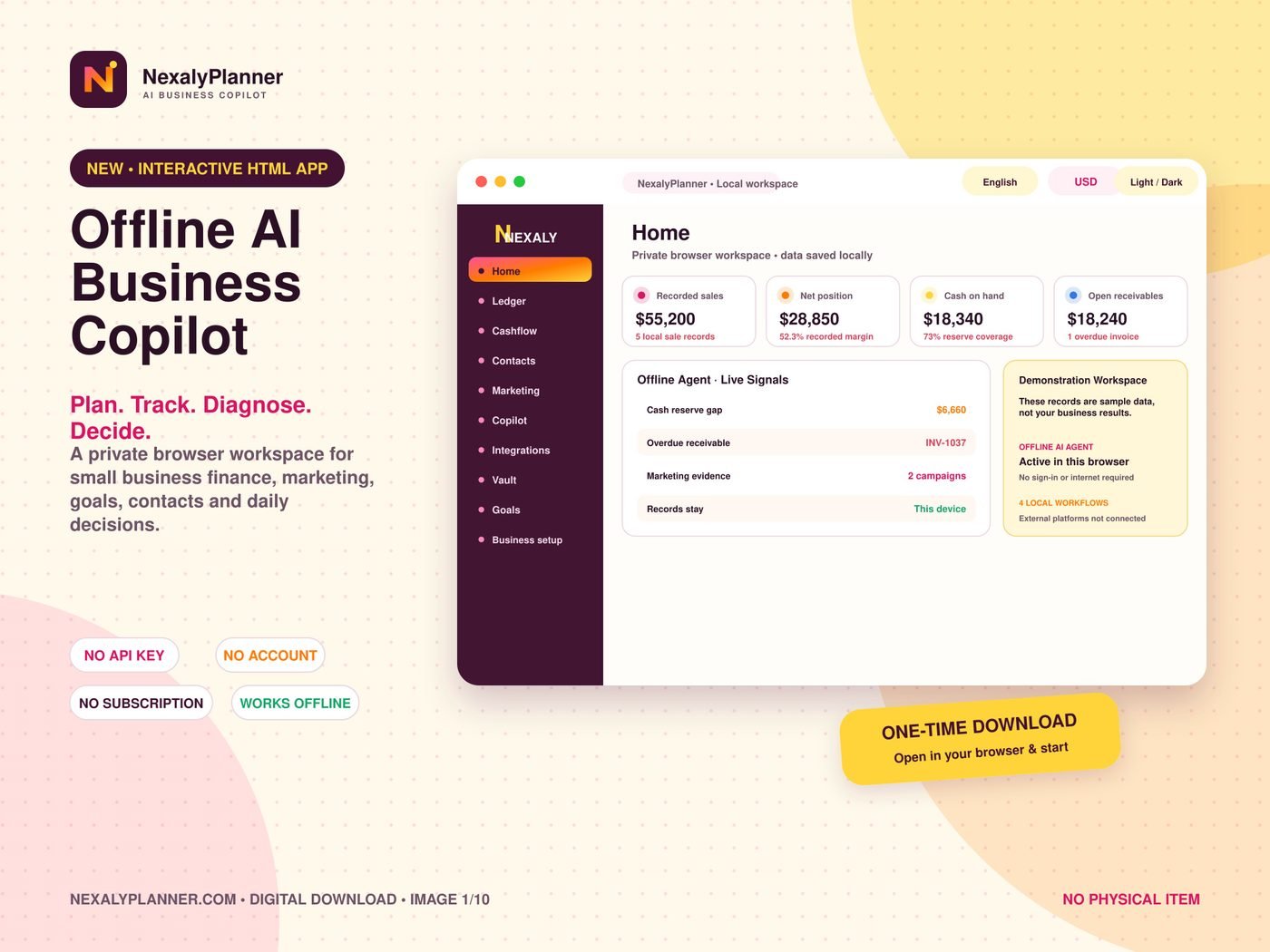
Figure 1. Baseline Home screen for the audited demonstration workspace. The dashboard is a local operating view; sample values must be replaced before using it for your business.
Quick start: your first 20 minutes
- Explore the sample workspace without relying on its numbers. On Home, review 01 OFFLINE DAILY BRIEF, 02 LIVE SIGNALS, and 03 LOCAL PROOF. The “live” label refers to calculations from records retained in this browser, not a live bank, advertising, or accounting feed.
- Decide whether to keep the sample. If you want a clean start, choose Start clean workspace and confirm the replacement. This removes the current browser-local workspace and starts a blank owner setup. Export an encrypted backup first if you want to preserve the sample records.
- Open Business setup. Save your business identity, market profile, display currency, fiscal-year preference, annual revenue goal, minimum cash reserve, and future invoice numbering as appropriate. Saving changes only this browser workspace.
- Set USD if you operate in the United States. The global display currency selector includes USD and many other ISO currency codes. Changing the display currency relabels stored numerical values; it does not exchange-rate convert them.
- Add the minimum local evidence. Record a sale or ledger item, add a customer or supplier in Contacts, and enter a campaign in Marketing if you have campaign data. The Home brief becomes more useful as the local records become complete.
- Review the outcome before acting. Use Cashflow to inspect the 30-day plan, reserve exposure, open invoices, and supplier due dates. Use Copilot to ask why a priority appeared. Verify every fact yourself.
- Create an encrypted backup. In Vault, choose Create encrypted backup, set a passphrase, and store the downloaded file separately from the passphrase. The app does not save the passphrase or automatically export anything.
- Optionally configure the browser privacy screen. Use the Vault privacy-lock control if the device is shared. This is a privacy screen, not encryption of the browser database or a replacement for device security.
Complete menu and screen map
The verified navigation is called the Operating Desk. These are the available menu destinations and their practical purpose.
| Menu label | What it is for | What it does not do |
|---|---|---|
| Home | Daily brief, business health, local signals, goal trajectory, marketing summary, startup checklist, and local proof | It does not fetch live financial or advertising data |
| Ledger | Review local transactions and ledger evidence, with filters and local CSV export/import paths | It is not bank reconciliation or tax accounting |
| Cashflow | 30-day local cashflow plan, invoice timing, supplier payables, aging, and reserve exposure | It does not connect to a bank, pay a bill, or guarantee collection |
| Contacts | Customer and supplier directory, search, filters, CSV intake, bulk local updates, and receivable context | It does not send contact data to a server |
| Marketing | Campaign records, local ROAS, ROI, CAC, CTR, conversion metrics, guardrails, and a marketing brief | It cannot publish, pause, edit, or fund a campaign |
| Copilot | Offline explanations, priority reasoning, scenario-style analysis, and owner-selected interest notes | It cannot approve, send, buy, transfer, or change records |
| Integrations | Status of IndexedDB, Vault, reviewed CSV workflows, Offline AI, marketing calculations, and unavailable external connections | Etsy, Google Ads, Meta Ads, and Shopify are not connected in this edition |
| Vault | Encrypted portable backup, restore, restore rehearsal evidence, demonstration reset, and browser privacy lock | It cannot recover a forgotten backup passphrase |
| Goals | Annual revenue, minimum cash reserve, marketing ROAS, and up to 50 custom goals | Goals do not create motivation-only advice or external tasks |
| Business setup | Local business identity, market and currency settings, date/fiscal preferences, invoice numbering, and targets | It does not create an external account or sync profile |
The sidebar also exposes a Language selector and a Global display currency selector. A sun/moon control switches the light or dark appearance. These preferences are local.
Setup, privacy, language, and currency
1. Save the business profile
Open Business setup and complete only the details you are comfortable retaining in this browser. The audited application describes the profile as your business name, business details, operating market, base currency, fiscal-year start, and date format. For a US operator, select the US/Tier-1 market profile when that is the appropriate choice and use USD as the display currency.
The setup page also includes primary targets such as Annual revenue goal and Minimum cash reserve. These values drive deterministic checks. For example, the Home brief can identify a reserve gap or compare the current month against the annual trajectory. A target is a planning input, not a forecast supplied by a bank or accountant.
2. Choose language and appearance
The available language choices are English, Arabic, Portuguese, Spanish, Dutch, French, and Italian. The saved language changes the navigation shell and the Offline AI Agent response language. Arabic also changes document direction to right-to-left. The light/dark control changes the Pink, Yellow and Orange Sunburst Pop appearance. Neither language nor theme changes business calculations.
3. Configure invoice numbering
If you create local invoices, set an Invoice prefix and Next invoice number in Business setup. The product validates a prefix of 1–12 letters, numbers, or hyphens and a whole-number next value within its supported range. This preference changes only future local invoice references. It does not renumber historic invoices, create an invoice, upload anything, or contact a customer.
4. Understand the privacy boundary
Core records stay in browser IndexedDB, which is the single source of truth for the active browser profile. The Offline AI Agent performs no network request. An optional online Copilot mode and the separate owner-selected interest briefing are consent-controlled and should not be confused with the offline agent. Business data, contacts, ledger records, backups, and payment facts are not attached to the public-interest Google News query.
The optional browser privacy lock can lock on reload, when the browser is backgrounded, or after five minutes of inactivity. Use a passcode of at least eight characters. It is a screen lock for this browser session. It is not encryption of IndexedDB and is not a substitute for your operating system’s device lock.
Feature-by-feature implementation guide
Home: start with the local operating desk
Home is the best daily entry point. Its top brief uses the current local facts to state a priority such as recovering overdue receivables. The audited sample view shows a health score, recorded sales, net position, cash on hand, reserve coverage, open receivables, marketing records, and local data bridges. Values recalculate from retained records; they are not imported from external services.
Use the three Home sections in order:
- 01 OFFLINE DAILY BRIEF gives the concise morning priority and actions such as Review with Copilot and Open today’s ledger.
- 02 LIVE SIGNALS ranks local priorities. In the sample it identifies overdue receivables, a reserve gap, and overdue supplier payables. Signal order can change when risks are comparable, but facts do not change without data.
- 03 LOCAL PROOF shows evidence and readiness. The OWNER STARTUP CHECKLIST includes confirming local business setup, reviewing local business records, creating an encrypted backup, and choosing a privacy screen.
Home may also show Owner-controlled online interest briefing. Save public topics in Copilot, then choose Open Google News for my interests only when you want to open a browser search. The app passes only the saved public-interest query to the official Google News page. It does not fetch, summarize, or save articles automatically. You can read in your browser and save your own short takeaway as a local note.
Ledger: keep the local evidence current
Open Ledger to review local entries and use the available search, date-range filters, and local export controls. The ledger is the source for recorded sales, expenses, cash calculations, and other local evidence shown in the dashboard. Use Open today’s ledger from Home when the daily brief identifies a record that needs verification.
A practical local-ledger procedure is:
- Enter or import the owner-verified transaction data through the available Ledger workflow.
- Review the row, date, amount, status, and relationship to a customer, supplier, invoice, or sale before saving.
- Use filters to isolate the period or evidence relevant to the current decision.
- Export the visible ledger CSV when you need a local working file. The export creates a browser file; it does not upload data.
- Return to Home and Copilot after material changes so the brief is based on the new snapshot.
The application’s invoice boundary is explicit: sales remain the source of revenue truth, while invoices explain who owes what. A local invoice can create a linked sale and receivable, but it is not emailed, uploaded, charged, or sent.
Cashflow: inspect timing before spending
Cashflow presents a LOCAL CASHFLOW PLAN · 30 DAYS. It uses the saved cash balance, remaining invoice balances, payment records, and recorded supplier payables. It is a planning view, not a bank reconciliation, tax document, accounting record, or collection guarantee.
To use it for a weekly cash review:
- Open Cashflow and check the 30 day cashflow summary.
- Compare Open + overdue invoice balances with the Below reserve target or Reserve covered status.
- Read the timeline by date. The product places an invoice balance on its due date and shows overdue balances as local planning facts, not guaranteed cash.
- Review SUPPLIER PAYABLES and the Seven-day reserve exposure. Filter local supplier due dates and compare the forecast minimum with the reserve target.
- Open supplier aging when you need remaining balances grouped by overdue timing. Use local CSV export or browser print-to-PDF if useful.
- Review any prepared reminder draft, copy it locally if needed, and contact the supplier yourself. The app cannot send a supplier reminder, pay a bill, connect a bank, or create an alert.
A supplier payable with no assigned timing is labeled timing unknown or placed at the end of the horizon. Add an expected supplier outflow when you have verified a date. Do not treat a payable, reminder draft, or reserve signal as proof that a payment or supplier conversation occurred.
Contacts: maintain customers and suppliers
Contacts is a local relationship workbench for customers and suppliers. Use search and filters to find a record, add a local note, or apply a reviewed bulk update. The product supports Import contacts CSV and a reviewable contact-import audit. Imported contact data stays in the browser, and the importer does not silently create external accounts.
For a clean contact intake:
- Prepare a CSV with a header row and at least one customer or supplier row.
- Choose Import contacts CSV and map every required contact field.
- Inspect duplicate candidates and rejected rows before committing accepted local rows.
- Review the CONTACT IMPORT AUDIT and keep the local import history for traceability.
- Use the customer record when creating an owner-controlled invoice or reviewing receivables.
The local invoice desk is labeled CUSTOMER RECEIVABLES. It shows customer invoices, recorded receipts, and explicit status changes assembled locally. For an overdue invoice, the app can prepare a follow-up draft. You may review or copy the wording, but no external message is sent. Marking an invoice paid requires recording the remaining payment first; the product does not infer a payment from a message or a bank feed.
Marketing: measure evidence without automatic ad actions
Open Marketing for MARKETING INTELLIGENCE · LOCAL-FIRST. Add a campaign with New campaign or import a reviewed CSV. The useful minimum is campaign name, channel, dates, spend, attributed revenue, clicks, and conversions. The campaign table and decision brief remain local.
The app calculates these metrics locally:
| Metric | Local formula and interpretation |
|---|---|
| ROAS | Attributed campaign revenue ÷ campaign spend. A 3.00× ROAS means $3 of attributed revenue per $1 of spend; it is not profit. |
| Marketing ROI | (Attributed revenue − marketing spend) ÷ marketing spend × 100. It is a planning indicator and excludes costs you did not enter. |
| CAC | Campaign spend ÷ conversions. If conversions are zero, CAC is unavailable rather than invented. |
| CTR and conversion metrics | Calculated from the campaign fields available in the local record. |
Set Target ROAS and Maximum CAC as guardrails. Then compare campaign-level results with the blended result. Avoid treating a tiny sample as stable evidence. A weak ROAS or high CAC is a review signal, not permission for the app to pause, publish, edit, or fund a campaign.
Copilot: ask for explanations, not permission
Copilot contains the Offline AI Agent and a seven-language response shell. It reads local records and explains the evidence behind priorities. Useful prompts include:
- “Which flagged item has the greatest effect on cash, profitability, or marketing decisions?”
- “Review the oldest open local receivable and upcoming supplier commitments together.”
- “Compare the strongest and weakest campaign against saved ROAS and CAC guardrails.”
- “What should I verify before approving another discretionary expense?”
The agent can perform local calculations and scenario-style reasoning. Scenario mode does not change a budget, campaign, price, order, or business record. The product repeatedly states that the owner must make the final choice. Copilot cannot approve, send, buy, transfer, publish, or contact anyone.
The Copilot desk also contains OWNER-SELECTED ONLINE INTERESTS and Reading Notes. These are for public topics outside the business. Save a topic profile, optionally consent to research of those public interests, open Google News from the browser, read the result yourself, and save a short local takeaway. The app does not ingest the article or create an automatic summary. Local notes and templates are retained in the local workspace and can be exported as a local CSV.
Integrations: know what is active
Integrations is a status and boundary screen, not an OAuth connection manager. The active local bridges are:
- Browser IndexedDB storage.
- Reviewed CSV import and export.
- Vault backup and restore.
- Offline AI calculations and responses.
- Marketing calculations for ROAS, ROI, CAC, CTR, and conversion metrics.
The audited edition explicitly says external platforms are not connected. Etsy, Google Ads, Meta Ads, and Shopify are not connected. Up to 25 team profiles can be kept as local reference entries, but they do not receive logins and cannot edit one shared database simultaneously. Maintain one master workspace on the owner or manager’s device. Use an encrypted backup for controlled transfer or recovery, not simultaneous editing or conflict-safe collaboration.
Goals: turn targets into local checks
Open Goals to set the primary Annual revenue goal, Minimum cash reserve, and marketing ROAS tracking. You can add up to 50 custom goals with a title and target greater than zero. Progress remains in the browser and travels in the portable backup.
For each goal, enter a measurable target that can be supported by your local records. Use See the reasoning on Home or Copilot to understand how recorded current-month revenue compares with the annual trajectory. A goal gap is a local calculation. It is not a guarantee that the business will reach or miss a target.
Vault: back up and restore deliberately
Open Vault for ENCRYPTED PORTABLE BACKUP · V1. Choose Create encrypted backup, create a passphrase, and download the file. The passphrase is never saved by the app, so a forgotten passphrase cannot be recovered by this workspace. Keep the file and passphrase separately.
The RESTORE WORKSPACE control accepts an encrypted portable V1 backup, an unencrypted portable V1 backup, or a legacy browser-MVP backup. Validation runs before the active local snapshot is replaced. Restore is a replacement operation, so export the current workspace first if you need to preserve it.
The Vault also offers an OWNER-CONFIRMED RESTORE REHEARSAL. First create and independently locate an encrypted backup. Then record the rehearsal evidence in the app. This evidence stores metadata such as type, version, time, and record counts; it does not read, retain, upload, or restore the file. A rehearsal record is not proof that a copy exists in a particular storage location.
Worked US example: a local service company on January 6, 2026
Assume Blue Ridge Home Services, a two-person residential repair business in Raleigh, North Carolina, starts a blank workspace on January 6, 2026. The owner selects USD, sets an annual revenue goal of $480,000, and sets a minimum cash reserve of $20,000.
The owner adds a customer named Oak Street Rentals and records local sale and invoice facts. Invoice BR-1042 is dated December 8, 2025, totals $4,800, and is due December 23, 2025. No payment is recorded. The Home brief can therefore identify an overdue local receivable, but it cannot claim that Oak Street Rentals will pay on a particular date.
The owner records $16,500 cash on hand and two local supplier payables totaling $6,200, with the nearer verified due date on January 10, 2026. Cashflow shows a $3,500 reserve gap before future receipts and payments. The owner verifies the dates and decides to call Oak Street Rentals outside the app. Copilot prepares evidence and a draft next step; it does not place the call or mark an invoice paid.
The owner adds a January campaign named Winter Tune-Up with $600 spend, $2,100 attributed revenue, 42 clicks, and 7 conversions. Marketing calculates ROAS as 3.50×, ROI as 250%, and CAC as approximately $85.71. The owner checks the saved targets and attribution dates before deciding whether to continue. No ad account is changed.
Finally, the owner creates an encrypted backup on January 6, stores the file in an owner-controlled location, stores the passphrase separately, and records a restore rehearsal after independently confirming that both are available. The next morning’s Home brief reflects the local updates. It still does not replace bank reconciliation, tax review, customer communication, or the owner’s judgment.
Daily and weekly operating routine
Daily: a 10-minute owner desk
- Open Home and read the OFFLINE DAILY BRIEF.
- Confirm the highest-priority amount against Ledger, Contacts, or Cashflow.
- Open Copilot and ask for the reasoning behind the priority.
- Take the external action yourself, if appropriate, such as calling a customer or deciding whether to delay a discretionary purchase.
- Record the resulting local fact, such as a verified payment, updated due date, or campaign conversion.
- Recheck the Home signal and avoid treating a draft as a completed action.
Weekly: a 30-minute evidence review
On a chosen day, review the Cashflow 30-day plan, seven-day supplier reserve exposure, overdue receivables, and invoice status. Inspect the Marketing campaign ledger and compare ROAS, ROI, CAC, and conversions with your saved guardrails. Review Goals against recorded revenue and cash reserve. Export a local CSV only when needed for a reviewed handoff. Create an encrypted backup after meaningful changes and keep the file outside the browser.
Offline storage, backup, and restore limitations
The product is local-first, not cloud-synced. Browser IndexedDB belongs to the current browser profile and device storage sandbox. Clearing site data, losing the device, changing browser profiles, or using another device can make the active workspace unavailable unless you have a valid backup.
Backups are explicit downloads. No export is automatic. The product does not prove where a downloaded file was stored, and it does not retain the encrypted passphrase. A restore replaces the active local snapshot after validation; it does not merge simultaneous edits. Use one master workspace and coordinate transfers through controlled encrypted backups.
An unencrypted portable backup may be available for compatibility, but encrypted backup is recommended for sensitive business data. The browser privacy lock does not encrypt IndexedDB. Keep the device locked, store backups in an owner-controlled location, and test recovery before an emergency. Do not describe a local backup as a hosted disaster-recovery service.
Advantages and disadvantages
Advantages
- Private by default: the core workspace and Offline AI Agent operate in the browser without required sign-in or internet.
- Evidence-led decisions: Home, Cashflow, Marketing, Goals, and Copilot use owner-entered local facts rather than invented live data.
- Clear action boundary: drafts and analysis do not silently send messages, buy stock, publish campaigns, or change records.
- Portable recovery: encrypted portable backups can be created when the owner chooses.
- Useful small-business scope: receivables, cash reserve, supplier timing, campaign metrics, contacts, goals, and local notes are presented in one operating desk.
Disadvantages and fit limits
- No cloud sync or simultaneous collaboration: the local workspace is not a shared team database.
- No live platform connections: advertising, ecommerce, bank, and supplier actions remain outside the app.
- Manual data discipline is required: incomplete dates, amounts, attribution, or payment records produce incomplete analysis.
- Not accounting compliance software: Cashflow and ledger views are planning tools, not tax documents, bank reconciliation, or accounting advice. Consult your CPA or bookkeeper for financial reporting and tax decisions.
- No autonomous external action: Copilot cannot contact customers, send supplier reminders, approve spending, or alter campaign accounts.
- Backup responsibility remains with the owner: a lost passphrase cannot be recovered by the app, and browser storage can be lost without a separately retained backup.
Troubleshooting and common mistakes
The dashboard still shows sample data. Open Home and choose Start clean workspace. Confirm the replacement, then complete Business setup. Export an encrypted backup first if the sample workspace contains notes or records you want to retain.
Changing currency changed the symbols but not the amounts. This is expected. The global display currency relabels formatting and does not apply exchange rates or convert stored numerical values.
Copilot’s priority looks wrong. Open the related Ledger, invoice, contact, or supplier record. Check dates, remaining balances, payment status, and duplicate imports. Copilot only sees the current local snapshot.
ROAS or CAC is unavailable. Add a non-zero campaign spend and verified conversions. CAC is intentionally unavailable when conversions are zero. Check campaign dates, attributed revenue, and conversion quality before acting.
Google News did not open. Save at least one interest topic, then use Open Google News from the browser. Allow pop-ups if the browser blocked the tab. The app cannot retrieve or summarize the page for you.
A backup will not restore. Confirm that you selected a supported portable or legacy backup, entered the correct passphrase for an encrypted file, and did not alter the file. Validation errors can indicate unsupported format, invalid metadata, failed integrity checks, or record-count mismatch.
The privacy lock does not work. Use a passcode of at least eight characters and a browser that supports the verifier. The lock is a local privacy screen, not storage encryption. Continue to use the device lock and encrypted backup.
A team member cannot edit at the same time. This is expected for the offline edition. Keep one master workspace and transfer a reviewed backup deliberately. True shared access requires a hosted database, authentication, and conflict-safe synchronization, none of which is provided here.
Frequently asked questions
Does Offline AI Business Copilot require internet?
No for the core local workspace and Offline AI Agent. The product states that no sign-in or internet is required. Optional online interest research and any optional online Copilot mode are separate, consent-controlled paths.
Does it connect to my bank or accounting software?
No verified bank or accounting connection is present. Cashflow uses local cash, invoice, payment, and payable facts. It is not bank reconciliation or accounting compliance software.
Will Copilot email a customer or supplier?
No. It may prepare a local invoice follow-up or supplier reminder draft. You decide whether to copy, edit, and send it outside the app.
Can I use Google Ads, Meta Ads, Shopify, or Etsy from Integrations?
Not in this audited edition. Integrations identifies these external platforms as not connected. Marketing calculations run on owner-entered or reviewed CSV campaign records.
Does changing USD to another currency convert my financial data?
No. It changes display formatting only. Stored numbers are not exchange-rate converted.
Can I restore a backup on another device?
You can choose a portable backup file on another device when the browser supports the format, but migration is not silent. The workspace remains tied to browser storage until you explicitly restore the file. Keep the passphrase separately and verify the result.
Is the browser privacy lock encryption?
No. It is an owner-controlled privacy screen. Use the device lock and encrypted portable backup for stronger protection.
Is the sample workspace a business forecast?
No. Sample records are demonstration data. Start a clean workspace and enter your own verified facts before using the brief for business decisions.
Next step and related Nexaly resources
Review the Offline AI Business Copilot product and demo before entering your own records. For a separate sales and profit workflow, use the Sales Management System guide; for a broader offline software comparison, read the offline small-business software buyer guide.
The practical next action is simple: start a blank workspace, set USD and your reserve target, add one verified customer invoice and one week of cash commitments, then review the resulting Home brief before adding more data. If local privacy, deliberate backups, and owner approval matter more to you than live synchronization, this product is a strong fit. If you need shared users, automatic bank feeds, external campaign control, or accounting compliance, choose a hosted specialist system instead or use this product only as a local planning layer.
Explore Offline AI Business Copilot
Review product screenshots, included features, download details and current purchase terms.
View Offline AI Business Copilot