
What VendorPulse OS does
VendorPulse OS is a private, offline purchasing workspace for a small business that buys materials or components from suppliers. It connects suppliers, SKUs, quotes, landed-cost comparison, purchase orders, receipts, quality, invoices, cost history, scorecards, financial position, reports, and backups. Its purpose is to help an owner answer: what should we buy, from whom, at what accepted-unit cost, and what risk follows the commitment?
The audited product opens directly into a USA demo workspace rather than a password gate or onboarding-only screen. The sample business is Willow & Thread Studio, with records such as Pacific Textile Co., Organic Cotton Canvas, purchase order PO-2026-1041, and supplier invoices. Those records are demonstrations, not the user’s results. Replace or edit the sample records before using the dashboard for operating decisions. The interface header identifies the workspace as saved locally, and the sidebar states that all data stays on the device.
VendorPulse is not a cloud procurement network, accounting system, tax tool, customs adviser, or automatic purchasing agent. The source verifies local storage, calculations, manual entry, on-device reports, and JSON backup and restore. It does not verify cloud sync, live integrations, automatic email, bank connections, external actions, or legal and tax compliance. Treat figures as management information based on entered assumptions and verify invoices, duties, taxes, payment status, and commitments against source documents.
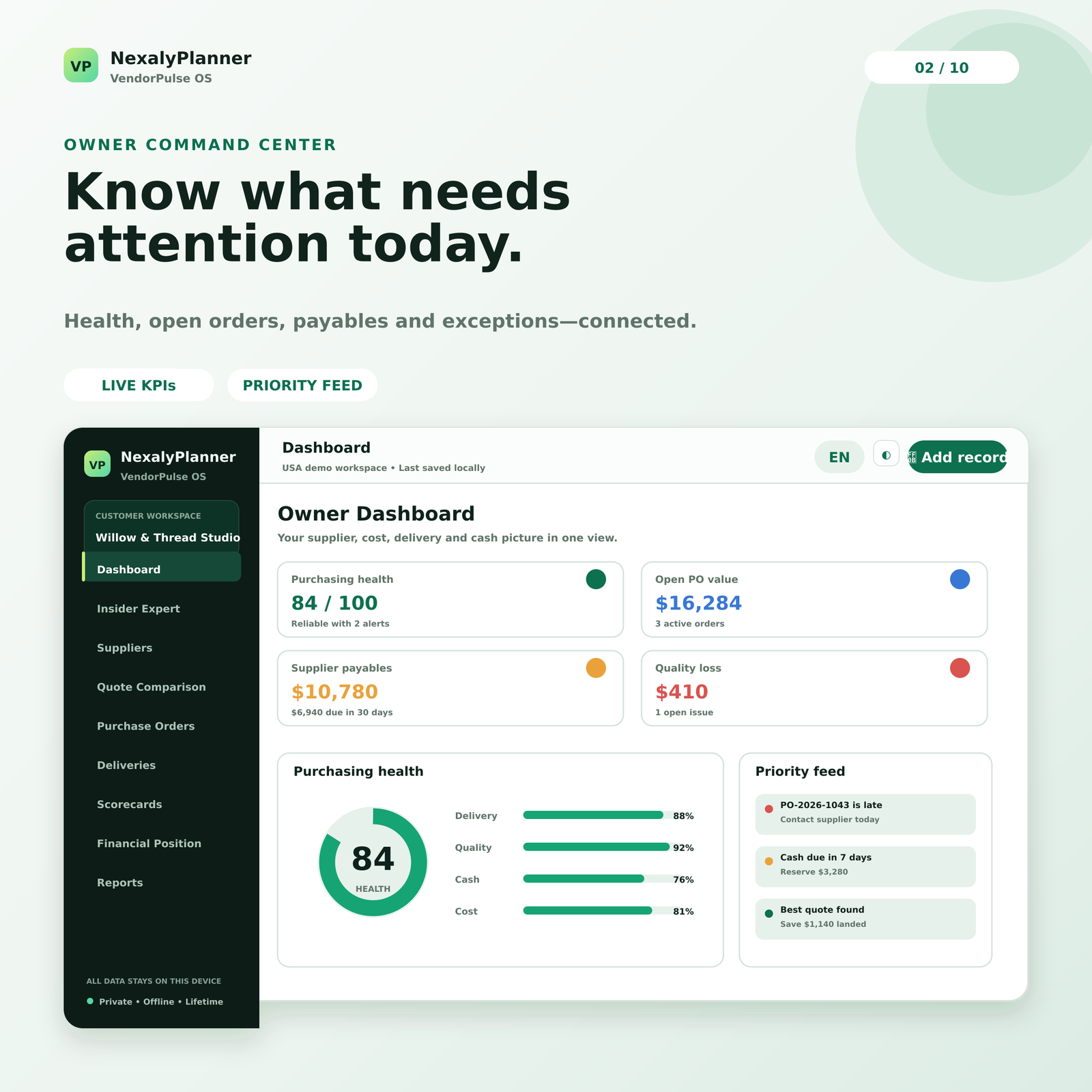
Figure 1. Baseline VendorPulse OS dashboard in the audited USA demo workspace. The dashboard is an orientation view; its cards and alerts recalculate from records stored in the current browser.
Quick start: first session
- Review the demo before entering live data. Open Owner Dashboard and note that the header says USA demo workspace. Use the sample records to learn the workflow, but do not treat the displayed cash, PO, or score figures as your business results.
- Open Settings. Enter the business name, owner or contact name, tax or business ID if you choose to store one, email, phone, address, base currency, interface language, theme, and recorded cash balance. Select the base currency before entering live records when possible.
- Create or edit supplier records. Capture the supplier code, name, contact, email, location, supplier currency, payment terms, standard lead time, minimum order quantity, and preferred status.
- Create or edit Materials / SKUs. Give each item a stable SKU or material code, unit of measure, quantity on hand, and reorder point.
- Enter current quotes. Include quantity, unit price, freight, duty or tariff, handling, other costs, expected reject or loss percentage, lead time, validity date, and quote date. Each saved quote also creates a landed-cost history snapshot.
- Use Quote Comparison before creating a PO. Select one material and compare accepted-unit cost, not unit price alone. Check lead time, expected rejects, total order cash, and quote validity.
- Create the Purchase Order. Record the selected supplier, material, quantity, unit price, freight, duty, handling, deposit, PO date, and promised delivery date.
- Record every receipt, including partial receipts. Enter total received to date, accepted quantity, rejected quantity, and receipt date. The system updates material stock by the increase in accepted quantity and marks the PO received, partial, or late according to the recorded dates and quantities.
- Record quality and invoices separately. Log rejected quantities and estimated loss cost as a Quality Issue. Add the supplier invoice, then record payments against it.
- Review the Insider AI Feed and Supplier Scorecards. Use them as evidence-led review aids. They calculate from local records and can surface late POs, low stock, price movement, concentration, quality loss, unpaid balances, and supplier performance.
- Download a JSON backup. Do this before replacing demo data, after initial setup, and on a regular schedule. Keep the file outside the browser profile.
Complete menu and screen map
| Menu or screen | What it is for | Main result to review |
|---|---|---|
| Owner Dashboard | Purchasing health, commitments, near-term cash pressure, exceptions, and action center | Health score, open PO value, cash needed within 30 days, late POs, and low-stock items |
| Insider AI Feed | Local evidence-based alerts and the Insider Expert question panel | Prioritized findings, confidence, evidence, and suggested owner actions |
| Suppliers | Supplier master records and relationship terms | Lead time, preferred status, and current calculated score |
| Materials / SKUs | Purchased items and reorder controls | On-hand quantity, reorder point, stock status, and best recorded landed cost |
| Quotes | Supplier offer records | Unit price, true landed cost per accepted unit, lead time, and validity |
| Quote Comparison | Side-by-side decision support for one material | Best true cost, alternatives, expected rejects, charges, and total order cash |
| Purchase Orders | Purchase commitments | PO value, promised date, status, received quantity, and receipt action |
| Deliveries & Backorders | Receipt progress and late-delivery monitoring | Received quantity, backorder quantity, promised date, actual date, and delay |
| Quality Issues | Rejected material and supplier resolution tracking | Issue type, rejected quantity, loss cost, notes, and open or resolved status |
| Invoices & Payments | Supplier payables and payment activity | Total, paid, balance, due date, status, and payment action |
| Cost History | Unit-price and landed-cost movement over time | Snapshots, percentage changes, highest cost, and monitored materials |
| Supplier Scorecards | Ranked supplier performance | Overall score, on-time rate, fill rate, reject rate, and recorded spend |
| Financial Position | Cash, commitments, payables, inventory estimate, concentration, and quality loss | Cash after near-term dues and current purchasing exposure |
| Reports | Branded printable and downloadable purchasing records | PDF, Word, Excel, and the full management workbook |
| Backup & Restore | Portable local backup, validated replacement, reset demo, and audit trail | JSON backup, restore preview, and recent local changes |
| Settings | Business identity and workspace preferences | Branding, currency, language, theme, and recorded cash balance |
The sidebar groups screens into Control, Purchasing, Performance, and Workspace. The top bar provides language, theme, and a context-sensitive Add record button. Tables include search. No delete-record action is verified; edit, add, resolve, pay, receive, restore, and reset-demo are the documented controls.
Setup, privacy, language, theme, and currency
Configure the workspace identity
Open Settings and complete the Customer business branding card. Enter the business name, owner or contact name, tax or business ID, email, phone, and business address. These values appear in the workspace and are included in generated reports and exported documents. The tax or business ID is a user-entered field; storing it does not turn VendorPulse into a tax filing or compliance system.
In Workspace preferences, set the Base currency, Interface language, Theme, and Recorded cash balance. The audited language choices are English, Arabic, Portuguese, Spanish, Dutch, French, and Italian. The currency selector supports the browser’s ISO 4217 currency list, with a built-in fallback list. A currency change changes display and report formatting; it does not perform exchange-rate conversion or rewrite existing numeric values. If a supplier quotes in a different currency, record that supplier currency and verify conversion assumptions yourself.
Select Light or Dark for the theme, then choose Save settings. The product records changes locally. The sidebar label Private • Offline • Lifetime describes the product’s local operating model; it is not a promise of an independent archival or security service.
Decide how to handle the demo workspace
The source provides Backup & Restore with Fresh demo workspace and a Reset demo data action. Resetting returns the app to the original USA sample records and asks the owner to download a backup first if current records are needed. For a live start, first save a copy if you have experimented with the demo, then edit the business identity and replace the records you intend to use. Because a bulk “start blank” control is not verified in this product source, do not assume one exists. Build the live workspace deliberately and keep a backup of the state you want to preserve.
Feature-by-feature implementation
1. Build supplier records in Suppliers
Open Suppliers and select Add supplier. Enter a supplier code, supplier name, contact person, email, city/state/country, supplier currency, payment terms, standard lead time in days, minimum order quantity, and the Preferred supplier checkbox. Select Save record. Existing suppliers can be opened with Edit. The table also offers Score, which opens Supplier Scorecards.
Use one supplier record per commercial relationship and keep payment terms consistent with written terms. The score is calculated from related POs, receipts, quantities, rejects, quotes, and spend; it is not typed here. Suppliers with no transactions receive defaults in some metrics, so record activity before using a score to award business.
2. Set up Materials / SKUs and reorder points
Open Materials / SKUs and select Add material / SKU. Enter the SKU or material code, material name, unit of measure, quantity on hand, and reorder point. The table shows Healthy when on-hand quantity meets the reorder point and Reorder when it falls below it. It also displays the best recorded landed cost from saved quotes.
Use a stable unit such as yard, piece, kilogram, or case. Keep the unit consistent across quotes, POs, and receipts. A reorder point is a planning threshold, not an automatic purchase trigger. The Insider AI Feed can flag it, but does not send an order or contact a supplier.
3. Capture quotes in Quotes
Open Quotes and select Add quote. Choose a supplier and material, then enter the quoted quantity, unit price, freight, duty or tariff, handling, other costs, expected reject or loss percentage, expected lead time, valid-until date, and quote date. Select Save record.
The application immediately stores a quote and creates a corresponding Cost History snapshot. The displayed True landed / unit value is calculated as:
(quantity × unit price + freight + duty + handling + other costs) ÷ (quantity × (1 − expected reject percentage))
This is an accepted-unit management estimate. It can expose the difference between a low base price and a low usable-material cost. It does not validate a carrier invoice, customs classification, tariff rate, tax treatment, or supplier quality claim.
4. Decide in Quote Comparison
Open Quote Comparison and select a material from the selector. VendorPulse displays each saved quote for that material as a card. The card shows the accepted-unit landed cost, base unit price, freight and handling, expected rejects, lead time, quote validity, and total order cash. The lowest recorded landed cost receives the Best true cost and Recommended for this quantity labels.
The label is decision support, not an automatic award. Before creating a PO, verify comparable quantities, quote validity, lead time, and charge assumptions. The source explicitly presents the comparison as “Evidence shown, owner decides.”
5. Create and print Purchase Orders
Open Purchase Orders and select Create PO. Choose the supplier and material, then enter order quantity, unit price, freight, duty, handling, deposit paid, PO date, and promised delivery date. Select Save record. VendorPulse assigns a PO number in the form PO-year-sequence, starts the record as open, and tracks received, accepted, and rejected quantities at zero.
PO value is merchandise value plus freight, duty, and handling. Deposits are tracked separately. Use Print on a PO row to open a printable purchase-order view containing supplier, dates, material, quantity, unit price, charges, total, deposit, and status. Printing is a local browser action; it does not transmit the PO to the supplier.
6. Record partial receipts in Deliveries & Backorders
Open Deliveries & Backorders or choose Receive from a PO row. Select the PO and enter Total quantity received to date, Total accepted quantity, Total rejected quantity, and Receipt date. Select Save record after every shipment or partial receipt.
The PO becomes received when received quantity reaches the ordered quantity. If it is incomplete and the promised date has passed, it becomes late. Otherwise, an incomplete order is partial. The delivery table calculates backorder as ordered quantity minus received quantity and shows the promised date, actual date, delay, and Backorder or Complete status. Accepted quantity increases the material’s on-hand stock by the increase since the previous receipt. Enter cumulative totals carefully; entering the same accepted quantity twice can make the stock movement misleading.
7. Log Quality Issues and resolution
Open Quality Issues and select Log issue. Choose a PO, enter an issue type, rejected quantity, estimated loss cost, issue date, and notes. The record starts open. Use Resolve after a credit, replacement, rework, or other owner-approved resolution has been documented. The same control can reopen a resolved issue.
The loss cost is an owner-entered estimate. It feeds the quality-loss report, Insider AI findings, and Financial Position summary. It is not automatically reconciled to a credit memo or invoice. Keep notes specific about inspection, failure, and resolution.
8. Add supplier invoices and payments
Open Invoices & Payments and choose Add invoice. Select the supplier and related PO, then enter invoice number, invoice total, already-paid amount or deposit, invoice date, and due date. VendorPulse assigns the status paid, partial, or unpaid based on the amount already paid.
To add a payment, select Record payment, choose the invoice, enter payment amount and payment date, and save. The payment is added to the existing paid amount up to the invoice total. The table calculates the outstanding balance and changes the displayed state to overdue when a balance remains and the due date is past the product’s current reference date. Confirm bank records and supplier statements before treating an invoice as settled.
9. Review Cost History
Every saved quote creates a price snapshot. Open Cost History to see the chart, highest recorded landed cost, number of price snapshots, number of monitored materials, and a table of date, material, supplier, unit price, landed cost, and percentage change. Select Export CSV for the price-history table.
Use the screen to identify rising supplier-material costs. The Insider AI Feed flags recorded increases above 3 percent. A trend is only as reliable as entered snapshots; it is not a market index.
10. Use Supplier Scorecards
Open Supplier Scorecards to rank suppliers. The table shows rank, supplier, overall score, on-time percentage, fill rate, reject rate, recorded spend, and tier: Preferred, Monitor, or Review.
The verified score weights are on-time delivery 35%, fill rate 25%, quality 20%, and cost stability 20%. On-time performance compares actual receipt dates with promised dates. Fill rate uses accepted quantity against ordered quantity. Quality is reduced by rejected quantity, and cost stability uses quote reject percentages as a proxy in the built-in calculation. With no supporting transactions, some measures use defaults, so read the score alongside the underlying POs, receipts, issues, and quotes. It is a purchasing management score, not a supplier certification.
11. Understand Financial Position
Open Financial Position to review four KPIs: recorded cash, open PO commitments, supplier payables, and estimated inventory value. The screen also shows supplier spend concentration, cash after 30-day supplier dues, total current commitment exposure, and recorded quality-loss cost.
Open PO value includes issued POs that are not fully received or cancelled. Supplier payables are unpaid invoice balances. Inventory value is estimated from on-hand quantities and the latest landed cost available for each material. These figures can overlap operationally, so use them for planning rather than double-counting them as cash, expense, and liability simultaneously. The product warns that duties, taxes, and import assumptions are user-entered.
12. Read Owner Dashboard and Insider AI Feed
Owner Dashboard summarizes purchasing health, open PO value, cash needed within 30 days, and exceptions. Its health model combines cost, reliability, cash, concentration, quality, and record completeness. The source uses weights of 25%, 20%, 20%, 15%, 10%, and 10%, respectively. The dashboard also shows a purchasing-health ring, five component bars, a next-60-days commitment chart, a priority feed, and an action center.
Insider AI Feed provides proactive findings and the VendorPulse Insider Expert. Suggested questions include “Which supplier is most reliable?”, “Which quote has the lowest true cost?”, “What is late or backordered?”, “What cash is due next?”, “Where are quality losses?”, “Explain the complete system”, and “What should I prioritize?” The Expert reads the current offline workspace, states evidence and confidence, requests missing records rather than inventing a result, and provides suggested next steps. Use it to organize review, not to delegate purchasing authority. It cannot buy, send, approve, contact, or change an external account.
Worked US example: canvas quote to late receipt
Assume Willow & Thread Studio needs 500 yards of Organic Cotton Canvas. On August 28, 2026, Pacific Textile quotes $6.42 per yard, $260 freight, $38 handling, and a 1.5% expected reject rate. Northstar quotes $6.08 per yard, $430 freight, $55 handling, $40 other costs, and a 4.5% reject rate.
Pacific Textile’s expected accepted quantity is 500 × (1 − 0.015) = 492.5 yards. Its estimated total is $3,210 + $260 + $38 = $3,508, or approximately $7.12 per accepted yard. Northstar’s expected accepted quantity is 500 × (1 − 0.045) = 477.5 yards; its total is $3,040 + $430 + $55 + $40 = $3,565, or approximately $7.47 per accepted yard. Pacific Textile has the lower accepted-unit estimate even though Northstar has the lower base unit price.
The existing PO PO-2026-1041 was dated August 12, 2026 and promised for August 30, with 500 yards ordered from Pacific Textile. On September 2, the demo shows 210 yards received, 204 accepted, and 6 rejected, leaving a 290-yard backorder and a late PO. A quality issue records weaving defects and $42.42 estimated loss cost. The related invoice totals $3,370, with $1,120 paid and $2,250 outstanding.
A sound owner review would therefore be: verify whether the remaining 290 yards have a revised committed date; check whether the 204 accepted yards cover current production; review the open quality issue and supplier response; avoid counting the $1,120 deposit twice; confirm whether the $2,250 balance is due; and compare an alternate quote before committing to a substitute. VendorPulse highlights these conditions, but the owner must verify the facts and choose the external action.
Daily and weekly operating routine
Daily purchasing check
Start with Owner Dashboard. Review open PO value, cash needed within 30 days, exceptions, and low-stock items. Open Deliveries & Backorders for any PO whose promised date has passed. Record receipts immediately, including accepted and rejected quantities. Then open Invoices & Payments and record new invoices or payments from the day’s documents. Finish by reviewing Insider AI Feed against the original source documents.
Weekly supplier review
Once each week, review Cost History for new price changes and export CSV if you need to share a local analysis. Open Supplier Scorecards and compare on-time, fill, reject, and spend metrics. For any supplier in Review or any supplier that exceeds the concentration warning threshold, gather a second quote for critical materials. Review Quality Issues and close only issues whose credit, replacement, or corrective action is documented. Finally, open Financial Position and reserve cash for supplier balances due within 30 days.
Monthly control routine
At month end, reconcile POs, receipts, invoices, deposits, payments, and on-hand quantities against source documents. Print or export the relevant reports from Reports, then download a fresh JSON backup. Store the backup in a location separate from the browser profile and label it with the date, such as vendorpulse-2026-09-30.json. Review the Backup & Restore audit trail.
Reports and exports
Reports includes Supplier Directory, Quote Comparison, PO & Backorder Status, Landed Cost History, Supplier Scorecards, Payables Forecast, Quality Loss, Financial Position, and Full Management Pack. Each report card offers PDF, Word, and Excel downloads. The source creates real .pdf, .docx, and .xlsx files on the device. The Full Management Pack creates a multi-section document and, for Excel, separate worksheets. Reports include NexalyPlanner, the saved business identity, contact details, currency, report title, and generation date. Set branding in Settings before producing a customer-facing or management-facing report.
Reports include the disclaimer “Management information only. User-entered costs and assumptions must be verified.” Preserve that limitation when sharing exports; they are not audited statements, tax filings, customs declarations, or legal contracts.
Offline storage, backup, restore, and device-change limits
VendorPulse stores records in browser localStorage under its own workspace key. The audited source requires no external script, font, API, or network request for its core operation. This supports local use and limits exposure from routine cloud transmission, but it also means the workspace is tied to the current browser profile and device. Clearing site data, using a different browser, removing a browser profile, or losing the device can remove access to unsaved records. Browser-local storage is not the same as a guaranteed encrypted vault or enterprise backup service.
Open Backup & Restore and choose Download JSON to create a portable JSON copy of records, branding, settings, audit entries, and related workspace data. The browser downloads a file named in the VendorPulse backup pattern. The product does not export automatically, so schedule a manual habit. Keep at least one copy outside the device and protect it according to your business’s privacy and access practices.
To restore, select a .json file under Restore with preview. VendorPulse validates that the file contains settings, suppliers, and purchase orders, then displays a preview with counts such as suppliers, POs, and invoices. Choose Restore this backup only after checking the filename and preview. Restoration replaces the current local state; download a backup of the current state first. An invalid or incomplete file is rejected with Backup could not be validated.
The reset-demo action restores the original USA sample workspace. It is not a merge and should not be used as a cleanup shortcut when live records are present. There is no verified cloud synchronization, multi-user conflict handling, automatic off-device backup, or background export.
Advantages and limitations
Advantages
VendorPulse links supplier terms, SKU thresholds, quote charges, accepted-unit landed cost, PO dates, receipts, quality loss, invoices, cost movement, scorecards, and financial exposure. Its calculations are inspectable, the local Insider Expert explains findings from saved records, and PDF, Word, Excel, CSV, print, audit-trail, and JSON options make data portable.
Limitations
The application depends on accurate manual entry and local storage. It does not verify supplier claims, reconcile banks, convert currencies at live rates, calculate tax or customs obligations, or provide accounting, legal, or procurement compliance advice. It does not connect to suppliers, banks, accounting platforms, carriers, or email in the audited edition. Health, supplier, concentration, landed-cost, inventory, and quality-loss figures are management calculations, not independent assurance; alerts should trigger review, not automatic decisions.
Troubleshooting and common mistakes
The dashboard still shows Willow & Thread Studio. The app is in its USA demo workspace. Open Settings and update the business identity and cash balance. Review all sample supplier, material, quote, PO, delivery, quality, and invoice records before relying on the dashboard.
A quote with the lowest unit price is not the winner. This is expected. Quote Comparison includes freight, duty, handling, other costs, and expected rejects. Compare accepted-unit landed cost and verify the assumptions.
A PO shows the wrong backorder. Receipts are cumulative. Enter total received, total accepted, and total rejected to date, not only the latest shipment amount. Check the PO quantity and the receipt date.
Stock increased unexpectedly. Stock increases by the increase in accepted quantity between receipt saves. Avoid entering the same cumulative accepted quantity as a new incremental quantity in another record.
An invoice says overdue. VendorPulse derives the displayed status from balance and due date against its current reference date. Confirm the due date, paid amount, and actual payment with the supplier or bank record.
A scorecard seems too generous for a new supplier. Suppliers with limited or no linked transaction history can receive default metric assumptions. Record promised dates, actual receipts, accepted quantities, rejected quantities, and quotes before using the score for a major award.
The Insider Expert says it needs more records. This is intentional evidence discipline. Add the relevant supplier, quote, receipt, PO, issue, or invoice, then ask again. It should not invent a result.
A backup will not restore. Confirm that the file is a VendorPulse JSON backup and that it was not renamed from another data format. Use the preview message. If validation fails, keep the current workspace unchanged and locate an earlier valid backup.
My records disappeared after changing browsers or clearing data. VendorPulse is browser-local. Restore a JSON backup in the browser profile you intend to use. Without a backup, cleared local storage may not be recoverable through the product.
Frequently asked questions
Is VendorPulse OS cloud-based?
No cloud sync is verified. The audited product saves records locally in the browser and states that all data stays on the device. It does not require a live connection for its core interface.
Does VendorPulse send purchase orders to suppliers?
No. It can create, print, and report on a PO. The audited source does not verify email sending, supplier portals, EDI, or any automatic external action.
Does the Insider Expert make purchasing decisions?
No. It explains records, formulas, alerts, and suggested next steps. The interface states that the owner controls every outside action. Verify its evidence and make the purchasing decision yourself.
Does a saved quote automatically create a PO?
No. A quote creates a price-history snapshot and can be reviewed in Quote Comparison. The owner must choose Create PO and enter the PO details.
How is landed cost different from unit price?
Unit price is the supplier’s base amount per quoted unit. VendorPulse adds freight, duty, handling, and other costs, then adjusts for expected rejects by dividing by expected accepted quantity. Use the result as a user-entered planning estimate.
Can I track partial deliveries and backorders?
Yes. Record cumulative received, accepted, rejected, and actual receipt date. The Deliveries & Backorders screen calculates the remaining backorder and delay, while the PO status becomes partial, late, or received according to the saved quantities and dates.
Does the product provide accounting or tax compliance?
No. Financial Position and reports are management information based on entered data. Verify tax, duties, tariffs, import assumptions, invoice treatment, and accounting records with the appropriate professional or system.
Can I change the display currency?
Yes. Settings supports the browser’s ISO 4217 currency list. Changing the currency changes formatting; it does not perform exchange-rate conversion or rewrite existing values.
Can I export the data?
Yes. Backup & Restore creates a portable JSON backup. Cost History offers CSV export. Reports creates PDF, Word, and Excel files, including a Full Management Pack with separate Excel worksheets.
Is the baseline interface password-gated?
No password gate is shown in the audited VendorPulse OS source. It opens into a USA demo workspace. That state is different from products that require an unlock screen; do not assume VendorPulse provides a password lock unless a later version explicitly adds one.
Next step for Nexaly Planner readers
Begin with the VendorPulse OS product page, then use the inventory and procurement workflow for reorder planning. The supplier quote comparison example explains total-cost checks before a purchase order; use the RenewGuard OS guide for supplier contract notice dates.
For the best first operating cycle, configure Settings, replace the demo identity, enter suppliers and SKUs, capture two quotes for one material, compare true landed cost, create one PO, record the receipt, log any quality issue, add the invoice and payment, review the scorecard, and download a JSON backup. Then return weekly to the Insider AI Feed and Financial Position before committing more purchasing cash.
Explore VendorPulse OS
Review product screenshots, included features, download details and current purchase terms.
View VendorPulse OS