
What the system can and cannot do
CalibraTrack OS is an offline instrument and calibration recordkeeping workspace. It brings due schedules, calibration events, certificate references, out-of-tolerance follow-up, service work and replacement cost context into one browser app. The included Austin, Texas workspace is fictional training data; the public demo is for sample exploration.
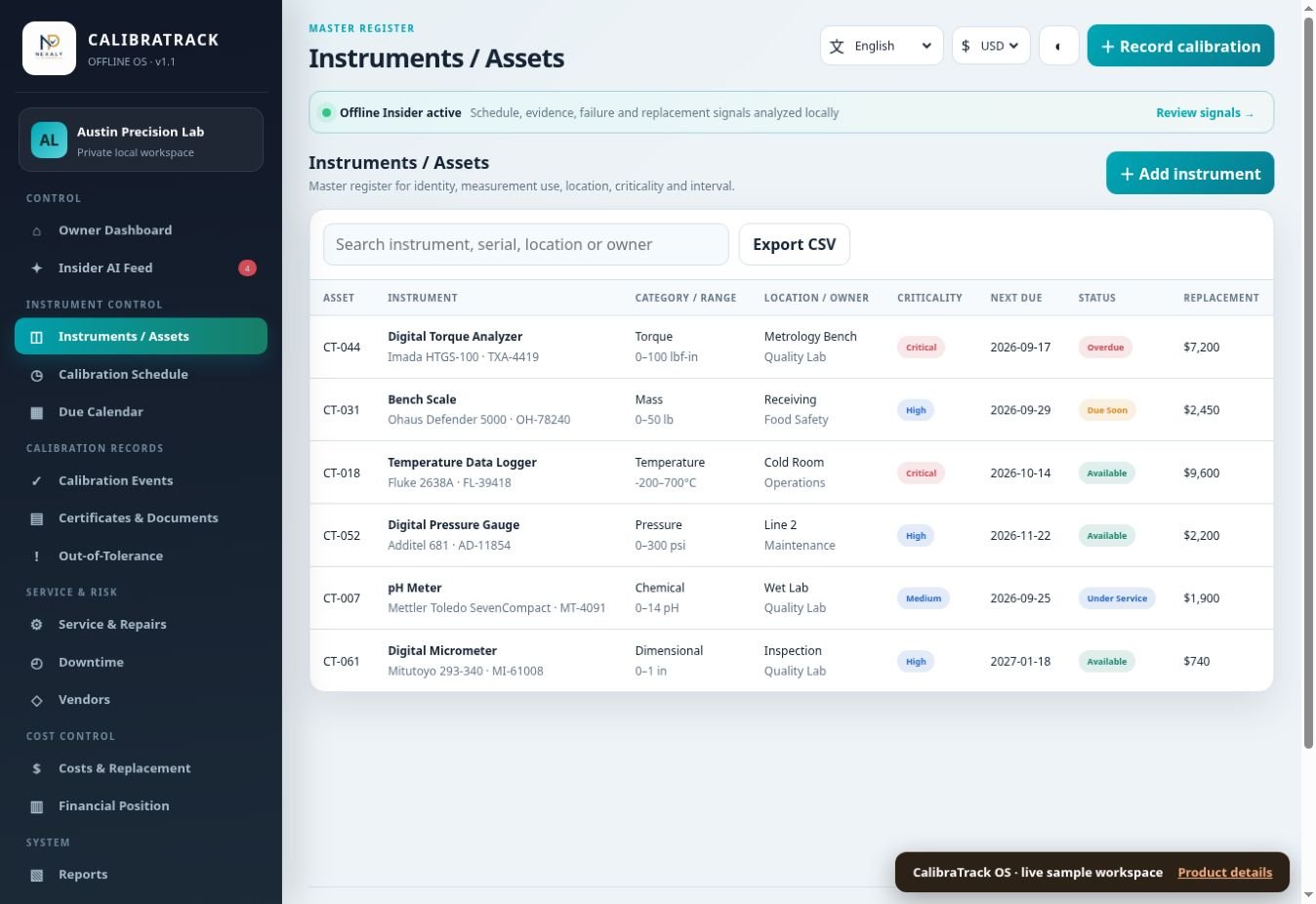
Review feature screenshots and buyer download details on the CalibraTrack OS product page.
The app does not perform a calibration, hold a certificate file, certify ISO or other compliance, decide fitness for use, or authorize return to service. Qualified personnel must review measurements, evidence and controlled procedures independently.
Direct answer: Use CalibraTrack to track instruments, due dates, calibration events and exceptions locally. Qualified staff control measurements, certificates and release decisions.
Quick start: your first 15 minutes
- Extract the buyer ZIP and open
NexalyPlanner_CalibraTrack_OS.htmlin a regular desktop browser. - Review fictional instruments and choose business name, language, currency and downtime-rate assumption in Settings.
- In Instruments / Assets → Add instrument, enter a unique asset ID, serial, owner, criticality, interval and verified next due date.
- Use Calibration Schedule and Due Calendar to compare due work with your controlled schedule.
- Record a Calibration Event with performed date, result, certificate reference, performer and next due date.
- For a Fail or Out of Tolerance result, log a review reference in Out-of-Tolerance and follow physical isolation and release procedures outside the app.
- If service is required, enter a Service & Repairs work order, cost and downtime.
- Check Reports, retain actual certificate files separately and download a full JSON backup.
Walk through all 16 screens
| Menu or screen | What to review or record | Status and scope |
|---|---|---|
| Owner Dashboard | Counts, due exposure, instrument health and immediate attention items. | Local browser record or view |
| Insider AI Feed | Local signals from dates, evidence, failures and replacement context; recommendations are prompts for human review. | Local browser record or view |
| Instruments / Assets | Asset identity, ownership, criticality, interval, due date and values. | Local browser record or view |
| Calibration Schedule | Upcoming and overdue work across the instrument register. | Local browser record or view |
| Due Calendar | Calendar view of scheduled work. | Local browser record or view |
| Calibration Events | Performed date, Pass/Fail/Out of Tolerance result, vendor, cost, downtime, certificate reference and next due date. | Local browser record or view |
| Certificates & Documents | Review reference and evidence completeness; retain actual documents in your controlled repository. | Local browser record or view |
| Out-of-Tolerance | Log observation, affected-use review reference, corrective action and Open/Under Review/Closed status. | Local browser record or view |
| Service & Repairs | Work type, vendor, scheduled/in-progress/complete status, parts, labor and downtime. | Local browser record or view |
| Downtime | Review recorded hours and related impact estimates. | Local browser record or view |
| Vendors | Compare service providers and related records. | Local browser record or view |
| Costs & Replacement | Inspect service and replacement context; decide separately with approved policy. | Local browser record or view |
| Financial Position | Review aggregated calibration/service costs and estimates. | Local browser record or view |
| Reports | Open views for review and export an instrument-register CSV. | Local browser record or view |
| Backup & Restore | Download JSON and restore a trusted file after replacement confirmation. | Local browser record or view |
| Settings | Set business name, language, currency, downtime rate, theme and demo reset. | Local browser record or view |
Extract, open and configure
- Extract the customer ZIP. Open
NexalyPlanner_CalibraTrack_OS.htmlfrom the extracted folder in a modern desktop browser. - Review the fictional instrument records before entering your own data. In Settings, enter business name, language, currency, theme and your hourly downtime-rate assumption.
- Choose one device and browser profile for the working copy. Export a Backup & Restore → Download JSON backup after setup and after significant changes.
- Replace examples with your real asset IDs and source-document references. Keep certificates and controlled records in your own approved document system.
Seven interface languages and 16 display currencies are offered. Currency changes formatting only and does not convert exchange rates.
Build a trustworthy instrument register
Open Instruments / Assets → Add instrument. Record a unique asset ID, name, category, manufacturer, model, serial number, measurement range/use, location, owner/team and criticality (Low, Medium, High or Critical). Enter calibration interval in days, the next due date, preferred vendor, purchase value and replacement value. The due date is an explicit field—check it against your controlled schedule; do not assume the app derives it from the interval for you.
Then use Calibration Schedule and Due Calendar to review approaching or overdue assets. Verify status and criticality against your organization's actual release and escalation rules before deciding whether an instrument can be used.
Set up and use the core workflow
Enter the asset and verify the schedule
Start with a unique asset ID and serial number so events cannot be assigned to the wrong instrument. Enter criticality, owner/team and the next due date from your controlled plan. The interval field does not replace the explicit due date. Check the Calibration Schedule and Due Calendar against the approved equipment list.
Record evidence and exception handling
When work is performed, record the event result, date, next due date, vendor and certificate reference. Keep the actual certificate and measurement data in a controlled repository. For an out-of-tolerance result, open an exception, reference an affected-use review and corrective action, and follow your organization's quarantine and release process. The app's Available or Under Service label is a record status; an authorized person decides fitness for use.
Record a calibration and respond to a failure
- From Calibration Events → Record calibration, select an asset and enter performed date, result (Pass, Fail or Out of Tolerance), certificate reference, vendor/performer, cost, downtime hours and the next due date.
- Saving the event updates the asset's next due field. A Pass sets its app status to Available; a Fail or Out of Tolerance sets the corresponding result status. That status is a record, not qualified release approval.
- For an out-of-tolerance result, open Out-of-Tolerance → Log. Enter event date, observed result, affected-use review reference, corrective action and Open/Under Review/Closed status.
- Follow your organization's physical tagging, quarantine, impact assessment, recalibration and sign-off procedure outside the app. Reference controlled evidence in the record.
Example: asset CT-044 has a calibration due date. A technician records an out-of-tolerance event, references affected-use review AUR-026 and opens corrective work. The team retains the original certificate and measurements in its controlled repository. Only authorized staff decide whether it returns to use.
A realistic US example
A US workshop has instrument CT-044 due for calibration. The technician confirms its serial and due date against the controlled register. The outside provider reports an Out of Tolerance result and issues a certificate. The owner records a calibration event with the performed date, result, certificate reference, cost and next due date.
The owner then opens an Out-of-Tolerance record, references affected-use review AUR-026, and begins corrective work. The physical instrument is held under the workshop's procedure while qualified staff review prior measurements and decide what action is needed. A later passing event or status change alone is not authorization for use; the signed release and evidence stay in the controlled system.
Service, downtime and replacement review
In Service & Repairs → New service work order, choose the instrument, opened date, work type (preventive service, corrective repair, adjustment or inspection), vendor, status, parts cost, labor cost and downtime hours. An In Progress work order sets the asset's app status to Under Service. Review Downtime, Costs & Replacement, vendor information and Financial Position together. The downtime-rate setting is an estimate, not a bank or accounting feed. Compare replacement value with actual repair quotations and qualified technical judgment.
For a broader repair queue, follow the RepairBench OS guide. If you review outside providers, the VendorPulse OS guide covers vendor performance records.
Reports, CSV and data protection
The CSV export contains the instrument register fields (such as asset ID, serial, owner, criticality, due date and replacement value). It is useful for a spreadsheet review, but it is not a full backup or proof of calibration. Use Backup & Restore for the complete JSON workspace. Import checks the product format and asks before replacing current local records. Save a dated backup before restore, browser cleanup or device migration and keep a second protected copy.
Data stays in the current browser profile on this device. Private/incognito windows and browser-data cleanup can remove it; there is no automatic cloud sync.
Recommended daily, weekly and monthly routines
Daily due and exception check
- Open Calibration Schedule for due and overdue instruments.
- Check Out-of-Tolerance records and service work awaiting action.
- Confirm any affected instrument is managed physically under the approved procedure.
Weekly instrument review
- Compare the app register with the controlled asset list and actual due dates.
- Check certificate references against the real files and resolve missing evidence.
- Review service costs, downtime and vendor follow-up.
- Download and protect a new JSON backup.
Monthly replacement review
Inspect Costs & Replacement and Financial Position with actual repair quotations and downtime records. A configured hourly rate produces an estimate, not an accounting or qualification decision.
For supplier contract notice dates alongside the calibration schedule, follow the RenewGuard OS renewal and notice workflow.
If service costs affect the next quarter, map expected payments in the CashFlow 13 OS weekly cash forecast.
Advantages and disadvantages
Advantages
The app connects asset identity, due dates, event history, exception follow-up, service work and cost context in a single local workspace. Its CSV export helps review the register; JSON backup supports full workspace recovery.
Limits
It does not perform measurements, store certificate files, prove ISO compliance, decide fitness for use, authorize release or sync data between browsers. Due dates and evidence depend on careful entry and controlled external records.
Troubleshooting and related workflows
- Due date is unexpected: inspect the asset's entered next due date and the latest calibration event's next date.
- Certificate appears missing: confirm its reference in the event and verify the actual file in your controlled document repository.
- Asset status remains Under Service: review service status and your qualified release process; do not treat a screen label as approval.
- CSV is not enough to restore: use a trusted product JSON backup instead.
For adjacent operations, see the RepairBench OS service workflow guide and VendorPulse OS vendor guide. View CalibraTrack OS and live demo.
Frequently asked questions
Does the interval automatically set the next due date?
The next due date is entered explicitly. Verify it against your approved schedule and event history.
Are certificates stored inside the app?
The app records certificate references. Keep original files and measurements in your controlled document repository.
Does Pass authorize an instrument for use?
No. The app records a status; qualified personnel must follow their release procedure.
What happens when a service work order is In Progress?
The app marks the linked asset Under Service. Check the real physical status and release controls separately.
Can I restore from an instrument CSV?
No. The CSV is a register export. A full JSON backup is required for restoring the workspace.
Does a currency change convert the recorded costs?
No. Currency selection changes formatting, not exchange rates.
Next step and related guides
Inspect an asset, event and exception in the CalibraTrack OS product page and live demo. For a wider repair queue, see the RepairBench OS guide; for provider evaluation, read the VendorPulse OS guide. Browse the product guides hub for other workflows.
Connect calibration evidence with service planning
The equipment calibration log example explains the distinction between an instrument record, a calibration event and the supporting certificate. For separate routine servicing, use the free Equipment Maintenance Due Planner to plan the maintenance dates and meter readings you enter.
A maintenance reminder does not establish calibration validity or replace a certificate, acceptance limit or out-of-tolerance investigation. Keep calibration evidence in CalibraTrack OS and service planning in the appropriate maintenance record. The workspaces do not synchronize automatically.
Continue in the software
See the actual screens and work through sample data before entering your own records.
Open the CalibraTrack OS live demoTry the product
Open the real interface with fictional sample records and review the product details.
Explore CalibraTrack OS