
Start here
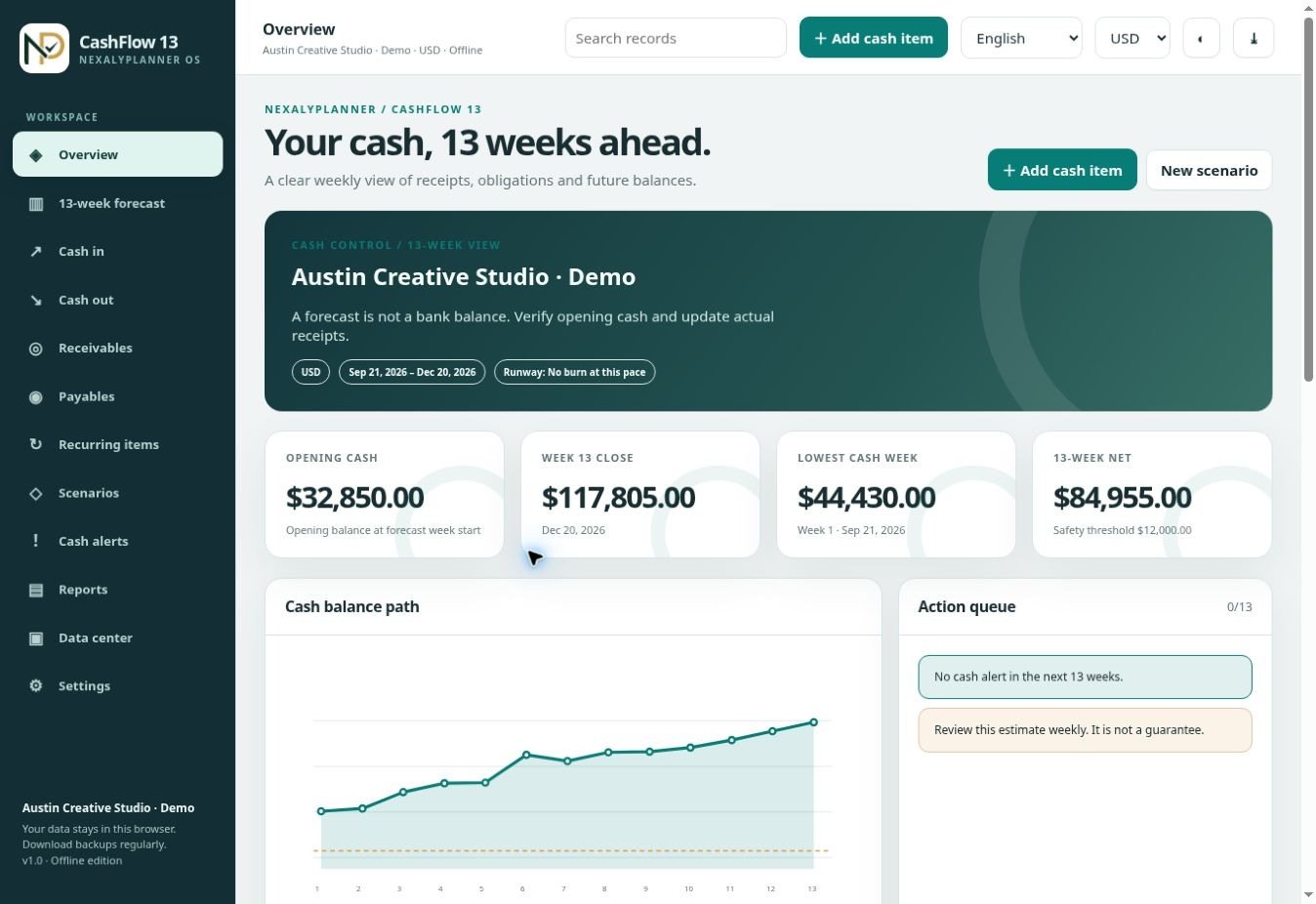
This manual explains the purchased single-file HTML app. The ZIP contains NexalyPlanner_CashFlow_13_OS.html, READ_ME_FIRST.txt and release notes with model limits. The public demo is temporary; use the extracted buyer app for your own data.
First 15 minutes: Extract and open the HTML file. Choose one base currency and Start Blank. Set the Monday forecast week, verified opening cash at the start of that week and minimum safety threshold. Add dated cash in/out; then review all 13 weekly closings and download a JSON backup.
1. Extract and start with blank data
Extract the ZIP and open NexalyPlanner_CashFlow_13_OS.html in a current desktop browser. Explore USA Demo if useful, then use Start Blank for actual business planning. Keep the app in a stable folder and use the same browser/profile. Private browsing and clearing browser storage can remove local records.
2. Set one currency, opening week and safe cash
Choose the base currency before entry; the selector changes the unit displayed but does not convert saved numbers. Set the selected Monday week and enter available cash at the start of that week from a verified cash or bank position. Set a practical minimum safety threshold. A negative opening balance is allowed if it reflects reality. The app does not connect to your bank.
3. Enter expected receipts and payments
Add a descriptive title, direction (in or out), expected date and positive amount. Choose a category and counterparty; use notes for timing assumptions. Enter cash movements rather than accrual revenue or expense merely because an invoice exists. Receivables and payables help organize expected timing. Check taxes and irregular obligations yourself.
4. Set repeating transactions
Use weekly or monthly recurrence for flows that repeat. Monthly occurrences keep the original day of month where possible: a 31st may become the last day of a shorter month. Inspect forecast occurrences for duplicate entries before using totals. A one-time item should use no recurrence.
5. Replace a one-time estimate with actual cash
When money arrives or leaves, enter the actual amount and actual date on that one-time item. The forecast uses the actual values in place of its estimate. Do not create another entry for the same transaction. Confirm the actual date belongs to the intended week; a different week changes both weekly balances.
6. Read the 13-week chain
Open Forecast and inspect each week’s drivers. Closing cash = opening cash + cash in − cash out; the next week opens with that closing balance. Inspect the chart and weekly bars alongside source entries. A receipt moved after a supplier payment may create an earlier shortage even if the total over 13 weeks is positive.
7. Interpret cash alerts and runway
Cash Alerts compares weekly closing cash with zero and your minimum safety threshold. It does not detect a midweek or intraday overdraft. A rough runway estimate divides opening cash by average weekly net cash burn; it is not a guarantee. Investigate flagged weeks by opening their individual receipts and payments.
For a multi-month view of spending and hiring capacity, continue with the Business Runway & Burn Rate OS scenario guide.
8. Run isolated what-if scenarios
In Scenarios, delay planned collections or vary planned inflows and outflows by percentage. Actual entries remain unchanged. A delayed receipt can move outside the 13-week window; inspect the week-by-week effect and compare it with the live plan. Saving a scenario stores assumptions, not a frozen copy of all source records. Do not treat scenario results as actual cash.
9. Roll the forecast forward
At a new week, use Roll to current week and enter the verified available cash at that week’s start. Prior projected closing cash is not automatically treated as actual opening cash. Review outstanding expected and actual items for duplicates or stale dates before interpreting the new window.
10. Print, exchange CSV and back up JSON
Print the management report after checking assumptions. Data Center exports and imports cash records as CSV; the required UTF-8 header columns are title,direction,date,amount. Direction is in or out, dates are YYYY-MM-DD and amounts are nonnegative decimals. Optional fields include category,counterparty,recurrence,actual_date,actual_amount,notes,archived. Review rejected row numbers in the preview. The JSON backup preserves the full workspace; export dated copies regularly. Back up current data before a restore.
Example: a customer pays two weeks late
- Enter a verified opening cash balance and safety threshold for a Monday-start window.
- Add the customer receipt and payroll/supplier payments with their expected dates.
- Review the original 13-week closings and note the lowest week.
- In Scenarios, delay the planned receipt by two weeks; compare the revised weekly low against zero and the threshold.
- Discuss collection timing or payment decisions outside the app; update the real record only when the actual cash arrives.
- Roll to the next week with a verified cash position and save a JSON backup.
Practical maintenance routine
| When | Action |
|---|---|
| Daily | Update one-time actual dates/amounts only when cash moves. |
| Weekly | Verify opening cash, roll the 13-week window, review flagged weeks and adjust expected timing. |
| Monthly | Check recurring entries, print a management report and test backup/restore readiness. |
| Before changing browser or device | Download JSON and keep a safe second copy outside local browser storage. |
For vendor contracts that can change future payments, use the RenewGuard OS contract renewal guide to confirm notice dates and amounts.
Data safety and operating limits
One aggregate base-currency forecast. No bank connection, reconciliation, payments, FX calculation or guaranteed liquidity. Risk alerts use weekly closing balances, not intraday cash. Local storage is not encrypted or synced. Scenario percentages affect planned entries, not actuals.
Use the full JSON backup after important changes. Keep dated copies outside the browser, verify the file exists, and retain the original ZIP as your installation copy. Never put real confidential records into the public live demo.
Troubleshooting
Closing cash differs from expectation
Check opening cash date, entry direction, actual replacement, recurrence and which week each date falls in.
A late receipt vanishes from the scenario
It may fall outside the 13-week window after the simulated delay.
CSV import rejects rows
Check required headers, YYYY-MM-DD dates, positive amounts, in/out direction and none/weekly/monthly recurrence; review row numbers.
Records are unavailable
Use the original browser/profile and file path or restore a dated JSON backup. Browser file:// storage behavior varies.
Frequently asked questions
Does it connect to my bank?
No. Verify cash externally and enter it yourself.
Do alerts show a Wednesday cash shortage?
Only if it affects that week’s closing balance; inspect timing within the week separately.
Does currency selection convert amounts?
No. Convert amounts independently before entering them in one base currency.
Use a seven-day check inside your weekly forecasting routine
Follow the 13-week cash flow forecasting example when setting opening cash and expected bank dates. If the immediate question is whether this week’s bills fit, use the free Weekly Cash Commitments Planner to compare confirmed receipts with all planned receipts over the next seven days.
Carry your decision back to the rolling forecast by checking the payment dates in Cashflow-13 OS. The two apps keep separate records; there is no automatic synchronization. Avoid counting an overdue invoice twice when its expected collection date moves.
Continue in the software
See the actual screens and work through sample data before entering your own records.
Open the Cashflow-13 OS live demoExplore CashFlow 13 OS
See real screenshots, the interactive sample, download contents and current checkout terms.
View product details