
Start here: what the app does
RenewGuard OS keeps vendor contracts, notice windows and recurring commitments in one offline browser workspace. It calculates a notice date from the end date and advance-notice days you enter, then helps you assign an owner and record a decision. The bundled records are fictional examples, not your company's contracts. The public interactive RenewGuard demo uses session-only sample data; the purchased HTML app saves in your local browser.
Review feature screenshots and buyer download details on the RenewGuard OS product page.
Keep the signed agreement as the source of truth. A reminder in this app does not deliver legal notice, renegotiate terms or stop an automatic renewal.
Direct answer: Use RenewGuard to organize contract terms, notice windows, owners and decisions in a local browser workspace. Verify the actual agreement and send any notice outside the app.
Quick start: your first 15 minutes
- Extract the buyer ZIP and open
NexalyPlanner_RenewGuard_OS.htmlin your regular desktop browser. - Inspect the fictional vendor and contract records to learn the menu; keep real data out of the public demo.
- In Settings, choose the business name, display currency, language and theme.
- Open Vendors → Add vendor and enter one real supplier. Keep its signed agreement outside the app.
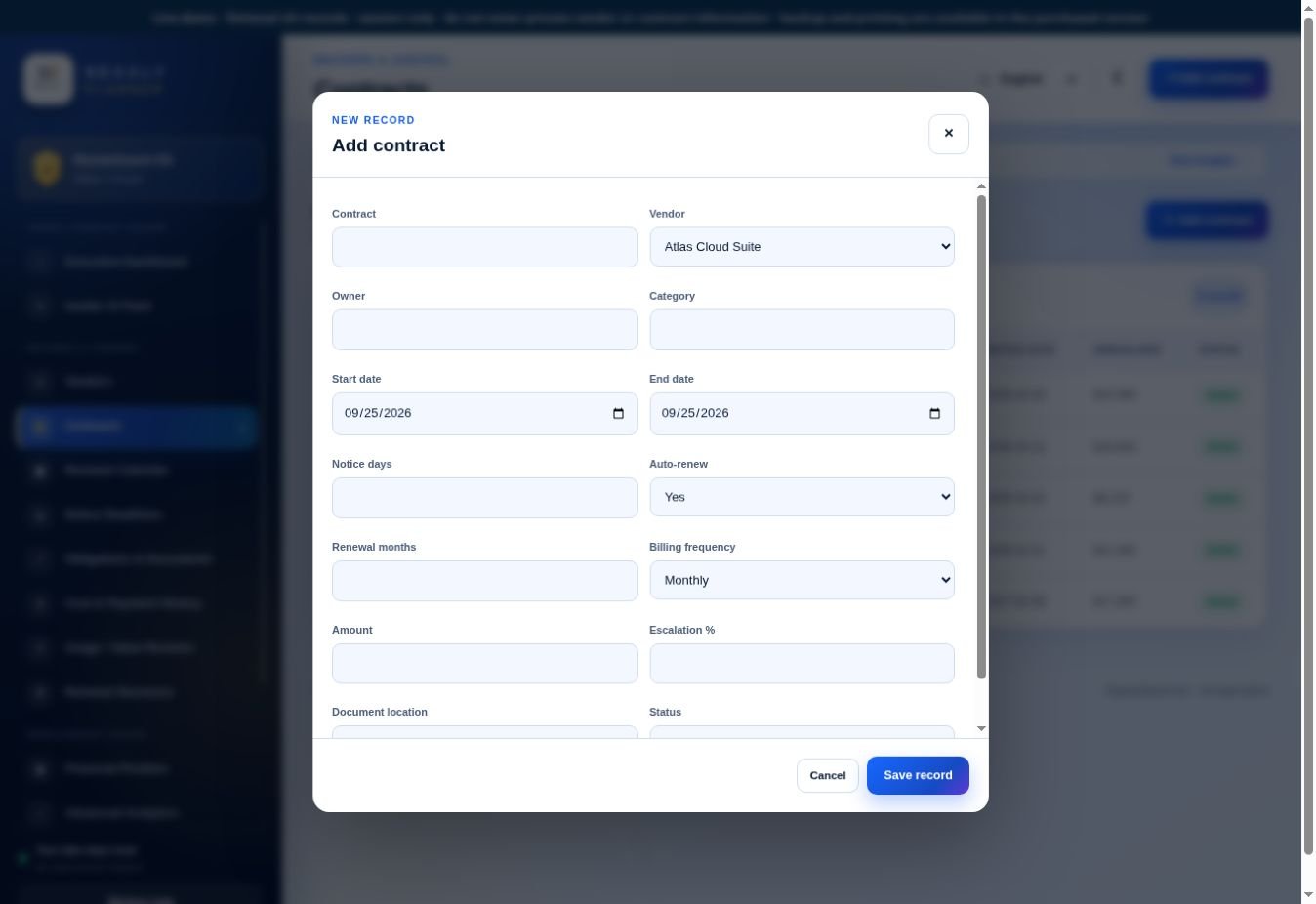
- Open Contracts → Add contract, select that vendor and enter the owner, start and end dates, notice days, billing frequency and amount.
- Compare the calculated notice date against the actual cancellation clause and required delivery method.
- Review Renewal Calendar, Notice Deadlines and Obligations & Documents for the next action.
- Assign the action owner, record a dated review or decision and keep proof of any external notice.
- Open Backup & Restore and download a dated JSON backup to protected storage.
What each of the 15 menu screens is for
| Menu or screen | Use it to | Status and scope |
|---|---|---|
| Executive Dashboard | Review health score, annualized spend, 90-day exposure, notice counts and prioritized commitments; open the underlying records before acting. | Local browser record or view |
| Insider AI Feed | Review local rule-based signals for deadlines, overdue obligations, low usage, price pressure and possible savings. It does not call an external AI service or make a decision for you. | Local browser record or view |
| Vendors | Maintain supplier identity and contact details. | Local browser record or view |
| Contracts | Maintain terms, assigned owner, dates, notice days, billing and document-location reference. | Local browser record or view |
| Renewal Calendar | Scan notice and end dates by month; print the view if useful. | Local browser record or view |
| Notice Deadlines | Sort attention by time remaining and compare status with the signed terms. | Local browser record or view |
| Obligations & Documents | Add contract-linked document, review, certificate or service-level obligations with owner, due date and status. | Local browser record or view |
| Cost & Payment History | Log payment, invoice, price increase or credit with date, amount and notes; this is not a bank feed. | Local browser record or view |
| Usage / Value Reviews | Record a dated usage percentage, value rating from 1 to 5 and evidence notes before renewal. | Local browser record or view |
| Renewal Decisions | Record Review, Renew, Renegotiate or Cancel with target date, owner, estimated savings and notes. Recording Cancel does not notify the vendor. | Local browser record or view |
| Financial Position | Compare monthly commitments, annualized spend, cost increase pressure and savings scenarios. | Local browser record or view |
| Advanced Analytics | Inspect concentration, spend by category, risk mix, pipeline and data completeness. | Local browser record or view |
| Reports | Open contract register, calendar, deadlines, commitments, cost history, decisions and exceptions; use browser Print to save PDF. | Local browser record or view |
| Backup & Restore | Download portable JSON and restore a trusted file when you intend to replace current local records. | Local browser record or view |
| Settings | Choose business name, language, currency, theme and demo-data reset. | Local browser record or view |
Download, open and set up
- Download the buyer ZIP, extract it, and open
NexalyPlanner_RenewGuard_OS.htmlin a current desktop browser. Do not run it inside the ZIP preview. - Explore the fictional example workspace first. In Settings, enter your business name and choose currency, language and light or dark theme.
- Before entering private records, decide which browser profile and device will hold the data. The app does not sync between browsers or devices.
- Use Backup & Restore to download a JSON backup after replacing example records and after important edits.
The interface offers English, Arabic, Portuguese, Spanish, Italian, Dutch and French; Arabic has a right-to-left layout. Currency changes display formatting, not exchange rates.
Enter vendors and contracts in the right order
1. Create a vendor
Open Vendors → Add vendor. Enter the supplier name, category, contact, email, city/state and status. A vendor must exist before the contract form can link to it. Keep the original signed document in your own secure file system; the app records a document location, not the document itself.
For a separate supplier performance workflow, read the VendorPulse OS guide; for comparing price proposals, see the supplier quote comparison walkthrough.
2. Add the agreement
In Contracts → Add contract, choose the vendor and enter a clear title and owner. Record start and end dates, notice days, whether auto-renew is enabled, renewal term in months, billing frequency (monthly, quarterly, annual, weekly or one-time), amount, escalation percentage, document location, category and status. Check each field against the signed contract, including which party must receive notice and how.
3. Review calculated dates
Open Notice Deadlines for a prioritized list and Renewal Calendar for a monthly view. The calculation is end date minus notice days. For example, an agreement ending November 30, 2026 with 45 days of advance notice displays October 16, 2026. Set your own earlier internal decision date to allow time for review and delivery. Verify whether the signed agreement counts calendar or business days and whether receipt, mailing or another event controls the deadline.
When you need to review a supplier beyond contract dates, see the VendorPulse OS supplier performance guide.
Set up and use the core workflow
Check a contract before relying on a deadline
Start with the actual signed agreement, not the dashboard count. In Contracts, confirm the vendor, assigned owner, end date, notice-days field, auto-renew setting, renewal term and document location. The app subtracts the notice days you entered from the end date. If the agreement defines a business-day rule, special delivery requirement or multiple notice windows, resolve those outside the app and record the correct follow-up with the owner.
Track obligations and cost evidence
Use Obligations & Documents for a dated certificate, review or service-level requirement. Give it an owner and status; check the actual document in your controlled repository. Log a payment, invoice or price increase in Cost & Payment History. Add a dated Usage / Value Review before choosing renew, renegotiate or cancel. The local Insider AI Feed highlights records to inspect, but it does not contact a vendor or send a cancellation.
A complete weekly renewal review
- Open the dashboard and Insider feed. Note the closest notice date and any overdue obligation.
- Open the contract, compare its end date, notice period and renewal clause against the signed copy.
- Ask the assigned owner to assess usage and price. Add a dated Usage / Value Review and any cost or payment evidence.
- Record a Renewal Decision, target date, owner and notes. If cancellation is chosen, send notice by the agreement's required method outside the app and retain proof of delivery.
- Revisit the calendar and exceptions after the action. Download a fresh JSON backup.
Annualized spend is an estimate: monthly amount × 12, quarterly × 4, weekly × 52 or annual × 1. One-time costs do not become recurring annual spend. The health score and savings scenarios are operational indicators based on entered data.
A realistic US example
Imagine a small US firm with a Team Workspace Enterprise contract costing $1,280 per month. Its entered end date is November 2, 2026, and the agreement requires notice 30 days before that date. RenewGuard displays October 3, 2026 as the calculated notice date and estimates $15,360 annualized spend ($1,280 × 12).
In a September review, the operations owner checks the signed clause, verifies where notice must be delivered, records a usage review and asks the vendor for a renewal quote. If the team decides to cancel, it sends notice outside RenewGuard by the required channel, saves proof of delivery in its document system and records the decision and reference in the app. The app's calculated date and status support the workflow; the signed clause and delivery evidence control the actual obligation.
Reports, local data and backup
The purchased file stores records in the browser profile on the device where you opened it. Clearing site/browser data, using a private window, switching browser or changing computers can make records unavailable. Export a JSON backup, keep an additional copy in a secure location, and test restore in a separate browser profile. Restoring replaces current local data after confirmation. Reports are printable views, not legal notices or audited financial statements.
Do not place real vendor data in the public demo. Its sample workspace is session-only.
Recommended daily, weekly and monthly routines
Daily five-minute deadline check
- Open Notice Deadlines and review urgent and overdue dates.
- Open the underlying contract and verify its owner and source agreement.
- Check overdue items in Obligations & Documents and assign follow-up.
Weekly owner review
- Scan Renewal Calendar for upcoming end and notice dates.
- Compare Cost & Payment History with invoices and add a usage review where needed.
- Record Renewal Decisions, owner and next action; complete any external vendor communication.
- Export a fresh JSON backup after the review.
Monthly contract audit
Sample contract fields against the signed copies, review annualized spend assumptions and confirm that document references still open in your secure filing system. Do not treat a printed report or health score as a reconciled ledger or a legal notice.
Put upcoming renewal payments into the CashFlow 13 OS weekly cash forecast; review recurring commitments over a longer horizon with the Business Runway & Burn Rate OS guide.
Advantages and disadvantages
Advantages
The app groups vendors, terms, notice dates, obligations, costs, usage and decisions in an offline browser workspace. It makes the next renewal review easier to assign and audit locally. Printable reports and a JSON export support a portable owner review.
Limits
All results depend on correct manual entries. The app does not read contracts, send legally effective notices, guarantee reminders in the background, sync devices or store signed document files. Browser data can be lost; backups and an external source-document system remain essential.
Troubleshooting and next steps
- Contract form will not open: add a vendor first.
- Notice date seems wrong: check end date and numeric notice days, then compare the signed clause and delivery rules.
- Records are missing: check the original device and browser profile; restore a verified JSON backup only after saving current data.
- Dashboard looks empty: add active contracts with dates and recurring amounts.
- Need a PDF: open a report and use the browser Print → Save as PDF.
For supplier purchasing context, see the VendorPulse OS supplier guide and supplier quote comparison guide. View RenewGuard OS, real screenshots and demo.
Frequently asked questions
Does RenewGuard send cancellation notice automatically?
No. Send notice by the signed agreement's required method outside the app, then retain delivery proof.
How is the notice date calculated?
It subtracts the entered advance-notice days from the entered end date. Check contract-specific calendar and delivery rules yourself.
Does the Insider AI Feed use an external AI account?
No. It shows local rule-based signals drawn from records in the browser.
Can I change currency to convert existing amounts?
No. Currency selection changes display formatting. Convert and verify amounts before entering them.
Where are signed contracts stored?
Keep them in your own controlled storage. RenewGuard records a document-location reference, not the signed file.
Will my records appear on another computer?
No automatic sync is provided. Create a JSON backup and restore it deliberately in the other browser profile after protecting the current records.
Next step and related guides
Start with one verified vendor and signed agreement, then follow the RenewGuard OS product page and live demo to see the screens. For supplier performance after the contract decision, read the VendorPulse OS guide. Browse the product guides hub for other offline workflows.
Make the renewal decision before the notice deadline
Use the contract renewal workflow example to distinguish the contract end date from the date by which notice must be sent. The free Software Renewal Decision Planner helps document a keep, change or cancel decision for the software commitments you enter.
Check the supplier’s actual contract and assign a person to carry out the decision before the deadline. Neither the free planner nor RenewGuard OS sends cancellation notices or changes a supplier account. Record confirmation in the OS and keep a separate backup of each workspace.
Continue in the software
See the actual screens and work through sample data before entering your own records.
Open the RenewGuard OS live demoTry the product
Open the real interface with fictional sample records and review the product details.
Explore RenewGuard OS