
FREE · NO ACCOUNT NEEDED
Equipment Maintenance Due Planner
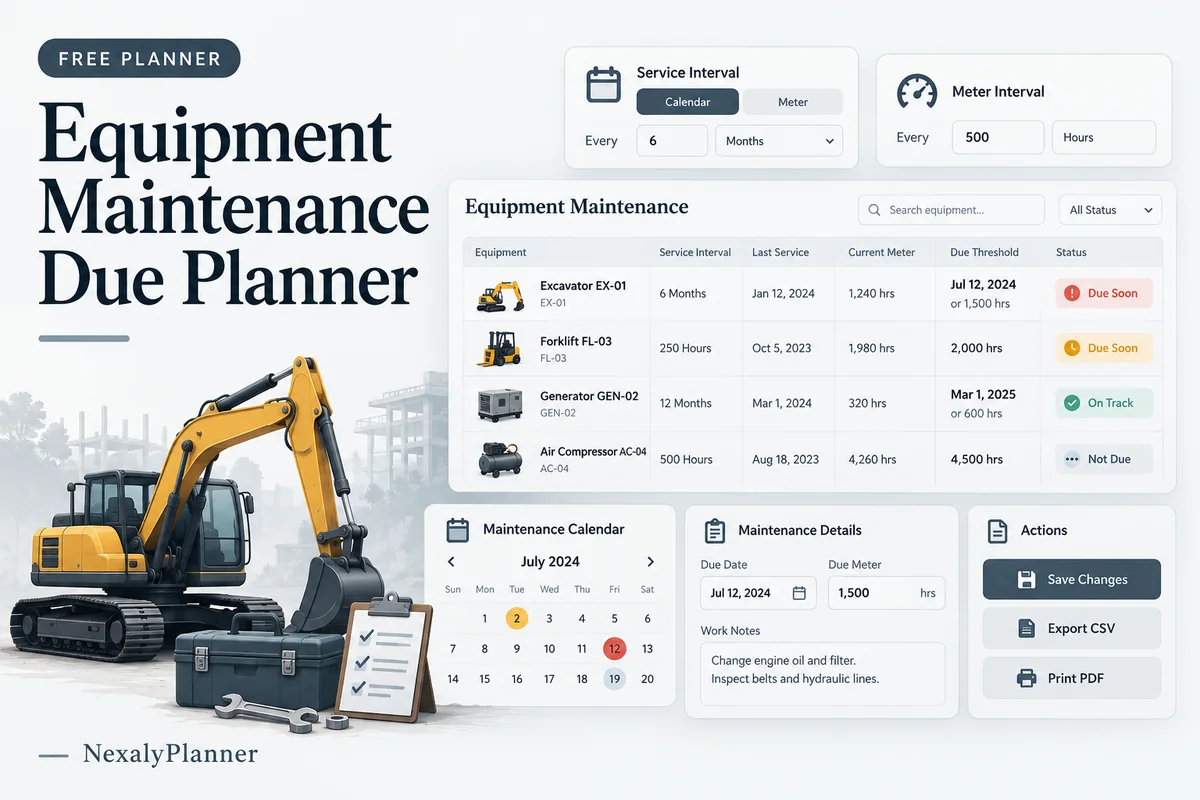
Review equipment service records against the intervals you enter. Use a calendar threshold, a meter-hours threshold or both, with a clear next-action note for each asset.
1. Enter your details. 2. Add records. 3. Calculate and save a copy.
Set up your worksheet
Your report
Enter your details and records, then calculate to review the results.
Save or download your work
Work stays in this page until you choose Save on this device. Device saves belong to this browser and can be removed by clearing browser data. JSON keeps an editable backup; CSV and PDF keep a report.
Equipment Maintenance Due Planner: complete guide
What this free planner does
- Calendar and meter intervals can be enabled independently.
- Either entered threshold can flag an asset for review.
- Service dates, meter readings and work notes remain visible in the report.
- Up to 100 editable entries, explicit device saving, JSON backup, CSV and browser PDF printing.
How to use it
- Choose the review date and a clear equipment-list label.
- Add each asset, the last service date, meter reading at that service and current meter reading. Keep the meter units consistent.
- Enter a calendar interval in days, a meter interval in hours or both. Use intervals from the equipment documentation or your qualified service process.
- Calculate. Review flagged assets and record a next action. Update service records after work is actually completed, then preserve the previous report if needed.
Inputs and units
| Field | Input rule |
|---|---|
| Equipment review label | Required. Up to 160 characters. |
| Review date | Required. A calendar date; date-only entries do not shift with browser timezone. |
| Asset / equipment | Required. Up to 160 characters. |
| Last service date | Required. A calendar date; date-only entries do not shift with browser timezone. |
| Calendar interval days (optional) | Optional. Whole numbers from 1 to 3650. |
| Meter at last service | Required. Numbers with up to two decimals from 0 to 10000000. |
| Current meter hours | Required. Numbers with up to two decimals from 0 to 10000000. |
| Meter interval hours (optional) | Optional. Numbers with up to two decimals from 0.01 to 1000000. |
| Work record / next action | Optional. Up to 400 characters. |
How the calculation works
Calendar due = last service date + calendar interval days. Meter due = meter at last service + meter interval hours. Passing either enabled threshold gives Past entered threshold; reaching one exactly gives Due now unless the other has already been passed. Before entered thresholds means neither enabled threshold has been reached.
Worked example with fictional data
A fictional compressor was serviced at 1,000 meter hours with a 250-hour interval. Its meter threshold is 1,250. A current reading of 1,260 is past that threshold. Last service on September 1 with a 30-day calendar interval gives October 1; a review on October 6 is also past that entered calendar threshold.
Before you save your plan
- Use service intervals from the appropriate records or manufacturer instructions.
- Check dates and meter readings together, and investigate overdue thresholds before scheduling the next job.
Review calendar and meter thresholds separately
This fictional review uses October 8, 2026. The intervals below demonstrate the calculation only; choose your actual intervals from the equipment documentation and service process.
| Asset | Last service | Calendar interval | Meter at service → current | Meter interval | Result |
|---|---|---|---|---|---|
| A | September 8 | 30 days | 1000 → 1100 hours | 100 hours | Due now |
| B | September 20 | 30 days | 200 → 251 hours | 50 hours | Past entered threshold |
| C | October 1 | 30 days | 500 → 520 hours | Not enabled | Before entered thresholds |
A reaches both thresholds exactly: its calendar due date is October 8 and its meter due is 1100 hours. B has a future calendar date of October 20, but its current meter exceeds the 250-hour meter threshold. Either enabled threshold can flag a record. C has a calendar due date of October 31 and no enabled meter interval. The report flags two of three assets.
- Record the actual review date and current meter reading. Keep meter units consistent across a record.
- Review each flagged asset and record the next action. The worksheet does not book a service or send a reminder.
- After completed service, preserve the old report and enter the actual service date and meter reading for the next review.
A result before the entered thresholds does not establish safe operation. A reset or replaced meter needs a reconciled record; the planner rejects a current reading below the last-service reading. The rental equipment maintenance log workflow explains how to retain supporting work records.
Assumptions and common mistakes
This equipment maintenance due planner does not prescribe service intervals or determine equipment safety. Both disabled intervals block calculation. A last-service date after the review date and a current meter below the last-service reading also block calculation. A replaced or reset meter needs a consistent adjusted record rather than an unexplained lower reading.
Use operating hours for the meter fields, not miles or cycles. If your equipment uses another meter unit, keep that record in an appropriate system rather than relabeling it here. A threshold is a review signal, not a certificate of service. The tool does not inspect equipment, issue work orders or notify staff.
Save, restore and export
Add entry creates another record. Edit any field directly or use Remove entry to delete a row. Changing inputs clears the previous report so it cannot be mistaken for current results. Choose Calculate / review results again when your changes are ready.
Save on this device keeps an editable worksheet in this browser only. On a later visit in this browser, your saved worksheet loads automatically. Restore device save can also reload the last save after you confirm replacement. Saving drafts is allowed, but a report requires valid, complete inputs. Download backup creates a versioned JSON file for the same tool. Import backup shows the worksheet label and row count before replacing current work; it does not change the device save until you press Save.
Download CSV exports the settings, summary, row details and calculation notes. CSV is for spreadsheet review; it cannot restore this worksheet. Print / Save PDF recalculates the current entries and opens your browser’s print dialog. Choose Save as PDF where supported. The report excludes navigation, guides and product CTAs. Clear data removes the current worksheet and its device save after confirmation; keep a backup first if needed.
Frequently asked questions
Can I use calendar-only maintenance?
Yes. Enter a calendar interval and leave the meter interval blank. Meter readings remain recorded but do not trigger a meter threshold.
What if the meter interval arrives first?
Either enabled threshold can flag the asset. You do not have to wait for both to be reached.
Does Before entered thresholds mean safe to use?
No. It only describes the dates and readings entered. Follow the manufacturer instructions and qualified inspection process.
Is this tool free, and does it sync between devices?
All worksheet, saving and export features are free without an account. There is no cloud synchronization. Transfer a JSON backup to another device and import it into this same tool.
Related planning resources
- Read the rental equipment maintenance log workflow.
- Read the CalibraTrack OS user guide for the broader workflow.
- Prepare a separate parts and labour estimate for service work.
- Browse all available free planners by category.
- Equipment Rental Business Plan Example: Utilization and Cash.
- Browse the free repairs, rentals & operations planners to compare these workflows.
EXPLORE A BROADER WORKFLOW
Need more than this one worksheet?
Explore CalibraTrack OS and read its guide to see how the full product fits your records. This free planner remains available without a purchase. Its JSON backup is not an import file for the paid product.
For a focused next step, use the free Rental Booking Conflict Checker to check concurrent bookings against available equipment capacity.