
Start here
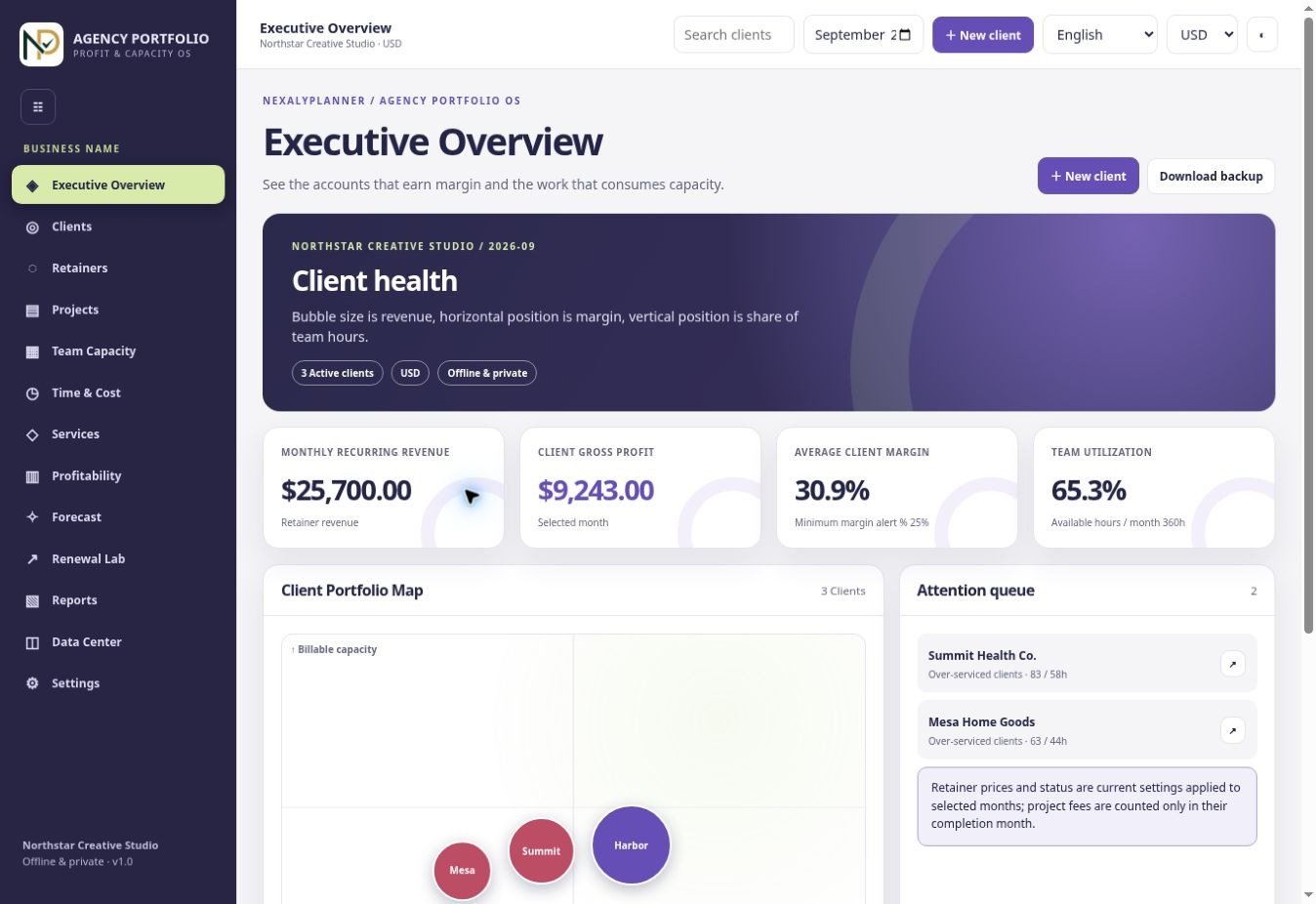
This manual follows the buyer app from first launch through a monthly agency review. The downloaded ZIP contains NexalyPlanner_Agency_Portfolio_OS.html and START_HERE.txt. Its sample names and figures are fictional. The public demo is temporary; use the extracted buyer app for your own records.
First 15 minutes: Extract the ZIP, open the HTML app, select language and one base currency, start a blank workspace, add team loaded rates and available hours, then clients and projects. Log time and direct costs before reading client margin or capacity. Back up the workspace as JSON.
1. Open and choose a workspace
Download and extract the ZIP to a permanent folder. Open the HTML file in current desktop Chrome, Edge, Firefox or Safari. Choose the fictional US demo to learn the screens, or start blank before entering real information. Demo values are not your business results. A different browser, profile or device has a separate local workspace.
2. Set business preferences first
In Settings, enter the business name, language, theme and intended display currency. Arabic uses right-to-left layout. Choose currency before entering monetary records: changing the selector later changes the symbol and display unit, not exchange rates or stored values. Check reporting month before comparing figures.
3. Create service lines and client records
Add each service once with a consistent name. For each client, enter status, monthly retainer and planned monthly retainer hours where applicable. Record monthly software and contractor allocations that belong to that client. Avoid putting the same direct cost into both a client allocation and a project expense. Review which clients are active in the selected month.
4. Add team members and loaded rates
For each person, enter available monthly hours, billable target and a realistic loaded hourly rate that reflects the cost assumption you wish to use. Keep the rate period and currency consistent with client fees. Update rates when costs change; existing reports are planning views based on current settings, not a frozen historical ledger.
5. Plan and track projects
Create a project under the correct client, with a fee, planned hours, due date and status. An open project due in the month contributes to planned load. A completed project fee is included as revenue in its recognition month. Check the recognition month and completion status before interpreting monthly profit. Project detail compares the fee with directly linked time and costs; general client retainer allocations are not added to that project detail.
6. Log time and direct expenses
Enter a date, team member, client, project when relevant, and actual hours for each time entry. Add dated direct expenses with a clear client or project link. Client delivery cost uses logged hours multiplied by that member’s loaded hourly rate, plus dated direct costs and active monthly client allocations. Review entries for duplicates and wrong months before using the dashboard. CSV import/export covers time entries only.
7. Read profitability correctly
Choose a month in Profitability. Revenue includes active monthly retainers plus completed project fees recognized that month. Profit is revenue minus calculated delivery costs; margin is profit divided by revenue when revenue is nonzero. Effective revenue per hour uses logged hours. A negative or surprising margin should prompt a check of missing time, recognition month, team rate, allocations and duplicated expenses. Historical retainer views use current client settings.
If client invoices and payroll fall in different weeks, use the CashFlow 13 OS weekly cash forecast to see the payment timing.
8. Compare team capacity and planned load
Capacity target is available hours multiplied by the billable target percentage. Compare it with logged billable time; planned load includes active retainers’ planned hours and open projects due that month. This is a staffing signal, not an appointment schedule. If load is high, inspect the underlying clients and project due dates before making a hiring decision.
9. Test rates, renewals and hiring
Use the rate builder with owner compensation, overhead, reserve and billable-hour assumptions to inspect minimum and target rates. In Renewal Lab, vary retainer increase or hiring assumptions and read the scenario result. These sliders model possibilities and do not change a contract, invoice or actual sale. Record the decision separately after checking scope and client terms.
Before committing to another hire, compare the staffing scenario with the Business Runway & Burn Rate OS hiring and runway guide.
10. Report, export and protect data
Open Reports to print a monthly summary through your browser. For a full portable copy, use Data Center → Backup to download JSON after meaningful edits and at month end. Keep dated copies outside the browser; test a restore in a separate safe workspace before relying on the backup. Restore can replace the current workspace, so back up the current state first. CSV is not a full backup.
Example: review an unprofitable retainer
- Select one month and inspect the client’s retainer, completed fees and calculated margin.
- Open Time & Cost; confirm the client’s hours, team member loaded rates, direct expenses and month.
- Check client software/contractor allocations and remove any accidental double count.
- Compare actual hours with planned retainer hours and open project commitments in Capacity.
- Try a revised retainer in Renewal Lab, then discuss scope and pricing with the client yourself.
- Print the reviewed report and save a dated JSON backup.
Practical maintenance routine
| When | Action |
|---|---|
| Each workday | Log time and direct expenses using their actual dates and links. |
| Weekly | Review open projects, due dates, planned load and missing time. |
| Monthly | Confirm completed fee recognition, reconcile assumptions, inspect client margin and capacity, print the report and back up JSON. |
| Before changing device or browser | Back up the entire workspace and test where your backup file is stored. |
Data safety and operating limits
This app is a planning tool, not an accounting ledger or sales forecast. Retainer history reflects current client settings. Currency selection does not convert amounts. The app has no automatic cloud sync; local browser storage is not a secure archive. Verify financial inputs and accounting treatment with your own records.
Use the full JSON backup after important changes. Keep dated copies outside the browser, verify the file exists, and retain the original ZIP as your installation copy. Never put real confidential records into the public live demo.
Troubleshooting
Profit seems wrong
Check selected month, project completion and recognition month, missing or duplicate time, loaded rates and client allocations.
Capacity seems too high
Inspect available hours, billable target, planned retainer hours and due dates on open projects.
CSV does not restore clients
CSV handles time entries only. Use the full JSON backup and restore for the workspace.
Records are missing
Return to the original browser/profile and file location; locate a dated JSON backup. Do not reset the workspace before making a copy of the current state.
Frequently asked questions
Does the app bill clients or pay staff?
No. It records and models agency information; billing and payroll happen elsewhere.
Can I move to another computer?
Export a JSON backup and restore it in the buyer app on the new computer. Check totals afterward.
Does the currency picker convert values?
No. Select one base unit before entry and convert externally if needed.
Continue in the software
See the actual screens and work through sample data before entering your own records.
Open the Agency Client Profitability Capacity Os live demoExplore Agency Client Profitability & Capacity OS
See real screenshots, the interactive sample, download contents and current checkout terms.
View product detailsCheck one week of work before reviewing broader client profitability
Use the free Freelancer Weekly Capacity Planner to compare booked delivery hours with your available week. Use the Retainer Overage Calculator to review entered allowance, extra hours and authorization separately. Planned hours and overage estimates are inputs for review, not proof of realized profit.
Each free planner has its own device save and JSON backup. Its records do not automatically sync with, or import into, the paid application. The free worksheet remains available without a purchase.