
Start here
This manual covers the standalone buyer app NexalyPlanner_Business_Runway_Burn_Rate_OS.html. The customer ZIP also contains READ_ME_FIRST.txt. The interactive site preview uses fictional, temporary records; work with your own data in the extracted offline buyer file.
First 15 minutes: Extract the ZIP, open the HTML app, start a blank workspace, choose one currency, then enter a dated current cash balance, recurring and one-time revenue and expenses, and a minimum safe cash threshold. Review the monthly projection, test one scenario and export JSON backup.
1. Open the buyer app and choose a clean workspace
Extract the ZIP to a normal folder; double-click the HTML file and use a current desktop browser. Explore the fictional US sample first if you like, then start blank for your business. Choose language and light or dark theme in Settings. Select one base currency before entering figures: switching display currency later does not convert stored amounts.
2. Anchor the model with dated cash
In Cash Accounts, enter the available balance and its actual as-of date. Include only cash you regard as available under your planning assumptions. If multiple accounts are supported in your workspace, enter and check each separately. A stale as-of date can make today’s runway misleading; update balances from verified records rather than from a prior forecast.
3. Enter revenue and expenses by timing
Record expected or actual revenue and expenses with the correct amount, date, recurrence and category. Distinguish one-time cash movements from continuing flows. Recurring flows are normalized monthly for the projection; one-time flows enter the dated month. Review whether payroll, taxes, subscriptions, customer receipts and irregular bills are represented once each.
4. Set a minimum safe cash threshold
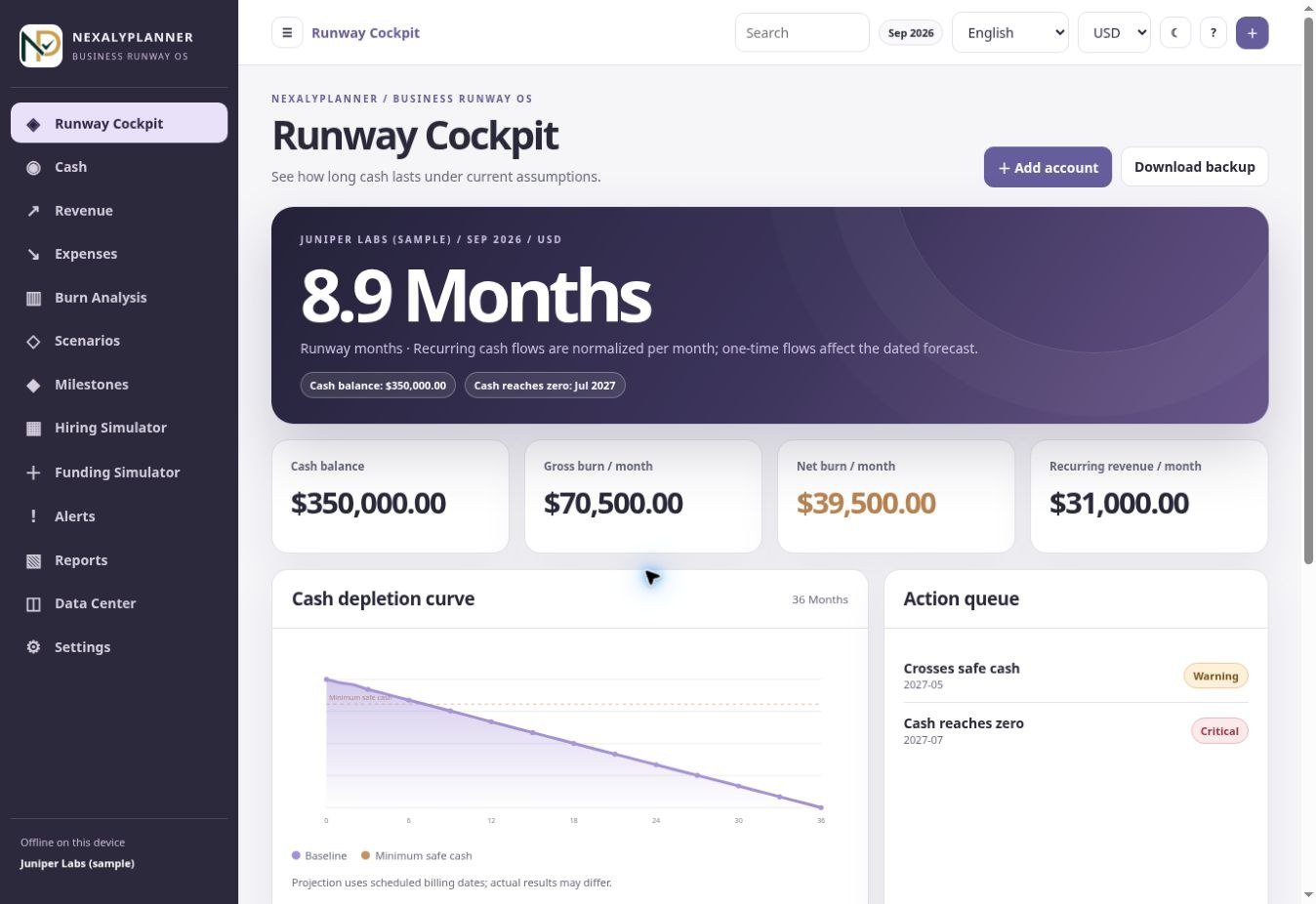
Choose the cash buffer below which you want an in-app warning. The threshold is your management assumption, not a regulatory or bank minimum. Compare the forecast curve with both zero and this buffer. A future threshold crossing deserves a source-record review before you act.
5. Read gross burn, net burn and runway
The cockpit uses entered balances and flows to show monthly gross burn, net burn, recurring revenue and estimated runway. Gross burn focuses on outflows; net burn accounts for inflows under the model. Review Burn Analysis to see expense mix and recorded trends. A positive net cash trend or a 36-month display cap should not be read as unlimited runway. Check dated balances and projected monthly cash rather than one headline number alone.
For the exact week when receipts and bills land, use the CashFlow 13 OS 13-week cash forecast.
6. Inspect the projection and alerts
Trace months where cash drops sharply to the revenue and expenses driving them. Alerts flag stale balance dates, missing inputs, minimum threshold crossings and other data-quality concerns. They appear only while the app is open; there are no automatic emails, texts or vendor/bank connections. Correct the underlying record and review again.
7. Test revenue growth or cost reduction
Open Scenarios and preview compounded monthly revenue growth or changes to recurring expense levels. Change one assumption at a time, compare the result against baseline and inspect the month of lowest cash. The preview does not edit live records; save a scenario snapshot to revisit assumptions. A snapshot is a planning comparison, not a promise of new revenue or savings.
8. Evaluate hiring and funding timing
In Hiring Simulator, enter a proposed hire’s ongoing salary and one-time cost and review the effect on monthly cash and runway. In Funding Simulator, put a hypothetical cash injection into a chosen month. Compare the timing with the safe cash threshold; funding that arrives after a projected shortfall cannot prevent that earlier shortfall in the model. Verify financing terms outside the app.
9. Track milestones
Add a target month and estimated cash required for a business milestone. Compare it with projected cash in that month and the safe buffer. If the milestone appears underfunded, revisit timing or assumptions rather than changing real cash records to fit the target.
10. Print reports, exchange records and back up
Use Reports to print or save a PDF via the browser after reviewing inputs. Data Center handles CSV import/export for records and JSON backup/restore of the full workspace. Check imported rows and totals before decisions. Download dated JSON backups regularly and store a second copy outside the browser. Before restoring, export the current state because restore can replace it.
Example: compare hiring now with hiring later
- Update Cash Accounts with a verified dated balance and check recurring revenue and expenses.
- Inspect the baseline cash curve and minimum safe cash for the next several months.
- Enter proposed salary and one-time hiring cost in Hiring Simulator at the earlier start month.
- Change only the start month to compare a later hire and note the lowest projected cash in each case.
- Review a milestone requiring cash in that period; confirm whether each scenario preserves the buffer.
- Choose a business decision outside the app, document your assumptions and save a dated JSON backup.
Practical maintenance routine
| When | Action |
|---|---|
| Weekly | Update dated cash balances and check new revenue/expense evidence. |
| Monthly | Review burn trends, recurring flows, projection, alerts and milestones. |
| Before hiring or funding decisions | Compare baseline and scenario assumptions and verify external terms. |
| After major edits | Export a dated JSON backup to a safe second location. |
If agency staffing drives burn, review client margins in the Agency Client Profitability & Capacity OS guide. Track future vendor obligations with the RenewGuard OS renewal calendar guide.
Data safety and operating limits
Projection maximum display is 36 months. Forecasts depend on entered timing and assumptions and do not guarantee solvency. The app has no bank sync, accounting reconciliation, automatic notifications or FX conversion. Records remain in the local browser profile without cloud sync or encryption.
Use the full JSON backup after important changes. Keep dated copies outside the browser, verify the file exists, and retain the original ZIP as your installation copy. Never put real confidential records into the public live demo.
Troubleshooting
Runway looks unexpectedly long
Review stale balances, missing expenses, duplicated revenue, recurrence and the 36-month display limit.
Alert did not notify me by email
Alerts appear only while the app is open; use your own external reminders for deadlines.
Scenario changed but actual records did not
That is expected: previews are isolated from live records.
Data is missing on another device
Use a dated JSON backup and restore there. Each browser/profile/device has separate local storage.
Frequently asked questions
Does the app update cash from a bank?
No. Enter verified dated balances yourself.
Does a funding scenario mean money is committed?
No. It is a hypothetical injection for comparison.
Can I rely on the 36-month result as a guarantee?
No. It is a capped display and assumptions-based projection.
Check short-term commitments before changing a runway scenario
Use the cash runway worked example to separate available cash, recurring costs and the timing of a hypothetical funding injection. For bills due this week, the free Weekly Cash Commitments Planner provides a shorter seven-day view with confirmed receipts kept separate from all planned receipts.
Review those dates before editing the monthly scenario in Business Runway and Burn Rate OS. The free planner is a separate workspace: it does not import, synchronize or replace the OS cash accounts. Compare both plans using the same dated balance and currency.
Continue in the software
See the actual screens and work through sample data before entering your own records.
Open the Business Runway & Burn Rate OS live demoExplore Business Runway & Burn Rate OS
See real screenshots, the interactive sample, download contents and current checkout terms.
View product details