
FREE · NO ACCOUNT NEEDED
Retainer Overage Calculator
See which retainers exceeded their available hours and what the agreed rate would produce. Keep unconfirmed overage charges separate before preparing any invoice.
1. Enter your details. 2. Add records. 3. Calculate and save a copy.
Set up your worksheet
Your report
Enter your details and records, then calculate to review the results.
Save or download your work
Work stays in this page until you choose Save on this device. Device saves belong to this browser and can be removed by clearing browser data. JSON keeps an editable backup; CSV and PDF keep a report.
Retainer Overage Calculator: complete guide
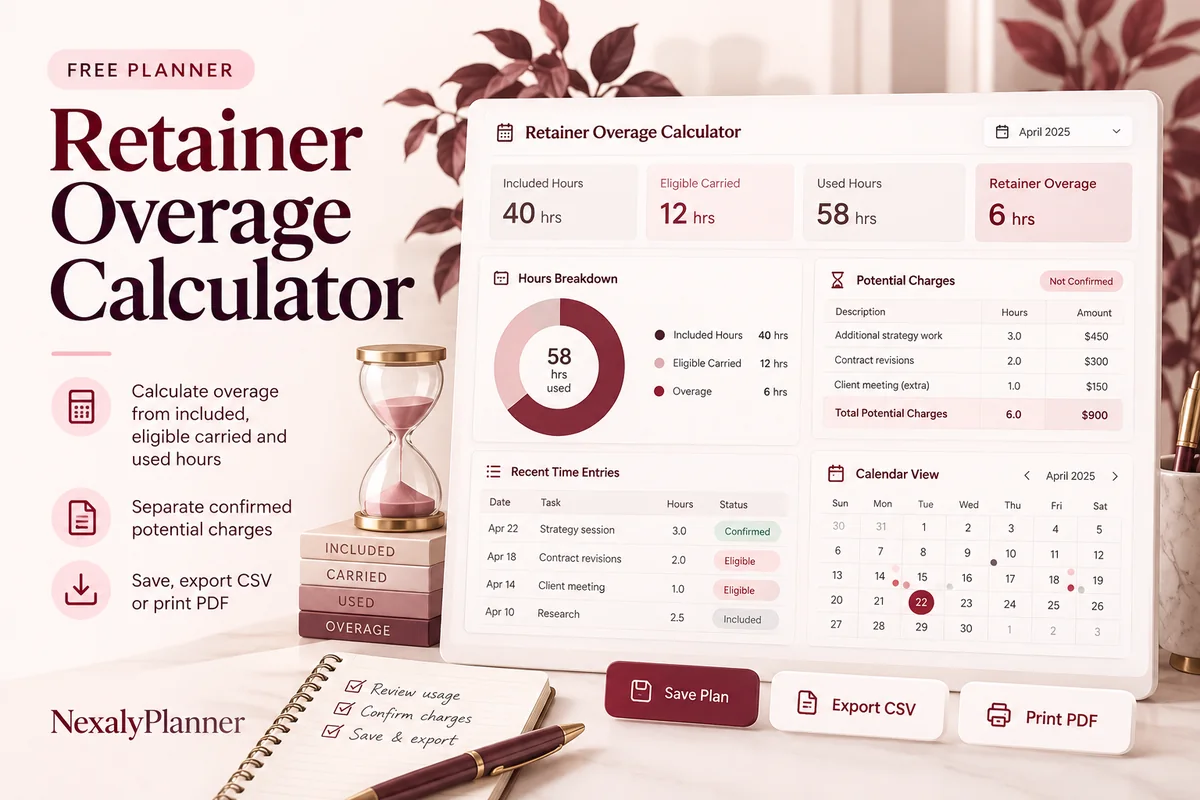
What this free planner does
- Included hours and eligible carried hours are separate inputs.
- Unused hours never become a negative overage charge.
- Authorization separates confirmed and unconfirmed potential amounts.
- Up to 100 editable entries, explicit device saving, JSON backup, CSV and browser PDF printing.
How to use it
- Name the retainer period and choose the currency used for every hourly rate.
- For each client, enter included hours, eligible carried hours and actual hours used for the same period. Check the agreement before counting carried time.
- Enter the agreed overage rate and record whether authorization is confirmed. Zero is allowed where it represents your agreement.
- Calculate and review each line. Confirm billing permissions and your invoice details separately; export this calculation as supporting information.
Inputs and units
| Field | Input rule |
|---|---|
| Retainer period label | Required. Up to 160 characters. |
| Currency | Required. Choose USD, GBP, CAD, AUD, EUR, NZD, AED. |
| Client / retainer | Required. Up to 160 characters. |
| Included hours | Required. Numbers with up to two decimals from 0 to 10000. |
| Eligible carried hours | Required. Numbers with up to two decimals from 0 to 10000. |
| Hours used | Required. Numbers with up to two decimals from 0 to 20000. |
| Agreed overage rate per hour | Required. Numbers with up to two decimals from 0 to 1000000. |
| Overage authorization | Required. Choose Not confirmed, Confirmed. |
How the calculation works
Available hours = included hours + eligible carried hours. Overage hours = max(0, used hours − available hours). Potential charge = overage hours × agreed rate. Charges round to cents per client. Confirmed potential charges sum only rows marked Confirmed; the remaining potential amount is unconfirmed.
Worked example with fictional data
A fictional client has 20 included hours, no carried hours and 25 used hours. Overage is 5 hours. At USD 50 per hour the potential charge is USD 250. With authorization Not confirmed, that amount appears under unconfirmed potential charges. Another client with 10 included plus 2 eligible carried hours and 9 used hours has zero overage.
Before you save your plan
- Check included and carried hours against the client agreement before entering the overage rate.
- Keep potential charges separate from authorized charges; review the agreement before preparing an invoice.
Review rollover and authorization before preparing an overage invoice
This fictional USD review covers one billing period per client. Eligible carried hours come from each agreement; the worksheet does not decide whether rollover is allowed.
| Client | Included + eligible carried | Hours used | Overage at agreed rate | Authorization entered |
|---|---|---|---|---|
| Client A | 20 + 2 = 22 hours | 25 hours | 3 × $60 = $180 | Confirmed |
| Client B | 10 + 0 = 10 hours | 12.5 hours | 2.5 × $80 = $200 | Not confirmed |
| Client C | 8 + 1 = 9 hours | 7 hours | $0 | Not confirmed |
Total potential charges are $380: $180 confirmed and $200 unconfirmed. Client C's two unused hours do not create a credit or automatically roll into the next period. If Client B's authorization is later confirmed, the same hours and rates still total $380; only the authorization split changes.
- Match the period to your time records and check that carried hours have not already been included in the base allowance.
- Review scope and approval evidence outside this worksheet. An entered Confirmed status is not evidence of a client agreement.
- Resolve unconfirmed charges before your billing process. Add taxes or other invoice requirements separately through that process.
- Save the period's backup before starting a new period; avoid a duplicate row for the same client and period.
The client profitability analysis guide explains why a potential extra fee does not establish profitability. Use the weekly freelancer capacity planner before promising additional delivery time.
Assumptions and common mistakes
This retainer overage calculator does not determine contractual rollover rights, whether work was in scope, permission to invoice, tax treatment or net profit. A Confirmed label reflects what you enter; it is not proof of agreement. Each row covers one client and one period. Repeating a client period can double-count the potential totals.
Decimal hours are decimal quantities: 1.5 hours is 90 minutes. Use one timekeeping source and include the agreed work categories consistently. Do not enter carried hours twice in both the included and carried fields. Keep notes or approvals in your normal client records; this worksheet provides the calculation only.
Save, restore and export
Add entry creates another record. Edit any field directly or use Remove entry to delete a row. Changing inputs clears the previous report so it cannot be mistaken for current results. Choose Calculate / review results again when your changes are ready.
Save on this device keeps an editable worksheet in this browser only. On a later visit in this browser, your saved worksheet loads automatically. Restore device save can also reload the last save after you confirm replacement. Saving drafts is allowed, but a report requires valid, complete inputs. Download backup creates a versioned JSON file for the same tool. Import backup shows the worksheet label and row count before replacing current work; it does not change the device save until you press Save.
Download CSV exports the settings, summary, row details and calculation notes. CSV is for spreadsheet review; it cannot restore this worksheet. Print / Save PDF recalculates the current entries and opens your browser’s print dialog. Choose Save as PDF where supported. The report excludes navigation, guides and product CTAs. Clear data removes the current worksheet and its device save after confirmation; keep a backup first if needed.
Frequently asked questions
What happens when used hours are below available hours?
Overage is zero. The calculator does not create credit or decide whether the unused hours carry forward.
Does a potential charge become an invoice?
No. Check the agreement, authorization, billing details and applicable tax handling through your own process.
Can different clients have different overage rates?
Yes. Each row has its own agreed rate, while the worksheet uses one currency.
Is this tool free, and does it sync between devices?
All worksheet, saving and export features are free without an account. There is no cloud synchronization. Transfer a JSON backup to another device and import it into this same tool.
Related planning resources
- Review the agency capacity planning example.
- Read the Agency Client Profitability & Capacity OS user guide for the broader workflow.
- Check available delivery hours before taking on more retainer work.
- Browse all available free planners by category.
- Client Profitability Analysis: Find the Work Behind Each Fee.
- Browse the free freelancers & agencies planners to compare these workflows.
EXPLORE A BROADER WORKFLOW
Need more than this one worksheet?
Explore Agency Client Profitability & Capacity OS and read its guide to see how the full product fits your records. This free planner remains available without a purchase. Its JSON backup is not an import file for the paid product.