
FREE · NO ACCOUNT NEEDED
Study Catch-Up Planner
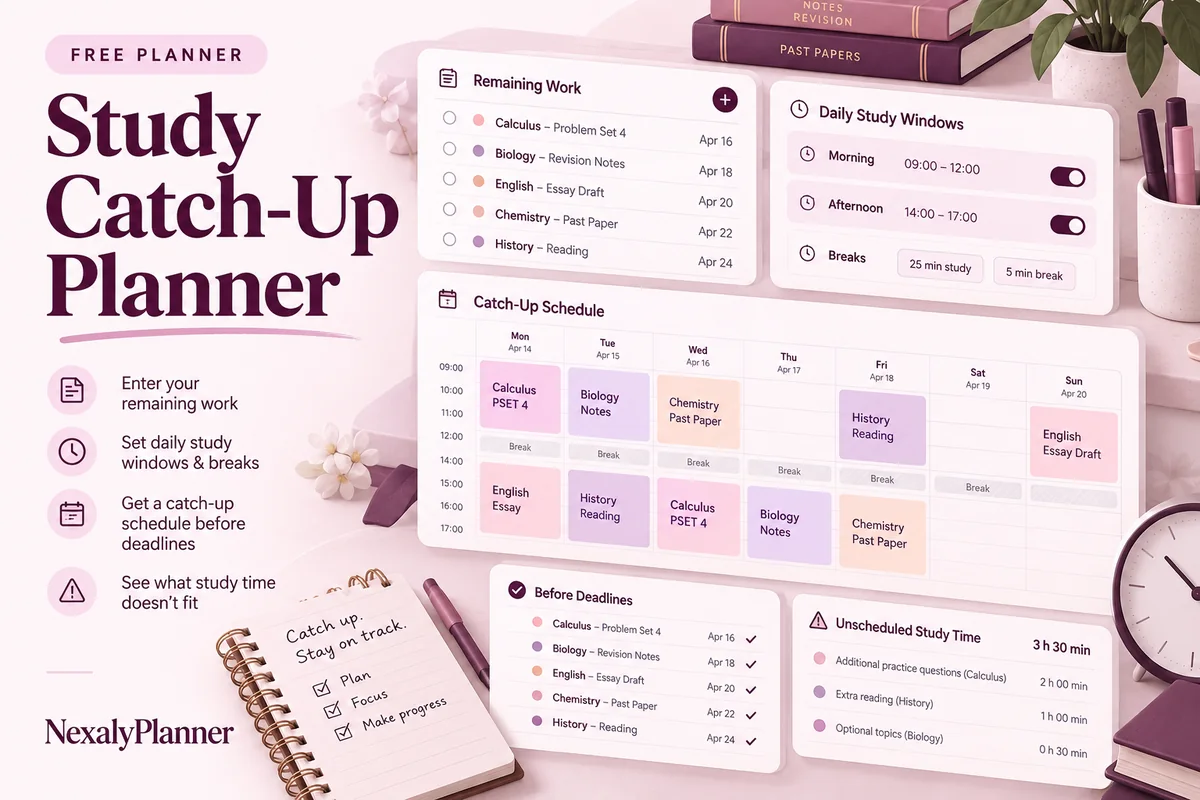
Build a study catch-up schedule from remaining work, daily windows and breaks. Allocate tasks before deadlines and show study time that does not fit.
- 1Set up
- 2Add records
- 3Review & save
Set up your worksheet
Keep realistic windowsBreaks sit inside each daily study window. Work that does not fit before a deadline remains visibly unallocated.
Your report
Enter your details and records, then calculate to review the results.
Save or download your work
Work stays in this page until you choose Save on this device. Device saves belong to this browser and can be removed by clearing browser data. JSON keeps an editable backup; CSV and PDF keep a report.
Study Catch-Up Planner: complete guide
What you can do
- Deadline-aware allocation within entered daily capacity.
- Breaks removed before work is assigned.
- Unallocated effort displayed instead of hidden in an unrealistic timetable.
- Up to 100 editable rows, explicit device saving, JSON backup, CSV and browser PDF printing.
How to use this planner
- Enter a short planning horizon, daily study window and break allowance.
- List remaining work in minutes, with deadline dates and priorities.
- Calculate to see a suggested day-by-day allocation and unmet effort.
- Adjust scope or available windows; keep breaks and confirm exact course deadlines before using the plan.
Inputs and units
| Field | Input rule |
|---|---|
| Catch-up plan label | Required. Up to 160 characters. |
| First study date | Required. Calendar date, 1900–2200. |
| Last study date | Required. Calendar date, 1900–2200. |
| Study window minutes per day | Required. Whole numbers from 1 to 1440. |
| Break minutes within each daily window | Required. Whole numbers from 0 to 1440. |
| Study days | Required. Choose Every day, Weekdays only. |
| Task / topic | Required. Up to 160 characters. |
| Remaining study minutes | Required. Whole numbers from 1 to 100000. |
| Task deadline date | Required. Calendar date, 1900–2200. |
| Priority | Required. Choose High, Normal, Low. |
How the result works
Choose up to 60 calendar days. Every-day or weekday slots use the same daily net capacity. Allocate earlier deadlines first, then High/Normal/Low priority for equal deadlines. A task due before the plan starts receives no allocation. Deadlines are date-only and inclusive; confirm exact submission times separately.
Worked example with fictional data
3 daily windows of 150 minutes with 30 minutes of breaks each give 360 usable minutes (6 hours). A 480-minute task due on the last day receives 360 scheduled minutes and leaves 120 minutes (2 hours) unallocated.
Limits to keep in mind
Net daily capacity = study-window minutes − breaks. Tasks are ordered by deadline, then priority, then entered order. Allocation uses eligible days through each deadline and may split a task across days. No task is forced into a full slot; unallocated work stays visible. This is a suggested date/minute plan, not exact clock scheduling.
Review the result before acting
- Treat unallocated effort as a decision to change the plan, not a reason to remove every break.
- Start with realistic remaining effort instead of the total assignment size.
- Review the allocation after finishing a study session and update remaining minutes.
Save, restore and export
Add entry creates another record. Edit any field directly or use Remove entry to delete a row. Changing inputs clears the previous report so it cannot be mistaken for current results. Choose Calculate / review results again when your changes are ready.
Save on this device keeps an editable worksheet in this browser only. On a later visit in this browser, your saved worksheet loads automatically. Restore device save can also reload the last save after you confirm replacement. Saving drafts is allowed, but a report requires valid, complete inputs. Download backup creates a versioned JSON file for the same tool. Import backup shows the worksheet label and row count before replacing current work; it does not change the device save until you press Save.
Download CSV exports the settings, summary, row details and calculation notes. CSV is for spreadsheet review; it cannot restore this worksheet. Print / Save PDF recalculates the current entries and opens your browser’s print dialog. Choose Save as PDF where supported. The report excludes navigation, guides and product CTAs. Clear data removes the current worksheet and its device save after confirmation; keep a backup first if needed.
Use a personal browser for private records and keep important backups separately. Entered worksheet fields are not included in our planner-action analytics.
Frequently asked questions
Does High priority override an earlier deadline?
No. Earlier deadlines come first. Priority only breaks ties between tasks with the same deadline, then entered order breaks equal priorities.
Can I use a different window each day?
This version uses one daily window and an every-day or weekdays rule. Use shorter plans if your available time changes; review the date/minute allocation yourself.
Is it free, and can I move my work to another device?
All worksheet features are free without an account. Save on this device keeps data in this browser; use an editable JSON backup to transfer it. CSV and PDF are reports, not import files. There is no cloud sync or background monitoring.
Continue the planning workflow
WHEN YOU NEED A BROADER WORKFLOW
AI Student Planner
Explore the full student planner for a broader study workflow. Read the guide and preview the product to check whether it fits your work. This free planner stays free; its JSON backup does not import into the paid application.
Work through two tasks competing for the same days
For a fictional three-day plan, enter a 150-minute daily window and 30 minutes of breaks: usable capacity is 120 minutes per day, or 360 overall. Enter a 180-minute essay due on day two and a 240-minute revision task due on day three. With no other tasks, the essay takes 120 minutes on day one and 60 on day two; revision takes the remaining 60 on day two and 120 on day three. Revision still has 60 unallocated minutes.
That gap remains even when the total calendar looks busy. Reduce the remaining scope only after reviewing the work, or find a genuinely available window. Check exact submission times in the Assignment Deadline Planner; the date-only allocation cannot ensure work finishes before a morning cutoff. The exam study schedule guide explains how to choose revision tasks rather than treating all available minutes as interchangeable.