
FREE · NO ACCOUNT NEEDED
Leave-on-Time Routine Planner
Work backward from when you need to leave. Enter your steps in order and their durations, then see when to start and where the final buffer fits.
1. Enter your details. 2. Add records. 3. Calculate and save a copy.
Set up your worksheet
Your report
Enter your details and records, then calculate to review the results.
Save or download your work
Work stays in this page until you choose Save on this device. Device saves belong to this browser and can be removed by clearing browser data. JSON keeps an editable backup; CSV and PDF keep a report.
Shared device? Use nicknames and avoid a device save if other people can access this browser. Downloaded files can also contain the details you enter.
Leave-on-Time Routine Planner: complete guide
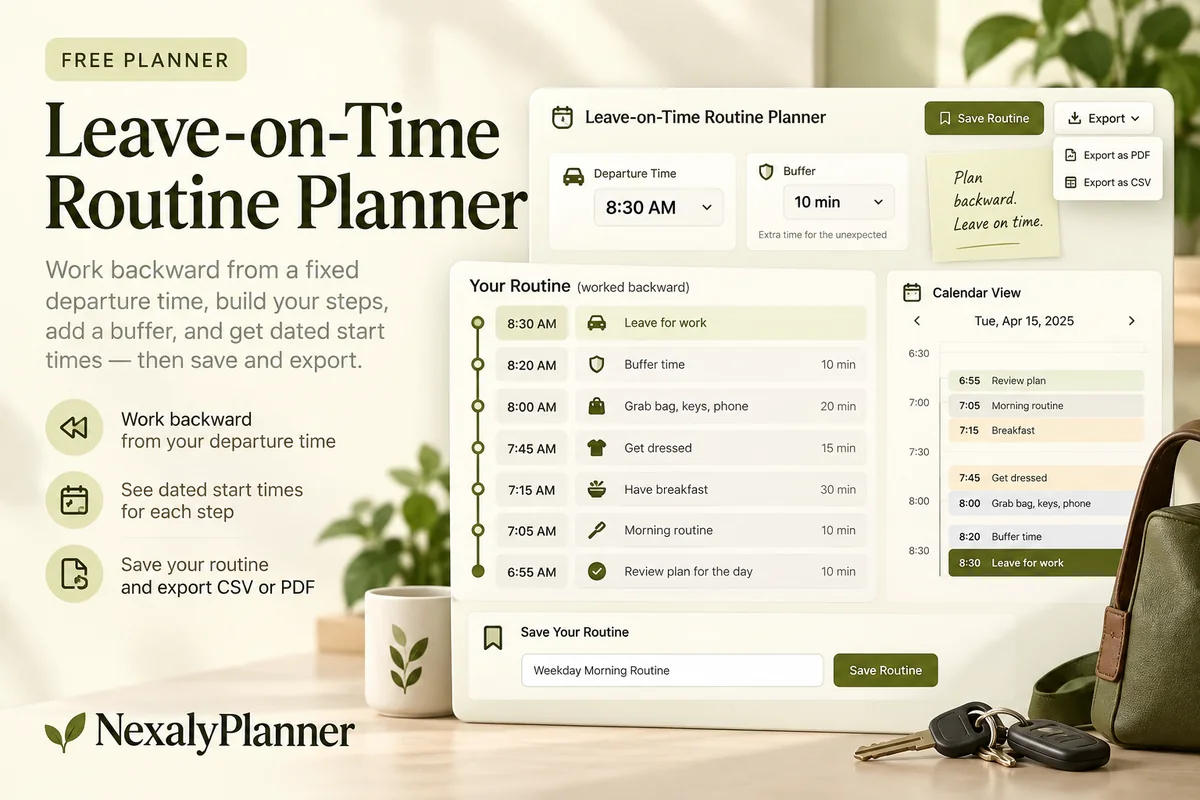
What this free planner does
- A fixed departure date and time anchors the routine.
- Ordered steps have individual start and end times.
- Full dates make a previous-day start visible.
- Up to 100 editable entries, explicit device saving, JSON backup, CSV and browser PDF printing.
How to use it
- Name the routine and enter the date and time you need to leave. Use one timezone label for the whole plan.
- Add steps in the order you will perform them, with whole-minute durations. Use Move earlier or Move later to adjust the order.
- Enter a final buffer for the period after the last step and before departure. Do not include the same buffer inside each step.
- Calculate and check the dated schedule. Adjust durations from your own experience, then save or print the routine for reference.
Inputs and units
| Field | Input rule |
|---|---|
| Routine label | Required. Up to 160 characters. |
| Fixed departure date and time | Required. Date and time in your plan’s single timezone. |
| Timezone used for this routine | Required. Up to 160 characters. |
| Final buffer minutes | Required. Whole numbers from 0 to 1440. |
| Step in order | Required. Up to 160 characters. |
| Duration minutes | Required. Whole numbers from 1 to 1440. |
How the calculation works
Start time = departure date-time − sum of all step minutes − final buffer minutes. The first step starts at that calculated time; each next step starts when the previous one ends. The buffer follows the last step and finishes at departure. Arithmetic uses entered wall-clock date-times without timezone conversion.
Worked example with fictional data
A fictional departure is October 7 at 08:00. Breakfast takes 20 minutes, dressing takes 15 and packing takes 10: total step time is 45 minutes. A 10-minute final buffer makes the start 07:05. Steps finish at 07:50, the buffer finishes at 08:00, and the person leaves at the fixed time.
Plan backward from departure, then adjust from the actual morning
First distinguish an arrival deadline from a leave time. For this fictional October 8 routine, the person chooses to leave at 08:00 after checking their own journey separately. The worksheet schedules the steps before departure; it does not obtain traffic or travel-time information.
| Sequential step | Minutes | Initial schedule |
|---|---|---|
| Breakfast | 20 | 07:05–07:25 |
| Get dressed | 15 | 07:25–07:40 |
| Pack bag and check keys | 10 | 07:40–07:50 |
| Final buffer | 10 | 07:50–08:00 |
After trying the routine, packing actually takes 18 minutes. Change that step from 10 to 18 minutes and recalculate. The same departure and final buffer now require a 06:57 start; packing finishes at 07:50. Keeping the old 07:05 start would spend eight minutes of the planned buffer.
- Estimate elapsed time from your own routine, then revise it after use. Do not enter two overlapping tasks as separate full-length sequential steps.
- Use Move earlier or Move later when the order changes. The total start time can stay the same while individual step times change.
- Print the revised schedule for reference if useful. Set alarms separately in your own clock or calendar; this planner does not run a background countdown.
Choose this leave-on-time routine planner for one departure sequence. Use the Assignment Deadline Planner for work due across several dates, or read the daily planning guide for fitting the routine into the rest of your day. Each worksheet keeps its own records.
Before you save your plan
- Keep steps in the order you will actually complete them, with realistic durations.
- Review the calculated start date for overnight routines and keep buffer time separate from the individual steps.
Assumptions and common mistakes
This leave-on-time routine planner is an estimate, not an alarm, countdown or guarantee. It does not model travel time unless you enter that as a step for a different fixed endpoint. Timezone text is a label, not a converter. On daylight-saving clock-change dates, review the schedule manually. Full dates are shown when a routine crosses midnight.
Use realistic durations rather than your fastest possible time. Keep steps small enough to recognize what comes next. If a task can happen in parallel with another, either enter a single combined step with elapsed time or use a tool that models parallel work; this worksheet schedules sequential steps only.
Save, restore and export
Add entry creates another record. Edit any field directly or use Remove entry to delete a row. Changing inputs clears the previous report so it cannot be mistaken for current results. Choose Calculate / review results again when your changes are ready.
Save on this device keeps an editable worksheet in this browser only. On a later visit in this browser, your saved worksheet loads automatically. Restore device save can also reload the last save after you confirm replacement. Saving drafts is allowed, but a report requires valid, complete inputs. Download backup creates a versioned JSON file for the same tool. Import backup shows the worksheet label and row count before replacing current work; it does not change the device save until you press Save.
Download CSV exports the settings, summary, row details and calculation notes. CSV is for spreadsheet review; it cannot restore this worksheet. Print / Save PDF recalculates the current entries and opens your browser’s print dialog. Choose Save as PDF where supported. The report excludes navigation, guides and product CTAs. Clear data removes the current worksheet and its device save after confirmation; keep a backup first if needed.
Frequently asked questions
Can the routine start on the previous day?
Yes. The start and every step show the full date, so a late-night start is visible.
Can I change the order after adding steps?
Yes. Use Move earlier and Move later on a step. Recalculate afterward because the previous report clears on changes.
Will the tool sound an alarm when it is time to start?
No. Keep the schedule as a reference and set reminders separately in your own clock or calendar app.
Is this tool free, and does it sync between devices?
All worksheet, saving and export features are free without an account. There is no cloud synchronization. Transfer a JSON backup to another device and import it into this same tool.
Related planning resources
- Read the daily planning workflow for adults.
- Read the ADHD Digital Planner user guide for the broader workflow.
- Keep study deadlines in a separate assignment plan.
- Browse all available free planners by category.
- Daily Planner: The Complete Guide to Planning Your Day.
- Browse the free personal & study planning planners to compare these workflows.
EXPLORE A BROADER WORKFLOW
Need more than this one worksheet?
Explore ADHD Digital Planner and read its guide to see how the full product fits your records. This free planner remains available without a purchase. Its JSON backup is not an import file for the paid product.