
What Nexaly Planner AI Student Planner does
Nexaly Planner AI Student Planner is a browser-based academic planning workspace for US secondary students, college students, and university students. It brings class subjects, a weekly timetable, dated study sessions, assignments, exams, goals, revision prompts, habits, a focus timer, notes, grades, analytics, learning guidance, and an in-app AI Assistant into one local interface.
The shortest useful answer is this: set up your profile, add subjects and class times, record due dates and exams, turn those dates into study and revision entries, then use Focus Timer and Analytics to follow through and adjust your plan. The Dashboard summarizes the resulting work with a daily study goal, study time, open assignments, next exam, study streak, reminders, and a Smart Plan.
The product is not a learning-management-system replacement. It does not connect to a school portal, send work to an instructor, submit assignments, send notifications to other people, or verify grades with a school record. The audited edition is a single HTML application that stores records in the browser’s localStorage. The screen calls the product an AI Student Learning OS, but its verified AI Assistant is a local, rule-based guide that answers supported planning, workflow, offline-storage, backup, feature, and benefit questions. Treat its suggestions as organizational help, not academic authority.
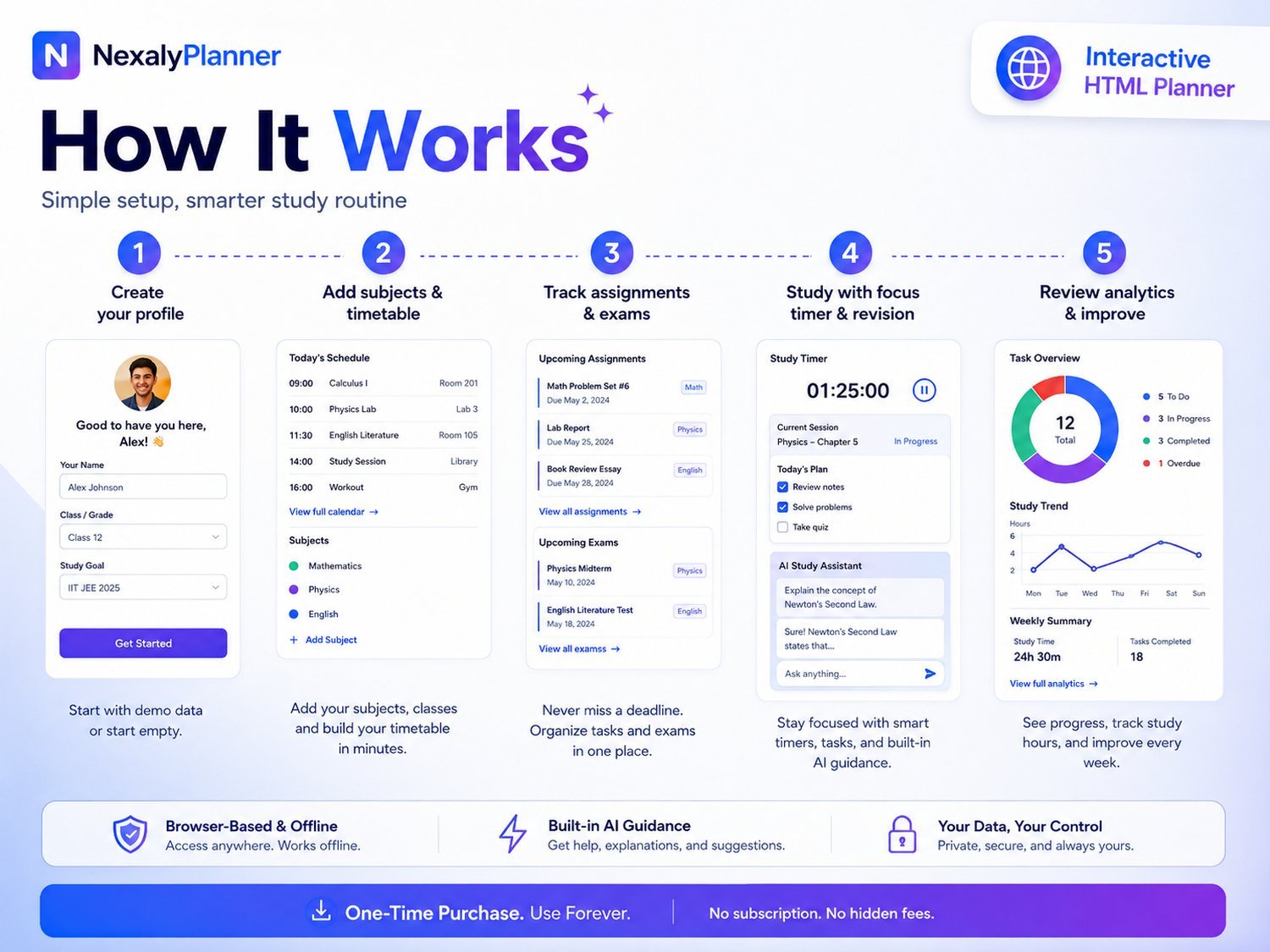
Figure 1. Product overview illustration of the student planning workflow. For exact form labels and the assistant's supported behavior, follow the setup steps and limitations below.
Quick start: your first 15 minutes
- Open the planner and complete onboarding. Enter your name. Add your School / College and Course / Program if you want them on your local profile. Choose a language and set a Daily Study Goal between 15 and 600 minutes.
- Choose the correct workspace. Select Start with Demo Data if you want to inspect the modules and charts first. Select Start Empty if this is your real workspace. Demo data is explicitly labeled and can be cleared from Settings.
- Create Subjects. Add each current course or class. Include the instructor, your target grade, and a color so related timetable and calendar entries are easy to recognize.
- Build Timetable. Add recurring class blocks with a subject, day, start time, end time, and room. The timetable is a weekly reference; it does not automatically create study sessions.
- Enter deadlines. Add an item in Assignments for every paper, problem set, lab, project, or other due item. Add each test or exam in Exams with its date, target percentage, and current preparation percentage.
- Convert deadlines into work. In Study Planner, add dated sessions with a topic, duration, method, and planned or done status. In Revision, add topics with a confidence score from one to five.
- Use the daily loop. Open the Dashboard, review Reminder Center and Smart Plan, complete a study block with Focus Timer, check a habit, and mark finished work complete.
- Review and protect the data. Use Analytics to check study hours, assignment completion, exam preparation, and habit progress. In Settings, export the JSON backup before changing devices, clearing browser data, or resetting the workspace.
Onboarding, demo data, and the empty workspace
The initial interface opens an onboarding modal titled NexalyPlanner · AI Student Learning OS. It explains that demo data shows how every module, chart, and reminder works and that it can be cleared from Settings. The modal asks for Name, School / College, Course / Program, Language, and Daily Study Goal. The name is required. The daily goal accepts 15–600 minutes; the default is 90 minutes when no other value is saved.
Choose Start with Demo Data when you are learning the interface. The verified demonstration workspace includes Mathematics, Biology, and English; sample instructors; target grades; a weekly timetable; completed and planned study sessions; assignments; exams; goals; revision topics; habits; notes; grades; and focus history. Because the sample dates are calculated relative to the day the data is created, the exact dates will change when you load it. A DEMO DATA notice appears on the Dashboard, and the sample records are not your academic results.
Choose Start Empty for a clean semester workspace. You can also clear an active demo workspace from Settings. Clearing demo data removes the planner’s subjects, timetable, study records, assignments, exams, goals, revision records, habits, notes, grades, and focus log. Export anything you need before clearing it. The action is local and does not affect a school account because no school account is connected.
On later visits, the product may show a local sign-in screen after the session ends. Enter the saved name to unlock the local interface. This is a personalization and screen-privacy step, not secure cloud authentication. It does not create an account, sync data, or protect records with a verified remote identity provider.
Complete menu and screen map
The sidebar exposes exactly these verified screens. On smaller screens, open the sidebar with the menu button.
| Menu label | What the screen controls | Main result |
|---|---|---|
| Dashboard | Daily goal, study today, open assignments, next exam, streak, seven-day study chart, reminders, Smart Plan | A daily command view built from your local records |
| Subjects | Course or class name, instructor, target grade, color | The subject list used by other forms |
| Timetable | Weekly class blocks by day and time | A recurring weekly class reference |
| Calendar | Month view with study, assignment, exam, and revision events | A date-based workload view |
| Study Planner | Planned or completed sessions, topics, minutes, and study method | A dated study log that feeds totals and streaks |
| Assignments | Due dates, priority, progress, and status | Deadline tracking and completion rate |
| Exams | Exam dates, target score, preparation percentage | Readiness tracking and exam reminders |
| Goals | Dated outcomes and progress percentage | Longer-term academic targets |
| Revision | Topic, date, confidence, and repeat action | A confidence-based revision queue |
| Habits | Habit title, weekly target, and daily check-in | Seven-day habit progress |
| Focus Timer | Subject, topic, timer length, start/pause/reset | Completed focus minutes in the local focus log |
| Notes | Title, tags, and note text | Quick academic reference cards |
| Grades | Subject, assessment, score, maximum score, weight | Per-subject average percentages |
| Analytics | Study hours, assignment completion, exam readiness, habit rate, charts | A local progress snapshot |
| Learning Hub | Active Recall, Spaced Repetition, Focus Blocks, Feynman Technique, Practice | Short study-method guidance |
| AI Assistant | Local questions and quick prompts | Rule-based planning and product guidance |
| Help & Guide | Suggested setup order, privacy statement, limitations | In-product orientation and caveats |
| Settings | Profile, daily goal, language, theme, accent, backups, demo data, local sign-out, reset | Workspace and data controls |
Set up a semester workspace
1. Add your profile and study goal
Open Settings at any time to edit Name, School / College, Course / Program, and Daily Study Goal (minutes). The daily goal is a target for planned study and focus activity; it is not a recommendation from a teacher or clinician. Choose a sustainable value. For example, a student with a full class schedule might start at 90 minutes and adjust after reviewing a week of actual study time.
Under Theme & Language, choose English or one of the other available interface languages: Arabic, Portuguese, Spanish, Dutch, French, or Italian. The product also supports light and dark themes and the accent choices Blue, Purple, Teal, Orange, and Pink. Save appearance changes explicitly.
2. Build Subjects before dependent records
Open Subjects and select Add Subject. Enter the subject name, instructor, target grade, and color. The target grade is a personal planning field. It does not calculate an official course grade or predict an instructor’s grading decision.
For a US example, Maya might create Algebra II, instructor “Ms. Rivera,” target grade “A-,” and a purple color; US History, instructor “Mr. Chen,” target grade “A,” and a teal color; and Biology, instructor “Dr. Patel,” target grade “B+,” and an orange color. Use Edit to correct a record or Delete to remove it. If you delete a subject, review other records that referred to it; the product’s forms use subject IDs for display, and a deleted subject may no longer show its friendly name.
3. Add the weekly Timetable
Open Timetable and select Add Timetable. Select a subject, choose a day from Monday through Sunday, and enter Start Time, End Time, and Room. A timetable entry appears in the appropriate day column and can be edited or deleted.
The timetable is intentionally simple. It does not include instructor attendance, recurrence exceptions, school holidays, online meeting links, or automatic calendar imports. Add a separate Study Planner entry when you want a study block; a class block alone does not count toward study time.
Plan assignments, exams, study, and revision together
The planner is most useful when the same academic priority appears in several connected records. Use the following workflow for each major deadline.
Assignments: record the commitment
- Open Assignments and choose Add Assignments.
- Enter the assignment Title, select a Subject, and set the Due Date.
- Choose High, Medium, or Low priority.
- Enter Progress from 0 to 100 and select todo, inProgress, or done.
- Select Save. Use the row’s Done, Edit, or Delete controls as work changes.
The table sorts by due date. An unfinished item past its date receives an overdue marker. Items due within three days contribute to Reminder Center; the Dashboard also counts unfinished assignments and calculates the assignment completion percentage from records marked done. Marking an assignment done sets its progress to 100. Marking it back to todo preserves no more than 90 percent progress, so update the value if necessary.
Exams: make readiness visible
- Open Exams and choose Add Exams.
- Enter the exam title and subject.
- Set the Exam Date.
- Enter a Target percentage and your current Prepared percentage.
- Save, then update Prepared as you complete study and revision work.
Each exam card shows the number of days until the date, the date, target percentage, and a preparation bar. Exams within seven days appear in the local reminder list; exams within three days receive stronger visual emphasis. The Dashboard’s Next Exam is the nearest future exam. Exam readiness in Analytics is the average of the preparation percentages you entered, not a prediction of your score.
Study Planner: turn a deadline into dated work
- Open Study Planner and select Add Study.
- Set the session Date and choose a subject.
- Enter a specific Topic, such as “quadratic formula practice” rather than only “math.”
- Enter Minutes from 5 to 600.
- Choose a Method: Active Recall, Practice, Reading, Video, Summary, or Flashcards.
- Set Status to planned or done, then save.
The Study Planner table can toggle a session between planned and done. Completed study minutes feed Study Today, the seven-day chart, total study time, and the study streak. Planned sessions help you see intended work, but they do not count as completed study until marked done. Focus Timer completions also add minutes to the same overall study summaries.
For Maya’s Biology unit test on October 9, 2026, a realistic plan might include “Cell transport — Active Recall — 30 minutes” on October 2, “Mitosis practice questions — Practice — 45 minutes” on October 4, and “Timed unit review — Practice — 50 minutes” on October 7. These are planning examples, not an automatic schedule generated by the product.
Revision: create a repeatable recall queue
- Open Revision and choose Add Revision.
- Select a subject and enter a required Topic.
- Set the next revision Date.
- Enter Confidence from 1 to 5, where a lower number represents less confidence.
- Save the record and use its Done + button after revising.
The list shows a star rating and flags past revision dates. When you select Done +, the product moves the next date forward using the recorded confidence: confidence 1 moves one day, 2 moves two days, 3 moves four days, 4 moves seven days, and 5 moves fourteen days. This is a simple local scheduling rule, not a validated learning-science assessment. Review the new date and edit it if your instructor’s pacing or your own workload calls for a different interval.
Daily planning tools
Dashboard and Reminder Center
The Dashboard opens with a welcome card, a local/offline notice, a shortcut to Study Planner, and a shortcut to Ask AI Guide. The daily goal card compares completed minutes with your configured goal. Four metrics show Study Today, Open Assignments, Next Exam, and Study Streak. A seven-day bar chart combines completed Study Planner minutes and completed Focus Timer minutes.
The Reminder Center is available from the bell button in the top bar. It surfaces overdue or near-due assignments, exams within seven days, and revision records due today or earlier. It is an in-app list, not a guaranteed operating-system notification service. Check it at the beginning and end of each study day.
The Dashboard’s Smart Plan is a concise local priority list. It uses up to two unfinished assignments sorted by due date, the earliest future exam below 70 percent prepared, and one due revision item. It does not create records, block time on your behalf, or submit work.
Goals
Open Goals and select Add Goals. Enter a goal title, a date, and progress from 0 to 100. Use outcome language that you can review, such as “Submit all research sources by October 5, 2026” or “Reach 85% in Biology practice quizzes.” Update progress manually as evidence changes. Goals are not linked automatically to assignment completion, grades, or habits, so use them as a planning layer rather than an automatic achievement calculation.
Habits
Open Habits and select Add Habits. Enter a habit title and a weekly target from one to seven. Each habit card shows the number of checks in the last seven days compared with the target and includes a Check In button. Check-in is reversible for the current day: select Checked to remove today’s check if you tapped it by mistake.
Useful student habits include “Review class notes,” “Read 20 minutes,” or “Plan tomorrow.” Avoid using Habits to record medical treatment, medication adherence, or mental-health symptoms. This planner is an organizational tool and does not provide medical guidance or clinical monitoring.
Focus Timer
Open Focus Timer, select a subject, and enter a topic. The timer starts at 25 minutes and offers quick choices of 15m, 25m, 50m, and 90m. Select Start to begin, Pause to stop temporarily, or Reset to return to the selected duration. When a timer reaches zero, the product adds a focus-log record with the date, minutes, subject, and topic. Those minutes feed the Dashboard and Analytics.
A completed timer records the full selected duration. It does not measure distraction, verify that you studied, or issue an external alert. If you leave the browser or device sleeps, verify the result rather than assuming a session was recorded. For a short evening session, Maya could choose Biology, enter “Cell transport diagrams,” select 25m, and then review the new minutes in the Dashboard after completion.
Notes
Open Notes and select Add Notes. Enter a required title, optional Tags, and the note text. Notes appear as cards with a date, tags, and editable text. Use them for an assignment rubric reminder, a list of questions for office hours, or a short explanation you want to revisit. Notes are not a document editor with attachments, citations, or collaboration controls; keep source files and official course instructions in their original systems.
Grades, Analytics, and Learning Hub
Grades
Open Grades and select Add Grades. Select a subject, enter the assessment name, enter Score, Max Score, and optional Weight. The product calculates each entry as score ÷ max score × 100, rounded to one decimal place. It then displays an average of the entered percentages for each subject.
For example, a 42 out of 50 quiz displays as 84.0 percent. A weight value is displayed in the table but the verified subject-card average is an average of the entered percentages; do not assume it is a weighted course-grade calculation. The product does not know your school’s grading policy, dropped scores, category weights, extra credit rules, or transcript rules. Compare the local estimate with your syllabus and official gradebook before making academic decisions.
Analytics
Analytics shows four local metrics: total study time in hours, assignment completion percentage, average exam preparation percentage, and habit progress percentage. It also shows the seven-day study chart and an assignment donut with a local insight drawn from Smart Plan. With no records, the charts show no data rather than inventing a result.
Use Analytics once a week. If study hours are high but assignment completion is low, add smaller assignment-specific sessions rather than only increasing a general goal. If exam readiness is low, create revision entries and practice sessions tied to the weak topics. If habit progress is low, lower the weekly target to a sustainable level rather than treating the percentage as a judgment about ability.
Learning Hub
Learning Hub contains five short guidance cards:
- Active Recall: close notes and retrieve the answer before checking.
- Spaced Repetition: revisit difficult material sooner and stronger material later.
- Focus Blocks: choose one outcome and protect a distraction-free work block.
- Feynman Technique: explain a concept simply to reveal weak understanding.
- Practice: use questions and past papers to practise retrieval.
These are study-method prompts, not personalized tutoring, institutional policy, or guaranteed outcomes. Use instructor-provided materials and accessibility services when a course requires a particular method or accommodation.
AI Assistant: what it does and what it does not do
Open AI Assistant to see a local chat panel, a message composer, and quick prompts for Today, How to use, Offline, and Backup. The verified assistant responds to supported keyword patterns. A Today request returns Smart Plan items from local assignments, exams, and revision records. How-to, offline, and backup questions return the product’s built-in guidance. Feature and benefit questions return static product guidance. Unsupported questions receive a default help response.
Use the Assistant as a navigation aid. Ask “today” when you want a concise local priority list, or select How to use when you are unsure of the intended setup order. Do not treat it as a generative tutor, a source of course facts, a plagiarism service, a grade predictor, or a substitute for an instructor. It does not contact instructors, browse the web, read your school portal, or perform external actions. Review every suggestion against your syllabus, assignment prompt, and instructor guidance.
A realistic weekly workflow for US students
On Sunday, September 27, 2026, review the Calendar and Timetable for the coming week. Add any new assignment due dates and exam dates. Update exam preparation percentages based on what you actually know, then create Study Planner sessions for specific topics. Keep the total near your Daily Study Goal unless your schedule supports more.
On each class day, open the Dashboard before studying. Review Reminder Center and Smart Plan. Complete the highest-value short session first, then mark the corresponding Study Planner item done. If you work in a Focus Timer session, record the subject and topic before starting so the completed minutes are useful in Analytics. Check one habit after the action is complete.
On Wednesday, September 30, review Revision. Complete due topics and use Done + to place each topic at its next local interval. If confidence is still low, edit the topic to a nearer date instead of relying on the automatic interval. Add a Note for questions to ask at office hours.
On Friday, October 2, enter any graded work in Grades. Check the arithmetic against the official learning-management system. Then open Analytics. Look for a mismatch between planned and completed sessions, approaching exams below 70 percent prepared, overdue assignments, or a habit target that is unrealistic.
On Saturday, October 3, export a JSON backup from Settings. Store it somewhere separate from the browser and device, such as a personal file location permitted by your school’s privacy policy. Do not store a backup in a shared computer account where another person can access your academic notes.
First-week example: one assignment, three work sessions
Suppose Maya has an English essay due October 9. The fictional estimate is 150 minutes: 30 to outline, 75 to draft and 45 to review. Add English in Subjects and one essay in Assignments. Then add these separate Study Planner entries; the assignment is the deliverable, while the sessions are its planned work.
| Session date | Topic | Minutes | Method | Initial status |
|---|---|---|---|---|
| October 5 | Choose argument and outline evidence | 30 | Summary | planned |
| October 6 | Write the first essay draft | 75 | Practice | planned |
| October 8 | Review argument, references and submission file | 45 | Practice | planned |
The planned sessions total 30 + 75 + 45 = 150 minutes. Planned minutes are not completed study. If the outline takes 40 minutes, edit that entry to the actual duration before marking it done and review whether the remaining sessions still fit. A changed estimate is useful information, not a reason to invent completion.
Choose one logging method for the same period of work. If you log a 25-minute Focus Timer completion and also mark the same 25 minutes done in Study Planner, the app's combined summary can count 50 minutes. To avoid this, keep a session as a planning reference when its time is recorded by the timer, or log the actual completed session in Study Planner without recording that same time through the timer. Review the two logs before trusting the total.
The assignment form records a due date, not a separate verified due-time or time-zone field. Keep the instructor's exact cutoff and submission instructions in Notes or your required course system. Set an external reminder if you need one; the local Reminder Center is an in-app view. Check the official submission receipt before treating work as handed in. See the college assignment tracking example for deadline-source handling and the exam preparation guide for study blocks around other deadlines.
Keep the work plan recoverable
After checking the first week, use Settings → Export Backup and save the JSON outside browser storage. Keep the previous dated backup until the newer copy has been safely verified. Before an import, export the current workspace: Import Backup replaces the state rather than merging two academic calendars.
After a permitted device transfer, check the profile, subject names, one assignment date, one study session and a saved note. If the records differ, stop entering new work until you have identified the intended backup. The live preview blocks export and import; perform recovery checks in the purchased version. The weekly student planning routine and academic term view help keep the next review small.
Offline, local-storage, and backup limitations
The product displays Offline & Private and states: “Data stays in this browser. Export backups regularly.” The verified implementation saves the workspace to browser localStorage. That supports local use without a cloud account, but it also creates important risks. Browser storage can be removed by clearing site data, using a browser reset, changing profiles, uninstalling a browser, or losing the device. Local storage is not the same as an encrypted backup, and the product does not verify cloud synchronization.
To create a backup, open Settings and select Export Backup. The browser downloads a JSON file with a name based on the product and date, such as NexalyPlanner-Student-OS-Backup-2026-10-03.json. To restore, select Import Backup, choose a valid JSON file, and allow the workspace to reload. Import replaces the current in-memory state with the normalized backup state. Export the current workspace first if you may need to undo the import.
Settings also provides Export CSV, which creates a simplified CSV of study, assignment, exam, and grade records. It is useful for review or analysis but is not a full-fidelity restore file. Print Report invokes the browser print action. Neither CSV export nor printing replaces a JSON backup.
Backup and restore are user-controlled downloads and file selections. The product does not automatically export, sync, email, upload, or encrypt the backup in the verified edition. Protect the JSON file like a personal academic record. The local sign-out control only ends the current local session; it does not encrypt localStorage or provide secure multi-user account separation.
Advantages and disadvantages
Advantages
The product’s main advantage is one low-friction local workspace. A student can move from a deadline to a study topic, focus session, revision date, and progress review without opening several planning tools. Demo exploration and a clean empty workspace make first use less intimidating.
It also provides transparent calculations. Assignment completion is based on records marked done. Exam readiness averages entered preparation percentages. Grades show score-to-maximum percentages. Study totals combine completed Study Planner and Focus Timer minutes.
The product supports English plus six other interface languages, Arabic right-to-left layout, light and dark themes, five accent choices, offline use, and no school-portal connection.
Disadvantages and trade-offs
The same local-first design means there is no verified cloud sync, shared calendar, school integration, instructor collaboration, or cross-device continuity. A student must create and protect backups manually. The reminder system is in-app, so it should not be treated as a guaranteed push-notification service.
Several calculations are intentionally lightweight. Grade weights are displayed but not applied to the subject-card average in the verified implementation. Goals do not automatically connect to grades or assignments. Timetable entries do not generate study blocks. Revision intervals use a simple confidence rule. These limitations are acceptable for a personal planning layer but matter if you need official academic records or a detailed weighted gradebook.
The AI Assistant is narrower than a general-purpose chatbot. It gives local, built-in guidance and Smart Plan responses; it does not browse course content, understand an assignment unless you enter the relevant planning record, or guarantee an academically correct answer. Keep the assistant’s output subordinate to your syllabus and instructor.
Troubleshooting
The onboarding modal keeps appearing. Enter a nonblank name and choose either Start with Demo Data or Start Empty. If you reset the workspace, onboarding is expected to appear again.
The Dashboard is empty. You selected Start Empty or cleared demo data. Add Subjects first, then assignments, exams, study sessions, or habits. Empty charts and “No data yet” states are normal.
A study session does not increase Study Today. Only a Study Planner item with status done and a completed Focus Timer session contribute. Edit the study item or use its status toggle. A planned session alone is not counted.
My assignment is not in Smart Plan. Smart Plan uses unfinished assignments, sorted by due date, and may show only the first two. Confirm that the status is not done and that the due date is correct. Open Reminder Center for a broader urgent list.
My exam preparation looks wrong. Analytics uses the average of the Prepared percentages you entered. Update each exam card; the product does not infer preparation from study time or grades.
My grade average does not match the school portal. The product calculates entered score divided by maximum score and averages the percentages by subject. It does not apply the displayed weight to that subject-card average and does not know your institution’s grading policy.
My data disappeared. Check that you are using the same browser profile and device. If browser/site data was cleared, restore the most recent JSON backup through Settings → Import Backup. Without a backup, local records may not be recoverable.
Import says “Invalid backup.” Confirm that the selected file is a valid JSON backup exported by this product. Do not rename a CSV file to .json; CSV is for export and review, not restore.
The Focus Timer did not log my session. A focus record is added only when the timer reaches zero. Verify that the page remained active and then check the Dashboard or Analytics. For shorter work, record a done Study Planner session manually.
The AI Assistant gives a generic answer. Use the built-in quick prompts or ask a short supported question about today, workflow, offline storage, backup, features, or benefits. For course-specific questions, ask your instructor or use an approved academic resource.
FAQ
Is AI Student Planner free of school-account setup?
The audited product does not require a school portal or cloud sign-in. It asks for a local name and profile details during onboarding. This local profile is not a verified institutional account.
Can I use it for high school and college courses?
Yes. The verified fields are general enough for secondary classes, college courses, and university programs. You choose the subject names, instructors, target grades, deadlines, and study methods. Adapt the records to your syllabus.
Does it submit assignments or send reminders to my professor?
No. The verified edition has no external action or school integration. It provides local records, an in-app Reminder Center, and planning guidance.
Does the planner calculate my official GPA?
No. Grades displays per-subject averages of entered score percentages. It does not calculate an official GPA, apply every institution’s weighting policy, or produce an official transcript.
Can I add dollars, tuition, or a financial budget?
No financial-planning feature is verified in this product. The relevant example fields are academic scores and time in minutes. Do not use Grades, Notes, or Goals as an accounting or financial record.
Does Focus Timer continue working if I close the tab?
Do not assume it does. The verified timer uses an in-page JavaScript interval and logs a session when it reaches zero. Keep the page available and verify the result afterward.
Is my data encrypted?
The verified interface describes local browser storage and portable JSON backups, but it does not document encrypted local storage or encrypted backup files. Protect the device, browser profile, and exported JSON yourself.
Can I restore a CSV file?
No. Import Backup expects a JSON backup. CSV export includes a limited set of study, assignment, exam, and grade fields for review or analysis.
Is the AI Assistant a tutor or medical support tool?
No. It is a local planning and product-help interface. It does not provide medical diagnosis, mental-health treatment, disability assessment, or professional educational advice. For accommodations, health concerns, or safety issues, use qualified school and health professionals.
Related study workflows and next step
Use the college assignment tracker and exam study schedule for worked study plans. Compare the Digital Homeschool Planner guide for parent-led learning, or the ADHD Digital Planner guide for a separate focus and routine workspace.
If you are ready to begin, open AI Student Planner, choose Start Empty, add your subjects and next deadlines, and complete one small Focus Timer session today. Then export your first JSON backup from Settings before your workspace becomes difficult to recreate.
Explore AI Student Planner
Review product screenshots, included features, download details and current purchase terms.
View AI Student PlannerTry one assignment list before setting up a full study workspace
Use the free Assignment Deadline Planner to review due dates and estimated work for a short assignment list. It provides a focused worksheet; the paid student planner described in this guide connects broader study records.
Each free planner has its own device save and JSON backup. Its records do not automatically sync with, or import into, the paid application. The free worksheet remains available without a purchase.