
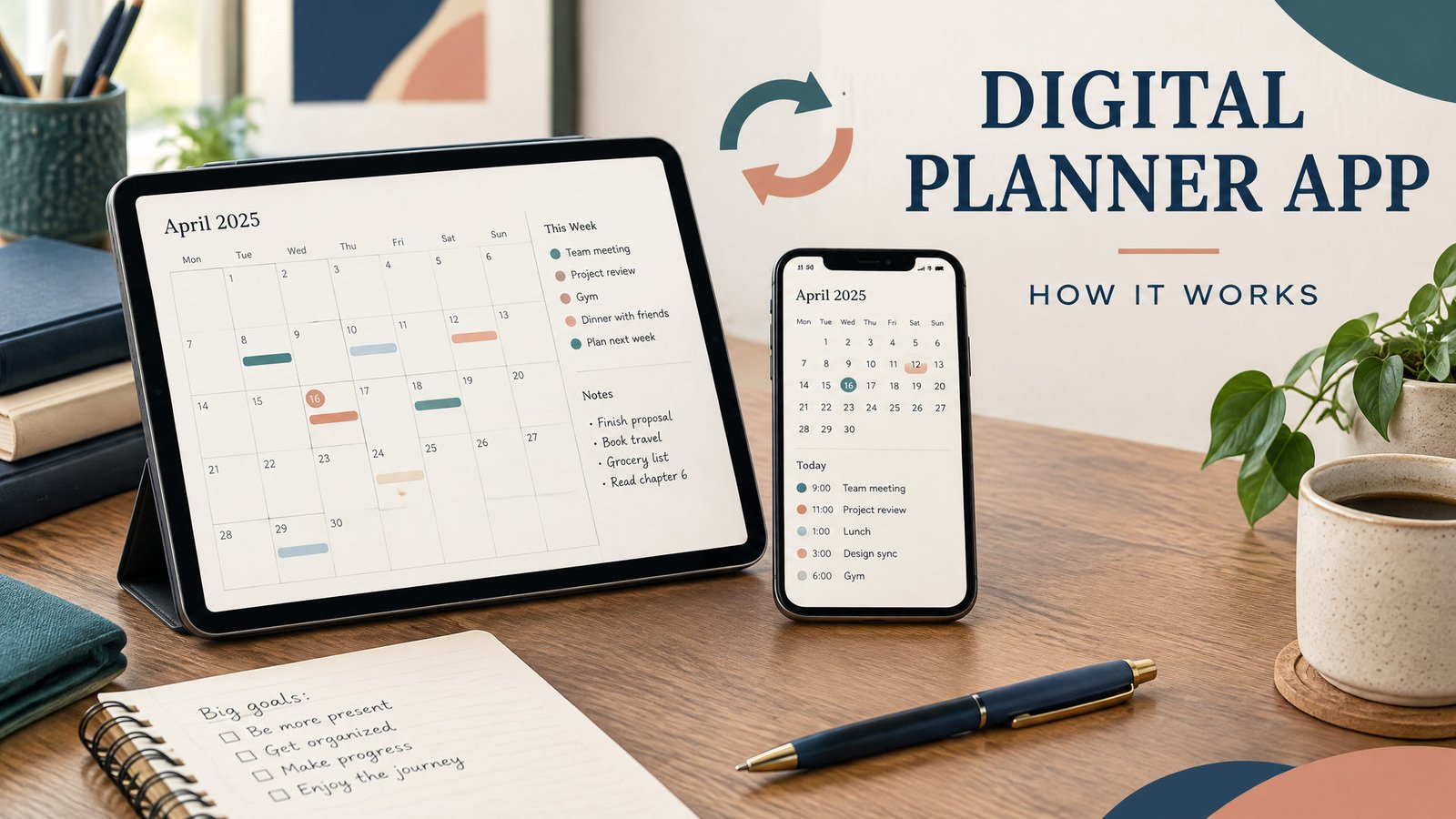
A digital planner app puts calendar pages, task lists, notes, and trackers on a phone, tablet, or computer. The planner may be a PDF imported into a handwriting app, a Notion workspace, or an offline HTML file that opens in a browser. The best option depends on whether you want handwriting, databases, fast access without internet, or a setup that does not require an account.
How a digital planner app works
If you plan specifically on an iPad, the iPad digital planner setup walkthrough covers file import and a first-week test. For a decision about which file type to choose, compare the best digital planner formats for iPad.
The phrase “digital planner app” describes two parts: the planner file or workspace and the app that displays it. A PDF planner is a document opened by Goodnotes, Apple Notes, or another PDF-capable app. A Notion planner is built from pages and databases inside a Notion account. An HTML planner is a set of web pages opened locally in a browser.
That distinction matters when you move devices. A PDF can be copied, but handwriting and links depend on the app’s export behavior. A Notion page belongs to a workspace and may sync after you sign in. A local HTML file does not become a shared workspace.
Most workflows follow this sequence:
- Choose a layout, such as daily, weekly, monthly, academic, or undated.
- Download or create it in a compatible format, then open it in the right app or browser.
- Add appointments, tasks, notes, links, habits, or project details.
- Review it regularly and back up important work.
A digital planner does not manage priorities automatically. Its advantages are search, duplicate pages, stylus input, and portability.
Main options compared
Start with the way you naturally plan, then choose the format that supports it.
| Option | Best for | What you need | Offline and account notes | Main limitation |
|---|---|---|---|---|
| PDF in Goodnotes or another annotation app | Handwritten planning, stickers, and page-based layouts | Compatible device, PDF file, and annotation app | A PDF is usable as a file; sync and backup depend on the app and its settings | A PDF is less flexible for databases and large lists |
| iPad plus Apple Pencil | People who want handwriting on a tablet | Compatible iPad, Apple Pencil, and a writing or PDF app | Apple Pencil is optional; internet is not required for every local document workflow | Pencil compatibility varies by iPad model, and the tablet is an added cost |
| Notion planner | Typed notes, linked pages, databases, and project views | Notion app or website and a Notion account | Pages can be marked available offline in the desktop or mobile app; offline access is device-specific | Some features, sharing actions, embeds, and database content may need a connection |
| Offline HTML planner | A lightweight browser-based planner without a dedicated app | HTML files and a modern web browser | The file can open locally without a planner account; there is no automatic cloud sync | It may not provide handwriting, app-level reminders, or cross-device synchronization |
iPad and Apple Pencil
An iPad is the hardware, not the planner system. Apple Pencil lets you write directly on a PDF in a compatible app, but it is optional. Apple’s iPad documentation describes annotating PDFs in Notes with Apple Pencil or a finger.[1]
Check iPad and Pencil compatibility before buying. Decide whether you need a keyboard or larger display.
Goodnotes and PDF planners
Goodnotes can import files for annotation. Its documentation describes importing from the app, another app, cloud storage, or drag and drop on supported devices.[2] Download a PDF planner, import it, and write or type on its pages. Test hyperlinks and navigation before building a large system.
Keep the original PDF outside the app and back up annotated copies. Goodnotes says recent documents can be edited offline in supported apps, while some actions, such as exporting, may require a connection.[3]
A free app or planner can help you learn, but limits may apply to notebooks, imports, storage, sync, templates, or export. A free download does not mean unlimited use.
Notion planners
Notion uses pages, tables, databases, views, and linked records inside a workspace. It works well when a weekly plan connects to project lists, meeting notes, or a content calendar.
Notion’s official guide says users can view, edit, and create pages offline in the desktop or mobile app after making those pages available offline. Access is device-specific, and live features such as embeds, forms, or buttons may be unavailable.[4] Prepare pages before a flight or commute.
An account is central to Notion’s workspace, permissions, and sync model. An export is not the same as a live workspace. Choose PDF or HTML if you want a file you can open without an account.
Offline HTML planners
An offline HTML planner is a local web page or group of pages opened in a browser. It can suit laptop users who prefer typed fields and browser navigation.
It does not automatically sync across devices. Browser storage may be cleared, files may move, and interactions can vary by browser, so keep a backup. An HTML download is not a PDF, Excel workbook, or Goodnotes notebook.
A practical setup with a worked example
Suppose Maya is a freelance designer in Columbus, Ohio. She has an iPad for handwritten notes, a Windows laptop for client work, and unreliable Wi-Fi during a weekly train ride. She wants a weekly overview and client follow-ups.
First, Maya chooses a PDF weekly planner for the iPad because the layout matches how she thinks. She imports it into Goodnotes and keeps the blank original in a “Planner originals” folder. She uses Monday, May 11, 2026, as her test week.
On Sunday evening, she writes three outcomes: send the Oak Street logo revision, prepare the Riverbend estimate, and reserve two hours for portfolio updates. She schedules the Oak Street call for Tuesday at 10:00 a.m. and the Riverbend estimate for Wednesday at 2:00 p.m., with a 30-minute follow-up block after each meeting.
Her laptop workflow stays separate. She creates a Notion page for client notes and a task database with client, due date, and status fields. She marks the pages available offline before the train ride. The handwritten PDF and Notion database do not sync with each other, so she copies only the next action and due date between them.
For the train ride, Maya saves the PDF locally and confirms that the Notion pages are available offline. She exports a backup after Friday’s review. This gives her handwriting, structured records, and a backup path.
If Maya wanted no account or dedicated app, she could use an offline HTML planner. Choose the option that fits your review habit.
How to choose your planner app
Choose PDF annotation when you prefer handwriting and fixed weekly or monthly spreads. Choose Notion when the plan must connect to searchable notes, databases, projects, or shared pages. Choose offline HTML when local, account-free browser access matters more than handwriting or automatic sync.
Check file format, offline behavior, backup method, and device coverage. A planner that cannot open on your work computer is not practical. Browse the digital planner collection and compare it with your app. The daily digital planner guide explains a page-by-page approach, while the offline digital planners guide covers local access and backups.
Ready to match a format to your routine? Use NexalyPlanner’s digital planner templates as a starting point, then confirm the listed format before importing. For a monthly layout, see monthly planner templates.
Key takeaways
- A digital planner app is the software layer; the planner itself may be a PDF, Notion workspace, or HTML file.
- iPad and Apple Pencil support handwriting, but you still need an app to open and organize the planner.
- Goodnotes is suited to annotating imported PDFs, while Notion is suited to typed pages and databases.
- Notion offline access requires preparation on each device and does not make every feature available without a connection.
- Offline HTML can open in a browser without a planner account, but it does not automatically sync across devices.
- Keep an original template and back up annotated or edited copies.
- Check format, offline behavior, account requirements, and device compatibility.
Frequently asked questions
Is a digital planner the same as a planner app?
No. A digital planner is usually a file or structured workspace. A planner app opens, edits, organizes, or syncs it. A PDF can be used in more than one annotation app, while a Notion planner is built inside the Notion workspace.
Can I use a digital planner without an iPad?
Yes. Use one on a computer, Android device, or another supported tablet if the format and app are compatible. An iPad is most useful for Apple Pencil handwriting.
Do I need an Apple Pencil for a digital planner?
No. You can type, tap, use your finger, or use another supported stylus. Apple Pencil is an optional accessory that makes handwritten PDF annotation more comfortable on compatible iPad models.
Can I use a PDF planner in Goodnotes?
Yes, Goodnotes supports importing files for annotation, including PDF-based workflows. Import the planner, test its links and page navigation, and keep a separate backup of the original file.[2]
Does Notion work offline?
Notion supports offline work in its desktop and mobile apps for pages prepared for offline use. Offline access is device-specific, and features that need a live connection, such as some embeds or sharing changes, may not work until you reconnect.[4]
Is an offline HTML planner an app?
Usually not. It is a local web file that opens in a browser. It may feel app-like, but it does not automatically provide an account, cloud sync, reminders, or handwriting tools unless those functions are specifically built and documented.
Are free digital planner apps really free?
Some offer a usable free tier, but limits can apply to storage, imports, notebooks, templates, exports, or sync. Check the current plan details and make a backup before relying on a free service for important records.
Which format is best for a student or busy professional?
A student taking handwritten class notes may prefer an iPad and PDF app. A professional managing projects may prefer Notion. The fit depends on whether handwriting or structured records are harder.