
What RentFlow OS does
RentFlow OS is an offline-first operating desk for a rental company that needs one local record of assets, availability, customers, quotes, bookings, deposits, pickup or delivery, returns, damage and late-fee recovery, maintenance, and financial position. It is designed for an owner or small operations team that wants to answer practical questions quickly: Is the unit available for the requested window? How much cash is still due? Which rental is overdue? Is a service window blocking a release? Which asset is contributing the most after recorded maintenance cost?
For equipment and event-rental businesses, a unit must be reserved for a time window, released in usable condition, tracked while out, inspected on return, and either returned to available stock or placed into maintenance. RentFlow OS connects those records locally. The dashboard recalculates Confirmed revenue, Cash still due, Asset utilization, due-back rentals, deposits, maintenance turnaround, and asset contribution.
RentFlow OS is not a cloud rental marketplace, payment processor, accounting system, dispatch network, or legal-contract service. The audited edition saves records in the browser on the current device and provides a dated JSON backup and restore workflow. It does not establish that a customer has paid, prove that a damage charge is legally enforceable, contact a customer, collect money, or synchronize with external systems. Review every amount, condition finding, and fee under your own rental agreement, insurance requirements, tax process, and local professional guidance.
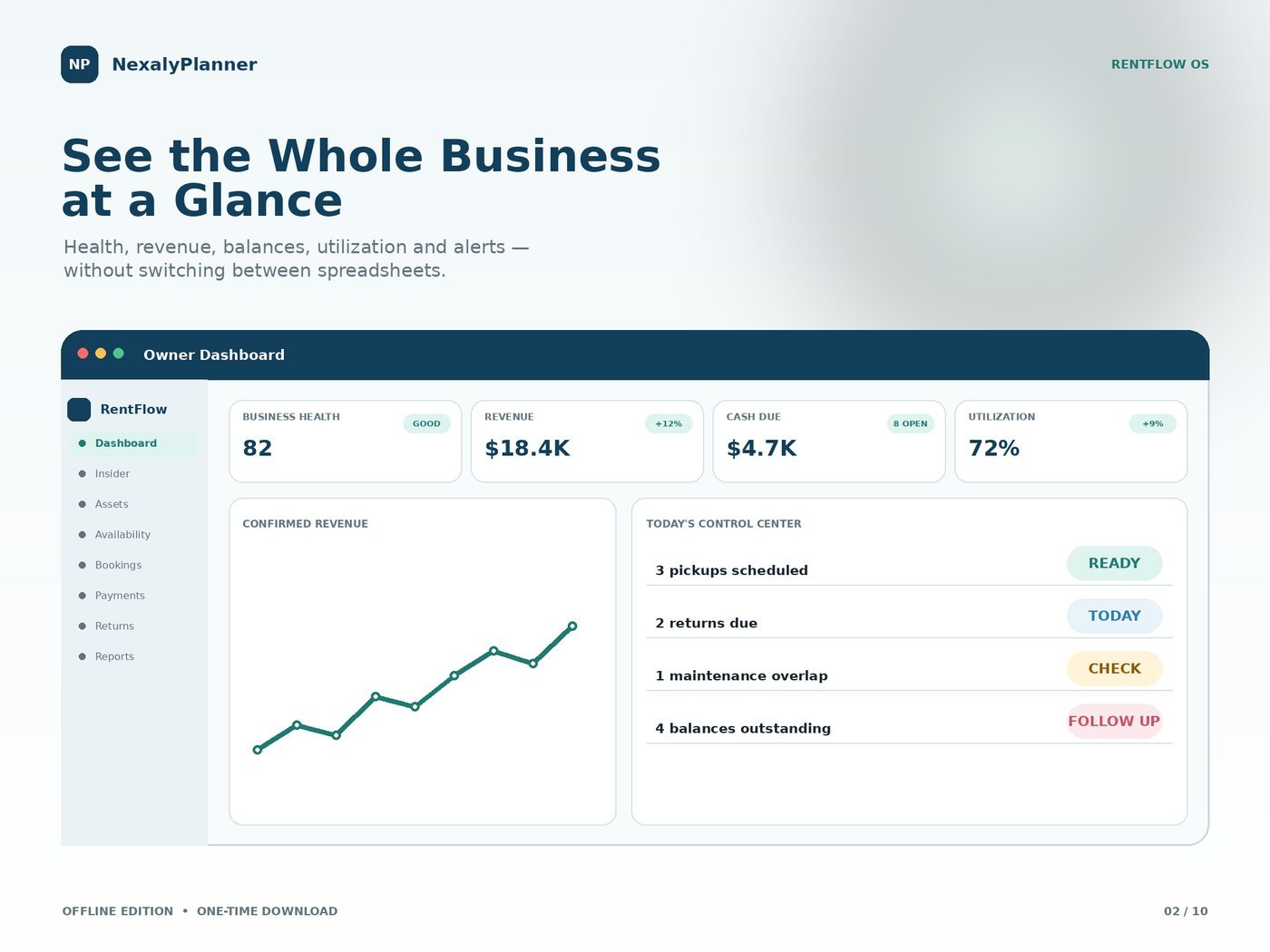
Baseline screenshot: the RentFlow OS Owner Dashboard for Harbor & Pine Event Rentals. The dashboard is an orientation view of local records; the displayed figures are demonstration data, not a claim about your business results.
Quick start: first session
Use this sequence before entering a live reservation.
- Open RentFlow OS in the browser you intend to use. The demonstration shows “RentFlow OS · Harbor & Pine Event Rentals” and “Saved on this device.” Treat your own records as browser-local.
- Open Settings and choose language and currency. Use English and USD for a typical US operation. Display currency does not decide taxes, deposits, or payment methods.
- Replace the USA demo workspace with your records. Confirm that the business profile, assets, customers, and bookings are yours before relying on a dashboard number.
- Add every rentable unit in Rental Assets. Give each a unique code, name, category, status, and rate and cost fields. Treat a set as one unit only when it is released and inspected as one unit.
- Add customers before quotes or bookings. Use the record as the reference for contact, company, history, and balance.
- Create a quote for the requested date and asset. Record its validity window and asset summary.
- Create a booking for accepted work. Enter customer, unit, start, end, rental total, and required deposit. Availability and maintenance conflicts are checked before saving.
- Record payments only when received. Payments update the booking and customer balance immediately; a required deposit is not money collected.
- Schedule pickup or delivery and complete the return inspection before deciding whether the unit is available or needs maintenance.
- Create a backup before changing devices or clearing browser data. Download it, store it safely, and test restoration.
Menu and screen map
The verified menu is grouped below by operating workflow and management controls.
| Menu or screen | What to use it for |
|---|---|
| Owner Dashboard | Review confirmed revenue, cash still due, deposit exposure, asset utilization, due-back rentals, local risks, next-ten-day availability, and asset contribution. |
| Insider AI Feed | Read local, record-based priorities about availability, balances, returns, maintenance, and asset profit. Treat the feed as analysis for review, not an automatic outside action. |
| Rental Assets | Maintain the rental asset register, including unit codes, names, categories, rates, costs, status, and service information used by other screens. |
| Availability Calendar | Inspect unit-level rental windows and operating load before promising an asset. |
| Customers | Keep customer and company records, booking history, and customer balances available to the workflow. |
| Quotes | Maintain the quote pipeline with validity dates and an asset summary before a reservation is operational. |
| Bookings | Track the quote-to-return reservation, its status, dates, asset, total, payment, deposit, and outstanding balance. |
| Deposits & Payments | Compare required deposits with paid amounts, record payments, and review deposits and outstanding balances. |
| Pickup / Delivery | Record the customer pickup or delivery side of the rental operation and its address or scheduling details where applicable. |
| Returns & Condition | Control due-back work and record return completion, condition, and accessories before closing the rental. |
| Damage & Late Fees | Review late returns and damage recovery, including the charge, recovered or late-fee amount, and status. |
| Maintenance & Downtime | Schedule service or repair windows, record vendor and cost information, and keep operational status aligned with downtime. |
| Financial Position | Review financial measures such as revenue, cash collected or due, deposits held, operating costs, maintenance, and estimated operating result as presented by local records. |
| Reports | Generate local reports including booking calendar, asset utilization, asset profitability and lifetime ROI, customer booking history, deposits and outstanding balances, late return and damage recovery, and the monthly management P&L. |
| Backup & Restore | Download a full dated JSON backup and restore a validated RentFlow backup. |
| Settings | Configure the business profile, language, currency, and other available local preferences. |
The top bar also exposes Quick add, New booking, Review risks, and Search bookings, assets, customers….
Setup for a US rental business
Establish the operating profile
Start in Settings. Enter the company identity. Replace the demonstration name, “Harbor & Pine Event Rentals,” with your own. Choose English and USD for a US-first workflow. Display settings do not convert contracts, bank balances, or sales tax.
If the workspace opens with USA demo data, treat it as a learning environment. Confirm customer, asset, date, amount, and status in your own workspace before using a number.
Build the asset register
Open Rental Assets and add one record for each trackable unit. The verified quick-add behavior describes the action as “Add one trackable rental unit to the register.” Use a unit code that a driver, warehouse worker, and owner can all recognize, such as 1TN-02 for a 20 × 20 high-peak frame tent or 2CAM-07 for a Sony FX3 cinema camera kit. Use the product name and category to make search and reports useful.
Enter the daily rate, purchase or replacement cost fields, and operational status. Contribution is revenue less recorded maintenance cost; purchase cost is excluded from contribution but used in the asset profitability and lifetime ROI report. Contribution is not net profit.
Add customers and operating conventions
Create customer records in Customers before building quotes. Use the reservation name and a consistent convention. For events, capture the venue and delivery address where available.
Define internally what statuses mean. For example, “quoted” can mean an offer with no operational reservation, “booked” can mean the date and unit are held, “out” can mean the unit has been released, and “returned” can mean the inspection is complete. Your agreement, insurance policy, and staff procedures should define the business rule behind each status.
Core quote-to-booking workflow
1. Check availability before quoting
Use Availability Calendar when the request arrives. Confirm the unit is free for the full window, including pickup, delivery, setup, teardown, and inspection. A same-day return can still be unavailable because of a service block or handoff.
- Open Availability Calendar and search the customer, asset, or unit code.
- Compare the requested start and end with bookings and maintenance blocks.
- If unavailable, choose another unit or window.
- Recheck before saving. The new-booking flow checks availability and maintenance conflicts, but staff should review the local record.
2. Create the quote
Open Quotes and create the customer-facing opportunity. The verified product describes this screen as a Quote pipeline with validity dates and asset summary. Enter the customer, requested asset or asset summary, rental window, rental amount, and the quote’s validity date. A quote is an offer to review; it is not the same as a confirmed booking or a payment.
Use a searchable quote reference. Before validity expires, review unit, price, service window, and availability. If accepted, confirm a booking exists; do not assume a quote creates payment or an external notification.
3. Save the booking
Use Bookings or New booking after the customer accepts. The verified form includes these fields: Customer, Asset unit, Start, End, Rental total, and Required deposit. Selecting an asset can populate the rental total from its daily rate, which you should review for the actual duration and agreed price.
- Select the customer and the exact asset unit. Avoid using a generic asset name when two physical units exist.
- Enter the start and end date and time. Use the local operating time zone consistently.
- Review the rental total. Include only amounts that your process intends to record as the rental total; handle other charges through the appropriate local workflow if the product provides one.
- Enter the required deposit. This is the amount required, not the amount received.
- Save only after the availability and maintenance conflict check passes.
- Confirm the booking status, outstanding balance, and asset calendar entry.
Booking control is quote-to-return status control with availability validation and balance. The booking links the reservation, asset window, payments, return work, and financial review.
Deposits, pickup, returns, and recovery
Track deposits and payments accurately
Open Deposits & Payments to compare required deposits, paid amounts, totals, and outstanding amounts. Deposits & Outstanding Balances includes Booking, Customer, Status, Required Deposit, Paid, Total, and Outstanding.
- Open the booking and confirm the required deposit.
- When money is received, use Record payment and confirm the booking.
- Verify the updated booking and customer balance, then review outstanding balance and deposit exposure.
A deposit shortfall is a control signal, not proof of a breach. The demonstration shows Maya Brooks $125 below the required deposit on RF-1048 and a second shortfall on RF-1050. Investigate the record and follow your written policy; do not apply a fee or retain a deposit solely because the feed displays a shortfall.
Plan pickup or delivery
Use Pickup / Delivery to organize the handoff. The source includes Customer pickup, Customer pickup at main warehouse, Delivery, Delivery address, Delivery address missing, Delivery fee, and the note “Venue requires pickup by 9 PM.” Review the handoff mode, address, fee, and cutoff.
- Open the booking and select the intended handoff mode.
- Confirm the pickup location or delivery address.
- Check any delivery fee and the venue’s access or cutoff note.
- Confirm the asset is ready, not in a maintenance window, and assigned to the correct booking.
- At handoff, use your own signed checklist, photos, or agreement process where required. The local product record should support your control process; it is not presented as a legally sufficient proof of delivery.
Inspect returns and condition
Open Returns & Condition when a unit comes back. The dashboard’s verified risk text can identify a return that is overdue and lacks condition or accessories records. For example, the demonstration says that Ethan Cole’s rental is about 22 hours overdue and that condition and accessories are not recorded. That is the type of operational gap this screen is intended to bring forward.
- Find the booking by reference, customer, or asset.
- Confirm the actual return date and time.
- Record whether the required accessories are present.
- Record the returned condition using your inspection standard.
- If the asset is ready, complete the return and confirm the next availability window.
- If the asset needs repair or cleaning, route it to Maintenance & Downtime instead of treating it as available.
Keep condition notes factual: record what was observed, when, and what evidence your company retains. The software does not verify photographs, determine causation, or decide liability.
Review late and damage fees
Use Damage & Late Fees for the local recovery record. The verified report is Late Return & Damage Recovery with Booking, Customer / Asset, Issue, Charge, Recovered / Late Fee, and Status. This lets the owner distinguish the amount claimed or charged from the amount recovered and see whether the case remains open.
- Open the returned booking or the damage and late-fee queue.
- Confirm the due time, actual return time, and the issue description.
- Review the late fee or damage charge against the rental agreement and approved rate policy.
- Enter the charge and status only after a responsible person has reviewed the facts.
- Record any recovered amount through the payment workflow so the booking and customer balance stay aligned.
- Keep unresolved cases visible until the agreed resolution is complete.
The product provides operational control, not legal advice or automatic collections. In a dispute, preserve the agreement, inspection evidence, photos, communications, and payment records, and seek qualified local advice.
Maintenance, downtime, and asset availability
Use Maintenance & Downtime to prevent a service issue from becoming a double booking or unsafe release. The verified quick-add flow calls the action Schedule service and states that “Service windows create availability blocks and trigger overlap alerts.” The screen description includes service schedule, vendor, cost, and operational status.
- Select the asset that needs preventive service or repair.
- Enter the service or repair type, vendor, cost, and start and end window where the form provides them.
- Save the service record and confirm the unit’s operational status.
- Reopen Availability Calendar to verify that the downtime blocks a conflicting reservation.
- Complete the service only after the work is actually finished and the unit is ready for release.
- Review the next service date and cost in the asset and financial views.
The dashboard can identify a Tight maintenance turnaround. In the audited demonstration, RF-1048’s 18 ft Tropical Bounce House has only three hours between scheduled service and release. Treat this as a planning warning. Do not release a unit merely because the calendar shows a narrow gap. Review cleaning, testing, loading, transport, and inspection time using your operating and safety procedures.
Dashboard, Insider AI Feed, financial position, and reports
Owner Dashboard
Use Owner Dashboard as the morning control surface, not as a replacement for the underlying records. The baseline state shows Business Health 86/100, Confirmed revenue $4,215, Cash still due $2,405, Asset utilization 55%, 2 of 7 units available, and Due back 2. It also shows a six-month management view, a ten-day availability and operating-load section, Insider priorities, and asset contribution.
Deposits, availability, returns, and maintenance are recalculated from device records. When a number changes, open the relevant source record. A score is a management aid, not an accounting statement.
Insider AI Feed
Open Insider AI Feed or choose Review risks to read the product’s local analysis. The available prompt language includes questions about availability, balances, returns, and asset profit. The source describes the feed as automatic local analysis and uses priorities such as overdue returns, deposit shortfalls, maintenance turnaround, and underused or high-value assets.
Read the priority, open the source record, verify dates and amounts, decide yourself, and then update the record. The feed does not establish that a customer should be contacted, a fee is enforceable, or a unit is safe, and it does not perform outside actions.
Financial Position
Use Financial Position for the money view that follows operations. Review recorded revenue, cash collected or due, deposits held, operating cost, maintenance, and the estimated operating result as the local record model presents them. Reconcile material figures to your bank, processor, invoices, and tax records. RentFlow OS is not verified as a general ledger, tax filing tool, or accounting-compliance system.
Reports
The source identifies these report outputs:
| Report | Practical question |
|---|---|
| Booking Calendar | Which customers, assets, dates, statuses, totals, and outstanding amounts are in the booking records? |
| Asset Utilization | Which unit, category, status, utilization percentage, revenue, and next-service date need attention? |
| Asset Profitability & Lifetime ROI | Which assets have the strongest recorded revenue less maintenance contribution, and how does that compare with purchase cost? |
| Customer Booking History | What is the customer’s booking count, last booking, status, and balance? |
| Deposits & Outstanding Balances | Which bookings have required deposits, paid amounts, totals, and outstanding balances? |
| Late Return & Damage Recovery | Which issue, charge, recovered amount or late fee, and status remain open? |
| Monthly Management P&L | How do recorded revenue, operating cost, maintenance, and estimated operating result compare by month? |
Use Export or Print / PDF where offered. Verify the report date, currency, and filters. A printed report is a snapshot, not live synchronization.
Worked US example: a tent rental from quote to return
This training example uses realistic US dates and dollars; it is not a claim about your workspace.
On September 19, 2026, Harbor & Pine Event Rentals receives a request for a 20 × 20 high-peak frame tent for Saturday, September 26. The rental window is September 25 at 2:00 PM through September 27 at 11:00 AM. The owner checks unit 1TN-02 in Availability Calendar, including loading, setup, teardown, and inspection time; no conflict appears.
The owner creates North Ridge Design, Inc. with Maya Brooks as contact, then quote Q-2026-0919-07 for $1,200, valid through September 21. The required deposit is $360, or 30% under the company policy. The quote remains an offer until accepted.
On September 20, Maya accepts. The owner creates booking RF-1056, selects Maya and tent 1TN-02, enters the dates, confirms a $1,200 rental total and $360 required deposit. The conflict check passes. Deposits & Payments shows $360 required and $0 paid.
On September 21, the customer pays $360. The owner uses Record payment; the remaining rental balance is $840. On September 25, Pickup / Delivery records delivery at 1:00 PM, the address, venue note, and the unit’s readiness.
On September 27, the tent returns at 12:30 PM instead of 11:00 AM. The owner records the return, accessories, and damaged sidewall. Under the written policy, Damage & Late Fees records a $75 late fee and separately reviewed $180 damage charge. The owner records the customer’s $255 payment and leaves any unresolved balance visible.
The sidewall needs repair. The owner schedules service from September 28 at 9:00 AM through September 29 at 3:00 PM, records a $90 repair cost, and confirms the availability block. After inspection, the owner marks the unit operational, rechecks the calendar, reviews revenue, maintenance, balance, recovery, and contribution in Financial Position and Reports, then downloads a dated backup.
Daily and weekly operating rhythm
Daily opening review
Begin at Owner Dashboard. Read Cash still due, Due back, Asset utilization, and Insider priorities. Open overdue returns and deposit shortfalls, then check the next ten days in Availability Calendar against maintenance windows.
Before pickup or delivery, confirm the customer, unit, dates, payment, deposit, and handoff. At return, complete condition and accessories records before releasing the unit. Record received payments and schedule service for units that are not ready.
Weekly owner review
Weekly, review Booking Calendar, Asset Utilization, Deposits & Outstanding Balances, Late Return & Damage Recovery, and Monthly Management P&L. Compare them with bank, processor, invoice, and operational records. Look for high-utilization assets with rising maintenance, low-utilization assets with high replacement cost, and tight turnaround patterns.
Use Asset Profitability & Lifetime ROI for pricing and maintenance review. Contribution is revenue less recorded maintenance cost; purchase cost is used for ROI. Review open balances and damage cases, then download a fresh backup outside the browser profile.
Offline storage, backup, and restore limits
RentFlow OS is marked as an offline edition. The interface displays Online in the audited summary while also stating Saved on this device, and the HTML carries an offline-edition marker. The source uses browser localStorage for workspace persistence and provides a local JSON backup path. The practical meaning is that your records are available in the browser profile where they were entered; it does not establish cloud sync, multi-user collaboration, remote access, or automatic disaster recovery.
Use this protection routine:
- Open Backup & Restore.
- Choose the action to create a full JSON backup. The source labels this as Create a full JSON backup and Download dated backup.
- Confirm the file has downloaded and retain the date in the filename. The generated backup uses a RentFlow naming pattern and a date.
- Store a copy in a secure business location with access limited to authorized staff.
- Create a new backup after material booking, payment, return, damage, or maintenance updates and before clearing browser data.
- To recover, use Restore from backup, select the validated JSON file, and confirm the restored workspace. The source includes the messages This file is not a valid RentFlow OS backup and Workspace restored from a validated JSON backup.
A backup is not live synchronization. It can be stale, lost, overwritten, or exposed. Clearing browser data, deleting a profile, device failure, private browsing, or reset can remove local records. Download current data before restoring if it must be preserved, and test recovery on a controlled profile.
Advantages and limitations
Advantages
RentFlow OS follows the rental lifecycle from quote to booking, deposit, pickup, return, recovery, maintenance, and financial review. It surfaces overdue returns, deposit shortfalls, overlap risk, and tight turnaround. The dashboard connects availability with utilization and contribution, while local reports support a consistent owner review.
The offline model can suit a business that wants a private browser-local workspace or operates where connectivity is unreliable. The owner controls when payments, fees, statuses, and backups are recorded.
Limitations
The product is not verified as a cloud service, external calendar, dispatch system, payment gateway, customer messaging tool, accounting-compliance product, tax calculator, or contract-management platform. It does not automatically contact customers, collect deposits, verify condition evidence, or synchronize with banks and processors. Because records are local to the browser and device, a team needs a disciplined backup and handoff process. The local Insider AI Feed is analytical; it does not make decisions or perform external actions.
Financial and contribution views are management summaries. They do not replace books, tax records, insurance requirements, safety inspections, or professional review. Damage and late-fee decisions should follow the signed agreement and applicable law.
Troubleshooting and common mistakes
The dashboard shows the wrong cash due. Open the booking in Deposits & Payments and compare Required Deposit, Paid, Total, and Outstanding. Check whether a payment was recorded under the correct booking and whether the payment was actually received.
An asset appears available when it should not. Inspect Availability Calendar, the booking window, and Maintenance & Downtime. Confirm that the correct unit code was selected and that the service window was saved. An asset record without complete rate, cost, status, or service data can also weaken management views.
The product flags a deposit shortfall. Confirm Required Deposit and Paid in the booking, then follow your own customer-contact process.
A return is still overdue after the equipment comes back. Open Returns & Condition and record the actual return time, condition, and accessories. A return should not be treated as complete merely because the equipment is physically at the warehouse.
The asset is returned but cannot be booked. Check whether it was routed to Maintenance & Downtime and whether the service window is complete. The product intentionally uses service windows as availability blocks.
A backup will not restore. Use a dated file created by Backup & Restore. The source validates the RentFlow backup format, so a renamed spreadsheet, screenshot, or unrelated JSON file will not be accepted. Download a fresh backup before trying an older one.
The owner changed devices and sees an empty workspace. Local browser storage does not imply transfer. Use Restore from backup on the new device. If no backup exists, do not assume the old device’s data can be recovered through the product.
A report does not match accounting. Compare dates, currency, payments, maintenance, and the definition of contribution. RentFlow OS reports are local management views, not accounting records.
Frequently asked questions
Is RentFlow OS cloud-synchronized?
Not in the audited edition. The workspace is saved on this device with browser-local persistence and a JSON backup path. Do not assume another browser or staff member sees the same records.
Can I use RentFlow OS without internet?
It is labeled an offline edition and requires JavaScript. Internet may be needed to obtain the product or move a backup, but external integrations and live synchronization were not verified.
Does creating a quote reserve the asset?
The verified source describes a quote pipeline with validity dates and asset summary, while bookings provide quote-to-return status control and availability validation. Treat a quote as an offer until a booking is saved and confirmed under your process.
Does a booking automatically charge the deposit?
No automatic payment action was verified. Enter the Required deposit in the booking, then use Record payment when money is actually received. The payment updates the booking and customer balance immediately.
Does the system decide whether a customer owes a damage fee?
No. Damage & Late Fees organizes the issue, charge, recovered or late-fee amount, and status. Review the rental agreement, evidence, insurance, and applicable law before charging or retaining money.
How is asset contribution calculated?
The source describes contribution as revenue less recorded maintenance cost. Purchase cost is excluded from contribution but included in the asset profitability and lifetime ROI report. Use the result as an internal management measure, not as a complete net-profit calculation.
Can the Insider AI Feed send a customer reminder?
The audited edition presents local analysis and review prompts, not automatic external messages. Open the source record, verify the facts, and decide how to communicate.
Is RentFlow OS a replacement for accounting or legal advice?
No. Reconcile financial views to your accounting records and seek qualified professional guidance for tax, contracts, deposit handling, damage disputes, insurance, and safety obligations.
Next step for your rental operation
For the full product tour, open RentFlow OS on Nexaly Planner. Build the asset register first, create one test booking, run it through payment and return inspection, then back up the workspace before entering live records.
For asset purchasing and stock controls, follow the Inventory & Procurement Planner guide. Use the Sales Management System guide for a separate retail sales workflow. Return to the RentFlow OS product page for its rental demo and download details.
Explore RentFlow OS
Review product screenshots, included features, download details and current purchase terms.
View RentFlow OS