
What ConsignClear OS does
ConsignClear OS is an offline internal recordkeeping app for a shop that holds items belonging to consignors. It links each item to an owner and an agreement, records sale proceeds and fees, and tracks deductions, payouts and returns. It does not transfer money, process card payments, issue customer refunds, calculate tax or create a legally binding consignment agreement.
Review the buyer download and feature screenshots on the ConsignClear OS product page.
Use the session-only public demo for fictional records. The downloaded app keeps your actual records in the browser on your device.
Direct answer: Use ConsignClear to connect owner agreements, inventory, sale shares and payout records offline. Verify custody, signed terms and real payments outside the app.
Quick start: your first 15 minutes
- Extract the buyer ZIP and open
NexalyPlanner_ConsignClear_OS.htmlin a regular desktop browser. - Review the fictional records and set business name and display currency in Settings.
- Create a Consignor with the owner's name and available contact details.
- Create an Agreement linked to that owner and enter the verified owner share percentage and terms.
- In Inventory, add a unique SKU, description, condition, asking price, intake date and return-by date. Select the matching owner and agreement.
- In Sales, record an actual sale for an available item and any channel or processing fees.
- Review the calculated owner share, then enter an authorized Adjustment only if its reason and amount are documented.
- Make the payout outside the app. Enter its actual date, amount and payment reference in Payouts.
- Review Reports and save a full JSON backup; CSV alone cannot restore the workspace.
Use the 10 menu screens
| Menu or screen | Use it to | Status and scope |
|---|---|---|
| Dashboard | Review item counts, gross sales, owner balances, payouts, overdue return dates and a manual available-cash comparison. | Local browser record or view |
| Consignors | Record the owner and contact details. | Local browser record or view |
| Agreements | Set owner share percentage and document markdown authority and other terms. | Local browser record or view |
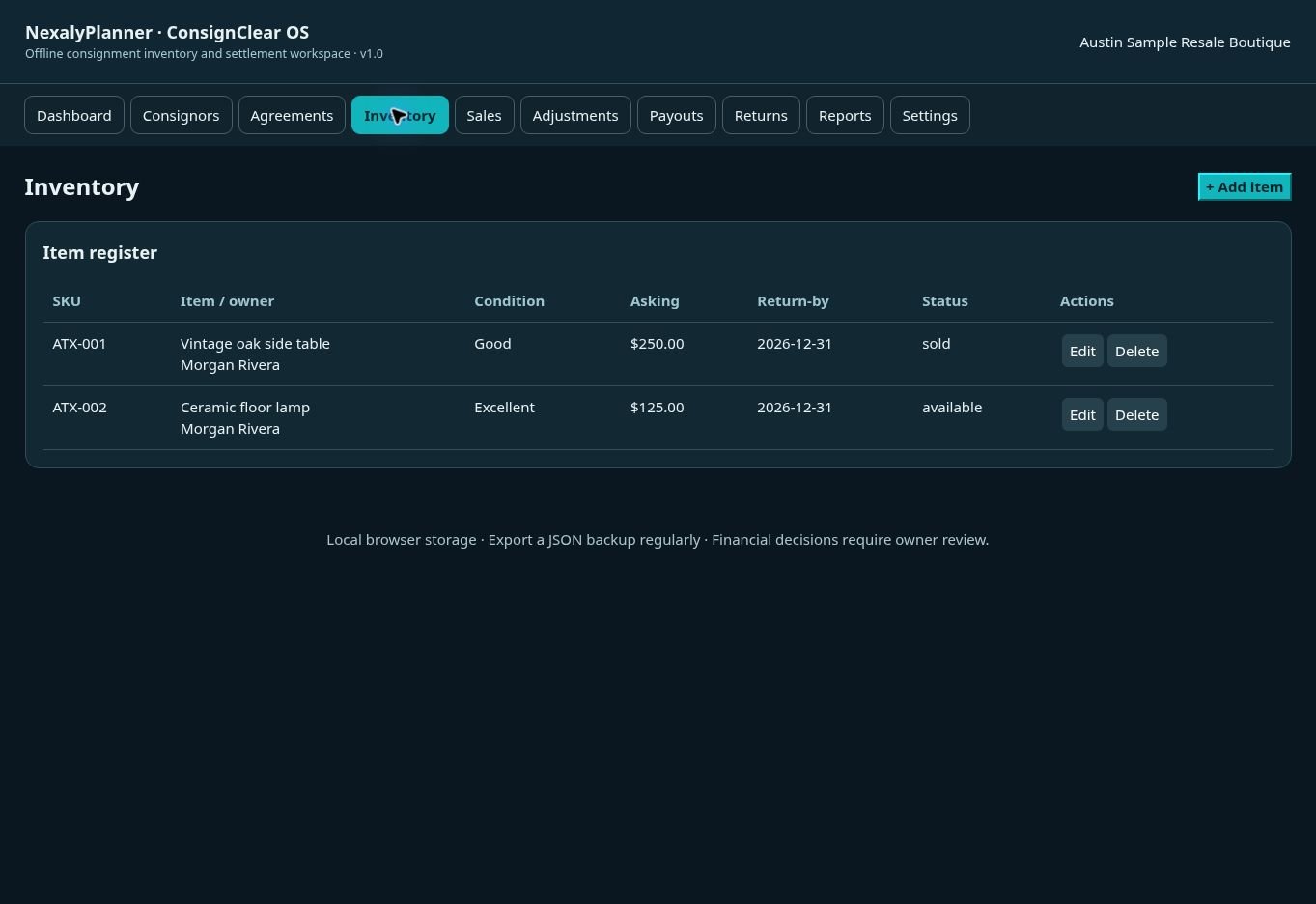
| Inventory | Record SKU, condition, asking price, linked owner/agreement and intake/return dates. | Local browser record or view |
| Sales | Record actual sale price and optional channel/processing fees for an available item once. | Local browser record or view |
| Adjustments | Document a dated deduction against a sale, its reason and the amount attributed to the consignor. | Local browser record or view |
| Payouts | Record an actual payout date and reference after payment. The app cannot send funds. | Local browser record or view |
| Returns | Record when an unsold item is returned to its owner, including custody or receipt reference. | Local browser record or view |
| Reports | Review owner share, deductions, paid and remaining balances; export a CSV summary or print to PDF. | Local browser record or view |
| Settings | Set business name, display currency and available cash; download or restore JSON. | Local browser record or view |
Download and first setup
- Extract the buyer ZIP and open
NexalyPlanner_ConsignClear_OS.htmlin a current desktop Chrome, Edge, Firefox or Safari. Do not open it from inside ZIP preview. - In Settings, set the business name, preferred display currency and available cash figure if you want the dashboard comparison.
- Choose a regular backup location. Use Download JSON backup before adding real contact and financial records and after each payout cycle.
- Enter a consignor, then that person's agreement, then intake items. This order preserves ownership and share calculations.
Eight display currencies are available: USD, GBP, EUR, CAD, AUD, AED, SAR and PKR. Selecting one does not convert the amounts entered. Navigation labels support seven languages; detailed forms and reports are in English.
Consignors, agreements and inventory
Register the owner and terms
In Consignors, enter the owner name and optional contact details. In Agreements, attach an agreement to that owner, enter the owner's percentage share, and document markdown authority or other terms in the terms field. Verify the percentage and signed contract separately. An agreement linked to sold items cannot have its owner or share changed.
If you also manage purchased stock, compare this owner-held flow with the Inventory & Procurement Planner guide. The offline inventory article explains the wider record-keeping approach.
Receive an item
In Inventory, assign a unique SKU and name. Select the consignor and an agreement belonging to that consignor. Enter asking price, condition, intake date and return-by date. Available, reserved, sold and returned are the item statuses. The link to the owner follows the item into sale and payout records; ownership and agreement for a sold item are locked. Keep physical custody and receipts outside the app as well.
For merchandise you buy and replenish yourself, use the Inventory & Procurement Planner stock and reorder guide.
Set up and use the core workflow
Keep owner, agreement and item aligned
The owner is created first, then their agreement, then the item. On intake, compare the share percentage and markdown authority with the signed terms. Check the SKU and return-by date against the physical intake receipt. An agreement linked to a sold item locks its owner and share in the interface, so verify it before selling.
Close a sale without confusing records and payments
Only an available item can be sold once. Record the actual sale price and fees; the app calculates the consignor and shop portions from net proceeds. An Adjustment reduces the owner amount for that sale if allowed by the agreement. A Payout records a payment already made outside the app. Neither action issues a refund or moves money.
Worked example: sale, fee, deduction and payout
Suppose a consigned jacket sells for $120. Channel and processing fees total $10, and the agreement gives the owner 60% of net proceeds.
- Record the sale against an available item. Net proceeds = $120 − $10 = $110, floored at zero.
- Consignor share = $110 × 60% = $66, rounded to cents. Shop share = $110 − $66 = $44.
- If an authorized, documented $12 deduction is recorded in Adjustments, the unpaid owner balance becomes $54 before payout. A deduction cannot exceed that sale's owner share.
- Pay the owner outside the app. Only then enter a $54 payout with the actual date and payment reference. The recorded payout cannot exceed the unpaid balance.
This is a recordkeeping example, not a tax or refund calculation. Verify actual fees, agreement rules and external bank records. Payout history is locked in the interface; handle corrections in your accounting system and document them separately.
A realistic US example
A consignment shop receives a jacket under an agreement granting its owner 60% of net proceeds. The shop records a sale for $120 and $10 in processing and channel fees. Net proceeds are $110; the calculated owner share is $66 and the shop share is $44.
The owner agreement permits a documented $12 deduction. After entering that adjustment, the owner balance is $54. The shop pays $54 by its real payment method, then logs that payout with the actual reference. It compares the report with the signed agreement and payment record before closing its weekly payout cycle.
Adjustments, refunds and physical returns
An Adjustment is a dated deduction assigned to an existing sale; it does not issue a customer refund or reconcile a processor. Record the reason and amount, then compare with your signed agreement and accounting records. For an unsold available or reserved item, open Returns and record the return date plus a receipt or custody reference. Its status becomes returned. An item must intentionally be made available again before a new sale. Keep a separate signed handoff record if your shop requires one.
Reports, privacy and backups
The Reports screen summarizes balances by consignor. CSV is a summary for spreadsheet review; it is not a full recovery file. A full JSON backup contains contacts and financial records, so secure it and restrict access. Restore only a trusted ConsignClear backup: import replaces the current browser workspace. Browser cleanup, private browsing or changing device/profile can erase local records. There is no cloud sync or account.
Recommended daily, weekly and monthly routines
Daily intake and return check
- Compare each new item with its physical receipt, owner and agreement.
- Check return-by dates and contact owners about items approaching their agreed date.
- Record sales only after confirming the item is available and the actual fees are known.
Weekly settlement review
- Inspect Reports for each owner's sale share, deductions, paid amount and balance.
- Compare fees and adjustments with actual channel statements and signed terms.
- Make payouts outside the app, enter the payment reference and check the resulting balance.
- Download a dated JSON backup and store it securely.
Month-end review
Reconcile item status with physical stock, owner receipts and accounting records. CSV is a summary for review; retain the JSON file for full workspace recovery.
To plan the timing of owner payouts against other bills, use the CashFlow 13 OS 13-week cash planning guide.
Advantages and disadvantages
Advantages
Owner, agreement, item, sale, deduction and payout records stay linked in a local workflow. The share calculation and balance view can reduce manual spreadsheet errors. Reports, CSV and JSON export support review and recovery.
Limits
The app does not create a signed contract, process a payment, issue refunds, calculate tax, reconcile a bank or sync between devices. Local browser data and exported backups need active protection. Physical custody and handoff evidence remain outside the app.
Troubleshooting and related help
- Owner agreement is missing from item form: add the consignor first and create an agreement linked to that person.
- Sale cannot be entered: confirm the item is available and has not already been sold.
- Payout amount is rejected: check the positive unpaid balance after deductions and earlier payouts.
- Records appear blank: reopen in the same browser profile and device, or restore a trusted JSON backup.
For broader stock workflows, read the Inventory & Procurement Planner guide and offline inventory software article. View ConsignClear OS and its demo.
Frequently asked questions
Can I sell an item before creating an agreement?
Create the owner and their agreement first, then attach both to the item. Verify terms before recording a sale.
Can an item be sold twice?
The sale workflow accepts an available item once. Inspect the item status if the form rejects a second sale.
How are sale fees treated?
The entered fees reduce the sale proceeds before the agreement's owner percentage is applied. Confirm the actual amounts from the selling channel.
Does a payout send money?
No. Pay outside the app first, then record the completed payment and reference.
Does CSV contain a full backup?
No. Use the JSON backup in Settings for restoration; CSV is a report summary.
Will changing currency convert recorded prices?
No. It changes the displayed currency label, not exchange rates or underlying amounts.
Next step and related guides
Walk through an owner, agreement and item in the ConsignClear OS product page and live demo. If you also purchase and replenish your own merchandise, see the Inventory & Procurement Planner guide. The product guides hub lists other offline workflows.
Check stock ownership before planning a payout
Work through the consignment inventory tracking example to connect each item with its consignor, agreement and payout record. If a payout falls due this week, record its expected payment date in the free Weekly Cash Commitments Planner alongside other commitments.
The cash planner does not calculate consignor commissions, confirm an agreement or transfer money. Verify the payout in ConsignClear OS first, then enter the amount manually in the cash plan. A shop’s bank balance and money owed to consignors are different records.
Continue in the software
See the actual screens and work through sample data before entering your own records.
Open the ConsignClear OS live demoTry the product
Open the real interface with fictional sample records and review the product details.
Explore ConsignClear OS