
Direct answer: Nexaly Planner’s ADHD Digital Planner is a browser-local organization tool for choosing one daily focus, logging mood and energy, sorting work into Must Do, Should Do, and Could Do, capturing thoughts, planning time blocks, maintaining routines, tracking habits and selected personal logs, reviewing goals, and using practical focus supports. It is most useful when you need a visible next action and a gentle way to notice patterns. It does not diagnose ADHD, prescribe treatment, connect to a clinician, send reminders to outside services, or replace professional medical care. Your entries are stored in the browser on your device, so backup and device-change planning are part of using it responsibly.
What the planner is designed to do
The planner’s organizing principle is progress over perfection. It keeps the day’s success condition, next action, deferred work, and energy level visible.
The Dashboard combines the date, brand bar, main-focus field, quick check-in, tasks, quick actions, Emergency Reset prompt, task completion, check-in streak, average mood, wins, mood and energy trends, focus ring, and upcoming events. These summaries are calculated from browser records; they are not clinical scores or measures of personal worth.
The baseline screenshot shows a populated demonstration workspace branded Willow & Co. Studio, with sample tasks, a Saturday, September 19 date, 3/8 tasks done, a 14 days check-in streak, average mood 4.0 · Good, and 5 wins. Treat all visible values as sample content. Before relying on the planner, replace the records or use Settings & Backup > Clear All Data after exporting anything you need.
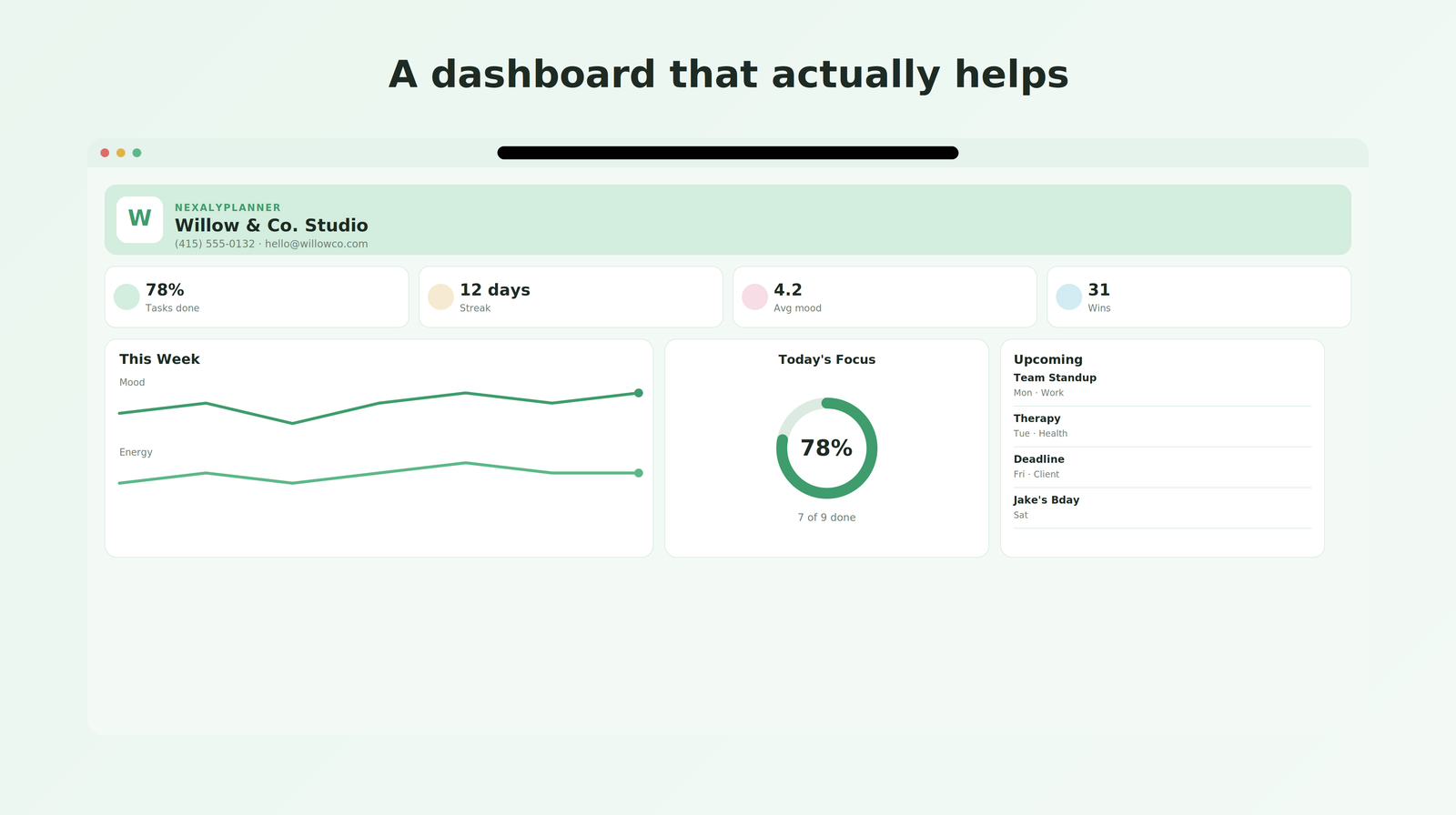
Figure 1. Baseline Dashboard orientation view. The screenshot shows the planner’s sidebar and the main daily workspace in a sample US-style personal or studio setup; visible names, tasks, dates, streaks, and counts are demonstration records, not recommendations or the reader’s actual data.
Quick start: your first session
Use this sequence to get useful information into the planner without building a large system on day one.
- Identify the current workspace. Look for the Dashboard, the date, the brand bar, and any existing tasks or wins. If you see demonstration records, do not interpret them as your own history. The audited edition is not a password-gated onboarding-only interface; a privacy lock can be enabled later in Settings.
- Open Settings & Backup. Select English for a typical US setup. Review the Privacy Lock, backup, appearance, branding, and Clear All Data controls before entering sensitive information.
- Decide whether to keep or clear sample content. For a clean start, export first if needed, then use Clear All Data and confirm the irreversible action. If you are learning the workflow, leave the sample records in place until you understand the screens, but label your practice notes mentally as demonstration data.
- Set your identity and display. In Your Branding, enter a name, contact number, email, and address if you want them shown in the Dashboard brand bar. Optional light-mode and dark-mode PNG or JPG logos can be uploaded. A logo is not required for personal use.
- Set today’s capacity. Go to Daily Planner or use the Dashboard. Write one main focus, choose mood and energy, and enter no more than one realistic item in each of Must Do, Should Do, and Could Do.
- Add only the next actions. In Tasks, enter concrete actions rather than broad projects. For example, “Open the tax folder and list missing receipts” is more actionable than “Taxes.” Use Must Do, Should Do, and Could Do on the Dashboard when you want the priority visible beside the task.
- Capture overflow thoughts. Open Brain Dump when ideas, reminders, worries, and unfinished thoughts compete for attention. Save each item with its type instead of forcing yourself to organize it immediately.
- Try one support tool. Use the Pomodoro Timer, write a Hyperfocus Exit Plan, or open Emergency Reset. The purpose is to make starting or stopping easier, not to create another performance test.
- Export a first backup. In Settings & Backup, select Export Data and confirm that
adhd-os-backup.jsonwas downloaded. Keep that file in a private, known location before changing browsers or devices.
Complete menu and screen map
The sidebar is the product’s single navigation system. It groups screens under Plan, Do, Track, Focus, and System. The menu labels below are the verified labels in the product.
| Group | Screen | Primary purpose | What you can create or review |
|---|---|---|---|
| Plan | Dashboard | See the current day and the most useful summaries | Main focus, check-in, tasks, progress, wins, upcoming events, quick actions |
| Plan | Daily Planner | Choose a realistic amount of work for today | Daily focus, mood, energy, top three tasks, time blocks, reflection |
| Plan | Calendar | Keep dates and commitments visible | Named events or deadlines with a date and type |
| Plan | Planning | Give the week and month a manageable direction | Weekly goal, priorities, challenges, monthly theme, projects, reflection |
| Do | Tasks | Make the next action visible | Task records that can be completed, edited, or removed |
| Do | Goals | Track direction without overwhelming detail | Goals with completion checkboxes, edit, and delete controls |
| Do | Brain Dump | Capture thoughts without pressure | Task, Idea, Reminder, Note, or Worry entries |
| Do | Routines | Use gentle recurring structure | Morning and evening routine checklists |
| Track | Trackers | Notice mood, energy, and habit patterns | Daily check-ins, a habit checklist, medication, dopamine, and burnout logs where provided in the expanded tracker view |
| Track | Analytics | Learn from local activity | Task counts, completion rate, wins, priority breakdown, check-in summaries, mood and energy trends, medication view, and recent activity |
| Track | Wins | Record progress worth noticing | Small Win, Medium Win, or Big Achievement |
| Focus | Focus Tools | Match a support to current energy | Pomodoro Timer, Hyperfocus Exit Plan, Focus Music, and Notes |
| Focus | Learning Library | Save educational strategies and resources | Resource title, topic, optional link, and saved resource list |
| System | Settings | Control data, language, appearance, branding, and access | Language, backup, restore, privacy lock, theme, logos, identity, and clear-data action |
| System | Emergency Reset | Return to one manageable next step | Reset Checklist and reset action |
The Dashboard is the fastest whole-day view; Daily Planner adds top-three tasks, time blocks, and reflection. Calendar includes a month grid with previous and next navigation; selecting a day fills the event date field.
Set up the planner for a US adult workflow
Language, theme, and personal identity
Settings & Backup includes a Language selector with English, Arabic, Français, Español, Português, Italiano, and Nederlands. Choosing English changes the interface labels and document language to English. The language preference is stored locally as adhdLanguage.
The sidebar includes a light/dark appearance control. In Settings, the Appearance card provides Switch to Dark Mode or Switch to Light Mode. Use whichever mode reduces visual strain in your environment. Theme is a display preference; it does not alter the underlying task or tracker data.
The Your Branding card lets you save a name, contact number, email, and address. The Dashboard brand bar displays those values. You can upload separate light and dark logos in PNG or JPG format. The source limits an uploaded image to approximately 1.5 MB. Branding is optional, and the form describes these fields as personalization rather than an account or a public profile.
Privacy Lock
Settings includes Privacy Lock. Enter a username and password, then choose Enable Lock. Once enabled, the planner presents an unlock screen when it opens and the top-right Log Out control can lock it again. The product compares the username case-insensitively and stores a hash of the password in local browser storage. The password itself is not included in the JSON backup.
This is a local browser privacy feature, not device encryption or enterprise identity. If you forget the password, the backup cannot recover it. Keep the credential in a password manager and update or remove the lock only while you can unlock the planner.
Clean data and sample data
Clear All Data in Your Branding warns that the action cannot be undone. It removes the planner’s records and reloads the application with an empty state while preserving the selected theme. Export before clearing. A clear action is appropriate when the initial workspace contains sample entries, when you are handing a device to another person, or when you want to separate practice data from personal data.
Feature-by-feature implementation guide
Dashboard: choose a daily anchor
Start with Today’s Main Focus. Answer the prompt, “What is the one thing that would make today feel successful?” Use a result you can recognize, such as “Submit the signed lease renewal,” not a vague intention such as “Be productive.” The field saves as you type.
Use Quick Check-In to select a mood from Very Low, Low, Neutral, Good, or Very Good, and an energy level from 1 - Very Low through 5 - Very High. Add a quick note if context matters, then select Log Check-In. The product accepts a check-in when either mood or energy is selected. A hint shows the last logged check-in. A check-in is a self-observation, not a diagnosis or a recommendation about medication, work capacity, or safety.
In Today’s Tasks, type a task, choose Must Do, Should Do, or Could Do, and select Add. Check off completed tasks. The Dashboard shows a completion percentage and small-win count in Quick Actions, while visual Dashboard cards summarize task completion, check-in streak, average mood, wins, and upcoming events. A percentage is most useful for noticing whether the plan was sized realistically; it should not be used as a judgment of your day.
Daily Planner: build a small, visible plan
Open Daily Planner and write the main focus again if the day has changed. Record mood and energy in Daily Check-In. In Top Three Tasks, use the three fields labeled Must Do, Should Do, and Could Do. Keep the categories distinct:
- Must Do is the minimum that protects the day’s most important outcome.
- Should Do matters, but can move if energy or time changes.
- Could Do is optional progress, not a hidden obligation.
Use Time Blocks for Morning activity, Afternoon activity, and Evening activity. These are broad activity fields, not a connected appointment scheduler. Write “9:00–10:00 draft appeal letter” or “after dinner: 15-minute kitchen reset” if a time cue helps. End the day in End-of-Day Reflection by recording what went well and what can wait until tomorrow. The planner saves the focus, reflection, and time-block fields locally as you enter them.
Calendar: attach dates to commitments
In Calendar, enter an Event or deadline, choose an Event date, select a type, and choose Add. The available types are Appointment, Work, Study, Personal, Deadline, Health, and Reminder. The month grid marks today and displays up to two event labels per day, with a “more” indicator when additional events exist.
Use the calendar for a dentist appointment, a work deadline, a study session, a personal commitment, or a health-related reminder. It does not send invitations, create outside calendar events, or notify another person. Select a day in the grid when you want the date field filled automatically, then add the event below the grid.
Planning: separate direction from today’s work
Weekly & Monthly Planning has two cards. In Weekly Planning, enter a Main weekly goal, list Weekly Priorities, and describe Potential Challenges. In Monthly Planning, enter a Monthly theme, list Key Projects, and write a Monthly Reflection.
Use this page for direction, not a duplicate task list. For example, a weekly goal might be “Submit the apartment application,” with priorities to gather pay stubs and schedule the tour; a monthly theme might be “Stabilize housing,” with an application packet and moving budget as key projects.
Tasks: turn projects into next actions
Tasks provides a focused list with What needs to be done?, Add Task, completion checkboxes, and controls for task records. The Dashboard includes priority selection; the dedicated Tasks screen is the faster capture area when you simply need to record the next action.
Use one task per observable action. If it remains untouched, rewrite it smaller. Use edit, complete, remove, and Undo where available; removing a task is not the same as completing it, so use the checkbox when you want it counted in analytics.
Goals: keep direction lightweight
In Goals, enter a goal and choose Add Goal. Each goal has a checkbox, an edit control, and a delete control. Editing can be completed with Enter or by leaving the field; Escape cancels the edit. Deleting a goal offers an Undo option.
The product does not require a goal hierarchy, due date, budget, or automatic project plan. Keep goals broad enough to represent direction but specific enough to recognize. “Build a three-month emergency fund” is a meaningful goal; the Tasks page can hold the next action, such as “Transfer $75 to savings on Friday.”
Brain Dump: unload, then sort later
Open Brain Dump, write in Write everything here..., choose Task, Idea, Reminder, Note, or Worry, and select Save Thought. The saved list displays the thought and its type, with a remove action.
Use this screen when working memory is crowded. Capture first, then later convert a useful thought into a Task, Calendar event, Goal, or Learning Library resource. The product does not automatically convert Brain Dump items.
Routines and habit tracking
Routines provides Morning Routine and Evening Routine checklists. The verified morning items are Drink water, Review calendar, Choose today’s main focus, and Complete one small action. The evening items are Review completed tasks, Prepare for tomorrow, Write down unfinished thoughts, and Choose tomorrow’s first task.
Trackers includes a Habit Tracker with Drink water, Take a short walk, Read for 10 minutes, and Prepare for tomorrow. Checklists are stored as local completion flags. They are not a streak guarantee, recurring alarm, or medical adherence program. Use them as prompts and change your approach when a checklist repeatedly feels too large.
Trackers: check-ins, medication, dopamine, and burnout notes
The basic Tracker screen offers Daily Check-In with the same mood and energy scales as the Dashboard and a Log Check-In button. The expanded local history supports four log types: check-ins, medication, dopamine, and burnout.
For a Medication entry, the verified record includes a medication name, taken checkbox, notes field, and Log Dose action. Use it only as a personal record. It is not a prescribing tool, refill service, interaction checker, or substitute for a clinician or pharmacist.
For Dopamine tracking, enter an activity, select the available result, add an optional note, and choose Log Entry. Here, “dopamine” is the product’s label for noticing an activity’s felt result; the planner does not measure neurotransmitters.
For a Burnout entry, select the available level and add signs or notes before choosing Log Entry. It can record signals such as “hard to start” or “too many transitions,” but cannot determine a condition. Seek professional help if symptoms affect safety, health, work, or daily functioning.
Analytics can show recent activity, mood and energy trends, a check-in streak, and a 14-day medication view based on logged entries. You can remove recent activity records from the history feed. Review those displays as prompts for a conversation with yourself or a clinician, not as clinical evidence.
Analytics and Wins: make progress visible
Analytics displays total tasks, completed tasks, completion rate, and total wins, plus a reflection note and visual progress. Expanded views include task-completion and priority breakdowns, check-ins by day of week, mood distribution, wins by type, mood and energy charts, the medication view, and recent activity.
Use Wins to record an accomplishment and choose Small Win, Medium Win, or Big Achievement. A win might be “Called the insurance company,” “Took a walk before lunch,” or “Submitted the application.” The purpose is to preserve evidence of progress that a task count may miss. Wins are not automatically converted to tasks or goals.
Focus Tools: start, stop, and reduce friction
The Pomodoro Timer starts at 25:00. Select Start to count down, and Reset to stop and return it to 25 minutes. The card describes the intended rhythm as 25 minutes of focus followed by a 5-minute break. The timer is local to the open page; it is not an external reminder service.
The Hyperfocus Exit Plan prompts you to set an end time, drink water, save your work, write the next step, and stretch before switching activities. Use the text area to record what you are working on. This is a stopping aid, not a calendar alarm. Set a separate device alarm if you need an audible external cue.
Focus Music lets you save a playlist or sound name and an optional link. It stores the link as text; it does not host audio or prove that a link remains available. Notes lets you save an important note and remove it later.
Learning Library: save educational resources carefully
ADHD Learning Library lets you add a resource title, choose Focus, Time Management, Planning, Motivation, Routines, Emotional Regulation, or Self-Compassion, and optionally add a link. The page explicitly identifies its content as educational and not medical advice or a replacement for professional treatment.
Use the library for articles, books, worksheets, or questions to discuss with a qualified professional. Review external sources yourself. Do not assume that a saved resource is accurate, current, personalized, or appropriate for your situation.
Emergency Reset: use the smallest restart
Select I feel overwhelmed from Quick Actions or open Emergency Reset directly. The Reset Checklist contains Drink water, Take three slow breaths, Choose one task, Set a five-minute timer, Remove one distraction, and Start imperfectly. Select the checkboxes in any order. Reset Checklist clears the reset checklist so you can use it again.
This screen is a practical self-organization sequence, not crisis care. If you are in immediate danger, thinking about harming yourself or someone else, or unable to stay safe, contact emergency services or a qualified crisis resource in your location rather than relying on a planner.
Worked US example: a realistic Tuesday
Imagine Maya, a 34-year-old remote project coordinator in Denver. On Tuesday, October 6, she has a client deadline, a pharmacy pickup, and low energy after poor sleep.
- In Daily Planner, Maya records “Send the revised client timeline by 2:00 p.m.,” selects Low mood and 2 - Low energy, and notes that sleep was interrupted. Her top three are Must Do: “Open client feedback and revise timeline”; Should Do: “Pick up prescription at CVS”; Could Do: “Plan Friday groceries.” The $480 credit-card payment and apartment paperwork remain outside today’s first action unless genuinely urgent.
- She enters “9:00–10:30 revise timeline,” “1:30–2:00 send and confirm receipt,” and “After dinner: 10-minute reset” in the three Time Blocks.
- She adds a Deadline event for October 6 and a Health event for the prescription pickup, then records three concrete Tasks and checks them only after completion. These calendar entries stay local.
- In Focus Tools, she starts the 25-minute timer and writes: “Stop at 10:30, save version 3, write the next step, drink water.” At day’s end she records a Small Win for sending the timeline, reflects that grocery planning can wait, and uses Emergency Reset if needed.
The dollar value is a realistic US planning detail, not a product calculation. The planner does not provide accounting, payment processing, debt advice, or automatic credit-card action.
A sustainable daily and weekly workflow
Daily opening: five minutes
Open Dashboard or Daily Planner, check the date and upcoming events, choose one focus, log mood and energy, and set a realistic Must Do, Should Do, and Could Do. Lower energy is a reason to reduce the plan, not a failure.
Midday reset: two minutes
Check whether the focus still fits. Put new thoughts in Brain Dump and use a timer or Hyperfocus Exit Plan when starting or stopping is difficult. Do not rewrite the whole week because one block changed.
Closing routine: five minutes
Check completed tasks, record a win, write one reflection sentence, and use Evening Routine: review tasks, prepare for tomorrow, write unfinished thoughts, and choose tomorrow’s first task.
Weekly review: 15–20 minutes
In Planning, set the Main weekly goal, Weekly Priorities, and Potential Challenges. Review Calendar, Goals, and Analytics. If every day contains too many Must Do items, move commitments to Should Do or remove them.
Monthly review: 20 minutes
Choose a Monthly theme, list Key Projects, write a Monthly Reflection, review saved resources, and export a backup if the history or health-related notes matter. The product does not schedule exports automatically.
Offline storage, backup, and restore limits
The product saves planner state in browser localStorage under the adhdOS key. The selected language is stored separately as adhdLanguage; the privacy-lock credential is stored separately as nexalyAuth. The application also registers a service worker when served over HTTP, but that does not turn the planner into a cloud account or guarantee that all browser data survives every device, profile, or browser-policy change.
Use Settings & Backup > Export Data to download a JSON file named adhd-os-backup.json. The export includes the planner state represented by the application, including tasks, Brain Dump records, goals, events, wins, notes, music, resources, habits, focus fields, check-ins, medication, dopamine, and burnout logs when present. It does not include the privacy-lock password. Keep the file private because it may contain health-related notes, medication records, personal worries, addresses, and other sensitive information.
To restore, choose the JSON file in the Import control labeled Import a previous ADHD OS JSON backup. The product reads the file into browser storage and reloads the page. Use a backup created by this product and review the result after import. Do not assume that a backup from a future or materially different edition will be compatible.
There is no verified cloud synchronization, account-based recovery, cross-device merge, external calendar integration, clinician integration, automatic backup, or automatic restore. A downloaded file can be deleted, corrupted, exposed, or out of date. Keep more than one private copy in an approved location, and test a backup before a device change if the records matter. Browser clearing, private-browsing behavior, storage quotas, profile deletion, and organizational browser policies can affect local data. The planner should not be the only copy of information needed for medical care, legal deadlines, financial obligations, or emergency response.
Advantages and disadvantages
Advantages
The product keeps the most important daily decisions together. A main focus, check-in, priority ladder, task list, event list, and reset sequence can be reached from the same workspace. Its language is supportive rather than punitive, and the Emergency Reset and Hyperfocus Exit Plan address two common friction points: becoming overwhelmed and finding it hard to stop.
The planner is flexible for work, household administration, study, appointments, routines, and personal goals. Local charts turn check-ins and completed tasks into visible patterns, while Brain Dump, Wins, and Learning Library keep supporting information out of the task list. Settings adds a local privacy lock, theme, language, branding, and JSON backup and restore.
Disadvantages and trade-offs
The planner is intentionally local. Without verified cloud sync or external integrations, it cannot share data across devices, send invitations, notify a clinician, or remind you outside the open browser. Analytics are descriptive rather than validated assessments; medication and burnout logs are personal records; broad time blocks do not replace a full scheduler. Manage exports carefully because Clear All Data is irreversible without a backup and the privacy-lock password is excluded.
Troubleshooting and common mistakes
The Dashboard contains someone else’s tasks or a studio name. The workspace is showing sample or previously entered local data. Review the records, export anything you need, then use Clear All Data and confirm before entering your own information.
My check-in did not save. Select at least a mood or an energy value before choosing Log Check-In. The product accepts either one or both. Check that you are using the Dashboard or Trackers check-in button rather than only changing a selector.
My task is not included in the completion rate. A task must be checked off, not merely removed. If you delete a task, it no longer contributes to the task total.
The Calendar date is wrong. Select the correct day in the month grid, or enter the date directly in the Event date field. Use the previous and next month controls to navigate before adding the event.
My imported backup did not work. Confirm that the file is product-generated JSON, do not edit it in a spreadsheet, retry with the original, and verify browser local storage.
I changed devices and my records are missing. Local storage does not automatically follow you. Import the most recent adhd-os-backup.json on the new device. If you did not export a backup and the old browser profile is unavailable, the product has no verified cloud recovery path.
The privacy lock password is not in my backup. That is expected: the product excludes it. Use your password manager and do not treat JSON as password recovery.
The timer stopped when I closed the page. It is an in-page 25-minute countdown, not a background alarm. Keep the page open or use a device timer for a persistent alert.
I am using the medication tracker to decide whether to change treatment. Do not use it for that purpose. It records what you enter; it does not diagnose, prescribe, check interactions, or replace a clinician or pharmacist. Bring the record to the appropriate professional if it helps your discussion.
Frequently asked questions
Is this an ADHD diagnosis or treatment app?
No. The product describes itself as a personal organization tool, and its Learning Library is educational content only. It is not medical advice or a replacement for professional treatment.
Does the planner work offline?
Its data model is browser-local and does not require a cloud account for the verified planner workflows. The product can register a service worker when served over HTTP, but offline availability can depend on browser behavior and how the files are hosted. Export a JSON backup rather than assuming offline storage is permanent.
Can I use it for work and household planning?
Yes. The verified fields support general tasks, goals, events, time blocks, routines, notes, and focus planning. The product does not enforce a particular job, household, or clinical context.
Does it sync with Google Calendar or send reminders?
No such integration or automatic external action is verified in this edition. Calendar entries remain inside the planner, and the Pomodoro timer is an in-page countdown.
Can I track medication?
The expanded tracker includes a medication log with a name, taken status, note, and dose-log action. Use it only as a private record of your own entry. It is not a medication-management or prescribing system.
Can I export and restore my data?
Yes. Settings provides Export Data and an import control for a previous ADHD OS JSON backup. Test the restored workspace and remember that the privacy-lock password is excluded.
What should I do if I feel overwhelmed?
Open Emergency Reset and follow the checklist: drink water, take three slow breaths, choose one task, set a five-minute timer, remove one distraction, and start imperfectly. If you may be unsafe or need urgent support, use emergency or crisis resources rather than relying on a planner.
Recommended next steps and contextual links
If you are ready to use the product, review the ADHD Digital Planner product page and download or open the edition that matches your environment. For broader navigation, visit the Nexaly Planner product index and the Nexaly Planner guides hub.
For a dedicated academic workflow, follow the AI Student Planner guide. For family care coordination, use the CareBridge caregiver planner guide. The ADHD planning routine for adults provides another practical starting point.
The practical CTA is simple: open the ADHD Digital Planner, clear or label the sample workspace, choose one focus for today, and export a backup after your first useful week. If you need a different operating model, compare the sibling guides rather than forcing every responsibility into one task list.
Explore ADHD Digital Planner
Review product screenshots, included features, download details and current purchase terms.
View ADHD Digital PlannerPlan one departure routine separately
For one timed routine, use the free Leave-on-Time Routine Planner to work backward from your departure time using the steps and buffer you enter. It is a scheduling worksheet, not a reminder service or treatment tool.
Each free planner has its own device save and JSON backup. Its records do not automatically sync with, or import into, the paid application. The free worksheet remains available without a purchase.