
FREE · NO ACCOUNT NEEDED
Repair Parts & Labour Worksheet
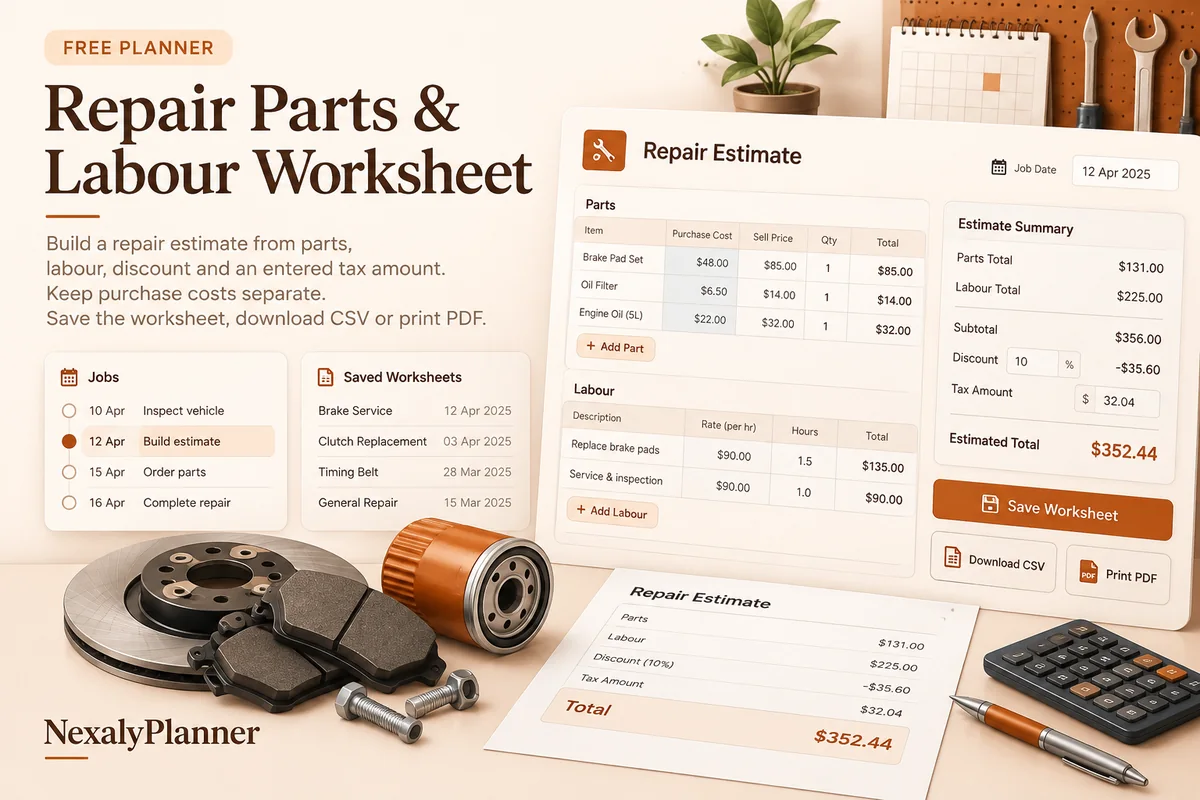
Build a clear parts and labour estimate without a complicated job system. Enter your charges, discount and tax amount, then review the total before sharing it.
1. Enter your details. 2. Add records. 3. Calculate and save a copy.
Set up your estimate
Your report
Enter your details and records, then calculate to review the results.
Save or download your work
Work stays in this page until you choose Save on this device. Device saves belong to this browser and can be removed by clearing browser data. JSON keeps an editable backup; CSV and PDF keep a report.
Repair Parts & Labour Worksheet: complete guide
What this free planner does
- Separate purchase cost and customer charge for each part.
- Labour hours and hourly charge, an amount discount and an entered tax amount.
- An estimate label and optional validity date carried into the report.
- Up to 100 editable entries, explicit device saving, JSON backup, CSV and browser PDF printing.
How to use it
- Name the estimate or job and choose one currency. Enter labour hours and the charge per hour.
- Add each part with its quantity, purchase cost per unit and customer charge per unit. Enter zero purchase cost only when that is the value you want recorded.
- Enter the discount amount and tax amount from your own pricing and tax records. These are amounts, not percentages. Add a validity date if needed.
- Calculate and check quantities, rates and exclusions. Download a PDF for review; this worksheet is an estimate, not an issued invoice.
Inputs and units
| Field | Input rule |
|---|---|
| Estimate / job label | Required. Up to 160 characters. |
| Currency | Required. Choose USD, GBP, CAD, AUD, EUR, NZD, AED. |
| Labour hours | Required. Numbers with up to two decimals from 0 to 1000. |
| Labour charge per hour | Required. Numbers with up to two decimals from 0 to 1000000. |
| Discount amount | Required. Numbers with up to two decimals from 0 to 1000000. |
| Tax amount you enter | Required. Numbers with up to two decimals from 0 to 1000000. |
| Estimate valid until | Optional. A calendar date; date-only entries do not shift with browser timezone. |
| Part name | Required. Up to 160 characters. |
| Quantity | Required. Whole numbers from 0 to 100000. |
| Purchase cost per part | Required. Numbers with up to two decimals from 0 to 1000000. |
| Charge per part | Required. Numbers with up to two decimals from 0 to 1000000. |
How the calculation works
Part line charge = quantity × customer charge per unit. Part line cost = quantity × purchase cost per unit. Labour charge = hours × hourly charge, rounded to the currency’s two-decimal reporting precision. Estimate total = parts charges + labour − discount + entered tax.
Worked example with fictional data
A fictional repair uses 2 parts charged at USD 25 each and 1.5 labour hours charged at USD 40 per hour. Parts charges are USD 50 and labour is USD 60, giving USD 110 before any discount or tax. A USD 10 discount and USD 5 entered tax make the estimate USD 105. If each part cost USD 10 to buy, the separate parts purchase cost is USD 20.
Before you save your plan
- Review each part quantity and selling price, then verify labor hours and the hourly rate.
- Check the discount and entered tax amount before sharing; this estimate does not determine tax treatment.
Convert repair labor minutes before sharing an estimate
A fictional repair has 75 minutes of labor at $48 per hour. Enter 1.25 hours, not 1.75: decimal hours equal minutes divided by 60. The worksheet calculates a $60 labor charge.
| Estimate component | Calculation | Amount |
|---|---|---|
| Two replacement parts | 2 × $22.50 | $45.00 |
| One additional part | 1 × $8.00 | $8.00 |
| Labor | 1.25 hours × $48 | $60.00 |
| Subtotal | $53 + $60 | $113.00 |
| Discount | Entered amount | $10.00 |
| Estimate total | $113 − $10 + $0 entered tax | $103.00 |
If the two replacement parts cost $12 each to buy and the additional part costs $3, parts purchase cost is $27. That separate figure does not make the $76 difference net profit: labor cost, overhead and other expenses are outside this worksheet.
- Describe the job scope and check each quantity against the parts you expect to use.
- Convert recorded minutes into decimal hours and check the customer charge per hour.
- Verify any applicable tax amount separately. Zero in this example is an input, not a statement that the job is tax-exempt.
- Review the estimate validity date and export a copy before sharing. Keep any later revision as a separate backup so the quoted version remains identifiable.
Keep stock movements in your repair shop parts inventory records. Use the equipment maintenance due planner separately for your own workshop equipment; an estimate does not create a service record.
Assumptions and common mistakes
The tool does not determine tax rates, taxable items or invoice requirements. Confirm tax treatment separately and enter the resulting amount. Purchase cost is shown for review; it is not a complete job cost or net-profit calculation. Labour cost, overhead and unentered fees are not deducted. A discount cannot exceed the parts and labour subtotal, and quantities must be whole numbers.
Check whether shop supplies, disposal charges or travel belong in a separate line in your estimate. Label such a line clearly rather than hiding it inside an unrelated part. Use decimal labour hours consistently: 1.25 hours is 75 minutes. Recheck the validity date and the scope of work before presenting a quote to a customer.
Save, restore and export
Add entry creates another record. Edit any field directly or use Remove entry to delete a row. Changing inputs clears the previous report so it cannot be mistaken for current results. Choose Calculate / review results again when your changes are ready.
Save on this device keeps an editable worksheet in this browser only. On a later visit in this browser, your saved worksheet loads automatically. Restore device save can also reload the last save after you confirm replacement. Saving drafts is allowed, but a report requires valid, complete inputs. Download backup creates a versioned JSON file for the same tool. Import backup shows the worksheet label and row count before replacing current work; it does not change the device save until you press Save.
Download CSV exports the settings, summary, row details and calculation notes. CSV is for spreadsheet review; it cannot restore this worksheet. Print / Save PDF recalculates the current entries and opens your browser’s print dialog. Choose Save as PDF where supported. The report excludes navigation, guides and product CTAs. Clear data removes the current worksheet and its device save after confirmation; keep a backup first if needed.
Frequently asked questions
Is this a repair invoice generator?
No. The report is an estimate worksheet. It does not assign invoice numbers, record payments or issue an invoice.
Can I enter a tax percentage?
The Tax amount field takes a currency amount, not a rate. Work out the appropriate amount using your verified records, then enter it here.
Does the worksheet calculate repair job profit?
No. It keeps parts purchase cost visible but does not include all job costs or overhead.
Is this tool free, and does it sync between devices?
All worksheet, saving and export features are free without an account. There is no cloud synchronization. Transfer a JSON backup to another device and import it into this same tool.
Related planning resources
- Read the repair shop parts inventory workflow.
- Read the RepairBench OS user guide for the broader workflow.
- Browse all available free planners by category.
- Small Engine Repair Business Plan: A One-Technician Worked Example.
- Review equipment maintenance dates and entered service intervals. This is a separate worksheet; records do not transfer automatically.
- Browse the free repairs, rentals & operations planners to compare these workflows.
EXPLORE A BROADER WORKFLOW
Need more than this one worksheet?
Explore RepairBench OS and read its guide to see how the full product fits your records. This free planner remains available without a purchase. Its JSON backup is not an import file for the paid product.