
FREE · NO ACCOUNT NEEDED
Content Repurposing Planner
Turn one source article, video or guide into an editable repurposing checklist. Choose channels, assign an owner and review the formats, deadlines and progress.
1. Enter your details. 2. Add records. 3. Calculate and save a copy.
Set up your worksheet
Create draft tasks from channels
Adds one task per new selected channel. Edit formats and dates afterward. This does not create or publish content.
Your report
Enter your details and records, then calculate to review the results.
Save or download your work
Work stays in this page until you choose Save on this device. Device saves belong to this browser and can be removed by clearing browser data. JSON keeps an editable backup; CSV and PDF keep a report.
Content Repurposing Planner: complete guide
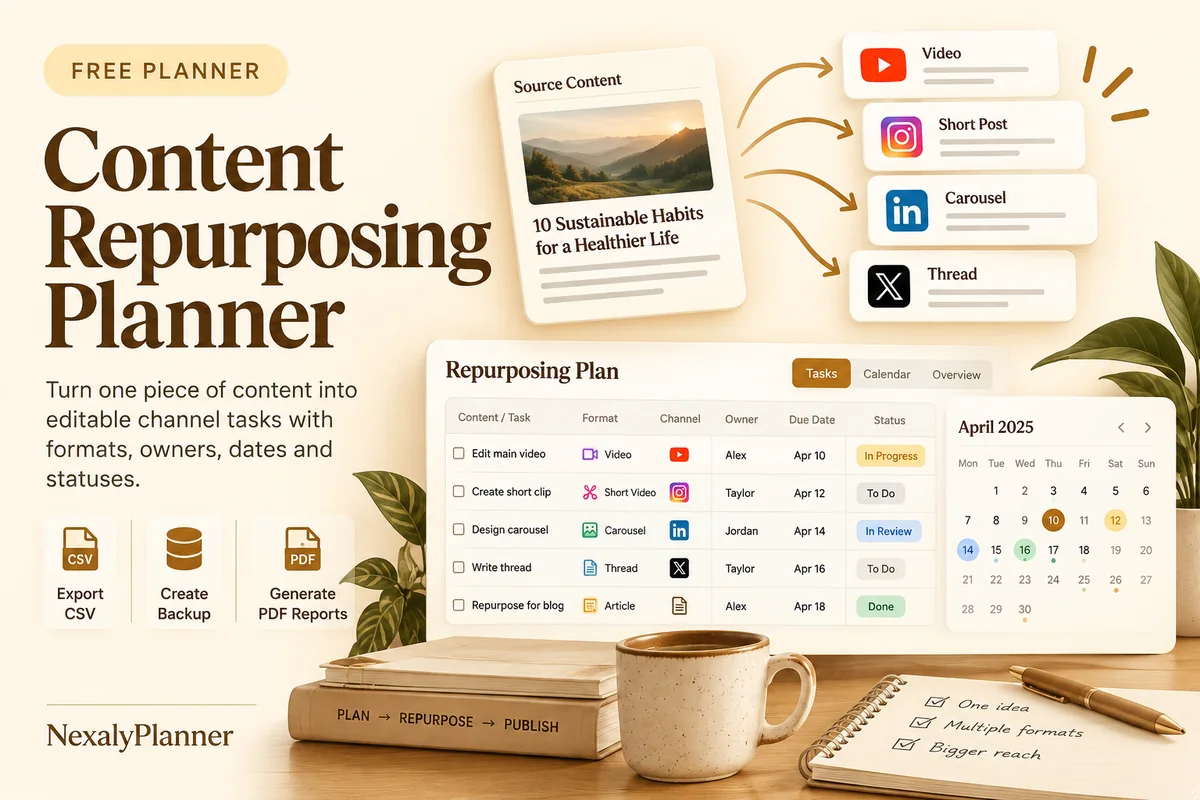
What this free planner does
- One draft task per selected channel, with editable formats.
- Manual owner, due date and status fields for every task.
- A review-date report highlighting overdue open work.
- Up to 100 editable entries, explicit device saving, JSON backup, CSV and browser PDF printing.
How to use it
- Enter a source title and optional full HTTP or HTTPS source URL. Choose the date you want to review against.
- Select channels and enter the task owner, then choose Create channel drafts. Each new selected channel creates one editable Draft row.
- Replace suggested formats with the work you actually intend to produce, and set realistic due dates. Use Add entry for another format on an existing channel.
- Record progress manually as Draft, Ready, Scheduled or Published. Calculate and review open and overdue tasks, then save or download your plan.
Inputs and units
| Field | Input rule |
|---|---|
| Source content title | Required. Up to 160 characters. |
| Source URL (optional) | Optional. Full HTTP or HTTPS URL; no automatic fetching. |
| Review date | Required. A calendar date; date-only entries do not shift with browser timezone. |
| Channel | Required. Choose LinkedIn, Instagram, YouTube, Facebook, Pinterest, Blog, Email, Other. |
| Format / task | Required. Up to 160 characters. |
| Due date | Required. A calendar date; date-only entries do not shift with browser timezone. |
| Owner | Required. Up to 160 characters. |
| Status | Required. Choose Draft, Ready, Scheduled, Published. |
How the calculation works
Selecting three new channels creates three editable draft tasks. Open tasks = total tasks − rows marked Published. A task is overdue when its due date is before the review date and its status is not Published. Due dates matching the review date show Due today.
Worked example with fictional data
A fictional craft-market guide is repurposed for LinkedIn, Instagram and Email. Selecting those three channels creates three Draft tasks: a text-post outline, a carousel outline and a newsletter summary. After one row is marked Published, the report shows 3 tasks, 1 recorded published task and 2 open tasks. These labels record your workflow; no social post has been published by the tool.
Before you save your plan
- Review each generated draft task, then give it a suitable format, owner and realistic due date.
- Keep the source content link with the plan and check channel requirements before publishing.
Review overdue tasks without treating scheduled content as published
A fictional craft-market stock guide is adapted into four channel assets. The review date is October 8, 2026. Each row records an owner, a due date and a status entered by the user.
| Channel / asset | Due date | Status | Deadline check |
|---|---|---|---|
| LinkedIn takeaway post | October 6 | Published | Published |
| Instagram stock-count carousel | October 7 | Ready | Overdue |
| Email event-review summary | October 8 | Scheduled | Due today |
| Pinterest worksheet preview | October 10 | Draft | Upcoming |
The report shows four tasks, one recorded published, three open and one overdue open task. Ready and Scheduled both remain open. If the review date moves to October 9 with no other changes, the scheduled email becomes overdue too: two open tasks now have earlier due dates.
- Choose a useful adaptation for each channel instead of duplicating the whole source. Keep the source title and optional URL with the plan.
- Set each task's actual due date and owner. Channel draft generation creates editable workflow rows, not finished writing.
- Check delivery in your publishing system before recording Published. The worksheet cannot confirm that a scheduled post went live.
- Recalculate after updates and keep a dated backup. If the carousel is recorded Published on the October 8 review, open tasks fall to two and overdue open tasks to zero.
Use a separate pre-publication checklist for each finished asset before your publishing decision. The one-page marketing plan example helps connect the source and channel choices to an audience goal. This planner does not fetch the source, connect accounts or schedule delivery.
Assumptions and common mistakes
This free content repurposing planner creates workflow rows, not written content or social posts. It does not connect to social accounts, schedule delivery, fetch a source URL or send reminders. Scheduled and Published are statuses you enter after using your own publishing process. Source URLs are kept as text in the report and are not opened automatically.
Start with a source that you own or are allowed to adapt. Match the format to the chosen channel instead of copying the same post everywhere. Keep one owner accountable for each task. Running the channel generator again preserves existing rows and adds only selected channels not already represented; use Add entry when you want several formats for one channel.
Save, restore and export
Add entry creates another record. Edit any field directly or use Remove entry to delete a row. Changing inputs clears the previous report so it cannot be mistaken for current results. Choose Calculate / review results again when your changes are ready.
Save on this device keeps an editable worksheet in this browser only. On a later visit in this browser, your saved worksheet loads automatically. Restore device save can also reload the last save after you confirm replacement. Saving drafts is allowed, but a report requires valid, complete inputs. Download backup creates a versioned JSON file for the same tool. Import backup shows the worksheet label and row count before replacing current work; it does not change the device save until you press Save.
Download CSV exports the settings, summary, row details and calculation notes. CSV is for spreadsheet review; it cannot restore this worksheet. Print / Save PDF recalculates the current entries and opens your browser’s print dialog. Choose Save as PDF where supported. The report excludes navigation, guides and product CTAs. Clear data removes the current worksheet and its device save after confirmation; keep a backup first if needed.
Frequently asked questions
Will this publish to Instagram, Facebook or Pinterest?
No. It organizes tasks only. Use your own publishing tools and record the resulting status here.
Does it write content using AI?
No. Generated rows contain editable format suggestions, not finished copy or AI-generated content.
Can I create two tasks for the same channel?
Yes. Add entry manually for another format. The channel generator adds one row per new selected channel and keeps existing channel rows.
Is this tool free, and does it sync between devices?
All worksheet, saving and export features are free without an account. There is no cloud synchronization. Transfer a JSON backup to another device and import it into this same tool.
Related planning resources
- Read the content calendar workflow for a clothing brand.
- Read the Content Marketing Planner user guide for the broader workflow.
- Check the weekly hours available for content production.
- Browse all available free planners by category.
- One-Page Marketing Plan Template With a Worked $600 Budget.
- Review a finished asset with the content publishing checklist. This is a separate worksheet; records do not transfer automatically.
- Browse the free content planning planners to compare these workflows.
EXPLORE A BROADER WORKFLOW
Need more than this one worksheet?
Explore Content Marketing Planner and read its guide to see how the full product fits your records. This free planner remains available without a purchase. Its JSON backup is not an import file for the paid product.