
FREE · NO ACCOUNT NEEDED
Software Renewal Decision Planner
Keep software renewal dates and decisions in one worksheet. Calculate notice dates from your own contract details and compare monthly and annual cost equivalents.
1. Enter your details. 2. Add records. 3. Calculate and save a copy.
Set up your worksheet
Your report
Enter your details and records, then calculate to review the results.
Save or download your work
Work stays in this page until you choose Save on this device. Device saves belong to this browser and can be removed by clearing browser data. JSON keeps an editable backup; CSV and PDF keep a report.
Software Renewal Decision Planner: complete guide
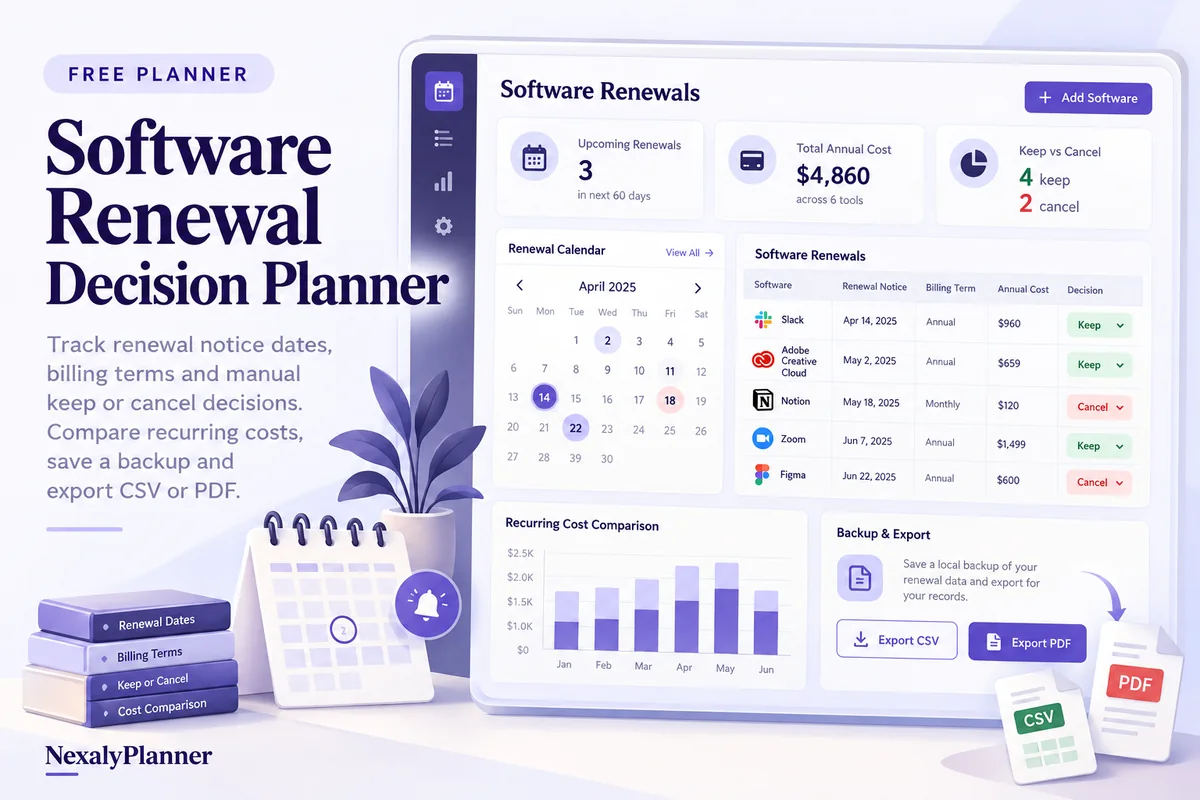
What this free planner does
- Renewal minus notice days produces a dated review point.
- Monthly and annual cost equivalents keep mixed billing terms comparable.
- Service owners, usage notes and manual decisions travel with the report.
- Up to 100 editable entries, explicit device saving, JSON backup, CSV and browser PDF printing.
How to use it
- Choose a review date and one currency. This is the date used for all notice-date checks.
- Add each service, its owner, price per billing term, term length in whole months, renewal date and notice days from your records.
- Record usage notes and choose Review, Keep or Cancel. Treat Cancel as an intention until the provider confirms it.
- Calculate, review upcoming and passed notice dates, then contact the provider through your normal process where needed. Save a backup and update the worksheet after confirmation.
Inputs and units
| Field | Input rule |
|---|---|
| Renewal review label | Required. Up to 160 characters. |
| Review date | Required. A calendar date; date-only entries do not shift with browser timezone. |
| Currency | Required. Choose USD, GBP, CAD, AUD, EUR, NZD, AED. |
| Service | Required. Up to 160 characters. |
| Owner | Required. Up to 160 characters. |
| Price per billing term | Required. Numbers with up to two decimals from 0 to 1000000. |
| Months per billing term | Required. Whole numbers from 1 to 120. |
| Renewal date | Required. A calendar date; date-only entries do not shift with browser timezone. |
| Notice days before renewal | Required. Whole numbers from 0 to 3650. |
| Usage / value notes | Optional. Up to 400 characters. |
| Your decision | Required. Choose Review, Keep, Cancel. |
How the calculation works
Notice date = renewal date − notice days. Monthly equivalent = term price ÷ term months. Annual equivalent = term price × 12 ÷ term months. Each equivalent is rounded to cents per service and the displayed row values are summed. A notice date before the review date is passed; an equal date is today.
Worked example with fictional data
A fictional app renews on October 31, 2026 with 30 days of notice. Its entered notice date is October 1. A USD 120 price for a 12-month term has USD 10 monthly and USD 120 annual equivalents. A second USD 24 monthly app gives combined equivalents of USD 34 monthly and USD 408 annually.
Before you save your plan
- Check the renewal date and notice period against your actual contract before acting.
- Annual and monthly equivalents help comparison; they do not change the actual payment schedule.
Separate renewal decisions, notice dates and cash payment dates
This fictional review uses October 8, 2026 and USD. Each notice period is an entered calendar-day assumption that must be checked against the actual contract.
| Service | Entered term price | Renewal / notice days | Calculated notice date | Monthly / annual equivalent |
|---|---|---|---|---|
| App A | $240 / 12 months | October 31 / 30 | October 1: passed | $20 / $240 |
| App B | $30 / 1 month | October 15 / 7 | October 8: today | $30 / $360 |
| App C | $180 / 6 months | November 15 / 14 | November 1: upcoming | $30 / $360 |
Combined comparison equivalents are $80 monthly and $960 annually. These are not the actual bills for October. Marking App A Cancel keeps its $20/$240 equivalents in the report; the planner does not cancel the service or remove its cost automatically.
- For a passed notice date, check the provider's actual terms and options. The calculated date alone does not prove a fee is unavoidable.
- For a notice date today, check cutoff time, timezone and delivery method directly with the provider.
- Assign a person to each decision and keep provider confirmation in your normal records. Add any reminder to your own calendar.
- Record the actual scheduled renewal charge and cash date in a cash plan. A $240 annual payment should not become a $20 monthly payment just because that is its comparison equivalent.
- Save a dated review backup before changing a confirmed cancellation or next renewal date.
Use the contract renewal workflow for your review process and the seven-day cash commitments planner for charges falling in the chosen week. Records do not synchronize between the two.
Assumptions and common mistakes
Equivalent costs help compare services; they are not a cash forecast or a statement that the provider bills monthly. The tool assumes the entered term price continues unchanged and excludes any costs you have not entered. Cancellation policies may have cutoff times and special conditions. Check the actual contract; no cancellation or reminder is sent.
Use the next renewal date rather than the original purchase date. Include taxes in prices only if that is how you want to compare every service, and label the review consistently. All rows stay in the equivalent totals, including Cancel, so an unconfirmed intention does not make costs disappear. Remove a service only after deciding how to preserve its history.
Save, restore and export
Add entry creates another record. Edit any field directly or use Remove entry to delete a row. Changing inputs clears the previous report so it cannot be mistaken for current results. Choose Calculate / review results again when your changes are ready.
Save on this device keeps an editable worksheet in this browser only. On a later visit in this browser, your saved worksheet loads automatically. Restore device save can also reload the last save after you confirm replacement. Saving drafts is allowed, but a report requires valid, complete inputs. Download backup creates a versioned JSON file for the same tool. Import backup shows the worksheet label and row count before replacing current work; it does not change the device save until you press Save.
Download CSV exports the settings, summary, row details and calculation notes. CSV is for spreadsheet review; it cannot restore this worksheet. Print / Save PDF recalculates the current entries and opens your browser’s print dialog. Choose Save as PDF where supported. The report excludes navigation, guides and product CTAs. Clear data removes the current worksheet and its device save after confirmation; keep a backup first if needed.
Frequently asked questions
Does Cancel stop a subscription?
No. It records your decision. Contact the provider separately and keep confirmation in your own records.
Is the monthly equivalent a monthly payment?
Only if the provider actually bills that way. A yearly charge divided by twelve is a comparison value, not a payment schedule.
Will this notify me when the notice date arrives?
No. Date checks run when you calculate against the entered review date. Use your own calendar for reminders.
Is this tool free, and does it sync between devices?
All worksheet, saving and export features are free without an account. There is no cloud synchronization. Transfer a JSON backup to another device and import it into this same tool.
Related planning resources
- Read the contract renewal workflow.
- Read the RenewGuard OS user guide for the broader workflow.
- Plan actual renewal payments in your seven-day cash worksheet.
- Browse all available free planners by category.
- Small Business Budget Example: Plan Costs, Then Compare Actuals.
- Browse the free cashflow & renewals planners to compare these workflows.
EXPLORE A BROADER WORKFLOW
Need more than this one worksheet?
Explore RenewGuard OS and read its guide to see how the full product fits your records. This free planner remains available without a purchase. Its JSON backup is not an import file for the paid product.
For a focused next step, use the free Subscription Price Increase Budget Planner to compare annualized subscription costs across monthly, quarterly and annual billing.