
What the Boutique Business Planner does
The Boutique Business Planner is a browser-based workspace for organizing the operating details of a small boutique, fashion label, or handmade-product shop. It puts business identity, brand direction, product costs, inventory, orders, clients, income, expenses, content ideas, notes, and key dates into one local planner. It is a good fit when you want a simple owner-operated record system rather than a connected ecommerce platform.
The short answer is this: set up your brand, calculate a price from your real unit costs, record products and stock, log orders and customers, then use the Money, Marketing, and Notes screens to maintain a weekly operating rhythm. The Dashboard summarizes four values from your records: product count, open-order count, stock value, and profit.
The product is designed to save as you type on the current device. It does not, in the verified edition, provide cloud sync, payment processing, marketplace connections, bank feeds, tax filing, shipping-label creation, automatic customer messages, or external social posting. Treat its totals as planning and recordkeeping figures. Review them against your payment processor, bank statements, inventory counts, and tax professional’s guidance before making financial or filing decisions.
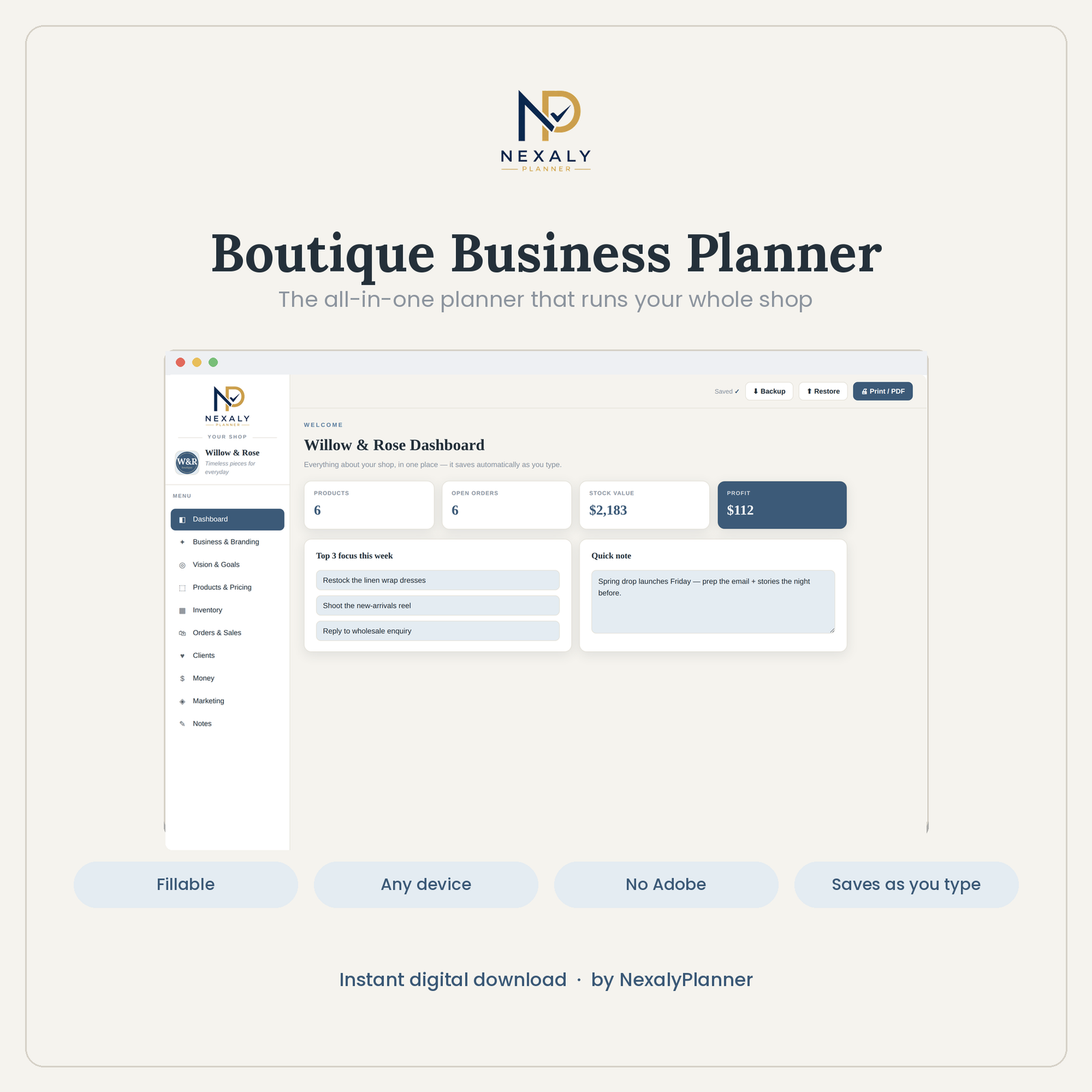
Figure 1. The initial Boutique Business Planner Dashboard. The four summary cards are empty in this baseline state; the screen also provides “Top 3 focus this week” fields and a “Quick note” area.
Quick start: your first session
Use this order for a clean first setup. The planner opens directly to the Dashboard; it is not password-gated or onboarding-only in the audited source.
- Open Business & Branding. Add your shop or brand name, tagline, owner name, email, phone, website, Instagram / TikTok handle, and currency symbol. For a US example, use
$. - Upload your logo if you have one. Select an image from the device. PNG or JPG is recommended by the interface. The logo appears in the sidebar, Dashboard, and print/PDF output.
- Choose a colour theme. Select Dusty Blue, Terracotta, Mauve, Sage, or Charcoal. The palette changes immediately across the planner.
- Write your direction in Vision & Goals. Complete the brand-vision prompts, choose a Word of the year, enter a Revenue goal (year), and add up to three big goals.
- Test one product in Products & Pricing. Enter materials, labour / making, packaging, shipping in, fees / other, and a Markup (x). Confirm the displayed Total cost / unit, Suggested price, and Profit / unit.
- Add a product row. In Product list, enter the Product, SKU, Sizes, Cost, Retail, and Status. Keep the SKU consistent with your inventory records.
- Enter current stock. In Inventory, record Item / SKU, Variant, In stock, Restock at, Cost, and Price.
- Log recent orders and customers. Use Orders & Sales for dates, order numbers, customer names, items, totals, Paid, and Shipped. Use Clients for contact information and relationship notes.
- Record money separately. Add sales or other receipts to Income log and business outflows to Expense log. Money calculates total income, total expenses, and profit as income minus expenses.
- Plan the next seven days. Add rows in Marketing for the date, platform, Post idea / hook, and Format. Use Notes & Key Dates for longer notes, launches, market dates, and reminders.
- Download a backup. In Business & Branding, choose Download a backup (.json). Store the file somewhere you control before changing devices or clearing browser data.
Complete menu and screen map
| Menu item | Main purpose | Records or controls available |
|---|---|---|
| Dashboard | Weekly operating view | Products, Open orders, Stock value, Profit, Top 3 focus this week, Quick note |
| Business & Branding | Identity and presentation | Logo, colour theme, business details, currency symbol, backup, restore, reset |
| Vision & Goals | Brand direction and annual goals | Brand vision prompts, Word of the year, Revenue goal (year), Big goal 1–3 |
| Products & Pricing | Unit economics and catalogue | Pricing calculator and Product list |
| Inventory | Stock-on-hand planning | Item / SKU, Variant, In stock, Restock at, Cost, Price |
| Orders & Sales | Order status record | Date, Order #, Customer, Items, Total, Paid, Shipped |
| Clients | Customer directory | Name, Contact / @, Location, Orders, Total spent, Notes |
| Money | Cash record summary | Total income, Total expenses, Profit, Income log, Expense log |
| Marketing | Content planning | Day, Platform, Post idea / hook, Format, Posted |
| Notes | Long-form notes and dates | Notes, Key dates & reminders with Date, Occasion / event, Plan, Ready |
The top bar also displays Auto-saved on this device and provides Backup, Restore, and Print / PDF controls. Navigation changes which page is visible; the tables are editable directly in place.
Setup and personalization
Business & Branding
Open Business & Branding and work from the top down. In Your logo, choose Upload logo and select an image. The application reads the image into the browser and displays it in the logo preview. Choose Remove if you want to clear it. A placeholder initial is shown when no logo is present.
In Colour theme, select one of five palettes:
- Dusty Blue
- Terracotta
- Mauve
- Sage
- Charcoal
The theme is a presentation setting; it does not change calculations or records. Under Business details, complete the fields that make printed pages identifiable: Shop / brand name, Tagline, Owner name, Email, Phone, Website, and Instagram / TikTok. Enter the currency symbol you want displayed. The source uses a symbol field, not a currency-exchange engine, so $ does not convert non-dollar values into US dollars.
The setup page explicitly says that data is stored only on this device. This is the right place to create a backup and to restore one. Reset everything erases the planner data in the current browser after confirmation. Download a backup first if the records matter.
Vision & Goals
Open Vision & Goals to write the reasoning behind the shop. The Brand vision card contains:
- My shop exists because… — describe the customer problem, craft, or point of view that motivates the business.
- My ideal customer is… — describe the buyer you are designing for.
- Three words that describe my brand — record a compact brand vocabulary for product and content decisions.
The This year card contains Word of the year, Revenue goal (year), and Big goal 1, Big goal 2, and Big goal 3. The revenue goal is a number field. Keep goals specific enough to guide the Dashboard’s Top 3 focus, but do not expect the product to generate a forecast or automatically break the goal into monthly targets; those behaviors are not present in the verified interface.
Dashboard
Dashboard is the control page for a short weekly review. Its four cards are calculated from the local tables:
- Products counts Product list rows with a Product name.
- Open orders counts Orders & Sales rows with an Order # or Customer value. It does not use the Paid or Shipped checkboxes to calculate an open-order status.
- Stock value adds
In stock × Pricefor every Inventory row. - Profit adds all Income log amounts and subtracts all Expense log amounts.
The calculation is intentionally simple. Stock value uses the selling Price field, not Cost, and Profit is a money-log total rather than an order-level gross-profit report. Use these figures as an operating snapshot, not as a formal accounting statement.
Use Top 3 focus this week for the three actions that deserve attention. Use Quick note for a short capture such as “confirm Saturday market table” or “photograph new black medium.” Both fields are saved locally as you type.
Feature-by-feature implementation guide
Products & Pricing: calculate a defensible starting price
The pricing calculator totals five cost inputs and multiplies the result by Markup (x):
Total cost / unit = Materials cost + Labour / making + Packaging + Shipping in + Fees / other
Suggested price = Total cost / unit × Markup (x)
Profit / unit = Suggested price − Total cost / unit
To use it:
- Open Products & Pricing.
- Enter the cost of materials for one sellable unit.
- Enter the time or making cost in Labour / making. If you pay yourself by an hourly rate, calculate the unit amount separately before entering it.
- Add packaging, inbound shipping, and fees / other that belong in the unit cost.
- Enter the multiplier in Markup (x). The default shown by the interface is
2.2. - Read the three result cards. The values update automatically as the inputs change.
- Add the product to Product list using + Add row.
- Enter Product, SKU, Sizes, Cost, Retail, and Status. Copy the calculator’s unit cost to Cost and use the price you approved for Retail.
The calculator is a pricing aid, not a margin policy. It does not know your sales tax obligation, discount strategy, wholesale terms, returns, overhead allocation, or desired net margin. Review the Suggested price against your market and costs before publishing it.
Inventory: maintain a stock checkpoint
In Inventory, the Inventory tracker starts with editable rows and a + Add row control. Enter one row per sellable item or variant:
- Set Item / SKU to the same identifier used in Product list.
- Use Variant for a size, colour, material, or other meaningful variation.
- Enter the current In stock quantity.
- Enter Restock at as your own reorder threshold.
- Enter Cost and Price for the unit.
- Review Stock value on the Dashboard after saving.
The verified behavior is a manual tracker. Inventory does not automatically decrement when you create an order, and Restock at is a reference field rather than a verified notification or purchase-order workflow. After a sale or production run, update In stock yourself.
Orders & Sales: record the order lifecycle
Open Orders & Sales and use Order tracker. Add one row per order. Enter:
- Date — use a consistent US date format, such as
06/03/2026. - Order # — your own order identifier, such as
BB-1001. - Customer — the customer name.
- Items — a concise item and variant description.
- Total — the order amount as a number.
- Paid — check the box after confirming payment in the source system you use.
- Shipped — check the box after shipment is actually complete.
The Total column is summed automatically. The Paid and Shipped boxes are manual status markers. The planner does not take payment, create a label, send tracking, or contact the buyer. Keep the order record aligned with the original sales channel.
Clients: preserve customer context
Use Clients as a compact customer directory. Add the person’s Name, Contact / @, Location, number of Orders, Total spent, and Notes. The fields do not automatically pull from Orders & Sales, so update Orders and Total spent when the relationship changes. Use Notes for useful service context, such as “prefers neutral colours” or “pickup at December market,” while avoiding sensitive information you do not need.
Money: separate income and expenses
The Money page has three live cards: Total income, Total expenses, and Profit. The formula is total income minus total expenses. It is calculated from the two tables on the page.
In Income log, record Date, Source / Channel, Orders, and Amount. Source / Channel can identify a website, market, pop-up, direct invoice, or other origin. Orders is a number field and Amount is summed.
In Expense log, record Date, Expense, Category, and Amount. Use a consistent category vocabulary, such as materials, packaging, booth fee, advertising, software, or postage. The planner does not reconcile bank statements, classify tax treatment, or produce a compliant profit-and-loss statement. Compare entries with your financial records and ask a qualified tax professional about US tax treatment.
Marketing: plan content without external posting
Open Marketing and add rows to Content planner. Enter the Day, Platform, Post idea / hook, and Format, then use the Posted checkbox to mark completion. Examples of Format include reel, carousel, story, product photo, email, or live demo, but the field is free text.
A practical weekly sequence is to create the row before producing the content, write a specific hook, and check Posted only after you publish in the platform itself. The planner does not connect to Instagram, TikTok, email tools, or an advertising account in the verified source. It is a local planning table, not an automatic publishing tool.
Notes & Key Dates: keep decisions and reminders visible
The Notes screen contains a large Notes field for free-form writing and Key dates & reminders. In the notes field, keep longer material such as a launch checklist, wholesale questions, booth packing list, or lessons learned from a market.
For each key date, add Date, Occasion / event, and Plan, then check Ready when your preparation is complete. This is a manual readiness marker. The source does not verify push notifications, email reminders, calendar sync, or automatic alerts. Use your normal calendar as a second reminder system for deadlines you cannot miss.
Rows, totals, deletion, and printing
Tables open with blank rows so you can start typing immediately. Use + Add row for additional records. Numeric columns accept numbers and update visible totals. The ✕ control at the end of a row deletes that row. Treat deletion as permanent for the current local state unless you have a backup.
Use the top-bar Print / PDF control when you need a paper or PDF snapshot. The product’s print styling is designed to show planner pages without the sidebar and controls. Review the print preview before saving, especially when a table is wider than the page.
Worked US example: a handmade tote from price to sale
Assume Harbor & Hem, a US handmade accessories shop, prepares a June 2026 launch for a linen market tote.
1. Brand and goal setup
On June 1, 2026, the owner enters Harbor & Hem as Shop / brand name, Useful pieces for slower days as Tagline, and $ as Currency symbol. The owner chooses Sage, writes an ideal customer statement for practical gift buyers, sets Word of the year to Consistency, and enters a Revenue goal (year) of $36,000. Big goal 1 is Launch the linen tote, Big goal 2 is Attend two summer markets, and Big goal 3 is Photograph the autumn collection.
2. Price calculation
For one tote, the owner enters the following values in Products & Pricing:
| Pricing input | Amount |
|---|---|
| Materials cost | $8.00 |
| Labour / making | $12.00 |
| Packaging | $1.50 |
| Shipping in | $1.50 |
| Fees / other | $2.00 |
| Total cost / unit | $25.00 |
| Markup (x) | 2.2 |
| Suggested price | $55.00 |
| Profit / unit | $30.00 |
The owner reviews the result and decides to sell at $55.00 before entering Product list. On June 2, the Product list row is Linen Market Tote, SKU HHT-001, Sizes One size, Cost 25, Retail 55, Status Ready.
3. Inventory and order
On June 3, the owner records 12 totes in Inventory: Item / SKU HHT-001, Variant Natural, In stock 12, Restock at 4, Cost 25, and Price 55. Dashboard Stock value shows $660, because it uses 12 × $55. This is a retail-value snapshot, not cost value.
On June 6, customer Maya Rodriguez places order HH-1001 for one natural tote. The owner enters 06/06/2026, HH-1001, Maya Rodriguez, 1 × HHT-001 Natural, and $55 in Orders & Sales, then checks Paid and Shipped when those events are confirmed. The owner manually changes Inventory In stock from 12 to 11. The product does not perform that decrement automatically.
In Clients, the owner adds Maya Rodriguez, @mayarodriguez, Austin, TX, Orders 1, Total spent $55, and a note that the customer purchased the natural variant. In Income log, the owner enters 06/06/2026, Direct, 1, $55. If the shop bought a $9 shipping label or incurred a market fee, that amount goes in Expense log with the appropriate date and category.
4. Weekly content and date
For the week of June 8, the owner adds a Marketing row for 06/09/2026, Instagram, “What fits in the linen market tote?”, Reel, and leaves Posted unchecked until publication. A second row plans a June 13 market reminder. In Notes & Key Dates, the owner enters 06/13/2026, Summer makers market, Pack 12 totes, price cards, cash box, and card reader, and checks Ready only after packing is complete.
This example demonstrates the intended handoff: a cost calculation informs a product row; the product and SKU inform an inventory row; the order is recorded separately; the client and money logs preserve context; and Marketing plus Notes turn the sale into repeatable weekly work.
A practical daily and weekly workflow
Daily close: 10 minutes
At the end of a selling or making day, update the records that changed. Add new orders, confirm Paid or Shipped only when true, adjust In stock, add income, and record expenses. Review the Dashboard’s Open orders and Stock value. Write tomorrow’s most important action in Top 3 focus this week or Quick note.
Do not leave a verbal sale, cash expense, or stock adjustment in a separate notebook if the planner is your operating record. Enter it while the details are available, then verify the row before closing the browser.
Monday planning: 20–30 minutes
On Monday, open Dashboard and replace the three focus fields with the week’s priorities. Review Inventory for rows at or below your Restock at threshold. Review Orders & Sales for unchecked Paid or Shipped boxes. Open Marketing and add the week’s content ideas. Check Notes & Key Dates for the next event and mark Ready only when the preparation is complete.
Friday review: 20 minutes
On Friday, open Money and compare Income log and Expense log with the week’s receipts and statements. Check whether Profit reflects all entries; remember that it is income minus expenses, not a tax-ready report. Review Clients for new contacts and update Orders and Total spent manually. Download a backup after a meaningful batch of changes, such as a market weekend, new collection, or monthly close.
Monthly maintenance
At month end, print or save a PDF snapshot if useful for your records. Review Product list prices against current costs. Check that every SKU is consistent across Products & Pricing, Inventory, and Orders & Sales. Review the annual goal and Big goals in Vision & Goals. Keep the JSON backup outside the browser profile, ideally in a second location you control.
Offline storage, backup, and restore limitations
The verified product stores its planner state in the browser’s local storage on the current device. The interface says Auto-saved on this device, and the source saves fields, tables, theme, and logo locally after edits. This means the planner can be useful without a sign-in, but it also creates responsibilities:
- There is no verified cloud sync. A second computer or browser profile will not automatically contain the same records.
- Clearing site data can remove the workspace. Browser cleanup, private browsing, profile deletion, or device failure can make local records unavailable.
- A backup is manual. Choose Download a backup (.json) or the top-bar Backup control. The download contains the local planner data in JSON form, including records and the stored logo data.
- Restore is manual and replaces the current state. Choose Restore from backup, select a compatible JSON backup, and let the page reload. Make a fresh backup of the current state first if you might need it; importing is not a merge workflow.
- Reset everything is destructive. The confirmation warns that it erases everything on this device. Do not use it as a routine cleanup action.
- A JSON file is not automatically encrypted. Store it with the same care as any business record. Do not email it casually if it contains customer contact details.
- Backups are not accounting or legal archives by themselves. Keep source receipts, statements, invoices, and required records according to your business and tax obligations.
Test a backup before relying on it: download one, keep the original workspace intact, and restore it only when you have confirmed that you know which file is the intended copy. For a device change, download the latest JSON, move it securely to the new device, open the planner, and use Restore from backup.
Advantages and disadvantages
Advantages
The planner is easy to understand because each operational area has a named screen and editable table. A new seller can move from unit costs to a price, product record, stock record, order, client, income entry, content row, and key date without learning a complex back office. Automatic table totals reduce arithmetic for pricing, orders, clients, income, and expenses. The Dashboard gives a compact weekly snapshot, while the five themes, logo upload, Print / PDF output, and business details make the workspace suitable for owner reviews and printed planning.
The local-first model also reduces setup friction. No verified sign-in or external integration is required, and the interface clearly identifies the workspace as saved on the current device. For a solo seller who values a private working notebook and is willing to back it up, that can be an advantage.
Disadvantages and boundaries
The product is not a connected ecommerce or accounting system. It does not sync orders, subtract inventory automatically, send messages, publish content, create shipping labels, reconcile bank accounts, calculate sales tax, or produce a tax-compliant financial statement. Product, inventory, order, client, and money tables are intentionally separate, so the owner must keep identifiers and updates consistent.
The Dashboard’s Open orders count is a simple row count, not a verified Paid/Shipped workflow. Stock value uses retail Price, which may not represent inventory cost. Profit uses all income minus all expenses, regardless of whether a line belongs to a specific product or period. Local storage is convenient but vulnerable to browser and device loss without backups. These limitations matter most as order volume grows; consider a specialized [small-business sales and profit dashboard] or [offline inventory and procurement workflow] when you need more connected operations.
Troubleshooting and common mistakes
My changes are not visible on another device. This is expected. The planner saves locally. Download a JSON backup on the original device and use Restore from backup on the other device.
The Dashboard shows zero products or orders. Product count requires a Product list row with a Product value. Open orders requires an Orders & Sales row with an Order # or Customer value. Empty starter rows do not count.
Stock value looks higher than expected. Dashboard Stock value uses In stock × Price, not In stock × Cost. If you need cost valuation, calculate it separately using the Cost column.
Profit does not equal the margin on my orders. Dashboard and Money Profit are Total income − Total expenses. They do not calculate product-level margin from Product list, Inventory, or Orders & Sales.
My inventory did not decrease after an order. Inventory is manual. Update In stock after verifying the order and fulfillment.
A total is wrong. Check for a number entered with extra text, a missing amount, or a duplicate row. Numeric table fields sum numeric values; blank or nonnumeric values contribute zero.
The logo is missing in a backup or printout. Confirm that it is visible in Business & Branding before downloading the backup or opening print preview. Re-upload the image if necessary, then create a new backup.
Restore says the file could not be read as a backup. The file must be valid JSON in the planner’s expected structure. Use a backup downloaded from this product, not a spreadsheet renamed to .json. Keep the original current workspace until the restore succeeds.
I need reminders or automatic social posting. Key dates and Marketing are manual planning tables. Use a separate calendar or publishing tool for alerts and publishing; the verified planner does not perform those external actions.
Handle a cancellation or return across the manual records
For a fictional order, begin with ten sellable totes in Inventory and an order for one tote. Creating the order does not reduce In stock. If it is cancelled before shipment and you never reduced stock, leave ten in Inventory; adding a unit would incorrectly produce eleven. Keep the cancellation explanation with the order details rather than interpreting Paid or Shipped as an automatic cancellation workflow.
If the tote shipped and you manually reduced stock to nine, a refund alone does not restore the tenth tote. Wait until the physical return arrives and passes your condition check, then manually change In stock from nine to ten. Keep damaged or unreviewed returns out of that sellable quantity. Record the reason and original order reference in your notes so the change can be explained later.
Review the Money logs separately against the processor’s refund record. The planner’s Profit card follows its income and expense entries; it does not infer a refund from an order checkbox or from stock. Do not invent an offset merely to make the Dashboard match an expectation. Keep source receipts and use a consistent recording method. After the corrections, download a dated JSON backup. The physical-count reconciliation example explains how to avoid counting the same correction twice; that separate sheet is not synchronized with this app.
Frequently asked questions
Is the Boutique Business Planner cloud-based?
The verified edition saves to the browser on the current device and labels the workspace “Auto-saved on this device.” Cloud sync is not verified. Use manual JSON backups for device changes and recovery.
Can I use US dollars?
Yes. Set Currency symbol to $ in Business & Branding. The planner formats displayed amounts with that symbol. It does not perform foreign-exchange conversion or verify tax treatment.
Does the pricing calculator calculate a markup percentage?
No. It uses a multiplier field labeled Markup (x). It adds the five cost inputs, multiplies the total by the multiplier, and displays Suggested price and Profit / unit.
Does an order automatically update inventory or income?
No. Products & Pricing, Inventory, Orders & Sales, and Money are separate records. Enter and update each record deliberately.
Can I track sizes and variants?
Yes. Product list includes Sizes, and Inventory includes Variant. Use consistent SKU and variant naming across the screens.
Can I track paid and shipped orders?
Yes. Each Orders & Sales row has Paid and Shipped checkboxes. They are manual markers. The product does not process payment or shipment.
Can I publish Instagram or TikTok content from Marketing?
No external posting is verified. Marketing stores Day, Platform, Post idea / hook, Format, and Posted status locally.
Does Notes & Key Dates send reminders?
The screen stores dates, occasions, plans, and a Ready checkbox. Automatic alerts, calendar sync, and notifications are not verified.
Is the Money page suitable for tax filing?
No. It is a lightweight income-and-expense log. Review figures against source records and consult a qualified US tax professional for tax classification, deductions, sales tax, and filing requirements.
How do I erase the planner?
Use Reset everything in Business & Branding and confirm the warning. Download a backup first if you may need the data later.
Next steps and related Nexaly resources
Explore the Boutique Business Planner product and live demo for day-to-day boutique records. For connected stock purchasing, follow the Inventory & Procurement Planner guide; for orders and profit, see the Sales Management System guide.
For collection planning, read the clothing brand content calendar. To review variants and stock before a launch, use the boutique inventory worked example.
Ready to make the next collection easier to run? Set up your brand, price one product from complete unit costs, and create a backup before entering the rest of your catalogue. That first disciplined workflow gives the Boutique Business Planner useful data without requiring a complicated system.
Explore Boutique Business Planner
Review product screenshots, included features, download details and current purchase terms.
View Boutique Business Planner