
Direct answer: what CareBridge OS does
CareBridge OS is an offline care-coordination workspace for US households managing information about loved ones, children, family responsibilities, household work, personal time, and caregiver handoffs. It keeps the core records you enter in the current browser and turns them into a Command Center with due items, upcoming appointments, planning conflicts, follow-up gaps, document reviews, care-load indicators, and handoff readiness.
It is most useful when several people share responsibility but details are scattered across texts, calendars, and paper folders. A caregiver can create profiles, plans, medication records, appointments, tasks, logs, document indexes, expenses, handoffs, and reports. The Nexaly Command Agent can read local records and perform limited planning actions.
CareBridge is not a medical device. It does not diagnose, prescribe, recommend medication changes, replace professional care, or contact healthcare providers, insurers, pharmacies, family members, or emergency services. Its medication and health features are user-entered recordkeeping tools. For a clinical decision, call the appropriate licensed professional. For an urgent emergency in the United States, call 911 or your local emergency service first.
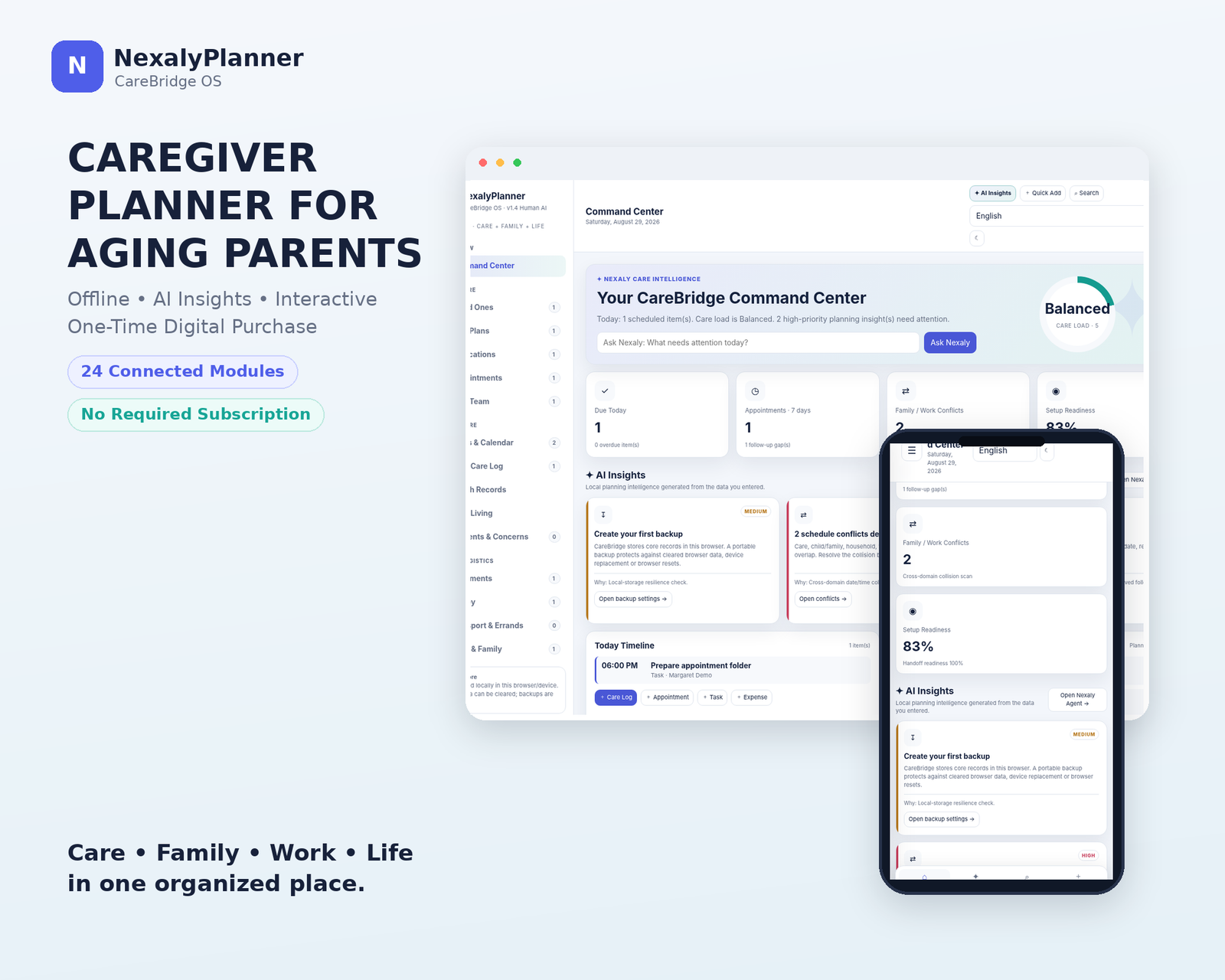
Figure 1. The audited baseline opens with the “Welcome to NexalyPlanner CareBridge OS” onboarding modal over the Command Center. The screenshot shows the first-run state, not a locked or password-gated application.
Quick start: your first 20 minutes
- Open the HTML in a full browser. Chrome, Edge, Safari, or Firefox is the safer choice for local storage, downloads, and printing. Embedded previews or file viewers may restrict those capabilities.
- Complete onboarding. Choose a language and Light or Dark theme, select Next, enter a caregiver Profile name, then choose Explore Demo Data or Start Empty. Use demo data only to learn the screens; do not mistake it for your household’s records.
- Open Settings & Data. Confirm your caregiver profile name, currency, language, theme, font scale, and optional Comfort mode. Export a first JSON backup before entering sensitive information.
- Create the foundation. In Loved Ones, add each person who needs coordination. Include only information you are comfortable storing in this browser.
- Build the care picture. Add at least one Care Plan, the current medication list as a record, the next Appointment, and a Care Team person or helper. Use exact dates and times.
- Make work actionable. Add open items in Tasks & Calendar, including an assignee, priority, due date, and status. Use Search & Quick Add for a fast task, medication, care log, or expense entry.
- Record what happened. Add a Daily Care Log after a meaningful care day, and use Health Records for dated user-entered summaries rather than diagnoses.
- Prepare continuity. Review Emergency / ICE and Handoff Center for the selected loved one. Print or download a report when a relief caregiver needs a concise summary.
- Back up again. Use Settings & Data → Export Backup after the initial setup and on a routine schedule. Keep the JSON file outside browser storage and on a device or drive you control.
Complete menu and screen map
The audited menu is grouped as follows. Counts beside menu items reflect local records or open items; they are not a measure of medical status.
| Area | Verified screen | What it organizes |
|---|---|---|
| Overview | Command Center | Today’s timeline, care load, due items, seven-day appointments, conflicts, setup readiness, AI Insights, loved-one status, and Weekly Snapshot |
| Care Core | Loved Ones | Person profiles, relationship, contact and provider details, conditions and allergies summaries, preferences, support areas, and emergency contacts |
| Care Core | Care Plans | Goals, routines, support instructions, recurring tasks, responsible person, dates, status, and notes |
| Care Core | Medications | User-entered medication records, schedules, refill/review dates, prescriber or pharmacy, document references, and medication-status logs |
| Care Core | Appointments | Visit details, transport, preparation, questions, documents, outcomes, instructions, tests/referrals, and follow-up dates |
| Care Core | Care Team | Helpers, roles, availability, responsibilities, contact methods, and handoff notes |
| Daily Care | Tasks & Calendar | Care, Child/Family, Household, Work, and Personal tasks with date-time, assignee, priority, recurrence, and status |
| Daily Care | Daily Care Log | Dated overall status, mood or wellness note, sleep, meals and hydration, mobility, personal care, observations, caregiver notes, follow-up, and handoff summary |
| Daily Care | Health Records | Conditions/history, allergies, providers, measurements/vitals, labs/imaging, immunizations, hospital or emergency visits, procedures, and devices or aids |
| Daily Care | Daily Living | Activities of daily living and instrumental activities, assistance level, routines, preferred methods, helper, safety notes, and review date |
| Daily Care | Incidents & Concerns | Plain-language event record, immediate action, people notified, owner, follow-up date, related record, and Open/Monitoring/Closed status |
| Life & Logistics | Documents | Indexed medical, insurance, legal, financial, identity, and emergency documents with issue and review/expiry dates |
| Life & Logistics | Money | Care expenses, vendor/provider, amount, payer, reimbursement state, recurring cost, and receipt reference |
| Life & Logistics | Transport & Errands | Rides, prescriptions, shopping, pickups, deliveries, assignees, times, status, and notes |
| Life & Logistics | Child & Family | School events, activities, appointments, deadlines, routines, transport/pickup, parenting tasks, and notes |
| Life & Logistics | Household | Meals, shopping, maintenance, chores, household administration, recurrence, assignee, status, and notes |
| Life & Logistics | My Life | Work/business, personal appointments, exercise/self-care, goals, rest/respite, important tasks, and protected personal time |
| Safety & Intelligence | Emergency / ICE | A focused emergency-information view for a selected loved one; verify details before relying on a printed sheet |
| Safety & Intelligence | Handoff Center | Relief-care continuity summary using plans, medication records, appointments, open tasks, updates, instructions, and emergency contacts |
| Safety & Intelligence | AI Insights | Command Center cards for overdue care items, conflicts, follow-up gaps, medication-record reminders, document reviews, responsibility concentration, rest planning, and handoff readiness |
| Safety & Intelligence | Analytics | Local planning indicators such as care load, task distribution, conflicts, and readiness trends; these are not clinical assessments |
| Safety & Intelligence | Reports | Printable care summaries, appointment history, medication lists, expenses, emergency sheets, and weekly reviews |
| System | Nexaly Command Agent | Local status and date queries, searches, module opening, limited task/expense additions, medication-status logging, emergency/handoff opening, conflict checks, document checks, and backup export |
| System | Search & Quick Add | Local search plus quick buttons for records such as tasks, medications, care logs, and expenses |
| System | Settings & Data | Profile and appearance, offline-storage notice, JSON backup/restore, CSV export, demo data, reset, setup checklist, and product-scope notice |
Setup, privacy, language, and appearance
Complete the onboarding state honestly
The first run is a three-step modal titled Welcome to NexalyPlanner CareBridge OS. It explains that the product supports offline care coordination for loved ones, children, household, work, and personal life. Step one offers Language choices of English, Arabic, Portuguese, Spanish, Dutch, French, and Italian, plus Theme choices of Light and Dark. Step two asks for a local caregiver Profile name. Step three offers Explore Demo Data or Start Empty.
Choose Start Empty for real records. Choose Explore Demo Data to see relationships among a sample aging-parent profile, helper, tasks, appointment, medication placeholder, document, expense, school event, and work or household conflicts. Clear demo data before treating the Command Center as your own.
Configure the local workspace
Open Settings & Data and select Save after changing profile and appearance settings. The screen exposes the following verified controls:
- Caregiver profile name identifies the local workspace.
- Currency controls the displayed currency code, with USD as the audited default. Money records also carry their own currency field, so review both the global setting and each expense.
- Language changes the interface among the seven supported choices.
- Theme switches between Light and Dark.
- Font scale offers 100%, 115%, and 130%.
- Comfort mode is an optional accessibility-style preference.
The product also includes top-bar language/theme controls and mobile shortcuts for AI, Search, and Quick Add.
The Settings screen labels the storage model clearly: core data is stored locally in the browser/device, browser data can be cleared, and backups are essential. Its privacy notice states that the local profile lock is convenience privacy rather than device encryption and that the audited tool is not presented as HIPAA or GDPR certified. Do not assume it is a regulated medical-record system.
Feature-by-feature implementation guide
1. Loved Ones and Care Plans
Start with a Loved Ones record because most other care records can link to a person. Select Add, enter the person’s name and relationship, and add the date of birth, address, primary physician or provider, user-entered conditions summary, allergies, mobility or communication notes, diet, emergency contacts, insurance reference, preferred hospital or pharmacy, important preferences, and care level or support areas. You can archive a profile when it is no longer active. Use short, factual wording and distinguish a user-entered history from a medical conclusion.
Next, open Care Plans → Add. Give the plan a title, select the loved one, and write goals or outcomes, daily or weekly routines, support instructions, recurring tasks, responsible person, start date, review date, progress status, and notes or an attachment index. Set a review date whenever the routine may change. A plan is a coordination record; it does not establish a clinical protocol.
2. Medications and medication-status logs
In Medications, select Add and choose the loved one. Record the medication name, form or strength as a record only, user-entered schedule, purpose or reason note, prescriber or pharmacy, start and end dates, refill date, review date, PRN/as-needed marker, official medication-document reference, and notes. The product can show approaching refill or review dates and can create a medication-status log with statuses such as Given, Refused, Skipped, Reminded, or Not applicable.
Use Log status only to record what happened. Do not use the field or agent to decide whether to start, stop, change, or administer a medication. Verify the current label and professional instructions independently.
3. Appointments and Care Team
In Appointments, select Add and enter the provider, specialty or visit type, loved one, date and time, location, transport plan, preparation checklist, questions to ask, documents to bring, outcome or visit notes, new instructions, tests or referrals, follow-up date, and status. The system uses planned or rescheduled future appointments in its local appointment counts. After a completed visit, complete the outcome and follow-up fields; AI Insights can flag a follow-up gap when the visit needs more planning.
In Care Team, add each helper or professional contact as a coordination record. Enter name, role, what they can help with, availability note, primary or backup responsibility, contact methods, and handoff notes. Then assign tasks to the appropriate person. If many open tasks are assigned to one person, AI Insights may show Responsibility looks concentrated. Treat that as a delegation prompt, not a judgment about the person’s performance.
4. Tasks & Calendar and Daily Care Log
Use Tasks & Calendar for the next action, not a long narrative. Add a task title, loved one, domain, due date and time, assignee, priority, recurrence, status, and notes. Domains include care, child/family, household, work, and personal. Status values include Open, In Progress, and Done; priority includes Low and Normal, with the source also supporting the product’s configured priority choices. Tasks feed the Command Center’s Due Today and overdue counts, the Today Timeline, care-load indicator, assignment analysis, and conflict scan.
After a care day or meaningful change, open Daily Care Log → Add. Select the loved one and date/time. Choose an overall day status of Stable, Good, Mixed, or Difficult. Add mood or wellness, sleep, meals/hydration, mobility/activity, personal-care routines, symptoms or observations as a record only, caregiver notes, whether follow-up is required, and a handoff summary. The log helps the next caregiver understand continuity without pretending to measure health clinically.
5. Health Records and Daily Living
Health Records is a dated index, not a diagnostic chart. Select a record type such as Condition/History, Allergy, Provider, Measurement/Vital, Lab/Imaging, Immunization, Hospital/ER Visit, Procedure, or Device/Aid. Add the date, title or measurement name, user-entered value or summary, details or notes marked no diagnosis, and a document reference.
Daily Living captures support needs such as Mobility, Bathing, Dressing, Toileting, Meals, Shopping, Transport, Housekeeping, Medication organization, or Other. Select an assistance level: Independent, Prompting, Some help, or Full help. Add routine/frequency, preferred method or instructions, usual helper, safety notes, and last reviewed date. Review these instructions with the person and the care team; do not treat the record as a legal determination of capacity or eligibility.
6. Incidents & Concerns
For a fall, missed handoff, unexpected change, or other concern, use Incidents & Concerns → Add. Select the loved one, enter date/time and place, describe What happened (plain-language record), note action and people notified, assign an owner and follow-up date, link a related record, and choose Open, Monitoring, or Closed.
For a medical or safety emergency, contact emergency services or the appropriate professional first; add an incident afterward if useful.
7. Documents, Money, Transport & Errands
In Documents, index the document name, category, loved one, issue date, expiry or review date, where the original is stored, optional reference number, and notes or file-location reference. Categories include Medical, Insurance, Legal, Financial, Identity, Emergency, and Other. CareBridge can flag dates within 60 days, but it does not open an insurer portal, renew coverage, validate a legal document, or prove that the original exists.
In Money, add the expense date, category, loved one, vendor/provider, amount, currency, paid by, reimbursable flag, reimbursement status, recurring-cost flag, and receipt reference. Reimbursement states include Not applicable, Pending, Submitted, and Paid. This is a household record and summary, not accounting, tax, reimbursement, or legal compliance software.
In Transport & Errands, add a ride or errand, loved one, type (Ride, Prescription, Shopping, Pickup, Delivery, or Other), date/time, assignee, Open or Done status, and notes. It does not book transportation or contact a pharmacy.
8. Child & Family, Household, and My Life
Use Child & Family for a child or family item, person, school or college, type, date/time, Planned or Done status, and notes. Types include School event, Activity, Appointment, Deadline, Routine, Transport/Pickup, Parenting task, and Other. Use Household for meals, shopping, maintenance, chores, household administration, or another item; add date/time, assignee, recurrence (None, Daily, Weekly, or Monthly), status, and notes.
My Life keeps the caregiver in the plan. Add work/business, personal appointment, exercise/self-care, goal, rest/respite, or important task, with date/time, a protected personal-time checkbox, status, and notes. When care load is heavy and no protected rest/respite block is scheduled in the next seven days, AI Insights may suggest planning personal time. This is an organizational comparison, not a wellness or mental-health assessment.
9. Emergency / ICE and Handoff Center
Open Emergency / ICE, select a loved one, and review the emergency-focused information before printing or sharing it. Confirm the person’s name, emergency contacts, allergies or other relevant user-entered records, provider and hospital/pharmacy details, and any supporting document references. The screen is a convenience summary, not a substitute for emergency services or a verified clinical record. Recheck it whenever a phone number, provider, pharmacy, allergy, or preference changes.
Open Handoff Center when another helper will cover care. Choose the loved one and review the current care plan, medication records, appointments, open tasks, recent care updates, instructions, and emergency contacts. The Handoff Center’s readiness indicator checks whether key locally stored elements are present; it does not certify that the handoff is clinically complete. Read the summary aloud or send it through a secure channel you choose. CareBridge itself does not transmit it.
10. AI Insights, Analytics, and Reports
AI Insights are local planning cards generated from records entered in CareBridge. Verified checks include overdue care items, cross-domain date/time conflicts, completed appointments with unresolved follow-up fields, approaching medication refill/review dates, document reviews within 60 days, responsibility concentration, missing protected personal time during a heavy load, and handoff readiness. Each card includes a reason such as “Based on open tasks with due dates before today” or “Recordkeeping reminder only; no medication advice is generated.” Use the action button to open the relevant module and verify the underlying records.
Analytics and Command Center display care load, assignment distribution, conflicts, readiness, weekly completions, care spend, and protected personal-time blocks. These are planning indicators, not medical, legal, insurance, or caregiver-quality scores.
Reports provides printable care summaries, appointment history, medication lists, expenses, emergency sheets, and weekly reviews. Use the product’s Print Preview, then select Print / Save PDF or Download Printable File. If a phone or embedded viewer blocks native printing, open the downloaded printable file in a full browser and use the browser’s print or Save as PDF function.
11. Nexaly Command Agent and Search & Quick Add
The Nexaly Command Agent accepts normal questions as well as supported commands. Examples include “today?”, “Mom meds?”, “next appointment?”, “what needs attention?”, “show conflicts,” “which documents expire soon?”, and “backup now.” Verified command examples include /status, /today, /open medications, /add task Call pharmacy tomorrow, /log medication Demo Medication A given, /emergency Margaret, /handoff Margaret, /search insurance, and /backup.
The agent can summarize local status, search records, open modules, add a basic task or expense, log a medication status, open Emergency / ICE or Handoff Center, report conflicts and follow-up gaps, and start a backup export. It keeps an action log and includes Undo last agent action for supported changes. It refuses diagnosis, dosage, prescribing, and start/stop/change-medication requests. Its answers are limited to the records and planning rules stored in the current browser.
Use Search & Quick Add to find records or create a Task, Medication, Care Log, or Expense. Ctrl+K or Cmd+K opens it.
Worked US example: coordinating Margaret’s week
Assume that on September 19, 2026, Alex is coordinating care for his mother, Margaret, in Ohio. Alex uses USD and starts with an empty workspace.
- In Loved Ones, Alex creates “Margaret Johnson,” relationship “Mother,” date of birth “1942-04-18,” her primary provider, allergies as confirmed by the family’s current records, preferred pharmacy, emergency contacts, and mobility notes. He avoids adding guesses.
- In Care Plans, he creates “Morning and evening support,” sets the goal as “Keep routine consistent and document changes,” enters the morning and evening routines, assigns Alex as primary and his sister Dana as backup, and sets a review date of October 3, 2026.
- In Medications, he records the name and schedule exactly as shown on the current medication list, adds the prescriber/pharmacy, sets a refill-review date of September 26, 2026, and links the official document reference. He does not ask the agent whether the schedule is medically appropriate.
- In Appointments, Alex adds Margaret’s primary-care visit for September 24, 2026 at 10:30 AM, location “Riverside Family Practice,” transport “Alex drives,” preparation “Bring medication list,” and questions about a recent mobility change. After the visit, he will enter the outcome, instructions, tests/referrals, and follow-up date.
- In Care Team, he adds Dana as “Family helper,” notes availability “Evenings and Saturday,” and assigns backup responsibility. He adds a task for Dana, due September 22 at 6:00 PM, to confirm the ride plan.
- In Tasks & Calendar, Alex adds “Call pharmacy about refill timing,” due September 21 at 9:00 AM, domain Care, priority Normal, and status Open. He also adds “Prepare appointment questions,” due September 23 at 7:00 PM.
- On September 19, Alex adds a Daily Care Log with status “Good,” notes “Meals completed,” “Short walk,” and “No change observed,” then leaves Follow-up required unchecked. He records observations rather than a diagnosis.
- Alex indexes the insurance card in Documents, category Insurance, location “Home care binder,” and review date November 1, 2026. He enters a pharmacy expense of $42.00 in Money, paid by Alex, with reimbursement “Not applicable.” CareBridge may show the document review when the date is within 60 days.
- Before Dana’s coverage, Alex opens Handoff Center for Margaret and checks that the care plan, medication record, appointment, open tasks, recent log, and emergency contacts are present. He downloads a printable handoff or uses Reports to create the appropriate summary.
- Alex exports a JSON backup from Settings & Data and stores it in a folder outside the browser. After the September 24 visit, he updates the appointment outcome and sets any follow-up task before exporting another backup.
This example demonstrates organization only. It does not authorize medication administration, establish a clinician-approved plan, or create a claim.
Daily and weekly operating rhythm
Each morning, open Command Center and review Due Today, the Today Timeline, near-term appointments, conflicts, concerns, record reminders, document reviews, and the top AI Insight. Open the underlying record before acting. Mark tasks In Progress or Done only when appropriate.
After a care event, add a Daily Care Log or Incident, update the relevant task, and enter follow-up information. If an appointment is complete, record its outcome, instructions, tests/referrals, and follow-up date. If another person will take over, update Handoff notes rather than relying on an old printout.
Each evening, check tomorrow’s tasks and appointments, resolve overlaps with Child & Family, Household, or My Life, and add protected personal time when possible. Review medication records only as recordkeeping.
Once a week, review Analytics and the Weekly Snapshot. Check responsibility, handoff readiness, document dates, and expenses. Export a backup after meaningful changes and keep it outside browser storage. Monthly, verify emergency contacts, pharmacy/provider details, document locations, and recurring routines.
Offline storage, backup, restore, and device limits
CareBridge’s core state is stored in browser local storage on the current device. The audited product explicitly warns that browser data can be cleared and that a portable backup protects against cleared data, device replacement, or browser reset. There is no verified cloud sync, shared household account, live integration, automatic external action, or guaranteed cross-device replication in this edition.
To back up, open Settings & Data → Export Backup, or ask the Command Agent to run /backup or “backup now.” The product starts a download named NexalyPlanner_CareBridge_Backup.json. Keep that file outside the browser. Restore uses Settings & Data → Import Backup and accepts a JSON file. Restoring replaces or reloads the local state represented by that file; export a current backup first so you have a rollback copy.
CSV Export is also available for portability. CSV is useful for inspection, but JSON is the product’s portable state format and the better choice for restoring the workspace; CSV may not recreate relationships or settings.
Use a full browser rather than an embedded viewer. The product’s guide recommends Chrome or Edge on Android, Safari on iPhone/iPad, and common full browsers on Windows and macOS. Preview or WebView modes can restrict downloads, storage, or printing. If storage is unavailable, the product may run in session mode and warns you to export immediately.
A local profile lock, where available in the product’s privacy scope, is convenience privacy and not device encryption. Protect the device, operating-system account, backup file, and any printed handoff separately. Use household privacy practices appropriate to sensitive health, identity, financial, and emergency information.
Advantages and limitations
Advantages
- One coordination model: care, family, household, work, personal time, documents, money, and handoffs can be reviewed together.
- Local-first operation: the core planner can continue without an internet connection when browser storage works.
- Clear workflow links: loved ones connect to plans, medications, appointments, tasks, logs, documents, expenses, and handoffs.
- Actionable planning checks: conflicts, overdue work, follow-up gaps, document dates, and responsibility concentration are easier to see.
- Useful continuity tools: Emergency / ICE, Handoff Center, Reports, JSON backup, CSV export, and printable-file fallback support transitions.
- Bounded agent behavior: the Nexaly Command Agent can search and organize local data while refusing diagnosis and medication-change advice.
Limitations
- No verified cloud sync or live integrations: CareBridge does not automatically share updates with relatives, providers, pharmacies, insurers, banks, calendars, or transportation services.
- Browser-storage risk: clearing site data, changing devices, using a restricted viewer, or losing the backup can remove access to local records.
- Manual accuracy burden: dates, schedules, contacts, document references, status entries, and expenses must be entered and reviewed by the household.
- Not a clinical system: health, medication, incident, and emergency fields do not provide diagnosis, prescribing, triage, or professional validation.
- Not accounting or legal software: Money is a household expense log, not tax accounting, claims processing, legal advice, or compliance evidence.
- Shared-care limitations: the caregiver must share a printable handoff or export through a secure channel; the product does not send it automatically.
Troubleshooting and common mistakes
The onboarding modal appears every time. Browser storage may be blocked, cleared, or restricted by an embedded viewer. Open the HTML in a full browser, confirm storage is available, and export a backup immediately if the product shows session mode.
My data disappeared after changing devices. Local records do not automatically follow you. Import the latest JSON backup from Settings & Data. If no backup exists, check the original browser profile or device; do not assume the data is recoverable.
Print does not work on my phone. Choose Download Printable File in Print Preview, open the file in a full browser, and use the browser’s Print or Save as PDF command.
The Command Center says there are no alerts. No covered planning condition was detected in current data; this is not medical or legal clearance. Confirm due dates, appointment status, follow-up fields, document dates, and task statuses.
A conflict is missing. The conflict scan depends on saved date-time values across care, child/family, household, work, and personal records. Add exact times, not just titles or notes, and confirm the records are not marked Done when they still need attention.
The agent gives a cautious answer. The agent intentionally refuses diagnosis, dosage, prescribing, or start/stop/change-medication requests. Ask it to retrieve a record, summarize today, open a module, show conflicts, or log a status instead.
The dashboard shows demo information. Use Settings & Data → Reset All Data only after exporting anything you need, then start empty. Demo data is for orientation and is not your household’s result.
The backup file contains sensitive information. Treat JSON and printed reports as sensitive household records. Store them with access controls and delete old copies safely when no longer needed.
Frequently asked questions
Is CareBridge OS an electronic medical record?
No. It is an offline care-coordination planner. Health and medication records are user-entered organization fields, not a diagnostic or prescribing system.
Does it sync with my family or doctor?
No cloud sync or live integration is verified in the audited edition. You can export a backup, CSV, or printable report and share it yourself through a secure method.
Can the Nexaly Command Agent change medications?
No. It can retrieve medication records and log a status such as Given, Refused, Skipped, Reminded, or Not applicable. It will not recommend a dose or tell you to start, stop, increase, or decrease a medication.
Can I use it without internet access?
The core planner is designed for local/offline use when the browser permits local storage. Internet is not required for the core records or local planning logic. Downloads, printing, and storage can be restricted in embedded viewers, so use a full browser and keep backups.
Does Money provide accounting or tax reports?
No. Money is a care-expense log. Review consequential financial decisions with your accountant, insurer, or benefits administrator.
What should I enter in Health Records?
Enter dated, user-sourced summaries such as an allergy, provider, measurement, lab/imaging reference, immunization, hospital/ER visit, procedure, or device/aid. Avoid turning a note into a diagnosis.
How do I prepare for a relief caregiver?
Update the loved one’s Care Plan, medication records, next appointments, open tasks, recent Daily Care Log, emergency contacts, and instructions. Open Handoff Center, review the readiness indicator and summary, then print or download a current handoff. Confirm the recipient received and understood it.
Is the emergency sheet a substitute for 911?
No. In an urgent US emergency, call 911 or the appropriate local emergency service first. Emergency / ICE is a convenience summary that must be kept current.
Recommended internal links and next step
Review the CareBridge caregiver planner product page for the interface and download details. For a household managing study alongside care, use the Digital Homeschool Planner guide; for a separate personal focus routine, see the ADHD Digital Planner guide.
For a private family care starting point, review the CareBridge OS product page. Follow this guide’s quick start, back up the workspace before entering sensitive records, and review clinical or safety decisions with the appropriate professional.
Explore Caregiver Planner for Aging Parents
Review product screenshots, included features, download details and current purchase terms.
View Caregiver Planner for Aging ParentsChoose a focused family coordination worksheet
Use the free Caregiver Visit Coordination Planner for proposed or confirmed visits on one day. Use the Family Caregiver Handoff Sheet for entered updates and unfinished actions that need a named helper. Review the records with your family; neither worksheet supplies clinical instructions.
Each free planner has its own device save and JSON backup. Its records do not automatically sync with, or import into, the paid application. The free worksheet remains available without a purchase.