
FREE · NO ACCOUNT NEEDED
Fixed-Fee Scope Change Planner
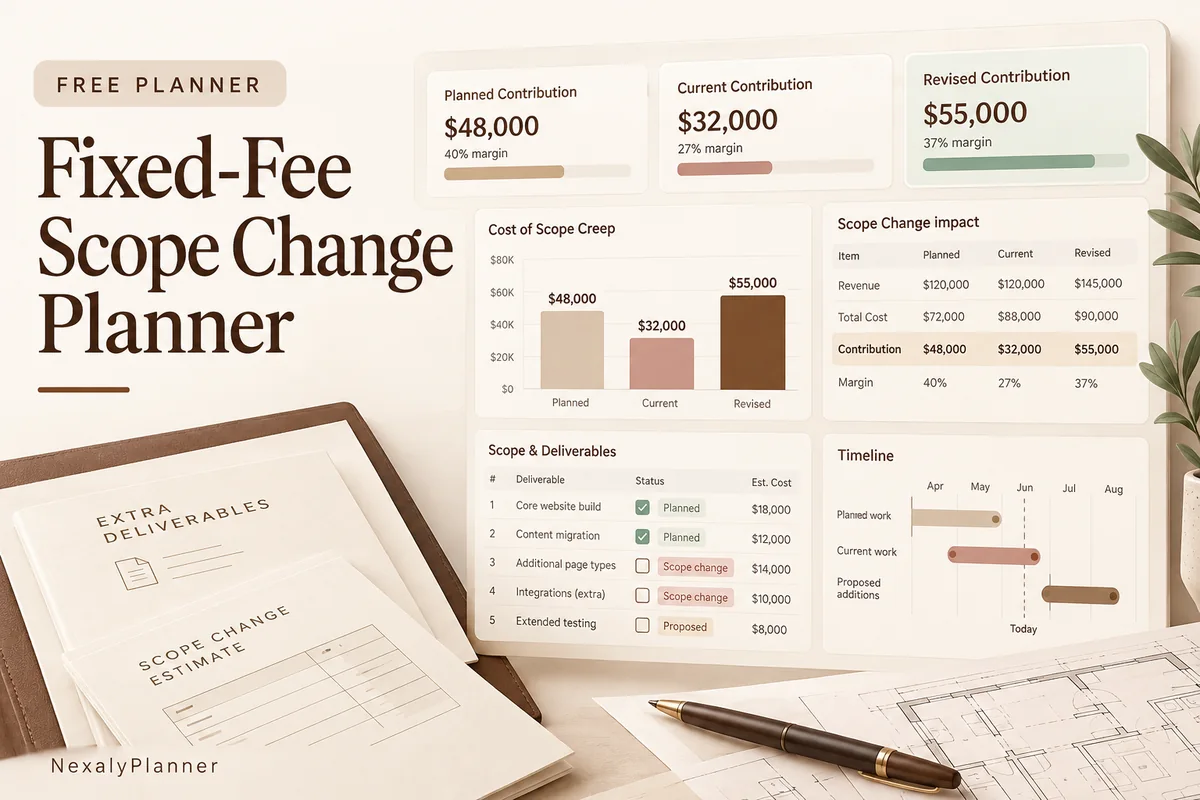
Calculate the cost of scope creep on a fixed-fee project. Compare planned, current and revised contribution before agreeing to extra deliverables.
- 1Set up
- 2Add records
- 3Review & save
Set up your worksheet
Avoid double countingBase-work hours are the expected total for the original work. Enter only additional scope in the rows below.
Your report
Enter your details and records, then calculate to review the results.
Save or download your work
Work stays in this page until you choose Save on this device. Device saves belong to this browser and can be removed by clearing browser data. JSON keeps an editable backup; CSV and PDF keep a report.
Fixed-Fee Scope Change Planner: complete guide
What you can do
- Original plan compared with the updated base-work forecast.
- Incremental cost for each change request.
- Revised contribution with a separately entered proposed fee.
- Up to 100 editable rows, explicit device saving, JSON backup, CSV and browser PDF printing.
How to use this planner
- Enter the original fee, budgeted hours and updated base-work total-hours forecast.
- Use an internal cost rate, not a client billing rate.
- List only additional scope in the rows; avoid counting those hours in the base forecast too.
- Compare the results and get written approval separately before treating the proposed fee as billable.
Inputs and units
| Field | Input rule |
|---|---|
| Project / change request | Required. Up to 160 characters. |
| Currency | Required. Choose USD, GBP, CAD, AUD, EUR, NZD, AED. |
| Original fixed fee | Required. Numbers with at most two decimals from 0 to 1000000. |
| Originally budgeted hours | Required. Numbers with at most two decimals from 0 to 10000. |
| Base-work total hours now expected | Required. Numbers with at most two decimals from 0 to 10000. |
| Internal cost per hour | Required. Numbers with at most two decimals from 0 to 1000000. |
| Base-work expenses | Required. Numbers with at most two decimals from 0 to 1000000. |
| Proposed additional fee | Required. Numbers with at most two decimals from 0 to 1000000. |
| Added deliverable / change | Required. Up to 160 characters. |
| Additional hours | Required. Numbers with at most two decimals from 0 to 10000. |
| Additional expenses | Required. Numbers with at most two decimals from 0 to 1000000. |
How the result works
Original contribution uses budgeted base hours. Current base contribution uses your updated total-hours forecast for original work, not only hours already logged. Revised contribution adds proposed fees and subtracts additional-scope cost. Zero revenue has no defined margin percentage.
Worked example with fictional data
5 additional hours at USD 30 plus USD 20 expenses cost USD 170. Base work at 25 hours and USD 50 expenses costs USD 800 against a USD 1,000 fee. Adding a USD 200 proposed change fee produces USD 230 modeled contribution after the extra scope.
Limits to keep in mind
Incremental cost = additional hours × internal cost rate + additional expenses. Contribution = fee − modeled labour cost − entered expenses. It is not net profit: unentered overhead, taxes and other costs are excluded. A proposed fee is not approved revenue.
Review the result before acting
- Write down the added deliverable before estimating extra time.
- Separate a base-project overrun from an actual scope change so the client discussion uses clear facts.
- Compare proposed fees and remaining capacity before approving another deadline.
Save, restore and export
Add entry creates another record. Edit any field directly or use Remove entry to delete a row. Changing inputs clears the previous report so it cannot be mistaken for current results. Choose Calculate / review results again when your changes are ready.
Save on this device keeps an editable worksheet in this browser only. On a later visit in this browser, your saved worksheet loads automatically. Restore device save can also reload the last save after you confirm replacement. Saving drafts is allowed, but a report requires valid, complete inputs. Download backup creates a versioned JSON file for the same tool. Import backup shows the worksheet label and row count before replacing current work; it does not change the device save until you press Save.
Download CSV exports the settings, summary, row details and calculation notes. CSV is for spreadsheet review; it cannot restore this worksheet. Print / Save PDF recalculates the current entries and opens your browser’s print dialog. Choose Save as PDF where supported. The report excludes navigation, guides and product CTAs. Clear data removes the current worksheet and its device save after confirmation; keep a backup first if needed.
Use a personal browser for private records and keep important backups separately. Entered worksheet fields are not included in our planner-action analytics.
Frequently asked questions
What if I enter hours already worked as the base forecast?
Add expected remaining hours for the original work first. The model needs a total-hours forecast to compare the complete project.
Does the planner recommend what to charge?
No. It shows the cost and modeled contribution of your entered proposal. Pricing, scope and approval remain your decision.
Is it free, and can I move my work to another device?
All worksheet features are free without an account. Save on this device keeps data in this browser; use an editable JSON backup to transfer it. CSV and PDF are reports, not import files. There is no cloud sync or background monitoring.
Continue the planning workflow
WHEN YOU NEED A BROADER WORKFLOW
Agency Client Profitability & Capacity OS
Explore the broader client, project and capacity planning workflow. Read the guide and preview the product to check whether it fits your work. This free planner stays free; its JSON backup does not import into the paid application.