
What this planner does
NexalyPlanner’s 2026–2028 Small Business Planner is an offline, browser-local workspace for organizing dates, tasks, notes, routines, projects, goals, lightweight business records, and personal operating information across three calendar years. It is a good fit for a solo owner, a two- or three-person team, or an operator who needs one place to review the week without turning the planner into a full accounting, customer relationship management, or cloud collaboration system.
The first screen is intentionally locked behind an onboarding modal. It says, “Your offline planner for 2026–2028. Everything stays on your device. Pick a language to begin.” You must select a language before Get started becomes available. After onboarding, the app exposes the verified menus described in this guide, a three-year switch for 2026, 2027, and 2028, Search…, a language menu, a theme control, a backup control, a print control, and a logout/privacy-lock control.
The most important operating rule is simple: treat this as a local planning desk. Data is stored in the current browser and can be downloaded as a JSON backup. The product does not establish cloud sync, connect to banks or commerce platforms, send messages, or replace professional bookkeeping, tax, legal, or financial advice. Business totals and P&L views are calculations from records you enter; they are not accounting-compliance reports.
Direct answer: Choose this planner if you want a three-year offline planning system for dated work and owner routines. Choose a cloud project-management or accounting platform instead if you require shared real-time editing, automatic integrations, audit trails, or centralized company storage.
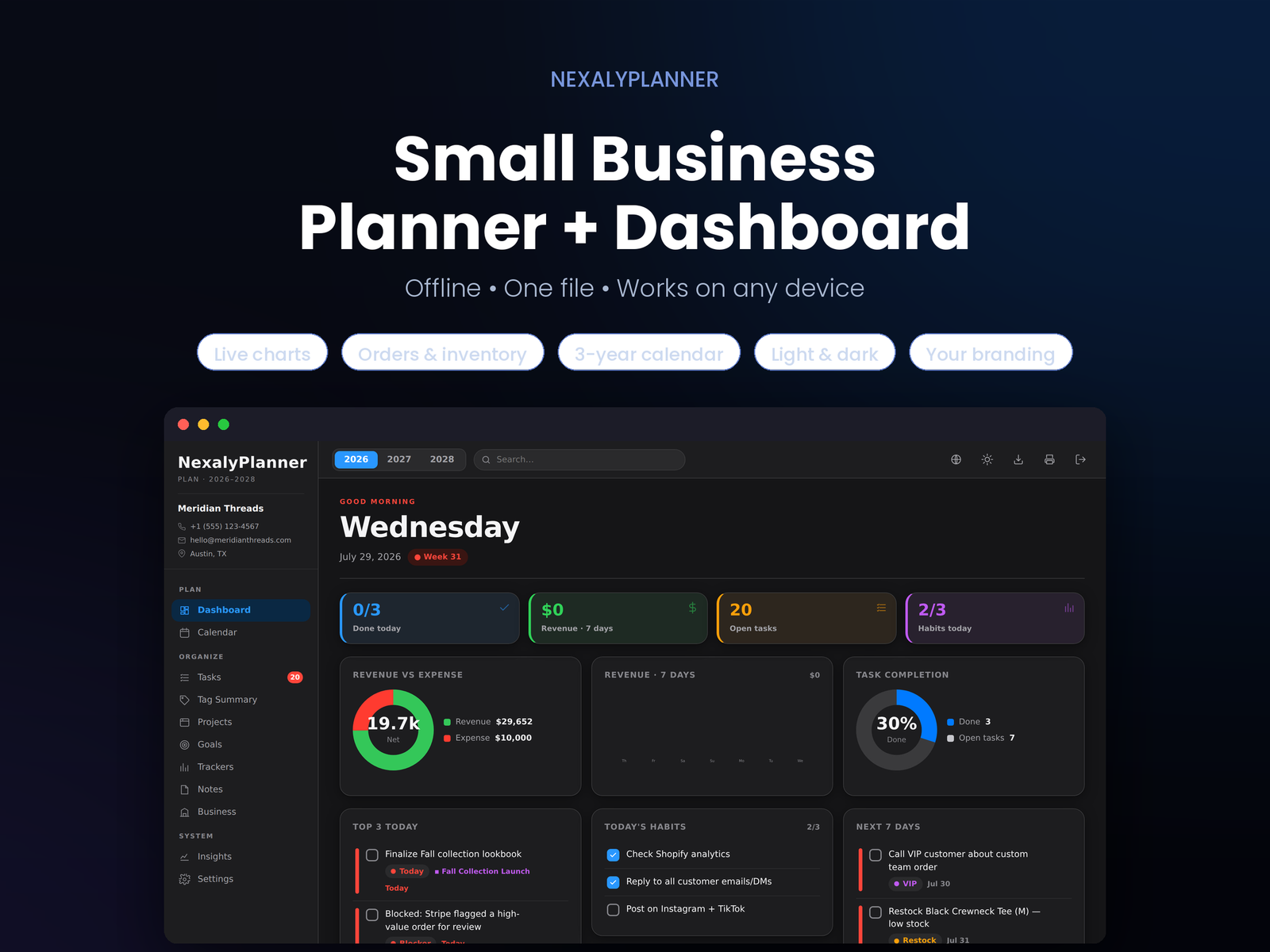
Figure 1. Baseline audit screenshot: the first-use onboarding state. Select one of the seven languages before choosing Get started.
Quick start: your first 15 minutes
- Open the planner in the browser and read the onboarding message. It is not a missing dashboard; it is the required first-use state.
- Select English for a US-English workspace, or choose العربية, Español, Français, Deutsch, Português, or Italiano. The interface previews the selected language immediately.
- Choose Get started. The selection and onboarding completion are saved locally.
- Confirm the top bar shows 2026, 2027, and 2028. The active year controls the calendar and year-based views.
- Open Tasks and add one real next action, such as “Send March 2026 renewal quotes.” Assign a date between January 1, 2026 and December 31, 2028, then choose a tag and priority if useful.
- Open Calendar > Year and confirm that the task appears as a marked day in the selected year. Select a month to move from the annual overview into the month view.
- Add a short note in Notes, or open a specific date and write in Day notes and the time blocks under Schedule.
- Visit Settings and choose light or dark Theme, a theme color, and whether the week starts on Monday or Sunday.
- Select Back up data from the top bar or from Settings > Your data. Store the downloaded
almanac-backup-YYYY-MM-DD.jsonfile somewhere you control. - Return to Dashboard and use Quick capture for ideas that are not ready to become dated tasks. Sort them later in Tasks or Notes.
Complete menu and screen map
The sidebar is grouped into Plan, Organize, and System. Some items open a parent page and reveal indented submenus. The top bar remains available while you work.
| Group | Menu or screen | What it is for | Status and scope |
|---|---|---|---|
| Plan | Dashboard | Today’s date, top tasks, habits, quick capture, and upcoming work | Live local view |
| Plan | Calendar | Calendar navigation; opens the month view by default | Live parent menu |
| Plan | Year | Twelve-month overview for the active year | Live; 2026–2028 only |
| Plan | Month | Month grid with dated tasks and day entry | Live |
| Plan | Week | Seven-day planning view | Live |
| Plan | Day | Time blocks, tasks, and day notes for one date | Live |
| Organize | Tasks | Create, filter, complete, and delete dated or undated tasks | Live |
| Organize | Tag Summary | Group open tasks by tags in a live summary | Live |
| Organize | Projects | Project brief, Kanban columns, milestones, meetings, and decisions | Live local records |
| Organize | Goals | Year, quarter, category, key results, and linked projects | Live local records |
| Organize | Trackers | Parent menu for routine and personal logs | Live parent menu |
| Organize | Habits | Seven-day check-off grid and streak count | Live |
| Organize | Finance | Monthly income and expense entries | Live calculator, not accounting software |
| Organize | Bills | Recurring monthly bills and paid state | Live local tracker |
| Organize | Health | User-entered metrics and logs | Organization only; not medical advice |
| Organize | Mood | User-entered mood records and monthly view | Well-being log only |
| Organize | Reading | Reading list and completion tracking | Live local list |
| Organize | Custom trackers | Check or numeric trackers created by you | Live |
| Organize | Notes | Free-form notes saved locally | Live |
| Organize | Business | Parent menu for lightweight operating records | Live parent menu |
| Organize | Orders | Order date, customer, amount, status, and notes as supported by the form | Live local records |
| Organize | Inventory | Product names, stock, price, and cost fields as supported by the form | Live local records |
| Organize | Suppliers | Supplier records and contact details as supported by the form | Live local records |
| Organize | Campaigns | Campaign names and marketing tracking fields as supported by the form | Live local records |
| Organize | Returns | Refund amount, order reference, reason, date, and resolved state | Live local records |
| Organize | P&L | Monthly revenue, costs, refunds, and net calculation from local entries | Planning snapshot, not tax reporting |
| Organize | Custom lists | Owner-defined business checklists | Live |
| System | Insights | Completion, habit, tag, and mood summaries when enough data exists | Local calculations |
| System | Settings | Appearance, language, week start, branding, currency symbol, reminders, privacy lock, and data tools | Live |
The top bar also contains the year switch, Search…, Language, a light/dark theme button, Back up data, Export / Print, and Log out. The HTML product does not expose cloud accounts or a live team-sharing control in the audited edition.
Set up the workspace correctly
Complete onboarding and choose a language
The onboarding modal presents seven choices: English, العربية, Español, Français, Deutsch, Português, and Italiano. Choose one language, then choose Get started. The app changes its document direction for Arabic and uses localized date formatting through the browser.
To change the language later, choose the globe button in the top bar and select a language, or open Settings > Appearance > Language. Language changes affect labels and date formatting; they do not translate the text you already typed into tasks, notes, projects, or records.
Configure the display
Open Settings and review Appearance. Choose Light or Dark under Theme, then choose a theme color from the available palette swatches. Set Week starts on to Monday or Sunday. This changes weekday ordering and week calculations; it does not change the dates assigned to existing tasks.
The top-bar theme button is a faster way to switch between light and dark. Use a consistent display setting across an owner’s laptop and phone, but remember that the underlying data still belongs to each browser profile unless you explicitly restore a backup.
Add business identity and a currency symbol
The Settings screen includes Branding fields for a brand name, logo, contact number, email, and address. The product describes these as appearing in the sidebar and printed reports. Use a short owner-facing name such as “Mesa Verde Home Services.” Upload only an image you are comfortable storing in this browser’s local data.
The planner uses a configurable currency symbol. For a US workspace, set it to $. This symbol is a display preference, not an exchange-rate engine and not a guarantee that every record has been converted consistently. If your team works in multiple currencies, keep a written convention in Notes and do not combine currencies in one P&L calculation without conversion outside the planner.
Decide whether to enable reminders or a privacy lock
Settings includes an App and reminders area. Browser notifications, when supported and permitted, are described as reminders shown when you open the app. They are not guaranteed background alarms. The source explicitly notes that a browser app cannot send true background alarms without a server.
The Privacy lock area lets you set a password, change it, or remove it. This is a browser-local access control, not a substitute for operating-system encryption, a password manager, or a company identity system. Use a strong, unique password and keep a backup before changing browser profiles.
Plan across 2026, 2027, and 2028
Switch years without losing the planner context
The year switch at the top contains exactly 2026, 2027, and 2028. Select a year to set the active planning year. The app saves the selected year locally. When you are in Year, Month, or Goals, the view updates in place; from other screens, the app moves to the year calendar.
Use the year switch for review rather than as a data filter for every screen. A task’s date is stored with the task, while goals are explicitly assigned a year. When entering a task, use the date control to place it between 2026-01-01 and 2028-12-31.
Use the four calendar views
Open Calendar to enter the calendar area. The parent opens the month view; the sidebar exposes Year, Month, Week, and Day.
- In Year, scan all twelve months. A marked date indicates that at least one task is scheduled. Select a month to open it.
- In Month, use the left and right arrows to move month by month. Select a day to open that day’s view. Dated tasks appear as compact items in the day cells.
- In Week, review seven days at once. Select a task or day to move into the detailed day view.
- In Day, use the arrows to move one date at a time. The Schedule area provides editable time blocks from 6:00 a.m. through 10:00 p.m. Select a block, type the appointment or work session, and click away to save it. The same screen includes the day’s tasks and a Day notes text area.
The planner does not infer availability, invite another person, or automatically create appointments. Confirm external commitments in the system where they were actually booked.
Manage tasks and priorities
Add a task from the dashboard
On Dashboard, use Quick capture to enter a short thought and press Enter. Quick capture creates a task for today without requiring you to complete every planning field. Use it for “Call the insurance broker” or “Check the wholesale quote,” then refine it in Tasks.
Add a fully specified task
- Open Tasks and choose Add task.
- Enter the work in the What needs doing? field. Start with a verb and one result.
- Choose one tag: Today, Next action, Waiting on, Idea, Blocker, Follow up, or Win. You can also choose a custom tag created in Settings.
- Assign a Date, or leave it blank for an undated task. The accepted planner window is January 1, 2026 through December 31, 2028.
- Set Priority to None, Low, Medium, or High.
- If you have created projects, select a project in the project field.
- Select Save.
Use the All, Active, and Done filters to reduce the list. Select the check box to complete a task; completed text is crossed out. The task count can appear as a sidebar badge. Delete only after checking that the item is no longer needed, because deletion is not a project archive or a recoverable recycle bin.
Use Tag Summary for weekly triage
Tag Summary gathers every open tagged task across the planner in real time. It is useful for a Monday review: inspect Blocker, Waiting on, and Follow up first, then convert promising Idea items into scheduled work. Because it shows open tagged tasks rather than a separate copy, completing a task in the summary updates the underlying task.
Use projects, goals, and notes for owner-level planning
Projects
Open Projects and choose New project. Enter a project name and brief. A project opens with tabs for Board, Milestones, Meetings, and Decisions.
On Board, work moves through the local Kanban columns To do, Doing, and Done. Add focused items rather than vague statements. On Milestones, add a milestone, date it, and check it off when complete. On Meetings, add a title and date, then record notes. On Decisions, record the decision and its date so a small team can reconstruct why a choice was made. Project progress is calculated from completed Kanban items or milestones; it is not an independently audited percentage.
Goals
Open Goals and choose New goal. Enter a title, then select a category such as business, personal, finance, health, learning, or other. Choose a quarter or Whole year, and assign 2026, 2027, or 2028. Add a description and key results in the goal detail view. Check key results as they are completed, and link the goal to an existing project when the project is the execution vehicle.
For example, “Reach $120,000 in 2027 service revenue” can be a 2027 business goal with quarterly key results. The number is an owner target you entered, not a forecast generated by the planner.
Notes
Open Notes, choose Add note, and type directly into the note card. Notes save locally as you edit. Use Notes for assumptions, call summaries, vendor questions, or a short “definition of done.” Use a dated Day notes field when the information belongs to one calendar date.
Use trackers and business records without overstating them
The planner includes many lightweight local records. They are useful for planning and review, but they do not become external transactions or regulated records.
Track routines and personal operating signals
- Habits lets you add a habit such as “Review cash position” or “Walk 20 minutes.” Mark each day in the seven-day grid. The app displays a streak based on the local check-offs.
- Finance records income and expense entries and presents a monthly summary. Use it for a planning snapshot, not tax, payroll, or GAAP reporting.
- Bills records recurring monthly bills and whether a bill was paid for a month. The opening reminder check can surface monthly bills due within the next few days when the app is opened.
- Health and Mood store user-entered logs. They are not medical devices, diagnostic tools, treatment plans, or substitutes for a clinician. Do not use them as the sole record for a medical decision or emergency.
- Reading stores a reading list and completion state.
- Custom trackers can be a daily check tracker or a numeric tracker. Use a check tracker for “Review open receivables” and a numeric tracker for “Sales calls,” but define the unit in the tracker name.
Record simple business operations
- Orders stores local order records. Enter the customer, date, amount, status, and any available notes from the form. It does not send an order to a customer or fulfillment platform.
- Inventory stores product records and inventory fields supported by the form. It is a local planning list, not a live stock count from Shopify, Square, a warehouse, or a point-of-sale system.
- Suppliers stores supplier records. Keep a separate authoritative contract or purchasing system for payment terms and legal commitments.
- Campaigns records campaign information supported by the form. It does not publish ads, calculate a verified platform ROAS, or connect to an advertising account.
- Returns records an order reference, refund amount, reason, date, and resolved state. It does not issue the refund.
- P&L calculates a monthly snapshot from non-cancelled orders, income entries, expenses, and returns. Treat the result as an internal planning view. Verify it against bank statements, invoices, tax records, and a qualified accountant before making a filing or financial decision.
- Custom lists creates owner-defined checklists such as “Friday close” or “New client intake.” Add items and check them off locally.
Search, print, import, and backup
Search what the product actually indexes
Use the top-bar Search… field while you work. Search checks task text, note text, and habit names. It returns up to eight matching results and labels each result as Task, Note, or Habit. Selecting a dated task opens its day; an undated task opens Tasks; a note opens Notes; and a habit opens Habits.
Search does not search every business field, project field, goal field, or calendar schedule block. If an order or supplier cannot be found, open its parent screen rather than assuming the record was not saved.
Print a planning snapshot
The top-bar printer control is labeled Export / Print. Use it when you need a paper or browser printout for a planning meeting. Printing is not the same as a structured backup. A printed report cannot restore the underlying tasks, tags, dates, or settings.
Create a JSON backup
Choose Back up data in the top bar, or open Settings > Your data > Back up data. The browser downloads a JSON file named in the pattern almanac-backup-YYYY-MM-DD.json. Create a backup before a major import, before clearing data, before changing devices, and at the end of each week.
The app does not export automatically. A download sitting in the browser’s default Downloads folder is not a complete backup plan. Copy it to a protected folder, an encrypted drive, or an organization-approved storage location. Keep more than one dated version so that a bad import does not overwrite your only good copy.
Restore from a file
- Open Settings.
- Under Your data, choose Restore from file.
- Select a JSON backup created by this planner.
- Wait for the Data restored confirmation and review the dashboard, year, tasks, and settings.
The importer reads JSON and rejects files it cannot parse. Restore replaces the in-browser state with the imported state shape; it is not a merge tool. Back up the current workspace first. Do not edit the JSON by hand unless you understand the data structure, and never restore an unknown file into a production workspace.
A realistic US example: a three-year home-services plan
Imagine that Cedar & Coil HVAC, a two-person business in Columbus, Ohio, wants a local planning desk. The owners want to prepare the 2026 season, hire an apprentice in 2027, and replace a service van in 2028. They use dollars and review the planner every Friday.
On January 5, 2026, the owner completes onboarding in English, sets the currency symbol to $, and chooses Monday as the week start. In Goals, she creates “Build a $120,000 recurring-maintenance base,” assigns it to 2026 and Whole year, and adds key results: “Offer maintenance plan to 40 customers,” “Reach 25 renewals by June 30,” and “Reach 40 renewals by December 15.”
In Projects, she creates “Spring maintenance campaign” with a brief. The milestones are “Finalize offer — February 6, 2026,” “Call existing customers — February 20, 2026,” and “Review renewals — March 31, 2026.” The project’s Board holds tasks such as “Draft two maintenance-plan options,” “Call 10 customers,” and “Update the service-page copy.” A meeting note records the January 9 pricing discussion, and a decision record states that the standard plan is $249 per year.
In Tasks, she adds “Call 10 maintenance-plan prospects” for February 9, 2026, tags it Next action, and sets High priority. She adds “Waiting on response from insurance agent” for February 11 and tags it Waiting on. On the relevant dates, Day shows the calls in the task column; the owner uses 9:00 a.m.–11:00 a.m. schedule blocks for field work and 2:00 p.m.–3:00 p.m. for callbacks.
For simple local review, she records three 2026 orders: $249 on February 12, $498 on February 13, and $249 on February 16. She records $180 of fuel expense on February 13 and a $75 refund on February 18 in Returns. The P&L view for February calculates revenue and costs from those entered records. The owners compare that snapshot with the actual bank activity; they do not use it as a tax return.
On December 18, 2026, she switches to 2027, creates a goal named “Add one apprentice,” assigns it to Q1 2027, and links it to a project with milestones for job description, interviews, and onboarding. On October 2, 2027, she switches to 2028 and creates a goal for the van replacement fund. The year switch keeps the three-year workspace visible without requiring a separate planner file, while the JSON backups provide dated recovery points.
This example demonstrates the intended pattern: goals define the outcome, projects organize the work, tasks receive dates and priorities, the calendar supplies the operating rhythm, and local business entries support a review. None of those entries automatically contacts a customer, places an order, moves money, or updates an external system.
Recommended daily and weekly routines
Daily 10-minute opening routine
- Open the planner and read the dashboard date and top tasks.
- Check Tasks for items due today and remove ambiguity from the next action.
- Review Habits and mark only what was actually completed.
- Use Quick capture for interruptions instead of changing the whole schedule.
- Open Day and reserve time blocks for the two or three outcomes that matter most.
- Before closing, add a short Day notes entry describing a decision, risk, or follow-up.
Weekly owner review
On Friday afternoon or Monday morning, review Tag Summary in this order: Blocker, Waiting on, Follow up, Next action, and Idea. Complete or reschedule stale tasks. Review each active project’s Board, then inspect milestones and decisions. Update the relevant goal’s key results and check the next seven days in Week.
If you use business records, compare the local Finance, Orders, Returns, and P&L views against authoritative records. Record discrepancies in Notes rather than silently changing history. End the review with Settings > Back up data and give the file a date-based name in your own storage system.
Monthly and year-end routine
At month-end, open P&L, review the month selector, and compare the local snapshot with bank and invoice records. Review recurring Bills, open returns, inventory assumptions, and supplier follow-ups. At year-end, switch to the next year only after closing the current year’s open tasks and backing up the workspace. Keep a separate backup for December 31 and a separate planning copy for the new year if your operating procedure requires a clean archive.
Advantages and disadvantages
Advantages
The planner’s strongest advantage is offline continuity. It can open and retain records in the browser without requiring a sign-in or live external service. The 2026–2028 year switch supports a single three-year planning horizon. The workflow also connects practical levels of work: dashboard review, dated tasks, calendar detail, projects, goals, routines, notes, and lightweight business records.
The interface is flexible for small operators. You can use Tag Summary for triage, a project’s Decisions tab for team memory, Custom trackers for a simple metric, and JSON backups for portable recovery. Language, theme, week-start, brand fields, and a currency symbol make the workspace adaptable without changing its local-first model.
Disadvantages and limits
Local storage is also the principal risk. Data belongs to the current browser profile and can be lost through clearing site data, browser reset, device failure, private browsing behavior, or an accidental clear action. There is no verified cloud sync, automatic backup, real-time multi-user editing, audit trail, or external integration in this edition.
The planner is not an accounting, tax, legal, medical, inventory-control, advertising, or payment system. P&L totals depend on complete and correctly entered records. Health and mood pages are personal logs only. Restore is file-based and replacement-oriented rather than a merge workflow.
Troubleshooting and common mistakes
The app remains on the welcome modal. Select a language first. Get started is disabled until a language choice is made. If the selection does not persist, confirm that the browser permits local storage and reload the page.
A task is not visible in the calendar. Check that it has a date, that the date falls between 2026 and 2028, and that the active year is correct. Undated tasks remain in Tasks and cannot appear on a calendar day.
Search does not find my record. Search indexes task text, note text, and habit names. It does not index every business, project, goal, or schedule field. Open the relevant sidebar screen instead.
My week starts on the wrong day. Open Settings > Appearance > Week starts on and choose Monday or Sunday. This changes calendar ordering and week calculations.
The P&L total looks wrong. Check the selected month, canceled orders, income and expense dates, returns, amount fields, and currency convention. Then compare with authoritative financial records. The view is a local planning calculation, not a reconciled ledger.
I cannot restore a backup. Confirm that the file is a valid JSON backup from this planner. If the file is malformed, the product shows Couldn’t read that file. Restore the last known-good file and keep the current state backed up before trying another file.
I changed devices and my data is missing. The data does not automatically follow you. Move a JSON backup to the new device through a secure method, open the planner, choose Restore from file, and review the restored state. Do not assume browser installation or a shared URL means shared storage.
I cleared data accidentally. The clear action is permanent within that browser unless you have a backup. Restore the latest good JSON file. If there is no backup, the product cannot reconstruct deleted local records.
Reminders did not appear in the background. That is expected. The product explains that reminders appear when the app opens and that a browser app cannot send true background alarms without a server. Use an external reminder system for critical deadlines.
Frequently asked questions
Is this a cloud collaboration app?
No verified cloud sync or live collaboration is provided in the audited edition. Records are stored in the browser, and sharing requires your own export or print process.
Can I plan dates outside 2026–2028?
The planner’s year switch is limited to 2026, 2027, and 2028, and task date inputs are limited to that same range. Use an external archive for earlier or later dates rather than entering misleading dates.
Does changing the language translate my existing data?
No. It changes interface labels and browser-local date formatting. Your task, note, project, and record text remains what you entered.
Does import merge two workspaces?
No merge behavior is verified. Restore from file loads a JSON workspace state. Back up the current workspace before restoring.
Can I use the P&L for taxes?
No. It is a monthly planning snapshot calculated from local orders, income, expenses, and returns. Reconcile with complete financial records and consult a qualified tax professional for tax reporting.
Are Health and Mood medical tools?
No. They are user-entered organization logs. They do not diagnose, prescribe, monitor emergencies, or replace professional medical care.
Can the planner send messages, place orders, or update an ad account?
No such automatic external action is verified. The planner stores local records and calculations; you decide and perform any outside action in the appropriate system.
How do I protect a small team’s data?
Use the browser privacy lock where appropriate, protect the device account, create regular JSON backups, store them securely, and define one owner for restore decisions. A local password lock is not the same as centralized access management.
Next step and contextual internal links
If you need a simple three-year planning desk that works offline, start with the 2026–2028 Small Business Planner product page, complete onboarding, and enter one real operating week. Use the Nexaly Planner guides hub for related implementation notes.
For a weekly owner review, read the small-business planning routine. If stock is the priority, follow the inventory and procurement workflow. For connected sales and profit records, use the Sales Management System guide; for local business analysis, see the Offline AI Business Copilot guide.
Ready to plan the next three years offline? Download or purchase the 2026–2028 Small Business Planner, complete the language step, create your first dated task, and make a backup before the end of your first week.
Explore Small Business Planner 2026–2028
Review product screenshots, included features, download details and current purchase terms.
View Small Business Planner 2026–2028