
FREE RESOURCE · EXCEL + PDF + BROWSER WORKSHEET
Free Expense Report Template for Excel + Printable PDF
Prepare one employee expense claim with an itemized record, receipt references and a reimbursement calculation. Keep company-paid costs visible while excluding them from the amount owed to the employee.
Download Excel (.xlsx)Download printable PDFUse editable worksheet
Published October 24, 2026 · By NexalyPlanner Editorial · No signup required
What is included?
- Excel: Blank, Filled example and Instructions tabs; ten item rows with editable inputs and calculated amounts.
- Printable PDF: two US Letter landscape pages, one blank and one filled fictional example. It is a static form for handwriting, not an interactive PDF.
- Browser worksheet: ten editable rows, local save/restore, JSON backup, CSV report and browser print.
The .xlsx has no macros. There is no native Google Sheets copy or Word file. Browser JSON backups restore into this browser worksheet, not the workbook or a paid app. CSV preserves a report, not an editable backup with formulas.
Use the editable expense report
Start blank or load the labelled fictional example. Entries stay in this page unless you save or export them. Device storage belongs to this browser; keep a JSON backup for another device. Scroll the item table horizontally on a small screen.
| Date | Merchant | Business purpose | Category | Paid by | Amount | Eligible | Receipt ref |
|---|---|---|---|---|---|---|---|
Typed review status is a manual record. It does not verify identity, approve spending, send an order or move money.
How to use the expense report
- Set the claim boundary. Use one claimant, report reference, reporting period and currency. Enter dates as fixed dates so the saved claim keeps the same period.
- Record each cost. Enter the date, merchant, business purpose, category and receipt reference. Select Employee or Company for who paid. Keep the supporting documents with your own records.
- Enter the eligible amount. For employee-paid rows, enter the amount your reviewer considers eligible. It cannot exceed the recorded cost. Company-paid rows must have eligible amount 0. Eligibility is a manual policy decision.
- Reconcile money already provided. Enter advances and prior reimbursement once. If they exceed eligible costs, the negative net amount stays visible for a return or reconciliation review.
- Review and retain. Check evidence and your policy, record the reviewer and status, then save a dated copy. A status entered in this worksheet is a record, not an approval signature or payment.
Worked example: check the result
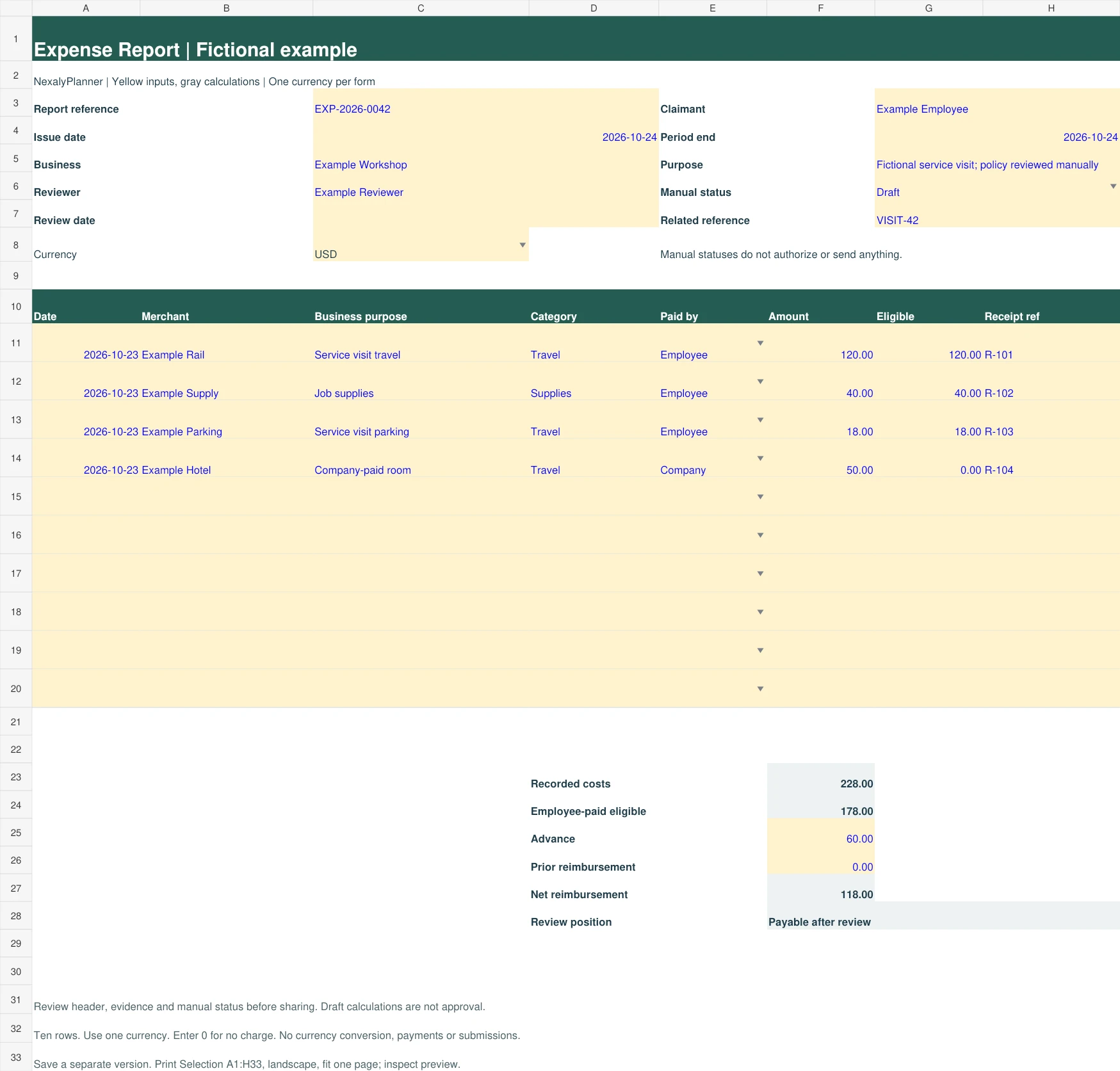
Employee-paid eligible costs are $120 travel + $40 supplies + $18 parking = $178. A separate $50 company-paid room remains visible in recorded costs, but is excluded from the claim. Subtract the $60 advance and $0 prior reimbursement: $118 remains payable.
Load the fictional example above to inspect the calculation. The Excel Filled example tab and the second PDF page use the same inputs. A blank form stays incomplete until the required rows and adjustment amounts are supplied. Enter 0 for a charge that does not apply.
When the claim differs from the receipt
A $40 receipt with $35 eligible records both amounts; only $35 enters reimbursement. A company-paid item remains in recorded costs with eligible 0. This avoids paying the same cost twice.
Advances and corrections
If the advance changes to $200, the example net becomes -$22. Review the remaining advance with the employee; do not turn that result into zero. Correct an amount by revising the row and keeping the prior version under your process. Negative expense rows are not supported.
Receipts and tax treatment
A receipt reference helps you find a document; this worksheet does not upload or verify it. The IRS recordkeeping guidance describes supporting documents such as receipts and invoices. This form does not decide deductibility, mileage rates or tax treatment.
Save, reopen and print
In the browser, choose Save on this device deliberately; entries are not saved automatically. Restore device copy retrieves that browser’s last saved version. Clearing browser storage or using a private window can remove it. Download JSON backup before switching devices or closing an important session, and store files containing customer or employee details appropriately.
For Excel, save a separate .xlsx per claim. Reopen it and change one value to check recalculation before using it operationally. Select A1:H33 on the required tab, use landscape Print Selection and fit to one page. Column J contains row review messages outside that print area; fix them first. Ten rows are provided: do not extend the form without checking formulas and total ranges.
The downloadable PDF has a fixed layout. Browser Print / Save PDF uses your browser’s print dialog and may span more than one page; check every row and field in preview. The workbook has been recalculated and export/import tested with Artifact Tool. Native Excel, Google Sheets, physical printer output and real-phone behavior have not been certified.
Related workflow
- Continue with the business budget variance guide.
- Continue with the cash-flow forecast example.
For a broader optional workflow, read about the Small Business Planner. This free form works independently; its backup files do not import into the paid product.
Frequently asked questions
Does the template reimburse the employee?
No. It calculates from entered costs, eligibility, advances and prior payments. Your reviewer authorizes any reimbursement outside the worksheet.
Can I combine currencies?
Use one currency per report. Currency selection changes the label only. Convert amounts using your own documented process before entering them, or keep separate reports.
What if the eligible amount is unknown?
Leave it incomplete until the reviewer has checked it. Do not enter zero as a placeholder for an amount still being reviewed.
Background reading: IRS supporting business records. The original NexalyPlanner worksheet and fictional example do not reproduce a third-party template. Source guidance does not certify this form.
OPTIONAL NEXT STEP
When one free worksheet is not enough
Use this free expense template for a focused reimbursement or recordkeeping task. Review the wider business planner if you want to connect cost reviews to recurring business decisions. The worksheet is not a tax filing or a live accounting-system integration. The free template stays available without a purchase; its files and backups do not automatically import into the paid product.