
What BatchTrace OS does
BatchTrace OS is an offline, browser-local operating record for connecting suppliers, received material lots, production batches, quality evidence, finished lots, inventory movements, and customer destinations. It is designed for a small producer that needs to answer a practical question quickly: Which supplier lot went into which batch, what evidence supports release, and where did the finished lot go?
The product supports a receive–produce–verify–release–trace workflow. You can record supplier and material information, receive lots with expiry dates and certificate references, define recipes or bills of materials (BOMs), record actual yield and waste, capture quality checks, document holds and corrective actions, create finished lots, record shipments, search a lot or batch through its connected chain, and save a mock-recall record. The dashboard then summarizes trace completeness, cost and yield, quality and holds, expiry and waste, cash and inventory, and record completeness.
The audited rendered state opens as locked and presents an Unlock workspace control with a password input. The source and rendered audit verify the post-unlock dashboard and modules described below, but they do not provide a universal unlock PIN in the guide source. After an authorized owner unlocks the workspace, the product is offline and private by default. Records are saved in the browser’s local storage, not to a verified cloud account. The interface includes JSON backup and restore, local reports, a convenience PIN lock, display currency, language, light/dark theme, and an offline Insider AI panel. It does not establish regulatory compliance, replace your approved food-safety system, contact suppliers or customers, or send a recall notice. Treat the records as an operational aid and have an authorized owner review release, disposition, retention, and recall decisions.
Explore the BatchTrace OS product page or compare related products in the Nexaly Planner catalog.
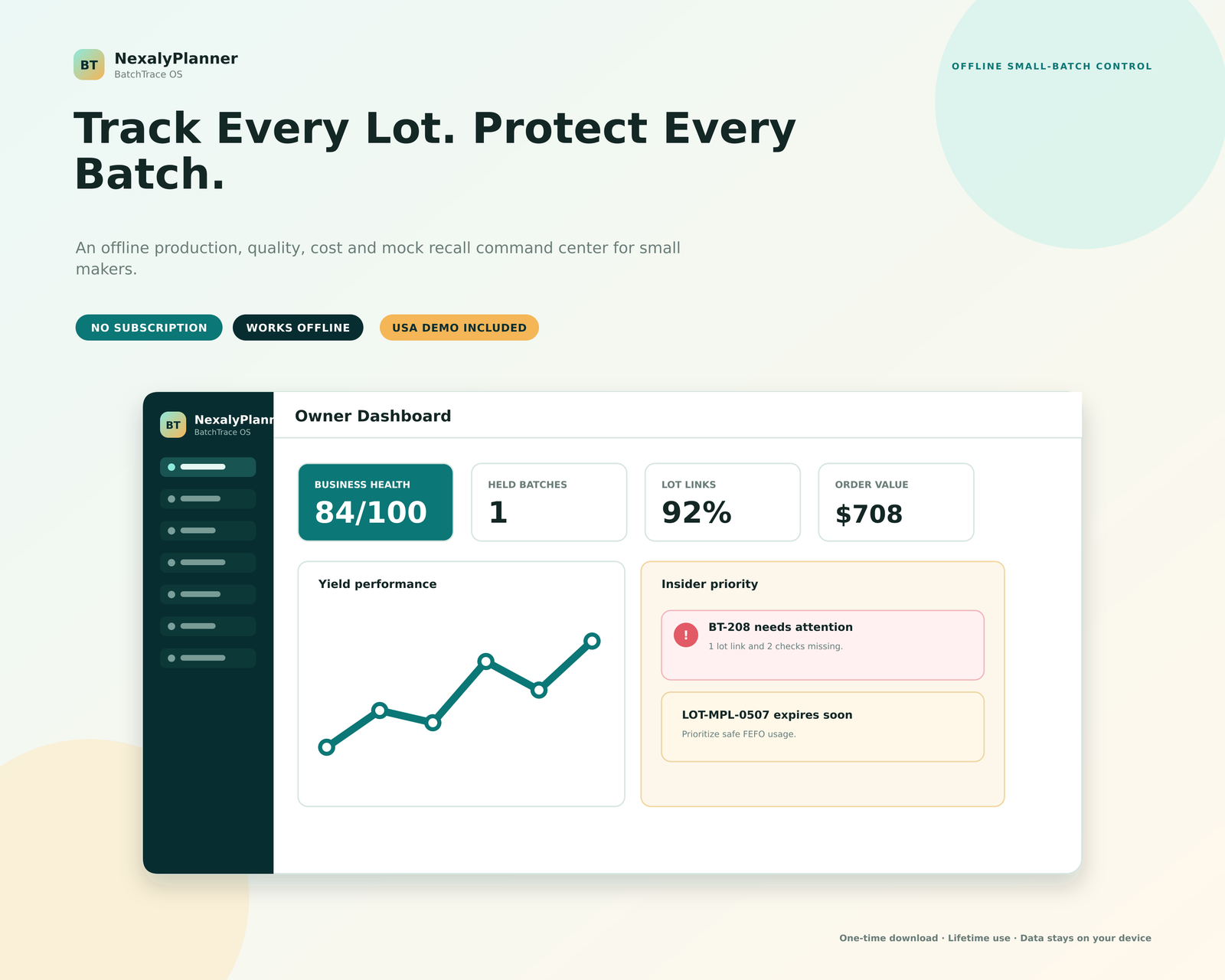
Figure 1. Baseline BatchTrace OS Owner Dashboard. The screen shows the audited demo workspace, including the five-step Connected batch workflow, evidence scores, priority exceptions, and recent batch records.
Quick start: your first production session
Use this sequence for a reliable first session.
- Confirm the workspace state. The audited first-render state is locked and shows Unlock workspace. Unlock only with credentials supplied by the authorized owner; the audited source does not disclose a universal PIN. After unlock, confirm “Offline & private,” version
v1.0.0, and the USA-market Maple Street Batch Kitchen demonstration. Do not treat demo data as yours. - Replace the identity in Settings. Enter business name, owner, contact details, address, registration or license reference, report footer, and an optional PNG, JPG, or WebP logo under 1.5 MB.
- Set regional preferences. Choose
USD · US Dollar, language, Light or Dark theme, and the expiry watch window. Currency changes display formatting only. - Create suppliers. Add Supplier ID, vendor name, contact details, city or region, status, and balance. Reuse the Supplier ID on every lot.
- Create materials. Add Material ID, category, unit, on-hand quantity, reorder point, unit cost, and Supplier ID for each ingredient, package, component, or consumable.
- Receive a lot. Enter lot code, material and supplier IDs, received and expiry dates, quantity, unit, total cost, disposition (
Accepted,Rejected, orQuarantined), and certificate reference. - Define the recipe or BOM. Record recipe ID, product, version, effective date, yield, price, standard costs, and status. Use a new version when the formula changes.
- Record production and consumption. Enter the batch code, recipe, date, operator, equipment, expected and actual yield, waste, cost, status, and notes. Link every consumed material to its incoming lot; blank links reduce trace completeness.
- Verify before release. Add checks and readings with
Pass,Fail, orPending, reviewer, and date. For missing or failed evidence, use Holds & Deviations and keep the finished lot on hold. - Create the finished lot and destination record. In Finished Lots, record the output, expiry, location, and status. In Inventory Movements, record production receipt, transfer, hold receipt, adjustment, or shipment. In Orders / Destinations, link the finished lot to a customer or destination.
- Run a trace and mock recall. Search an incoming lot, batch, or finished lot, review linked records, and save the mock-recall record after owner review.
- Download a JSON backup. Save it to a second controlled location. Restore replaces the current workspace only after preview and confirmation.
Complete menu and screen map
The sidebar contains these verified screens. The product source uses compact internal labels for three screens in the audited HTML—incomingLots, qualityChecks, and finishedLots—while the user-facing workflow is described below with the clearer menu names Incoming Lots, Quality Checks, and Finished Lots.
| Menu or screen | What it controls | Main output or decision |
|---|---|---|
| Owner Dashboard | Health, yield, workflow stages, risk snapshot, priority feed, and recent batches | What needs owner attention now |
| Insider AI Feed | Offline questions and explanations based on current local records | A local analysis to review, not an external action |
| Suppliers | Vendor identity, contacts, status, and payable exposure | A reusable Supplier ID |
| Materials / Ingredients | Ingredients, packaging, components, consumables, stock, reorder point, and cost | A Material ID with current on-hand context |
| Incoming Lots | Received supplier lots, quantity, cost, expiry, disposition, and document reference | A traceable source lot |
| Recipes / BOMs | Formula versions, yield assumptions, price, and standard costs | An active recipe or BOM |
| Production Batches | Actual production, lot consumption, yield, waste, cost, operator, and status | A batch record that can be released or held |
| Quality Checks | Check names, readings, reviewer, date, and Pass/Fail/Pending status | Quality evidence for a batch |
| Holds & Deviations | Nonconformances, owners, due dates, corrective action, and completion state | Controlled disposition work |
| Finished Lots | Output quantity, expiry, location, and Hold/Released/Rejected/Depleted status | A release-controlled finished lot |
| Inventory Movements | Receipts, production receipts, transfers, adjustments, holds, and shipments | A movement history with references |
| Orders / Destinations | Customer or destination, finished lot, quantity, total, and order status | A destination link for trace-back and trace-forward |
| Trace & Mock Recall | Lot or batch lookup and mock-recall history | Connected source-to-destination evidence |
| Financial Position | Local cash, material inventory, receivables, payables, and recorded operating expenses | A current local financial position, not formal accounting |
| Reports | Health, production, quality, holds, trace, financial, and other report views | Preview and export to PDF, DOCX, XLSX, CSV, or print |
| Backup & Restore | Full JSON backup, restore preview, and reset to the USA-market demo | A portable local copy or replacement workspace |
| Settings | Identity, logo, currency, language, theme, expiry window, and local PIN | Workspace presentation and convenience privacy controls |
The Owner Dashboard also includes Print dashboard, + New batch, View all, and Manage batches actions. The sidebar’s Insider AI Feed shows a count badge for available local priorities. The top bar provides currency and language selectors, theme control, a lock control, and the owner avatar/settings route.
Setup for a US small producer
Establish IDs before entering records
BatchTrace OS relates records through text IDs. The interface does not verify that a typed ID exists in another screen before saving, so create a simple convention and use it consistently. For example, use SUP-001 for a supplier, MAT-OAT-01 for rolled oats, LOT-OAT-2408 for an incoming lot, REC-001 for a recipe, BT-210 for a production batch, FL-210-A for a finished lot, and ORD-1046 for a destination order. Record the ID on receiving paperwork or your existing production traveler before typing it into the app.
Configure identity, currency, and expiry monitoring
Open Settings and complete the Business identity · displayed under NexalyPlanner section. The available fields are Business name, Owner / authorized user, Email, Phone, Business address, Registration / license reference, Report footer, Business logo, and Current logo preview. The registration field is only a local reference field; it does not validate a license or certify compliance.
Under Regional preferences, select currency, language, theme, and Expiry watch window (days). The default interface offers English plus Arabic, Portuguese, Spanish, Dutch, French, and Italian. Currency options include USD, CAD, GBP, EUR, AUD, NZD, CHF, SGD, JPY, KRW, HKD, AED, SAR, QAR, KWD, BHD, OMR, ILS, NOK, SEK, DKK, ISK, PLN, CZK, HUF, RON, BGN, HRK, RSD, TRY, BRL, MXN, CLP, COP, PEN, ARS, UYU, CRC, ZAR, MYR, THB, IDR, PHP, VND, INR, PKR, CNY, and TWD. For a US operation, select USD and do not interpret the display as a conversion service.
The optional Local PIN is a convenience lock, not encryption. It can be left blank to disable the lock. Keep the device account secure, especially if the browser profile contains production or customer records.
Feature-by-feature implementation guide
1. Owner Dashboard and Insider AI Feed
The dashboard is a control view. It displays Business Health, Open / held batches, Material inventory, order value, yield, Health composition, the Connected batch workflow, priority feed, risk snapshot, and recent batches.
The Connected batch workflow follows Receive, Produce, Verify, Release, and Trace. Use it as a daily completeness check. In the demo, the cards show six incoming lots, three production batches, six quality checks, two released lots, and three linked orders. Your numbers change as local records change.
Health composition weights Trace completeness, Cost & yield, Quality & holds, Expiry & waste, Cash & inventory, and Record completeness. It is an operating signal, not an inspection grade. The priority feed can flag incomplete links, unusual waste, expiry, held lots, or reorder points; the demo shows BT-208, LOT-MPL-0507, and FL-209-A.
Open Insider AI Feed or its floating control and ask Which batch had unusual waste?, Where was LOT-SGR-1908 used?, Which batches are on hold?, or How do I run a mock recall? It is a private, offline analysis of browser-local records, not an automatic change, message, purchase, release, or legal decision.
2. Suppliers
Choose Suppliers, select the add-record action, and enter Supplier ID, Supplier name, Contact person, Email, Phone, City / region, Status, and Balance. Status options are Approved, Review due, and Blocked. Keep balance values aligned with your own source records; BatchTrace OS does not connect to a bank or supplier portal.
Use one record per vendor and reuse its Supplier ID. Review a supplier before receiving; the status field is not an automated approval system.
3. Materials / Ingredients
In Materials / Ingredients, create each raw material or packaging record with Material ID, Material name, Category, Unit, On hand, Reorder point, Unit cost, and Supplier ID. Category options are Ingredient, Packaging, Component, and Consumable. Unit options are ea, lb, oz, kg, g, gal, L, and mL.
The dashboard calculates material inventory as on-hand quantity multiplied by unit cost. The priority feed compares on-hand quantity with the reorder point but does not issue a purchase order or contact a supplier. Do not assume a recipe consumes inventory.
4. Incoming Lots: receive and disposition
In Incoming Lots, create a unique Lot code and enter Material ID, Supplier ID, Received date, Expiry date, Quantity, Unit, Total cost, Disposition, and Certificate / document reference. Disposition options are Accepted, Rejected, and Quarantined.
Record the source lot before production uses it. Verify expiry, quantity, and unit. The dashboard uses the configured expiry window; Insider AI may recommend safe use under your approved FEFO procedure, which the product does not define.
Use the certificate or document reference to point to a local document ID or your controlled paper record. The field is a reference, not a verified document repository or laboratory result store.
5. Recipes / BOMs
In Recipes / BOMs, add Recipe ID, Recipe / product name, Version, Effective date, Expected yield, Yield unit, Selling price / unit, Standard material cost, Standard labor, Standard packaging, Standard overhead, and Status. Status options are Draft, Active, and Archived.
The recipe stores assumptions for yield and contribution views; it does not create consumption rows automatically. Confirm the active version, carry its ID into the batch, and archive superseded versions.
6. Production Batches and material-lot evidence
Open Production Batches and add Batch code, Recipe ID, Production date, Operator, Equipment, Expected yield, Actual yield, Waste %, Actual batch cost, Status, and Notes. Status options are Planned, In progress, Hold, Released, and Rejected.
Enter actual yield and waste from production. The dashboard flags waste of 8% or higher and compares actual with expected yield. Demo BT-208 yields 83 against 100 expected with 10.8% waste.
Use the batch’s Material-lot consumption control to record each consumed material, its quantity, and its incoming lot. Every consumption row has an entry ID, Batch, Material, Incoming lot, and Quantity. The product explicitly warns that a blank lot link reduces trace completeness. This is the most important evidence step in the supplier-to-destination workflow: a material name without a source lot is not enough for a complete trace chain.
7. Quality Checks
In Quality Checks, record Check ID, Batch code, Check name, Result / reading, Status, Checked by, and Check date. Status options are Pass, Fail, and Pending. Use one row per check and retain the exact reading or observation in Result / reading. Examples from the demo include Net weight, Seal integrity, and Appearance.
Use the checks required by your process. The audited quality calculation treats fewer than three checks on a released batch as incomplete; this is a product signal, not a universal food-safety rule.
8. Holds & Deviations
When evidence is missing or a result fails, open Holds & Deviations. Enter Deviation ID, Batch code, Deviation type, Opened date, Owner, Corrective action, Due date, and Status. Status options are Open, Investigating, and Complete.
Keep the affected batch or finished lot in Hold or Quarantined status while the issue is unresolved. The demo records DEV-015 for a Seal integrity issue with the action “Hold lot; inspect sealer pressure and recheck 20 units.” Do not change a lot to Released simply to remove a dashboard warning. Close the deviation only after an authorized owner has reviewed the evidence and the corrective action.
9. Finished Lots and release control
In Finished Lots, create Finished lot code, Batch code, Product, Quantity, Unit, Expiry date, Location, and Status. Status options are Hold, Released, Rejected, and Depleted.
A finished lot is the bridge from production to movement and destination. Use a location such as Finished Goods A, Finished Goods B, or Hold Cage. The dashboard specifically warns when a held finished lot remains in a hold location. A status change is a local record change; it is not an external release notice or regulatory approval.
10. Inventory Movements and waste context
In Inventory Movements, record Movement ID, Date, Type, Lot / item, Quantity (+ in / - out), From location, To location, and Reference. Type options are Receipt, Production receipt, Transfer, Adjustment, Hold receipt, and Shipment.
Use positive quantities for receipts and negative quantities for shipments when appropriate. Reference the batch or order. Record waste in the batch and use an adjustment movement for a stock correction; the app does not independently reconcile physical inventory.
11. Orders / Destinations
The Orders / Destinations screen links a finished lot to a customer or destination. Enter Order ID, Order date, Customer ID, Finished lot ID, Product, Quantity, Order total, and Status. Status options are Pending, Complete, and Cancelled.
The demo destination records include Riverbend Market in Columbus, Ohio; Oak Street Grocer in Cincinnati, Ohio; and Northstar Pantry in Pittsburgh, Pennsylvania. Enter the finished-lot ID exactly. A destination order without a finished-lot link weakens trace-forward evidence.
12. Trace & Mock Recall
Open Trace & Mock Recall and search a case-insensitive incoming lot code, finished-lot code, or batch code. The trace view follows these relationships:
- An incoming lot can lead to the batches that consumed it, the finished lots made by those batches, and the orders linked to those finished lots.
- A finished lot can lead back to its batch and the incoming lots consumed by that batch, as well as forward to its orders.
- A batch can lead to its consumed incoming lots, finished lots, and linked orders.
Review the result before saving. Then choose the save action to create a mock-recall record with an ID such as MR-002, the date, source lot, counts of batches, finished lots, and orders, duration, and Complete status. A mock recall is a practice record; it does not contact a customer, withdraw product, or notify an authority.
13. Financial Position
Financial Position calculates a local view from records already in the workspace. It shows Cash balance from local accounts, Material inventory from on-hand quantity multiplied by current unit cost, Receivables from open customer balances, Payables from open supplier balances, and Operating expenses from recorded period expenses. Its batch contribution view compares output value with recorded batch cost and shows contribution and margin.
Use this screen for operational context, not tax, statutory accounting, audit, lending, or financial-compliance purposes. Verify every amount against your accounting records and ask a qualified professional about tax or reporting obligations.
14. Reports
The Reports screen offers report previews and exports. The audited build exposes health, production, quality, holds, trace, and financial report content, with export choices for PDF, Microsoft Word (.docx), Microsoft Excel (.xlsx), CSV, and print. Each export includes saved business identity, report title, timestamp, and selected display currency. Preview does not change records.
Preview first, verify identity and date context, then export. The file is generated in the browser, not published or submitted automatically.
Worked US example: Maple Street Batch Kitchen
This training scenario uses audited USA-market demo values; it is not a real company record.
On August 12, 2026, Maple Street Batch Kitchen receives 14 gal of maple syrup from Heartland Grain Co. Create SUP-001, material MAT-004, and lot LOT-MPL-0507; enter date, cost, expiry, disposition, and certificate reference.
On August 18, 2026, the kitchen makes recipe REC-001, Maple Oat Granola Pouch, in batch BT-207. Enter Jordan Lee as operator, the production date, expected yield of 120 pouches, actual yield of 114, waste of 4.2%, actual batch cost of $298.60, and Released only after evidence is complete. Record consumption rows linking the oats, sugar, maple syrup, and packaging to their incoming lot codes. Add Quality Checks for net weight, seal integrity, and appearance. The demo records readings of 4.1 oz average, 10/10 sealed, and Within standard, all with Pass status and Avery Morgan as reviewer.
Create finished lot FL-207-A for 114 pouches, with expiry February 18, 2027, location Finished Goods A, and status Released. Add a production-receipt movement dated August 18 for 114 units from Production to Finished Goods A, referenced to BT-207.
On August 22, 2026, record shipment movement MOV-302 for negative 72 units from Finished Goods A to Riverbend Market, referenced to ORD-1043. In Orders / Destinations, connect ORD-1043 to customer CUS-001, finished lot FL-207-A, product Maple Oat Granola Pouch, quantity 72, total $342.00, and status Complete. The remaining output can later be connected to ORD-1045 for Northstar Pantry, quantity 24 and total $114.00, with status Pending until the order is complete.
For trace-forward, search LOT-MPL-0507; for trace-back, search FL-207-A. Confirm batches, source lots, and orders before saving a mock recall. Record test findings in your controlled procedure; the app stores summary counts and status.
The audited demo also illustrates what not to release. BT-209 has 116 pouches in FL-209-A, stored in Hold Cage, because a seal-integrity check failed. The deviation instructs the owner to inspect sealer pressure and recheck 20 units. Keep that lot on hold until an authorized reviewer decides what to do.
Daily and weekly operating routine
At each receiving event
Confirm the supplier record and status. Create the incoming lot before it is issued to production. Enter quantity, unit, cost, received date, expiry date, disposition, and certificate or document reference. If the material is quarantined, keep that status visible and do not link it to released production without the decision required by your process.
At each production run
Create the batch code and confirm the active recipe version. Enter operator, equipment, expected yield, actual yield, waste, cost, and notes. Record each material-lot consumption row while the production record is available, not from memory at the end of the week. Add quality checks and link the resulting finished lot to the batch.
Before release or shipment
Review the dashboard’s Connected batch workflow. Check for missing material-lot links, fewer-than-expected quality checks, failed results, open deviations, expiry warnings, and unusual waste. Confirm the finished lot status and location. Create an inventory movement and destination order with matching IDs. Do not ship a lot that remains on Hold, Quarantined, or Rejected.
At the end of each production day
Review each flagged record, reconcile finished-lot quantities with movements and physical counts, and save a JSON backup outside the browser profile.
Each week
Review Trace & Mock Recall using one recent incoming lot and one recent finished lot. Preview the Health, Production, Quality, Holds, Trace, and Financial reports. Review open deviations and due dates. Check materials at their reorder point and inspect lots approaching the expiry window. Test a restore in a non-production browser profile when practical.
Offline storage, backup, and restore limitations
BatchTrace OS saves its workspace in the browser’s local storage and auto-saves after record changes. This supports local use without a sign-in or required internet connection. A service worker may support local application loading when the product is served in a suitable browser context, but the verified product does not provide cloud synchronization, multi-device merging, or a server-side source of truth.
Clearing browser data, private browsing, changing profiles, device loss, or restoring another workspace can remove access. A local PIN is not encryption, and there is no automatic export, upload, or workstation sync.
To back up, open Backup & Restore and choose Save JSON backup. The file includes settings, business identity, records, links, audit history, and Insider conversations. Keep at least two controlled copies, including one encrypted copy separate from the production computer. Follow your own retention and access requirements.
To restore, choose Choose backup file, select a BatchTrace OS JSON file, and inspect the Restore preview. The preview shows version, business, and counts for suppliers, materials, incoming lots, production batches, quality checks, and orders. Nothing changes until you choose Replace current workspace. That action replaces the current local workspace. Download the current workspace first if it matters. If the file fails validation, the product reports that it is not a valid BatchTrace OS backup.
Reset to demo reloads the USA-market demonstration. It is not a merge; back up first.
Advantages and limitations
Advantages
- Clear chain: IDs connect incoming lots, batches, finished lots, movements, and orders.
- Release visibility: Quality Checks, Holds & Deviations, and Finished Lots expose incomplete evidence.
- Operational focus: The dashboard highlights expiry, waste, reorder points, and local priorities.
- Offline portability: Reports export to PDF, DOCX, XLSX, CSV, or print, and the workspace saves as JSON.
Limitations
- Local storage needs backups. There is no verified cloud sync or automatic off-device protection.
- IDs are user-entered. The product does not validate cross-screen references.
- No external actions are verified. It does not email recalls, send purchase orders, contact destinations, or connect to accounting, ERP, banking, laboratory, or supplier systems.
- Scores are not compliance certification. Follow FDA, state, local, customer, HACCP, Good Manufacturing Practice, and other applicable requirements through your own system.
- Financial Position is not formal accounting; reconcile it with accounting records and professional advice.
- Insider AI needs human review, especially for incomplete records and high-consequence food-safety or disposition decisions.
Troubleshooting and common mistakes
The dashboard shows an incomplete trace chain. Inspect Material-lot consumption, add missing Incoming lot IDs, and verify the finished-lot and destination links.
A lot is not found in Trace & Mock Recall. Search the exact lot, finished-lot, or batch code. The search is case-insensitive but does not infer similar IDs; check the links and spelling.
Expiry warnings are too early or too late. Review Expiry watch window (days), the incoming lot’s expiry date, and the browser date. The window changes the warning threshold, not the expiry date.
A held lot appears available for shipment. Status is not a warehouse interlock. Review Finished Lots, Orders / Destinations, and Inventory Movements together and follow your approved hold process.
Currency amounts look wrong. Confirm the display currency. It is display-only and does not perform online exchange-rate conversion; check entered amounts against accounting records.
The browser was cleaned or the workspace disappeared. Locate the latest JSON backup and use the restore preview. Without a backup, recovery may not be possible through the product.
A restore replaced the wrong workspace. Restore replaces rather than merges. Keep dated, clearly named backups and download the current workspace before restoring.
A report does not show a logo or footer. Save identity and report settings, use a PNG, JPG, or WebP logo under 1.5 MB, and re-preview.
Frequently asked questions
Is BatchTrace OS a cloud traceability platform?
No verified cloud sync or hosted database is included in the audited product. It stores records in the browser and provides local JSON backup and restore.
Can I use it without internet?
The interface is labeled offline and private, and Insider AI states that no internet is required. Maintain backups because offline availability does not protect against device loss.
Does it automatically deduct ingredients from inventory?
Do not assume that it does. You record material-lot consumption separately and record inventory movements explicitly. The recipe and batch records supply context, while quantities must be entered and reviewed by the operator.
Can I release a batch from the dashboard?
The dashboard includes + New batch, View all, and Manage batches. Control release through batch, quality, deviation, and finished-lot records; the product does not replace authorization.
Can I run a real recall from the app?
You can save a mock recall record showing linked source lots, batches, finished lots, and orders. It does not contact customers, send notices, withdraw inventory, or notify an authority.
Does the local PIN encrypt my records?
No. The source describes it as a convenience lock, not encryption. Secure the device and use encrypted backup storage under your own access-control policy.
Can I rely on Financial Position for taxes or accounting compliance?
No. It calculates a local operational view from entered accounts, inventory, receivables, payables, expenses, and batch records. Reconcile it with your accounting records and obtain professional advice for tax or compliance questions.
What should I do when a quality check fails?
Record the failed result, create or update a Hold & Deviation record with an owner, corrective action, and due date, and keep the affected batch or finished lot on hold until an authorized review determines disposition.
Make BatchTrace OS part of your operating desk
If your production records are spread across paper travelers, spreadsheets, and memory, BatchTrace OS provides one practical local view of the chain from Receive to Trace. Start with one product, one supplier, and one recent batch. Build the IDs carefully, complete every material-lot link, record quality evidence before release, and test a mock recall before you need one.
Review the BatchTrace OS product and demo. For neighboring operations, follow the inventory and procurement guide and the VendorPulse supplier purchasing guide.
Next step: open the product page, set up a blank local workspace, enter a single real receiving event, and download a backup before expanding to your full operation.
Explore BatchTrace OS
Review product screenshots, included features, download details and current purchase terms.
View BatchTrace OS