
PRACTICAL PLANNING GUIDE
Create Your Own Printable Planner: Letter, A4 or A5
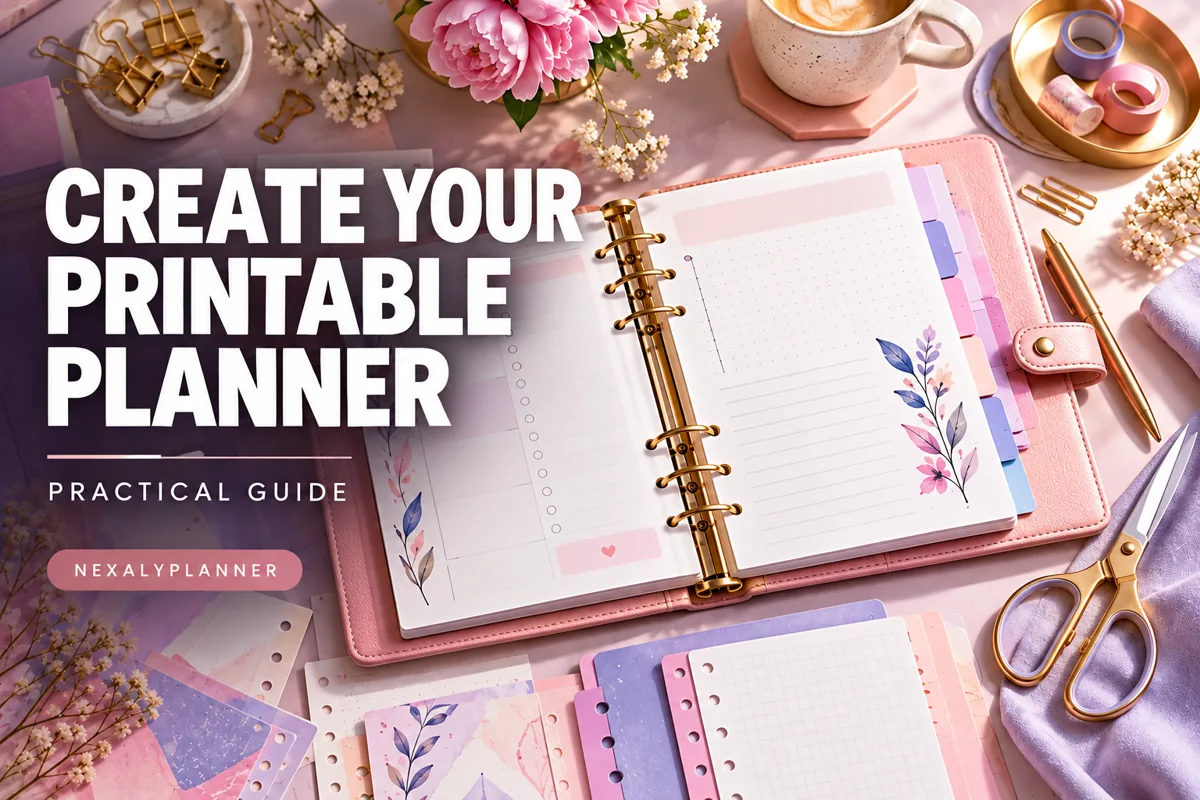
Create your own planner around an ordinary day rather than a long feature list. This free builder lets you choose paper size, a daily or weekly layout and up to three writing sections, then review the actual printable page.
Use the free Printable Planner Builder to enter your own assumptions, calculate the report and keep an editable backup. No account is needed.
Choose the paper you will actually use
Pick US Letter, A4 or A5 before adjusting the layout. The paper setting controls the browser print page size; it does not resize your physical printer paper. A5 needs suitable paper or a deliberate printer scaling choice. Start with Letter for a Letter printer and check one test page before printing a stack. Keep browser headers and footers off so the URL and print date do not consume writing space.
Build a daily schedule that fits your hours
Select Daily and enter the date, start hour and end hour. The builder uses hourly writing slots and limits the range to 16 hours. An 08:00 start and 18:00 end create ten slots, 08:00 through 17:00, each representing the following hour.
A 22:00 start and 06:00 end make an eight-hour overnight page; slots after midnight are marked +1 day. Start and end cannot be the same. The page is a writing surface, not an automatic task scheduler.
Build a week with a clear starting day
Select Weekly and choose Monday or Sunday. The date you enter can be any date within the week; the builder derives the seven dates from your chosen week start. Daily hour settings do not affect the weekly layout. Put immovable appointments in the weekly boxes first, then add only the work that fits around them. Use a separate daily page when one day needs an hourly workback rather than filling the entire weekly box with tiny text.
Keep the writing sections deliberately small
The fictional sample uses Three priorities, Next actions and Notes, with three lines each. You can rename those sections for meals, lessons, errands or project follow-up. Use one to three sections and no more than 12 writing lines overall. This boundary keeps the printable sheet manageable. A weekly goal belongs in a next action that you can start; writing the same goal in every box makes the page look full without making the work clearer.
Preview, print and keep an editable backup
Calculate to see the printable page. Choose Print / Save PDF, select the same paper size and inspect the preview before saving. The builder prints the layout rather than its settings report.
Save on this device keeps the configuration in the current browser; a JSON backup lets you move or restore the editable configuration. CSV is a configuration/report record, not a formatted planner file. A saved PDF is static and does not include reminders, task completion logic or cloud synchronization.
Questions about making your own planner
Can I write on the PDF in an annotation app? Use the app's supported import workflow; annotations belong to that app and need their own backup. Does A5 mean half-letter?
No; choose the matching format. What if my print preview shows another page? Confirm portrait paper and margins, turn browser headers off and review any unusually long section names before printing.
Choose your next planning step
- monthly teacher lesson planner: Track preparation dates separately when your printed page is used for teaching.
Keep a version you can review
Save on this device keeps the worksheet in the current browser. Download a JSON backup for an editable copy before changing assumptions. CSV is a calculated report; Print / Save PDF produces a browser print copy. Device saving does not provide cloud synchronization. A static PDF needs its own annotation and backup workflow.
Connect this task to your existing plan
A5 Planner: Sizes, Layouts and Best Digital Options for the wider workflow. Digital Planners for documented features and compatibility. Paid products are separate from these free worksheets.