
WORKSHEET GUIDE
Rental Dispatch Return Checklist: inputs, example and review steps
Reconcile rental units dispatched, returned and held for inspection. Keep missing quantities and recorded inspection decisions separate.
Open the free worksheetChoose the scope first
Use one review date and a clear worksheet label. Each row needs a unique record reference. The report describes only the entries in this worksheet; it cannot detect records you have left out. Use up to 100 rows per saved worksheet.
Enter the records
- Use one rental/asset reference per row.
- Enter dispatch and actual return quantities.
- Separate inspection holds from missing units.
- Record inspection only after the responsible person completes the required checks.
| Field | What to enter |
|---|---|
| Worksheet label | Required. Up to 160 characters. Use a recognizable label without private account details. |
| Review date | Required. Calendar date, 1900–2200. Day differences include weekends. |
| Unique record reference | Required. Up to 160 characters. Use a recognizable label without private account details. |
| Asset / kit | Required. Up to 160 characters. Use a recognizable label without private account details. |
| Return due date | Required. Calendar date, 1900–2200. Day differences include weekends. |
| Units dispatched | Required. Whole numbers from 0 to 1000000. |
| Units physically returned | Required. Whole numbers from 0 to 1000000. |
| Returned units held for inspection | Required. Whole numbers from 0 to 1000000. |
| Inspection decision | Required. Choose Pending, Recorded. |
| Condition / accessory note | Required. Up to 160 characters. Use a recognizable label without private account details. |
Understand the calculation
Outstanding = dispatched − returned. Potentially releasable = returned − held, but the release candidate remains zero while inspection decision is Pending. Overdue outstanding units require a return date before the review date.
Worked example
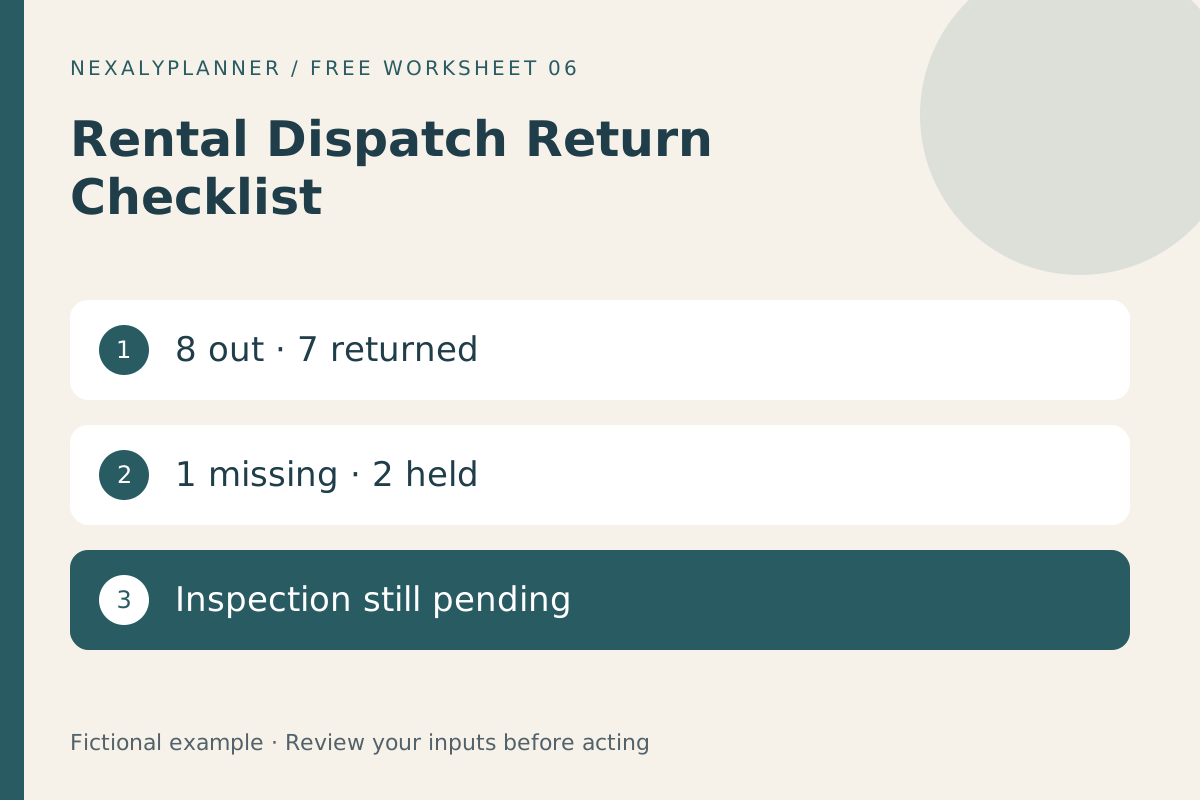
Eight units dispatched and seven returned leave one outstanding. Two returned units are held. While inspection is pending, the tool shows zero release candidates.
Open the worksheet and choose Load fictional example to reproduce the result. Change one input at a time and calculate again to see which assumption changes the output. Sample values are not recommended targets.
Review and hand off
Check the record reference and scope before acting. Keep the original evidence alongside this worksheet, assign a next action and review it again after the real event. A saved plan does not update any external system.
Before sharing a report, check its label, review date, record identifiers and every exception. If the underlying event changes, update the inputs and calculate again. Keep the supporting receipt, order, inspection record or source reference outside this worksheet where appropriate.
Save, recover and export
Save on this device stores the editable worksheet in this browser. Restore reads that device save. Download backup creates a JSON file for another supported browser; Import backup previews the incoming records and asks before replacement. Import does not update the device save until you save again.
CSV exports the calculated report with settings and limitations. Print / Save PDF opens browser printing; choose Save as PDF if your browser offers it. These reports cannot restore editable data. Mobile print and download menus vary by device. There is no cloud sync, automatic alert or account recovery.
Limits and common mistakes
Counts do not establish fitness for use or customer liability. Use your approved equipment inspection procedure and actual asset records before release. No deposits or damage charges are calculated.
A blank required field or duplicate reference should be corrected before calculation. Do not create a second master copy and edit both without reconciling them. Avoid putting passwords or sensitive account credentials into notes. The worksheet is a manual record, not an integration with the related business system.