
FREE · NO ACCOUNT NEEDED
Shipment Cost Allocation Tool
Allocate shared shipment charges across received SKUs by merchandise value or units. Review landed line totals and unit-cost estimates.
Published October 21, 2026 · Manual browser worksheet
Set up your worksheet
Start with the fictional example. Replace the sample with your own records and review assumptions before acting on a result.
Your report
Wide tables: swipe sideways, or focus a table and use the arrow keys to see more columns.
Enter your details and records, then calculate to review the results.
Save or download your work
Work stays in this page until you choose Save on this device. Device saves belong to this browser and can be removed by clearing browser data. JSON keeps an editable backup; CSV and PDF keep a report.
How to use Shipment Cost Allocation Tool
- Choose a currency, total shared charges and allocation basis.
- Enter positive received quantities and merchandise unit costs.
- Review how weights distribute the charges.
- Keep line totals as the cent-accurate record and document the chosen basis.
Calculation
Weights use merchandise value or units. Allocate shared charges in cents using largest fractional remainders; tied remainders follow row order. Landed line total = merchandise cost + allocation. Unit estimate = landed total / quantity.
Try the fictional example
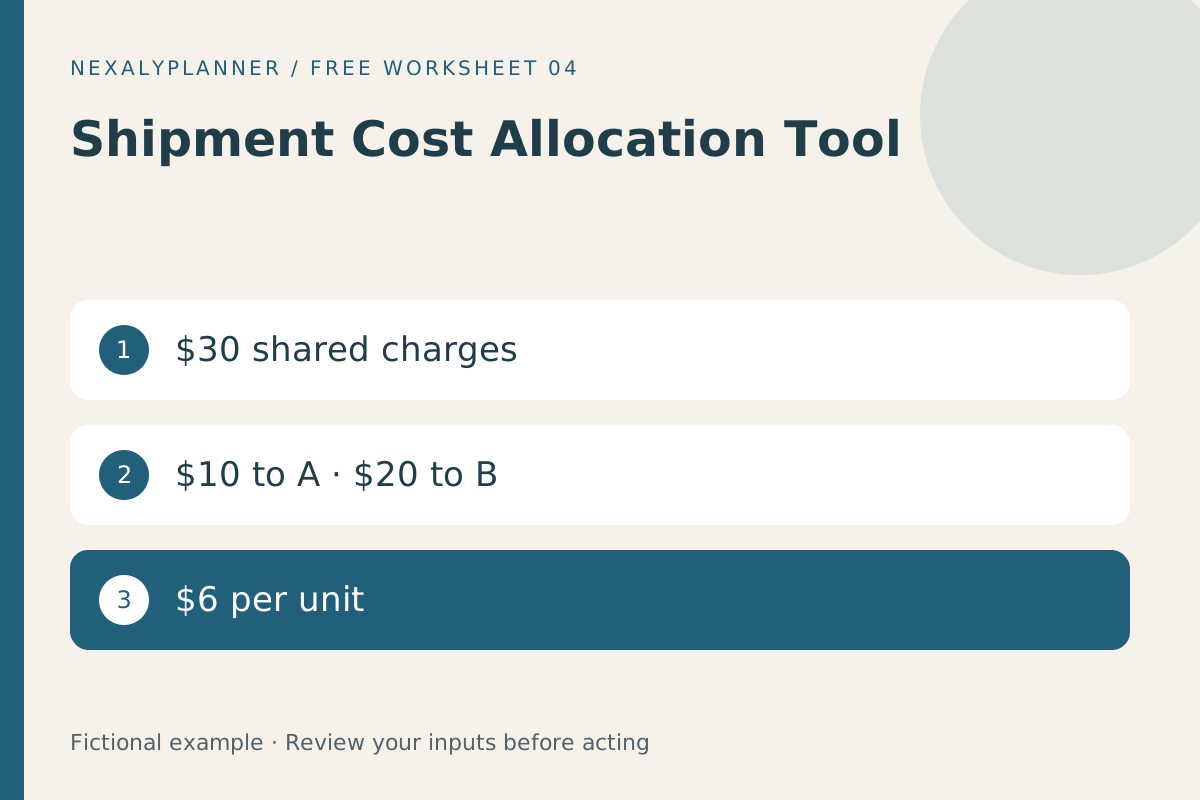
With $30 shared charges and lines costing $50 and $100, value allocation gives $10 and $20. Landed totals are $60 and $120; both unit estimates are $6.
Limits
Only entered charges are allocated. This is a planning estimate, not a customs, tax or accounting valuation rule. Rounded unit estimates may not multiply back to exact line totals.
Save, restore and export
Add entry creates another record. Edit any field directly or use Remove entry to delete a row. Changing inputs clears the previous report so it cannot be mistaken for current results. Choose Calculate / review results again when your changes are ready.
Save on this device keeps an editable worksheet in this browser only. On a later visit in this browser, your saved worksheet loads automatically. Restore device save can also reload the last save after you confirm replacement. Saving drafts is allowed, but a report requires valid, complete inputs. Download backup creates a versioned JSON file for the same tool. Import backup shows the worksheet label and row count before replacing current work; it does not change the device save until you press Save.
Download CSV exports the settings, summary, row details and calculation notes. CSV is for spreadsheet review; it cannot restore this worksheet. Print / Save PDF recalculates the current entries and opens your browser’s print dialog. Choose Save as PDF where supported. The report excludes navigation, guides and product CTAs. Clear data removes the current worksheet and its device save after confirmation; keep a backup first if needed.
Use a personal browser for private records and keep important backups separately. Entered worksheet fields are not included in our planner-action analytics.
On Android Chrome, device save stays in the same browser. Keep a JSON backup for portability. For PDF, use the browser print dialog and choose Save as PDF when available; printer and share menus vary by device. Physical phone behavior depends on the device and is not certified by desktop browser tests.
CSV and PDF are reports. Use JSON for editable recovery. Device saves stay in this browser; clearing browser data can remove them.